---
schema_version: "1"
id: 4c05872fd56806a723cdaa70d24e4139bcf3f332cb1117be1f1d470bc3847864
title: Promote Tableau Next Assets to Production Using the Salesforce CLI
collection: admin
version: current
locale: en-us
portal_url: https://docs.salesforce.com/admin/current/en-us/analytics/264-0-0/tua_admin_promote_assets_cli.md
canonical_url: https://help.salesforce.com/s/articleView?id=analytics.tua_admin_promote_assets_cli.htm&release=264.0.0&type=5
source_site: help.salesforce.com
content_type: documentation
content_hash: c36ff2d163979152a51e2ba1482ed26c3def97855e90c0c9393fb779860110a5
description: Download a manifest from Task Manager, retrieve asset metadata from the source org, and deploy it to your production org using the Salesforce CLI and VS Code.
products:
- Tableau Next
release: "264"
---
# Promote Tableau Next Assets to Production Using the Salesforce CLI
Download a manifest from Task Manager, retrieve asset metadata from the source org, and deploy it to your production org using the Salesforce CLI and VS Code.
### Required Editions
System Administrator profile AND Data Cloud Architect permission set AND Tableau Next Admin permission set
To access asset metadata:
Metadata API Edit Access
Before you begin, complete these prerequisites:
- Create a deployment connection between the production org and the Exploratory Org. See [Authorize a Deployment Connection](https://help.salesforce.com/s/articleView?id=platform.t_changesets_deployment_connection.htm&language=en_US).
- Install VS Code, the Salesforce Extension Pack for VS Code, and the Salesforce CLI. See [Installation Instructions](https://developer.salesforce.com/docs/platform/sfvscode-extensions/guide/install.html).
For previous steps in the promotion process, see [Review and Complete Asset Promotions from Exploratory Orgs to Production](https://help.salesforce.com/s/articleView?id=analytics.tua_admin_review_complete_promotions.htm&release=264.0.0&type=5 "Analyst promotion requests from Exploratory Orgs appear in Task Manager in Tableau Next. Review the requested assets, choose a promotion flow, and complete the deployment.").
In this flow, you download a manifest from Task Manager in Tableau Next, use the Salesforce CLI to retrieve the asset from the Exploratory Org into a local project, and then deploy the asset to your production org. This flow is required when promoted content includes Excel files or data connections, and is also available for any promotion.
Authorize Your Org
1. Authorize your CLI environment using one of these methods.
- JWT flow: Run `sf org login jwt`. See [Authorize an Org Using the JWT-Based Flow](https://developer.salesforce.com/docs/atlas.en-us.sfdx_dev.meta/sfdx_dev/sfdx_dev_auth_jwt_flow.htm) for instructions.
- Web login: Run `sf org login web` and enter your credentials in the browser that opens.
Create a Project for Promotion Assets
1. Open VS Code and create a Salesforce DX project.
1. Open the VS Code Command Palette (**⇧⌘P**) and enter SFDX: Create Project.
2. Press **Enter** to use a standard project template.
3. Enter a project name and press **Enter**.
4. Select the directory where you want to create your project and click **OK**.
5. In the new project, create a folder for the package manifest files. For example, manifests.
Retrieve the Promotion Asset
1. In Task Manager in Tableau Next, download the manifest file for the promotion request. You can use the downloaded manifest file to retrieve the asset metadata from the source org.
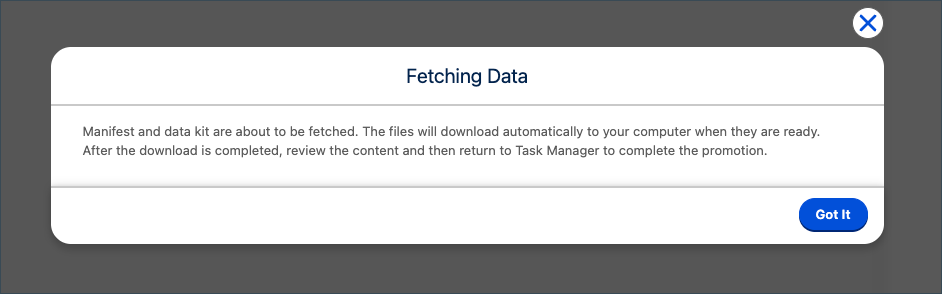
2. In VS Code, run the `sf project retrieve start` command to retrieve the asset metadata from the Exploratory Org.
**Syntax**
```
sf project retrieve start --manifest -o
```
**Example**
```
sf project retrieve start --manifest manifests/manifest.xml -o personal-org
```
The command creates metadata files for each asset in the manifest and writes them to ../force-app/main/default in your project.
Deploy the Promotion Asset
1. Now that all metadata files are in your project folder, you can deploy them to the destination org. In VS Code, run the `sf project deploy start` command to deploy the assets to your production org.

Note Before you can deploy the project to the destination org, you must [Authorize Your Org](https://developer.salesforce.com/docs/analytics/tableau-next-isv-dev/guide/tn-deploy-assets-using-cli.html#authorize-your-org).
**Syntax**
Add the manifest path to the project json file.
```
sf project deploy start --manifest -o
```
**Example**
```
sf project deploy start --manifest manifests/manifest.xml -o prod
```
The command creates the Tableau Next assets in the production org using the metadata files for each asset in the manifest.
2. Confirm that the assets appear in Tableau Next. Then, mark the promotion completed in Task Manager
.
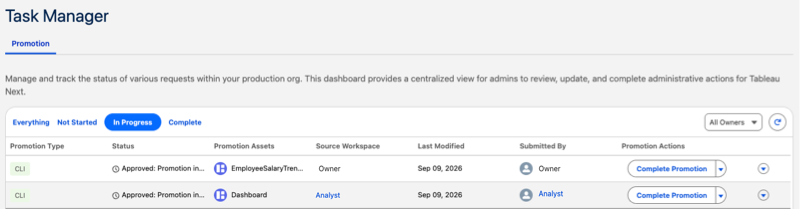
The promoted assets are available in your production org.
#### See Also
- [_Salesforce Help_: Review and Complete Asset Promotions from Personal Orgs to Production](https://help.salesforce.com/s/articleView?id=analytics.tua_admin_review_complete_promotions.htm&language=en_US)