---
schema_version: "1"
id: 2df3cc1ea7a92f9bb7da12e09ea7e10e00637114d2b39acfba05ff4a053c7915
title: Save Your Report in Salesforce Classic
collection: admin
version: current
locale: en-us
portal_url: https://docs.salesforce.com/admin/current/en-us/analytics/264-0-0/reports_saving.md
canonical_url: https://help.salesforce.com/s/articleView?id=analytics.reports_saving.htm&release=264.0.0&type=5
source_site: help.salesforce.com
content_type: documentation
content_hash: 5b3dd1f4988ed3cfb7e52027df500bf628051262316ca13ed2ffd388c4db9da7
description: Click Save to update an existing report with recent changes, or Save As to clone the original report without changing it. In Lightning Experience, click Clone to clone the report.
products:
  - Cross Cloud
release: "264"
---
# Save Your Report in Salesforce Classic

Click **Save** to update an existing report with recent changes, or **Save As** to clone the original report without changing it. In Lightning Experience, click **Clone** to clone the report.

### Required Editions

<table class="slds-table slds-table_bordered slds-max-medium-table_stacked slds-m-bottom_small edition"><colgroup><col></colgroup><tbody><tr class=""><td class="slds-cell-wrap" style="vertical-align:top;">Available in: Salesforce Classic</td></tr><tr class=""><td class="slds-cell-wrap" style="vertical-align:top;">Available in: <strong>Essentials</strong>, <strong>Professional</strong>, <strong>Enterprise</strong>, <strong>Performance</strong>, <strong>Unlimited</strong>, and <strong>Developer</strong> Editions</td></tr><tr class=""><td class="slds-cell-wrap" style="vertical-align:top;">Available in: Enhanced Folder Sharing</td></tr></tbody></table>

<table class="slds-table slds-table_bordered slds-max-medium-table_stacked slds-m-bottom_small permission">
        <colgroup>
          <col style="width:50%">
          <col style="width:50%">
        </colgroup>
        <thead class="slds-text-title_caps ">
          <tr class="">
            <th scope="colgroup" class="slds-cell-wrap" colspan="2" style="vertical-align:top;" id="d25273e94">User Permissions Needed</th>
          </tr>
        </thead>
        <tbody>
          <tr class="">
            <td data-label="User Permissions Needed" class="slds-cell-wrap" style="vertical-align:top;" headers="d25273e94 ">To create, edit, and delete reports:</td>

            <td class="slds-cell-wrap" style="vertical-align:top;" headers="d25273e94 ">
              <dl>

                <dt style="font-weight:bold;padding-top:.25rem;">Enhanced Folder Sharing</dt>

                <dd style="padding-left:1.5rem;padding-bottom:.5rem;">Schedule Reports</dd>

              </dl>
            </td>

          </tr>
        </tbody>
      </table>

Verify the name, description, and folder, then choose where to go next:

- Click **Save** to save the report and go to the Reports home page
- Click **Save & Return to Report** to save it and go back to the report run page.

![Note](https://sf-zdocs-cdn-prod.zoominsoftware.com/tdta-analytics-analytics-264-0-0-production-enus/295fead5-b71d-4e1c-9886-4af4d53400b6/images/icon_note.png)

Note To save your report at a specific role hierarchy level on sales, forecast, opportunity, and activity reports, select Save Hierarchy Level.

![Tip](https://sf-zdocs-cdn-prod.zoominsoftware.com/tdta-analytics-analytics-264-0-0-production-enus/295fead5-b71d-4e1c-9886-4af4d53400b6/images/icon_tip.png)

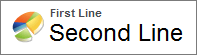
Tip If you add a colon to your report name, it displays in two separate lines when you view the report. Use this information to categorize reports by name, or better display long names. For example, if you enter First Line: Second Line for Report Name, you see this result on the run page:
![A report name on the run page when a colon is used](https://sf-zdocs-cdn-prod.zoominsoftware.com/tdta-analytics-analytics-264-0-0-production-enus/295fead5-b71d-4e1c-9886-4af4d53400b6/analytics/images/rd/report_name_with_colon.png)