---
schema_version: "1"
id: f31cc5b2951c5c1205452e709274a59cc7b04468acfd1f5109c3aa7f53eb7ba0
title: Group Your Report Data in Salesforce Classic
collection: admin
version: current
locale: en-us
portal_url: https://docs.salesforce.com/admin/current/en-us/analytics/264-0-0/reports_builder_fields_groupings.md
canonical_url: https://help.salesforce.com/s/articleView?id=analytics.reports_builder_fields_groupings.htm&release=264.0.0&type=5
source_site: help.salesforce.com
content_type: documentation
content_hash: 6a0345baf38b7ba6bf9d44f5f43648dd7c95b5be0fc10fd1387214b8facd3106
description: Group data in columns or rows in summary, matrix, and joined reports to display meaningful information. For example, group opportunities by Close Date to see closed opportunities or group cases by product to see the number of cases for each product. You can have groupings inside groupings.
products:
- Cross Cloud
release: "264"
---
# Group Your Report Data in Salesforce Classic
Group data in columns or rows in summary, matrix, and joined reports to display meaningful information. For example, group opportunities by Close Date to see closed opportunities or group cases by product to see the number of cases for each product. You can have groupings inside groupings.
### Required Editions
Available in: Salesforce Classic
Available in: Essentials, Group (View Only), Professional, Enterprise, Performance, Unlimited, and Developer Editions
Available in: Enhanced Folder Sharing
User Permissions Needed
To create, edit, and delete reports:
Enhanced Folder Sharing
Create and Customize Reports
AND
Report Builder
The Fields pane displays fields from the selected report type, organized by folder. Before you group data in a summary report, drag at least a few fields into the preview pane.
- To add a group, drop a field onto a drop zone.
Add a group by dropping a field onto a drop zone.
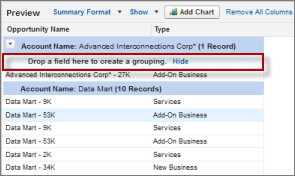
Click **Show** | **Drop Zones** to make them visible. You can also click a column menu for a field in the report and choose **Group by this Field**.
If you group your report by a date field, you can click the group menu, select **Group Dates By**, and specify the grouping time frame: day, week, month, quarter, year, and so forth.
To group data in different report formats: Summary and joined reports can have up to three grouping levels. Matrix reports can have two row and two column groupings. For matrix reports, you can't use the same field for both row and column groupings. For joined reports, you can use the fields from the Common Fields category in the Fields pane to group across all report blocks.
- To remove a group, click the group menu and choose **Remove Group**.
You can also grab the group and:
- Drag it to the column bar to remove the group, but keep the field as a column in the report.
- To remove the group and the field from the report, drag it back to the Fields pane.
- To change the order of groups, drag the group. You can also click the group menu and choose **Move Group Up**, **Move Group Down** for column groupings, or **Move Group Left** or **Move Group Right** for row groupings.
#### See Also
- [Report Fields in Salesforce Classic](https://help.salesforce.com/s/articleView?id=analytics.reports_builder_fields.htm&release=264.0.0&type=5 "The Fields pane displays fields from the selected report type, organized by folder. It also lists custom summary formulas, which you can create, edit, and delete.")
- [Subtotal Report Results in Salesforce Classic](https://help.salesforce.com/s/articleView?id=analytics.reports_subtotal.htm&release=264.0.0&type=5 "Subtotaling your reports gives you a tool to analyze trends in the data. You can group sets of information, sort the groupings, and compare subtotals for each set against the overall total. In summary and joined reports, you can also subtotal by multiple fields to give you cascading sets of information.")