---
schema_version: "1"
id: 522ccb899a4743ad2be8a6f7e757bf2c1b672336bdfb0c2f82518a8769eec757
title: Add a Block
collection: admin
version: current
locale: en-us
portal_url: https://docs.salesforce.com/admin/current/en-us/analytics/264-0-0/reports_adding_blocks.md
canonical_url: https://help.salesforce.com/s/articleView?id=analytics.reports_adding_blocks.htm&release=264.0.0&type=5
source_site: help.salesforce.com
content_type: documentation
content_hash: 6650177872ca0a09277f304adde4310449490ecec1d1da9aecb0b9b90c511def
description: Adding blocks to joined reports lets you create multiple views of the data included in a single report.
products:
- Cross Cloud
release: "264"
---
# Add a Block
Adding blocks to joined reports lets you create multiple views of the data included in a single report.
### Required Editions
Available in: both Lightning Experience and Salesforce Classic
Available in: Enterprise, Performance, Unlimited, and Developer Editions
Available in: Enhanced Folder Sharing
User Permissions Needed
To create, edit, and delete reports:
Enhanced Folder Sharing
Create and Customize Reports
AND
Report Builder
Add a block to a joined report in Lightning Experience
1. Create or edit a joined report.
2. Click ** Add Block**.
3. Choose a report type.
4. If you'd like to include standard columns for this report type, leave **Include default columns** checked. If you'd like to add an empty block, uncheck **Include default columns**. In either case, you can customize the block after adding it by adding or removing columns.
5. Click **Add Block**.
6. Click **Save**.
Add a block to a joined report in Salesforce Classic
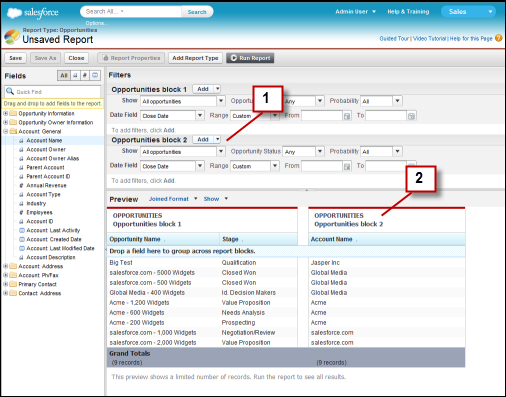
1. Click and hold a field from the Fields pane, then drag it to the empty area of the Preview pane.
2. When you’ve added the block, notice that standard and field filters for the additional block are added to the Filters pane (1). Also, the new block appears in the Preview pane (2).
3. Click **Save**.
To delete a block, click  in the block header, then click **Remove Block**.
#### See Also
- [Add a Report Type to a Joined Report](https://help.salesforce.com/s/articleView?id=analytics.reports_adding_report_types.htm&type=5&language=en_US)
- [Delete a Block](https://help.salesforce.com/s/articleView?id=analytics.reports_deleting_blocks.htm&release=264.0.0&type=5 "When you no longer need a block, delete it.")
- [Add a Summary Formula to a Joined Report](https://help.salesforce.com/s/articleView?id=analytics.reports_joined_custom_summary_formulas.htm&release=264.0.0&type=5 "Summary formulas in joined reports are just like summary formulas in standard reports, except they can apply to multiple blocks or just one. When you add a summary formula to a block, you specify whether it applies across blocks or only to that block.")
- [Work with Blocks](https://help.salesforce.com/s/articleView?id=analytics.reports_working_with_blocks.htm&release=264.0.0&type=5 "Blocks let you create different views of the information contained in a joined report.")
- [Combine Different Types of Information in a Joined Report](https://help.salesforce.com/s/articleView?id=analytics.reports_working_with_joined.htm&release=264.0.0&type=5 "The joined report format lets you view different types of information in a single report. A joined report can contain data from multiple standard or custom report types. You can turn any existing report into a joined report using the report builder.")