---
schema_version: "1"
id: 006a1d7f1251f40236a3caaee09bf663c68ff964c8458d89b0534b55e5827c74
title: Test a Semantic Model
collection: admin
version: current
locale: en-us
portal_url: https://docs.salesforce.com/admin/current/en-us/analytics/264-0-0/c360_a_sl_testing_smodel_test.md
canonical_url: https://help.salesforce.com/s/articleView?id=analytics.c360_a_sl_testing_smodel_test.htm&release=264.0.0&type=5
source_site: help.salesforce.com
content_type: documentation
content_hash: da426849528cd7765f9080d619366489978ba102bb35da54e862f9eec3c52571
description: You can run a test at any point from your semantic model. Make sure you don’t have any errors in your model before running tests.
products:
- Data 360
release: "264"
---
# Test a Semantic Model
You can run a test at any point from your semantic model. Make sure you don’t have any errors in your model before running tests.
### Required Editions
1. In Data Cloud, on the Semantic Layer tab, select a data model.
2. At the top-right corner of the Semantic Model Builder, click **Test Model**.
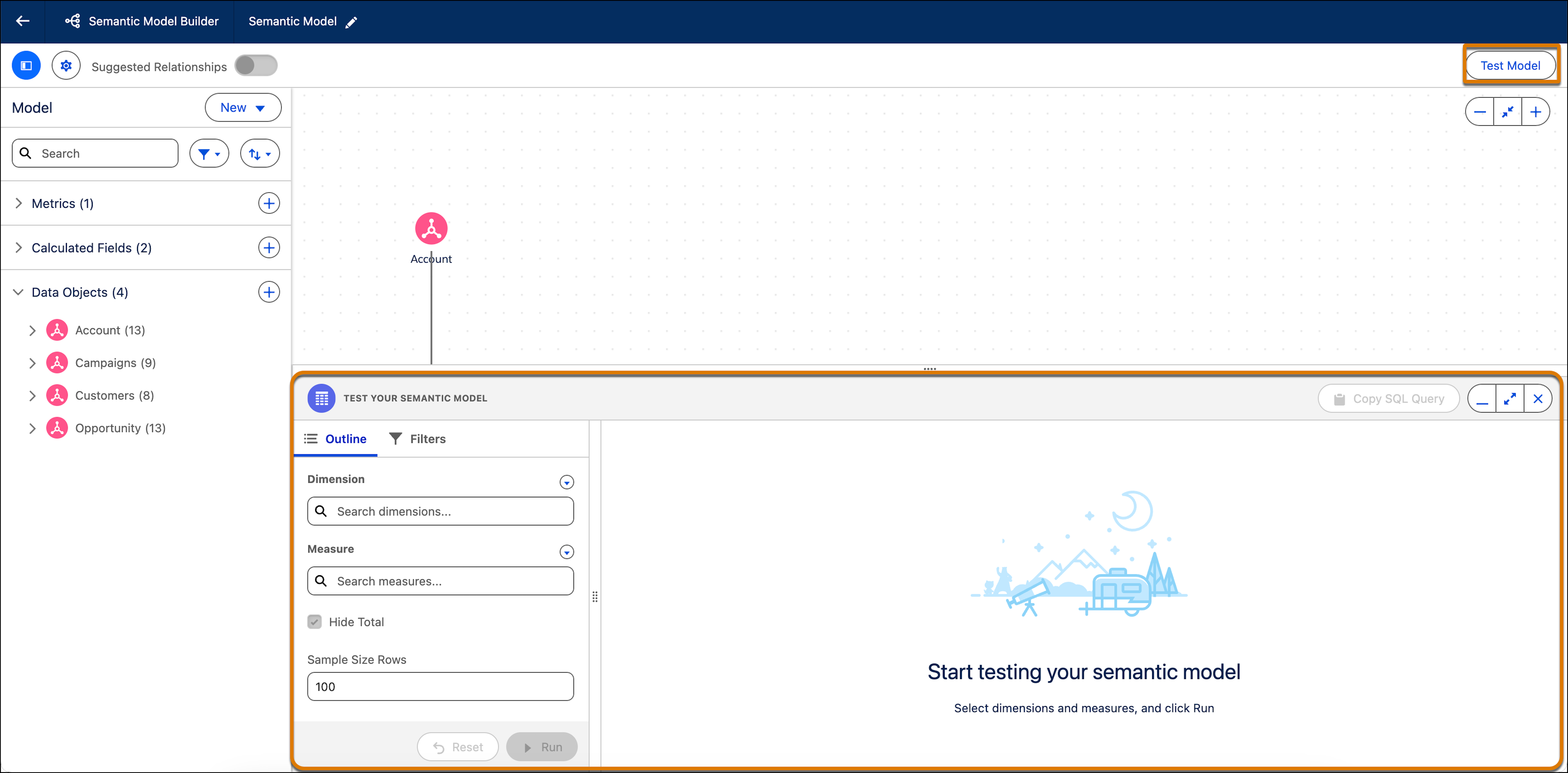
The bottom panel opens. Here, you can configure the test by preparing the test outline, adding filters, and configuring other options.
In the Test Semantic Model panel, under Outline search for and add your dimensions and measures under the proper header.
You can only add dimensions and measures that have been added to your model.
3. To hide totals from your test results, select **Hide Total**.
4. Input the number of rows you want to see in your test results under Sample Size. The default is 100.
5. To add a filter to increase the accuracy of the test results, select the **Filters** tab.
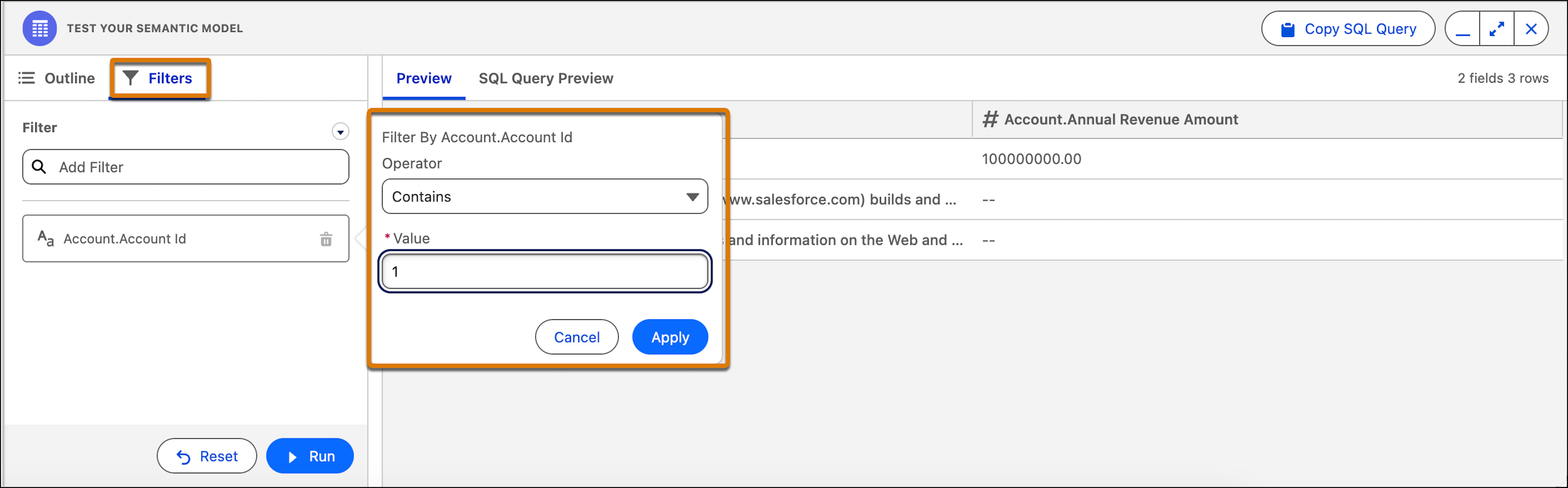
1. Click **Add Filter**.
2. From the dropdown select the dimension or measure you want to filter by.
3. Select the **Operator** and **Value**.
4. Click **Apply**.
The filters added here only affect the test results and don’t affect or change the model’s objects in any way.
5. Click **Save**.
6. If you add more than one filter, to add a filter logic, click the edit button.
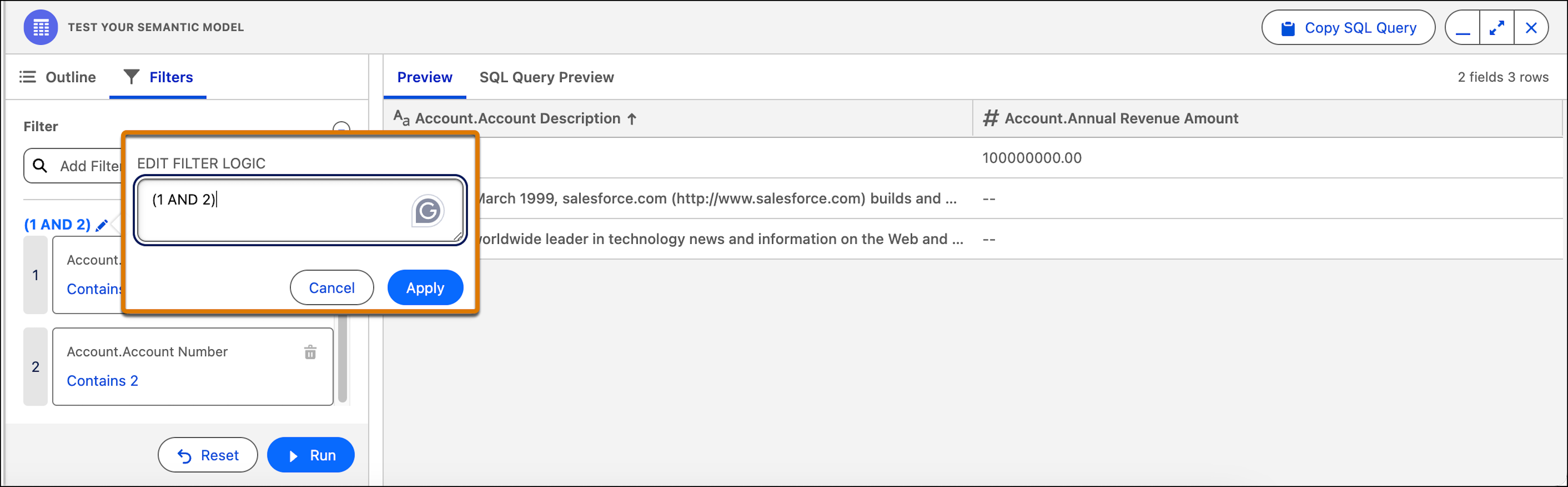
1. Add an expression. Valid values are AND, OR, NOT, and parentheses ().
2. Click **Apply**.
Examples: (1 OR 2) AND 3 ((1 AND 2) OR (3 AND 4)) (1 OR (NOT 2)) AND (3 OR 4).
7. To start the test, click **Run**.
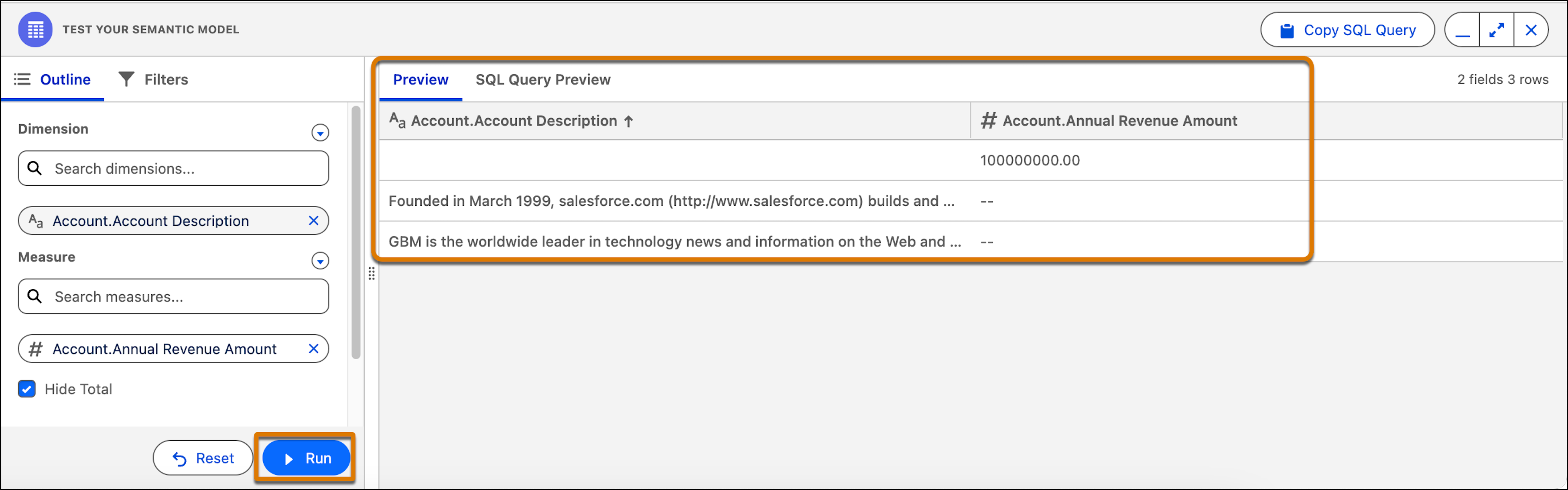
Tableau Semantics runs your model through the Tableau Semantics Query Generator and returns results on the right hand side of the bottom panel.
8. You can sort the test results columns in ascending or descending order by selecting the column header.
9. To clear the test results, click **Reset**. This also clears all the selected outline settings and filters.

Note If you change the outline or the filters, you must run the test again by clicking **Run** to see the changes reflected in the results.