---
schema_version: "1"
id: 26f6adf583ef0f1a0efe51f7923f910dec9cf7f079f49fa4a0f97a10dc6b13c8
title: Set Cardinality for Relationships
collection: admin
version: current
locale: en-us
portal_url: https://docs.salesforce.com/admin/current/en-us/analytics/264-0-0/c360_a_sl_set_cardinality.md
canonical_url: https://help.salesforce.com/s/articleView?id=analytics.c360_a_sl_set_cardinality.htm&release=264.0.0&type=5
source_site: help.salesforce.com
content_type: documentation
content_hash: 6cdf16141efc311f2a02a71956efa356bd27c7d927410e44ef97d44547e339af
description: Set the correct cardinality type to define how two objects are related and ensure Tableau Semantics interprets joins accurately. This helps prevent unexpected duplicates or missing data and improves overall query performance.
products:
- Data 360
release: "264"
---
# Set Cardinality for Relationships
Set the correct cardinality type to define how two objects are related and ensure Tableau Semantics interprets joins accurately. This helps prevent unexpected duplicates or missing data and improves overall query performance.
### Required Editions
1. In Data Cloud or a Tableau Next workspace, go to the Semantic Layer tab and open a semantic model.
2. Hover over a line connecting two objects to see a summary of the relationship, including the objects involved, the join fields, and the current cardinality type. This quick view lets you confirm the setup before making changes.
3. Click the line. The Relationship panel opens, showing the fields used for the join.
4. Choose the appropriate cardinality type from the Cardinality Type dropdown. Your options include One-to-One, One-to-Many, Many-to-One, and Many-to-Many.
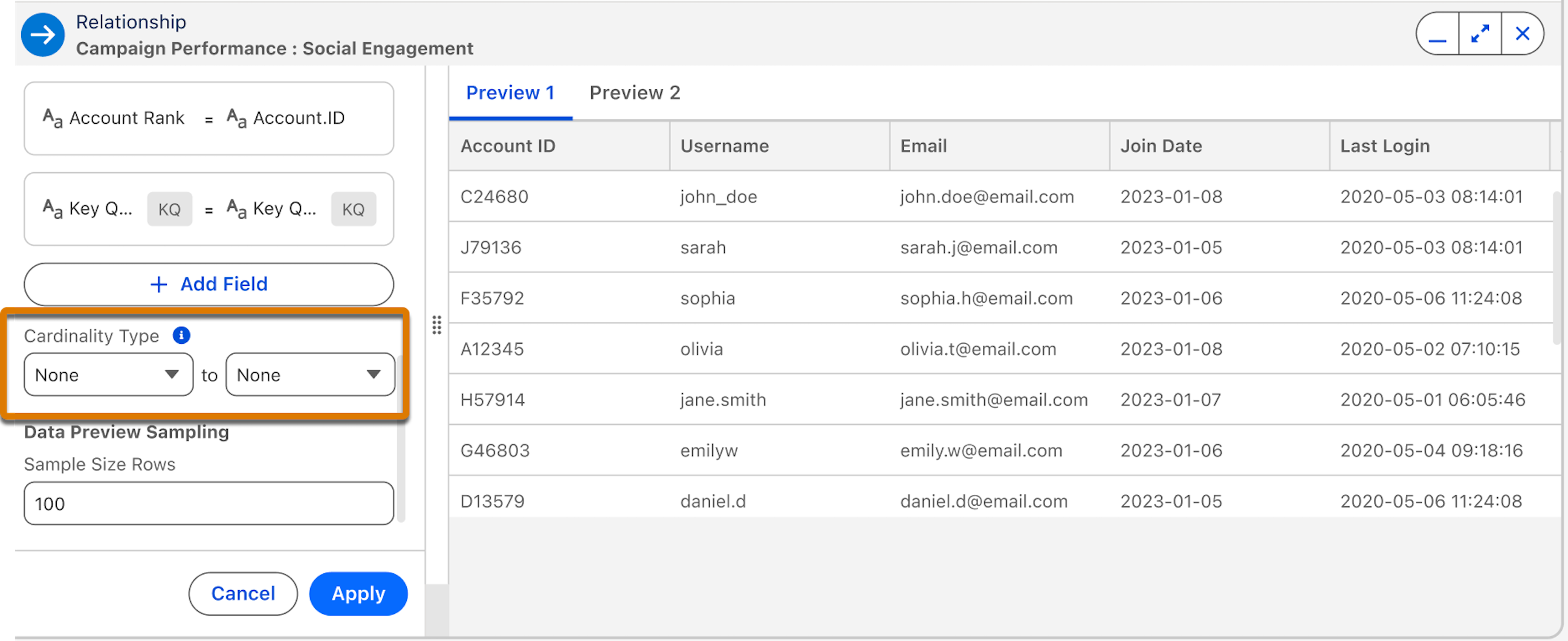
5. Use the data preview to verify that your choice matches the actual behavior of your data. If you see duplicates or missing values, select a different type that better reflects the real-world relationship.
6. Click **Apply** to save your changes.