---
schema_version: "1"
id: f0f033cca559cda5768212a5fcd016340c8dc2f09cd67688a4b2b7b17076e9aa
title: Use Parameters in Calculated Fields
collection: admin
version: current
locale: en-us
portal_url: https://docs.salesforce.com/admin/current/en-us/analytics/264-0-0/c360_a_sl_param_use_in_calc_field.md
canonical_url: https://help.salesforce.com/s/articleView?id=analytics.c360_a_sl_param_use_in_calc_field.htm&release=264.0.0&type=5
source_site: help.salesforce.com
content_type: documentation
content_hash: 68b2a2f6a6e609404e3e52fbf0ccec666ee72819e7c0a6dce156fb213b1d7c00
description: You can use parameters within the formula field when creating and editing calculated fields. You can either insert the parameter or when creating the formula use auto-suggestion. The formula automatically includes parameters when suggesting fields.
products:
- Data 360
release: "264"
---
# Use Parameters in Calculated Fields
You can use parameters within the formula field when creating and editing calculated fields. You can either insert the parameter or when creating the formula use auto-suggestion. The formula automatically includes parameters when suggesting fields.
### Required Editions
1. In Data Cloud, on the Semantic Layer tab, select a data model.
2. On the Model tab, expand **Calculated Fields**.
3. Create or edit a calculated field.
4. Go to the Formula section.
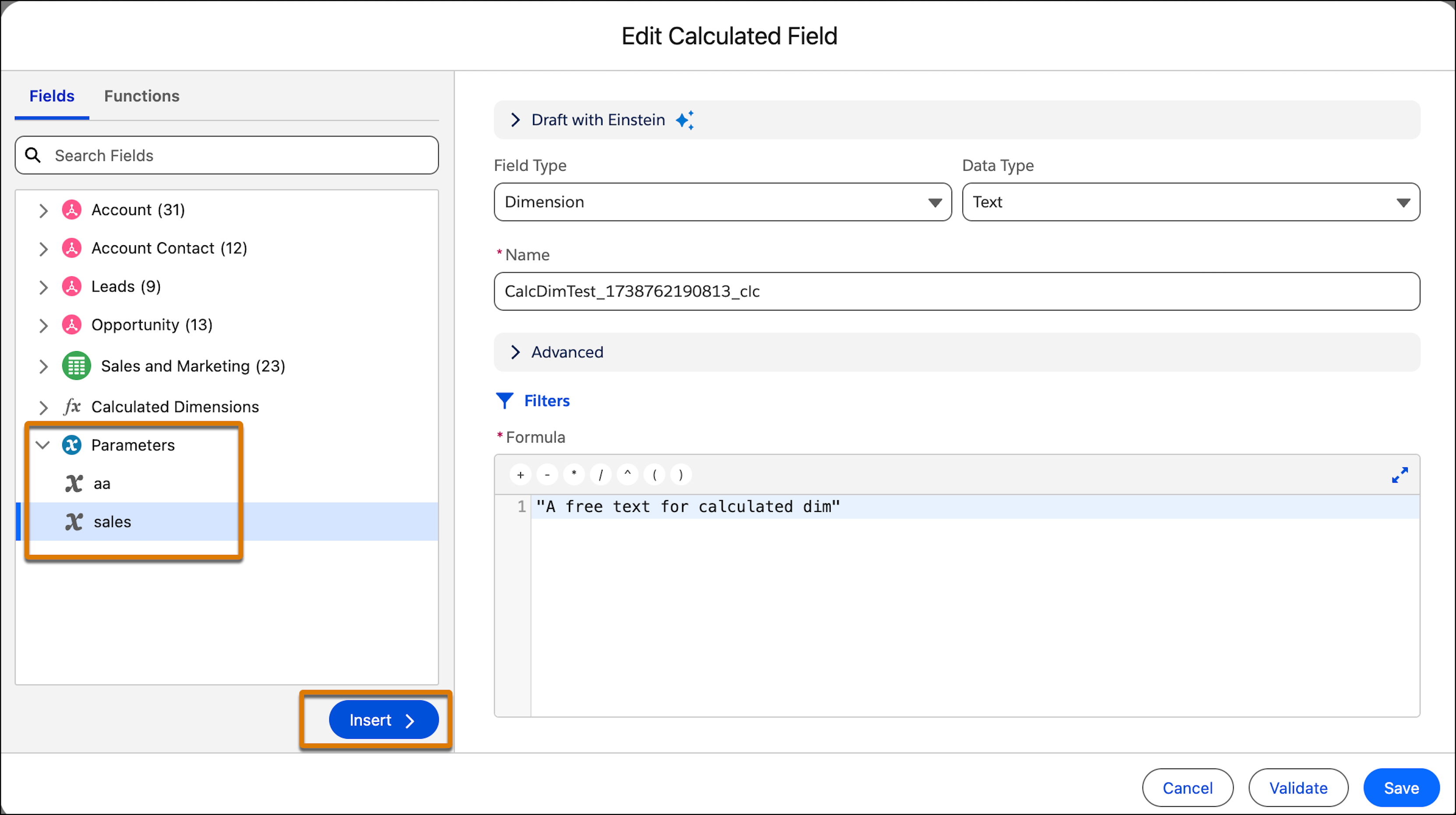
5. From the left-hand menu select a parameter under Parameters and then click **Insert**.
6. Validate the formula and then click **Save**.
#### See Also
- [_Salesforce Help_: Build a Formula in a Calculated Field](https://help.salesforce.com/s/articleView?id=analytics.c360_a_sl_calc_fields_formula.htm&release=264.0.0&type=5 "A formula tells the Tableau Semantics Query Generator how to calculate the fields when running queries. You can add logic on how to calculate raw data within the dimension or measure.")