---
schema_version: "1"
id: e9f7409b198cd8335da623920f97e8bd679fad74c8d832b6f667db61be51decd
title: Create a Metric for a Semantic Model in Data 360
collection: admin
version: current
locale: en-us
portal_url: https://docs.salesforce.com/admin/current/en-us/analytics/264-0-0/c360_a_sl_metrics_create.md
canonical_url: https://help.salesforce.com/s/articleView?id=analytics.c360_a_sl_metrics_create.htm&release=264.0.0&type=5
source_site: help.salesforce.com
content_type: documentation
content_hash: 5f36d019d9eb2432dc2b68f8798fc016df62d58474b9f8e4656fbca4ad8daee7
description: Create a metric to standardize how your organization measures performance.
products:
- Data 360
release: "264"
---
# Create a Metric for a Semantic Model in Data 360
Create a metric to standardize how your organization measures performance.
### Required Editions
1. In Data Cloud, on the Semantic Layer tab, go to the Metrics tab.
2. Click **New Metric**, and select the semantic model that you want to use.
3. Name the metric, enter an optional description, and click **Next**.
4. Define the measure and time dimension fields to track the Metric over time, and then click **Next**.
- To create a new measure or dimension, click **\+ Add New** from the dropdown.
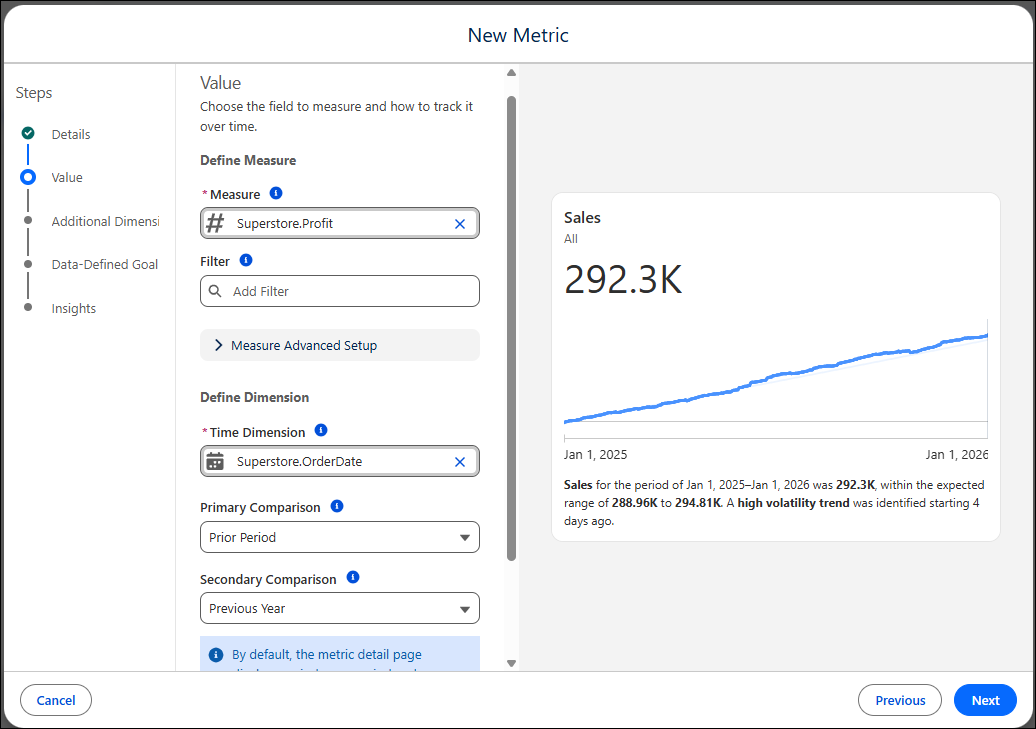
5. If you want to group and filter the metric for more detailed insights, add dimensions, and then click **Next**.
- To create a new dimension, click **\+ Add New** from the dropdown.
- Set the primary comparison period. Add an optional secondary comparison.
6. Optionally, [set a data-defined goal](https://help.salesforce.com/s/articleView?id=analytics.c360_a_sl_data_goal.htm&release=264.0.0&type=5 "Data-defined goals are based on a measure in the semantic data model. With data-defined goals, anyone who filters or follows a sub-metric inherits the goal, and the goal stays synchronized when the source goal value changes. For example, you can create a data-defined goal based on the win rate measure. If the team has a data-defined win rate goal of 30%, and the West territory has its own goal of 28%, then users who filter the sub-metric to the West territory see the correct goal—28%. This way, users don’t need to create individual goals for each sub-metric, and your team stays in sync working towards the same goal. When a data-defined goal exists, individual goals for sub-metric can’t be created and vice versa.").
7. (Tableau Next only) On the **Insights** step, configure automated analysis and drill-down options.
- **Record-Level Details:** Enable drill-down functionality to row-level data.

Note Enter the information for **Record ID** and **Fields** before turning on **Records Level Data**. The record-level table appears on the Metric detail page after you configure all three items.
8. Save your changes.
- **[Edit or Delete a Metric](https://help.salesforce.com/s/articleView?id=analytics.c360_a_sl_metrics_edit.htm&release=264.0.0&type=5)**
Keep your data model current by updating metric configurations or removing them. Deleting a metric removes it from all associated reports and dashboards.
- **[Apply a Filter to a Related Metric](https://help.salesforce.com/s/articleView?id=analytics.c360_a_sl_filter_apply.htm&release=264.0.0&type=5)**
Use submetrics to provide additional granularity and track more detailed performance indicators. A submetric breaks down the main metric into more specific, actionable data points.