---
schema_version: "1"
id: 07e416a15720f8bd824ba7974db43eeb7b7c466092c171ef28ac2fa226f2ef09
title: Create a Logical View
collection: admin
version: current
locale: en-us
portal_url: https://docs.salesforce.com/admin/current/en-us/analytics/264-0-0/c360_a_sl_logical_view_create.md
canonical_url: https://help.salesforce.com/s/articleView?id=analytics.c360_a_sl_logical_view_create.htm&release=264.0.0&type=5
source_site: help.salesforce.com
content_type: documentation
content_hash: 0800d17f6a12e099ede5a83feebc4b235220c3a03f55ac487f9f99f5fb36133d
description: A logical view connects data objects. There are a few steps you need to complete to create the logical view. You first have to define the properties, next select the data object for the logical view, and then you can configure the logical view.
products:
- Data 360
release: "264"
---
# Create a Logical View
A logical view connects data objects. There are a few steps you need to complete to create the logical view. You first have to define the properties, next select the data object for the logical view, and then you can configure the logical view.
### Required Editions
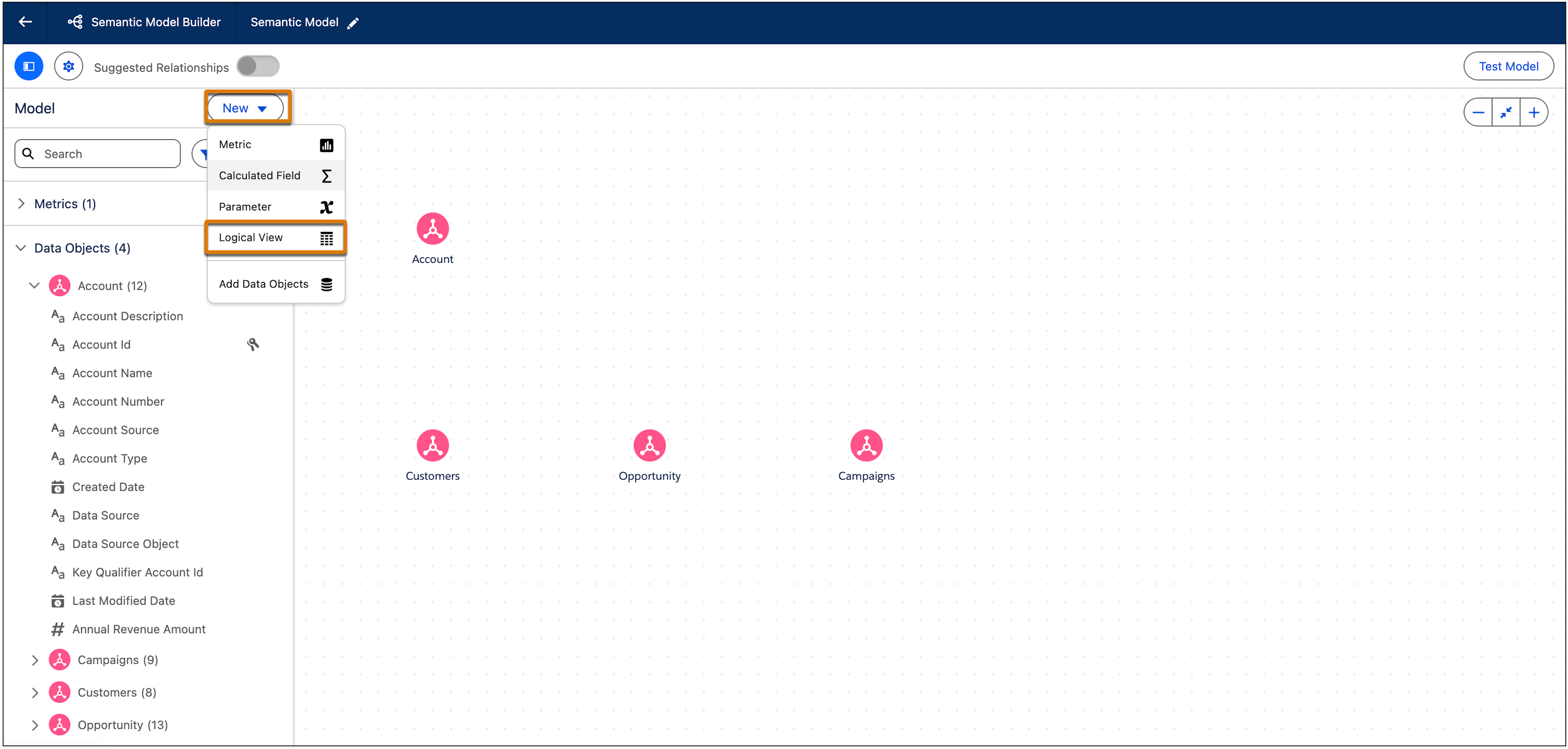
1. In Data Cloud, on the Semantic Layer tab, select a data model.
2. From the **New** dropdown, select **Logical View**.
3. In the **Create a Logical View** window, enter these details.
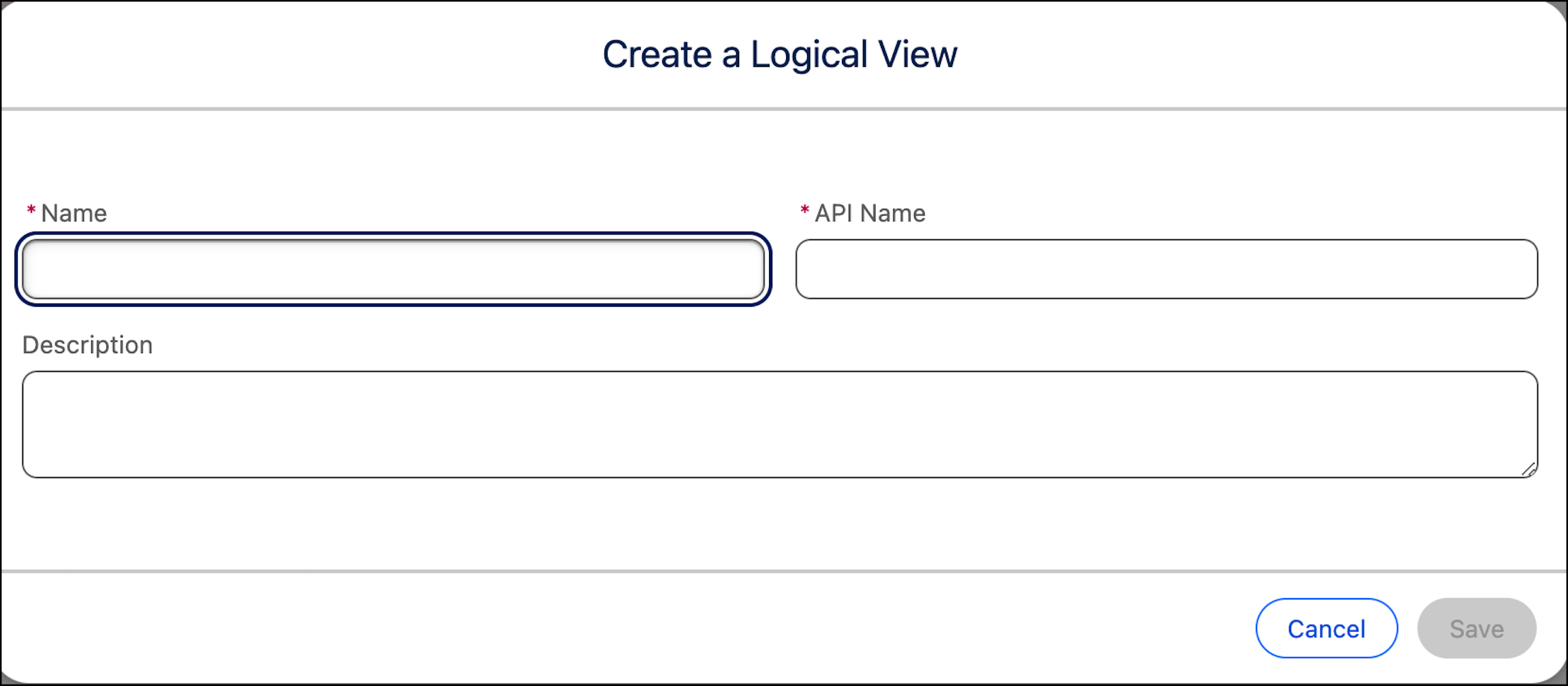
4. Enter a unique name, API name and optional description.
5. Click **Save**.
6. In the **Select a Data Object for Logical View** window, select a DMO, DLO, or calculated insight to use with the logical view.

Note If the semantic model contains a DLO (Data Lake Object), users in companion orgs won't be able to access the semantic model. See [Data Cloud Features on Companion Orgs](https://help.salesforce.com/s/articleView?id=data.c360_a_companion_org_data_cloud_features.htm&type=5&language=en_US).
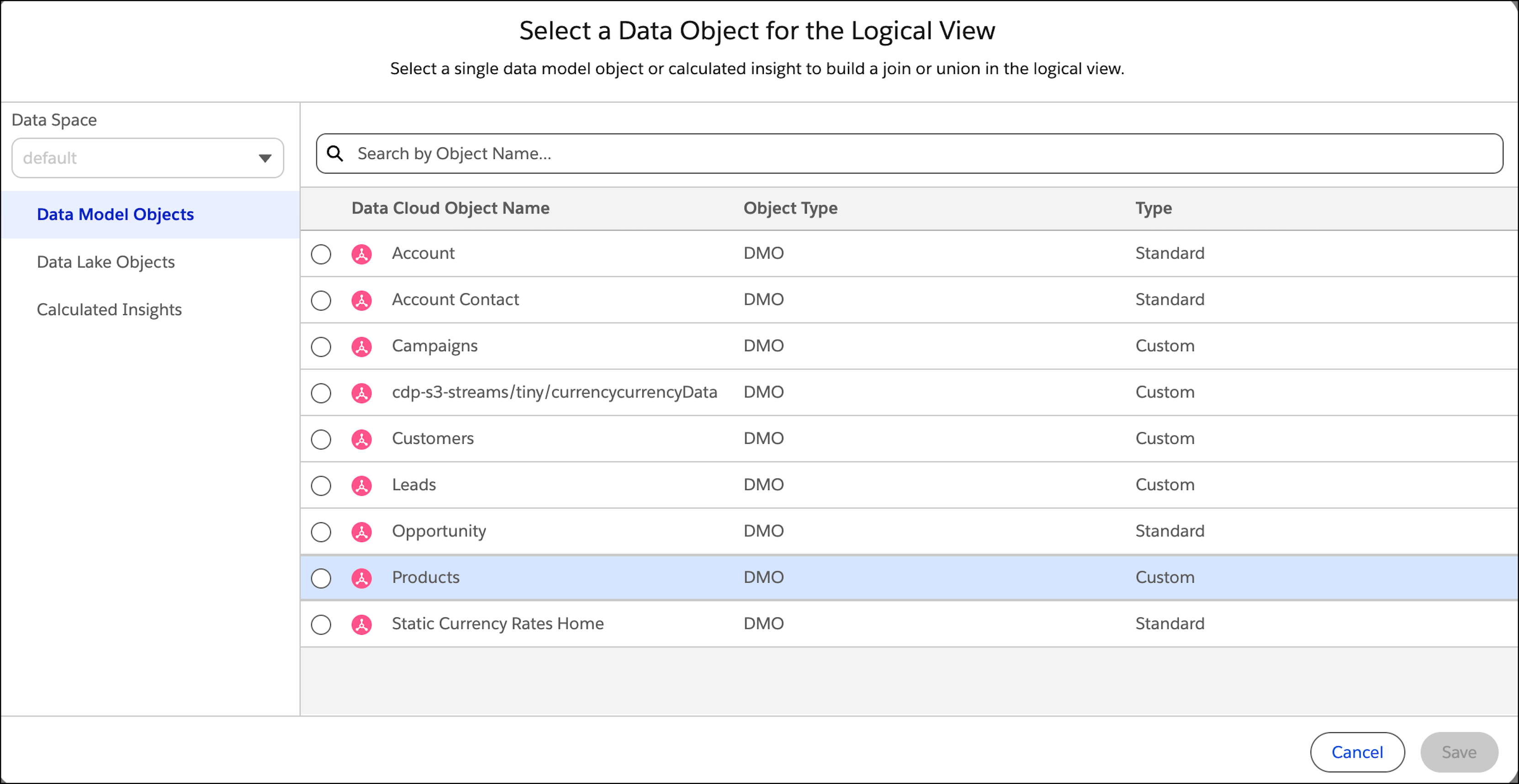
7. Click **Save**.
The Logic View Builder opens.
8. Build out your logical view by adding joins between objects. When you select an object, the bottom panel opens and displays the object’s properties. See [Join Data Objects in a Logical View](https://help.salesforce.com/s/articleView?id=analytics.c360_a_sl_join_in_logical_view.htm&release=264.0.0&type=5 "Creating joins between two objects is crucial for providing a comprehensive view of the data when information is distributed across multiple tables or datasets. You can define the type of join you want to create between two data objects in the logical view including left, right,and inner join.").
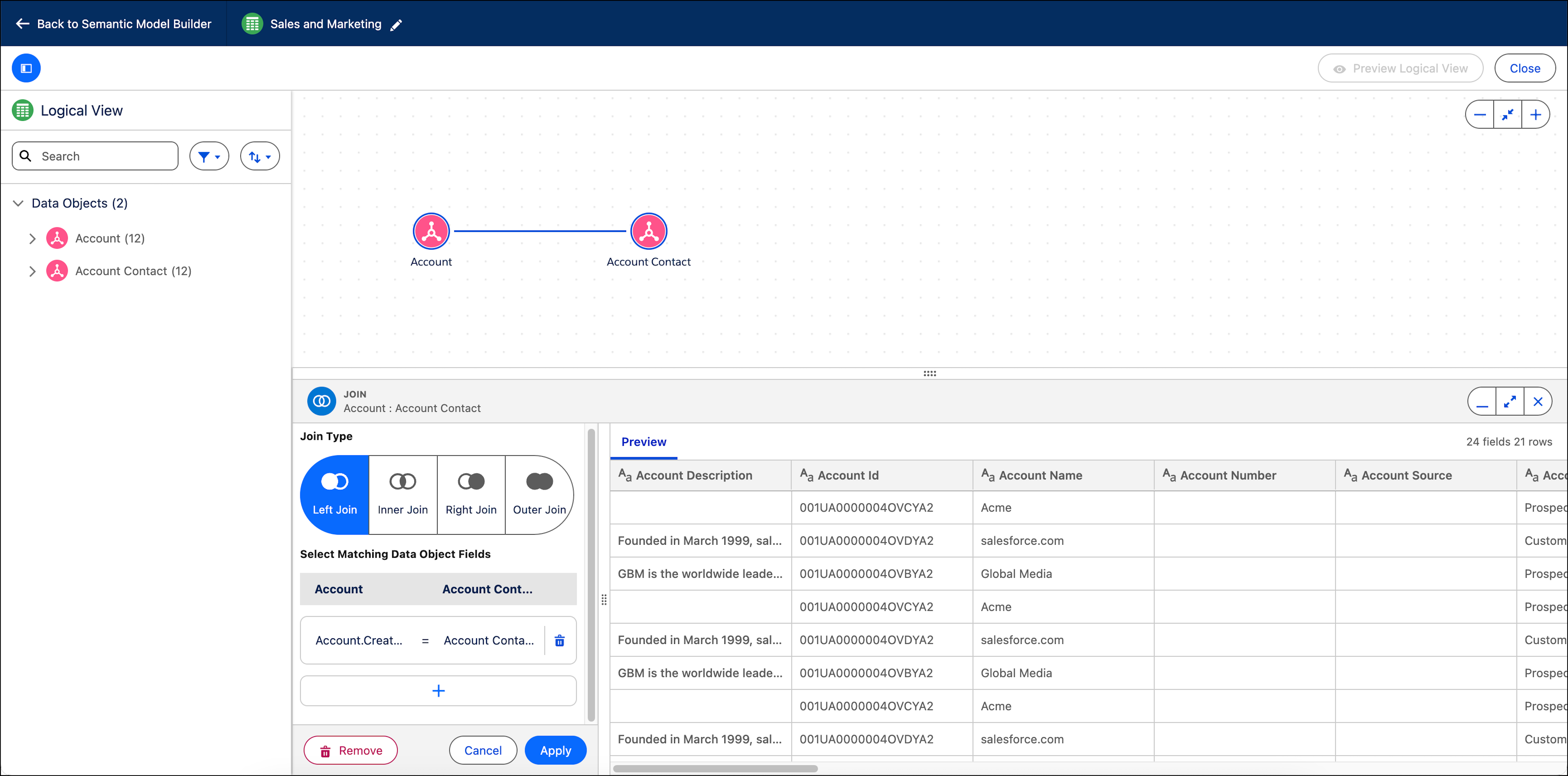

Important Changes that you make to objects in the logical view affect only the logical view.
- **[Join Data Objects in a Logical View](https://help.salesforce.com/s/articleView?id=analytics.c360_a_sl_join_in_logical_view.htm&release=264.0.0&type=5)**
Creating joins between two objects is crucial for providing a comprehensive view of the data when information is distributed across multiple tables or datasets. You can define the type of join you want to create between two data objects in the logical view including left, right,and inner join.