---
schema_version: "1"
id: 19a73a9a14c0f417019d558378f6aed4f84e03a5f9ddce2745382a73ad20b18d
title: Create a Group in Tableau Semantics
collection: admin
version: current
locale: en-us
portal_url: https://docs.salesforce.com/admin/current/en-us/analytics/264-0-0/c360_a_sl_group_create.md
canonical_url: https://help.salesforce.com/s/articleView?id=analytics.c360_a_sl_group_create.htm&release=264.0.0&type=5
source_site: help.salesforce.com
content_type: documentation
content_hash: 2ec274c3ad5932c5bd16f855cef93db72ac6a5d900ee72e70c83ebd1cb167717
description: Combine related objects to segment customers based on demographics, behavior, or purchasing patterns. You can also use a group to correct data errors, such as combining CA, Calif., and California into one data point, or to answer “what if” questions (“What if we combined the East and West regions?”). Reference groups directly in calculated fields to build custom metrics and dimensions using group labels.
products:
- Data 360
release: "264"
---
# Create a Group in Tableau Semantics
Combine related objects to segment customers based on demographics, behavior, or purchasing patterns. You can also use a group to correct data errors, such as combining CA, Calif., and California into one data point, or to answer “what if” questions (“What if we combined the East and West regions?”). Reference groups directly in calculated fields to build custom metrics and dimensions using group labels.
### Required Editions
1. In Data Cloud, on the Semantic Layer tab, select a data model.
2. On the Model tab, expand **Data Objects**.
3. Hover over the dimension or measure that you want to group.
4. From the options menu, select **Create Group**.
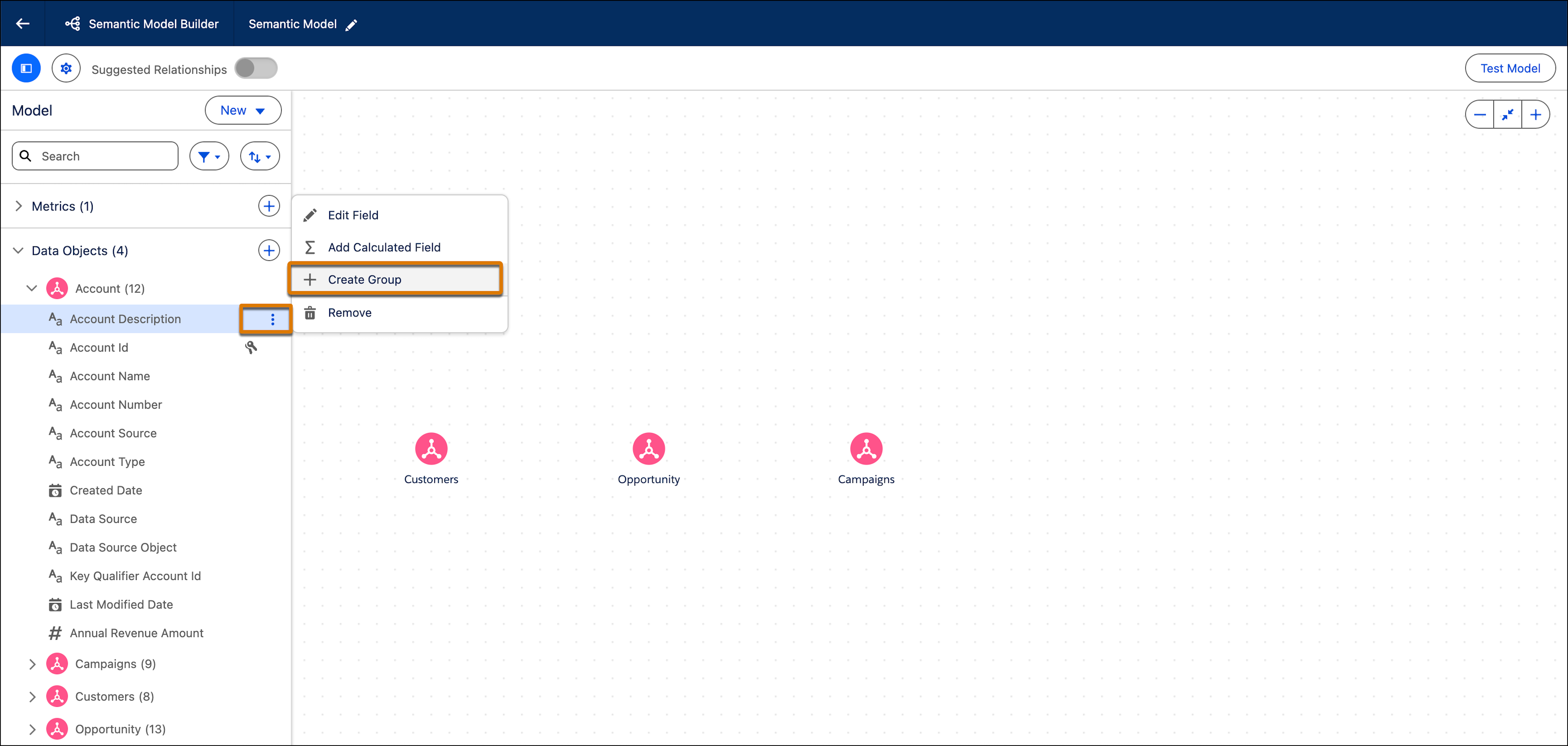
5. In the Create Group window enter a group Name, API name, and an optional Description. Ungrouped values within the object show under the Ungrouped Values column. Grouped Values appear under the Grouped Values column.
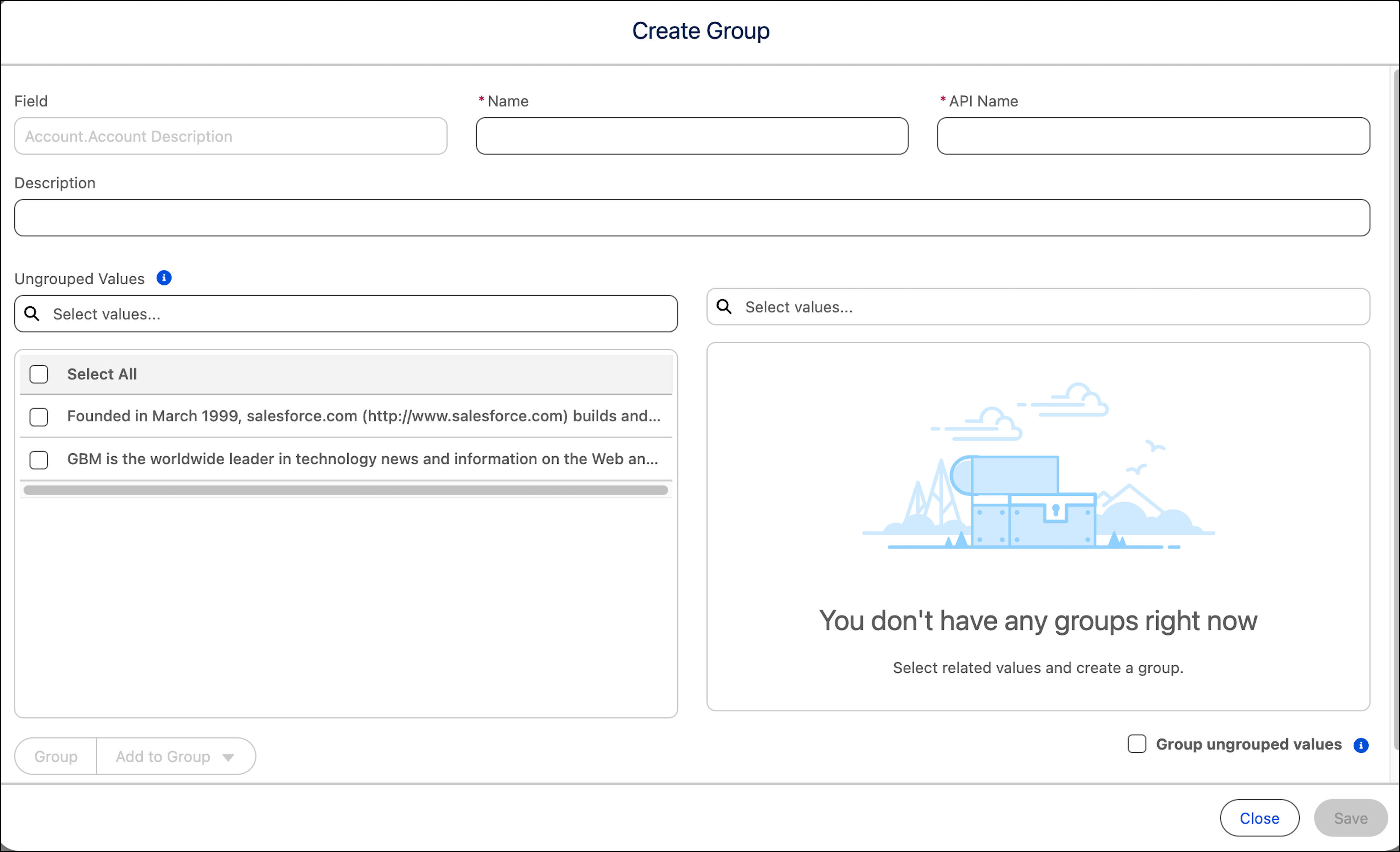
6. In the Ungrouped Values column, select one or more ungrouped values, and then click **Group**.
7. To add the values to an existing group, click **Add to Group**.
8. You can create as many groups as you like. If you have ungrouped values that don’t belong to an existing group, select **Group ungrouped values**. All ungrouped values are added to the Other group after you save.
9. To edit a group name, hover over the group and click the edit icon.
10. To delete a group, click the delete icon.
11. Save your group.
After the group is saved, it appears as a field under the object within Tableau Semantics. The new group is also added as a field to the model. You can query the field with the Tableau Semantics Query Generator.