---
schema_version: "1"
id: 3ae091ba950cc91b0a0e0979502230b28224e921c48e866ad9fee36450cc0e31
title: Share Semantic Model in Tableau Semantics
collection: admin
version: current
locale: en-us
portal_url: https://docs.salesforce.com/admin/current/en-us/analytics/264-0-0/c360_a_sl_data_models_share.md
canonical_url: https://help.salesforce.com/s/articleView?id=analytics.c360_a_sl_data_models_share.htm&release=264.0.0&type=5
source_site: help.salesforce.com
content_type: documentation
content_hash: 315f0d6fc970bfefce3bff11a820077e9916a0657c5019d8cf81b320c25c5464
description: Share and grant other users access to a semantic model in Tableau Semantics. You can share a model with individual users, or you can set general access to make the model available to all users in your org.
products:
- Data 360
release: "264"
---
# Share Semantic Model in Tableau Semantics
Share and grant other users access to a semantic model in Tableau Semantics. You can share a model with individual users, or you can set general access to make the model available to all users in your org.
### Required Editions
## Share semantic model with individual users
You can share a semantic model if you are the owner or have the ModifyAllRecords permission. This allows flexibility in cases where the owner is unavailable or when sharing is needed across companion orgs.

Note Semantic models can be shared both from Data 360 and from Tableau Next. In Tableau Next, models can only be shared at Viewer level. To allow edit access from Tableau Next, you must use workspace sharing. See [Share Assets in Tableau Next](https://help.salesforce.com/s/articleView?id=analytics.tua_share_assets.htm&type=5&language=en_US).
1. In Data Cloud, go to the Semantic Layer tab and select **Share** from the drop-down list of options for the semantic model. Alternatively, open the model and click **Share** in the top right corner.
The Share Semantic Model window opens.
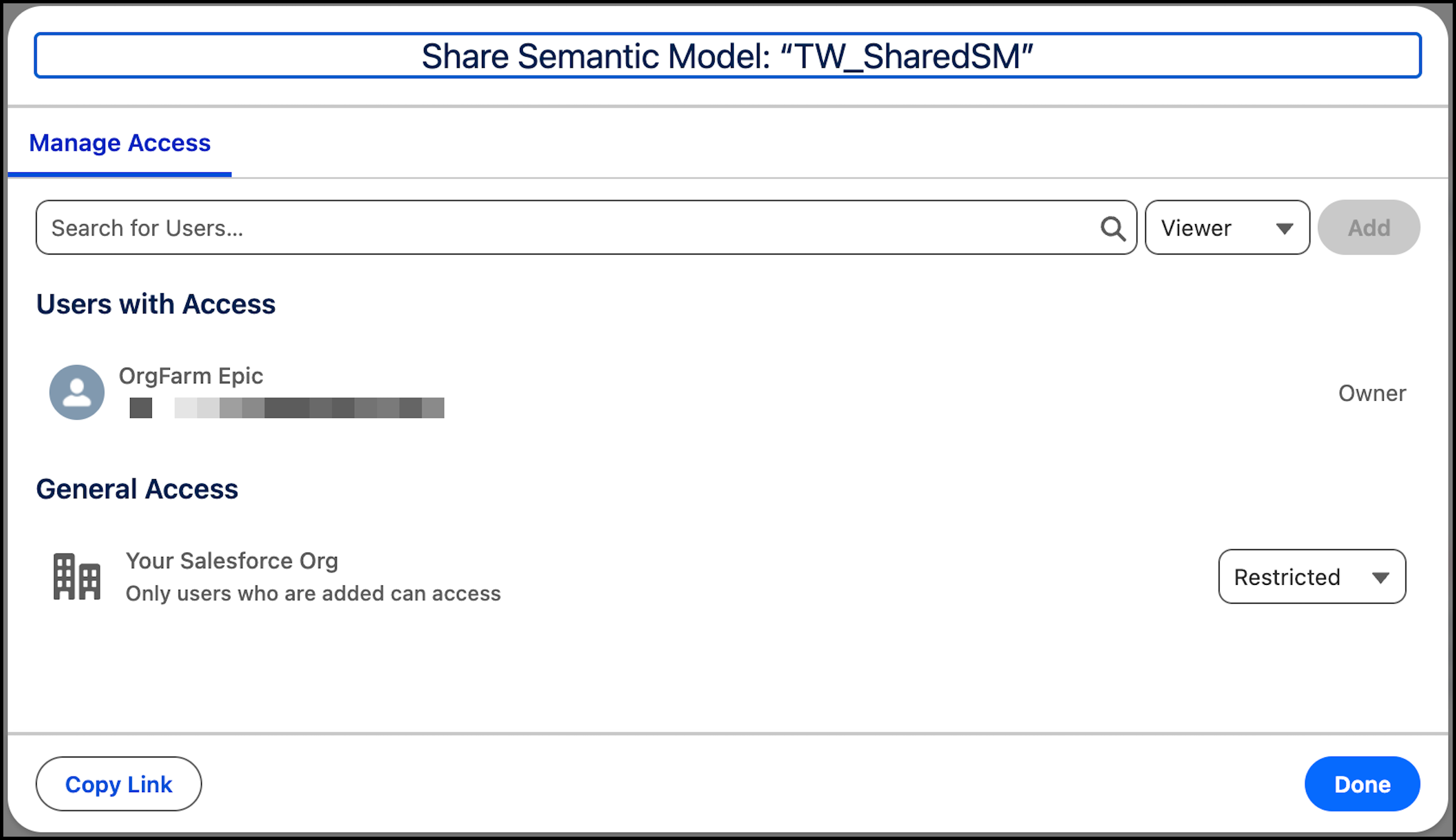
2. Enter the name of the user you want to share the model with, then select the user.
3. Choose either the Viewer or Editor role.
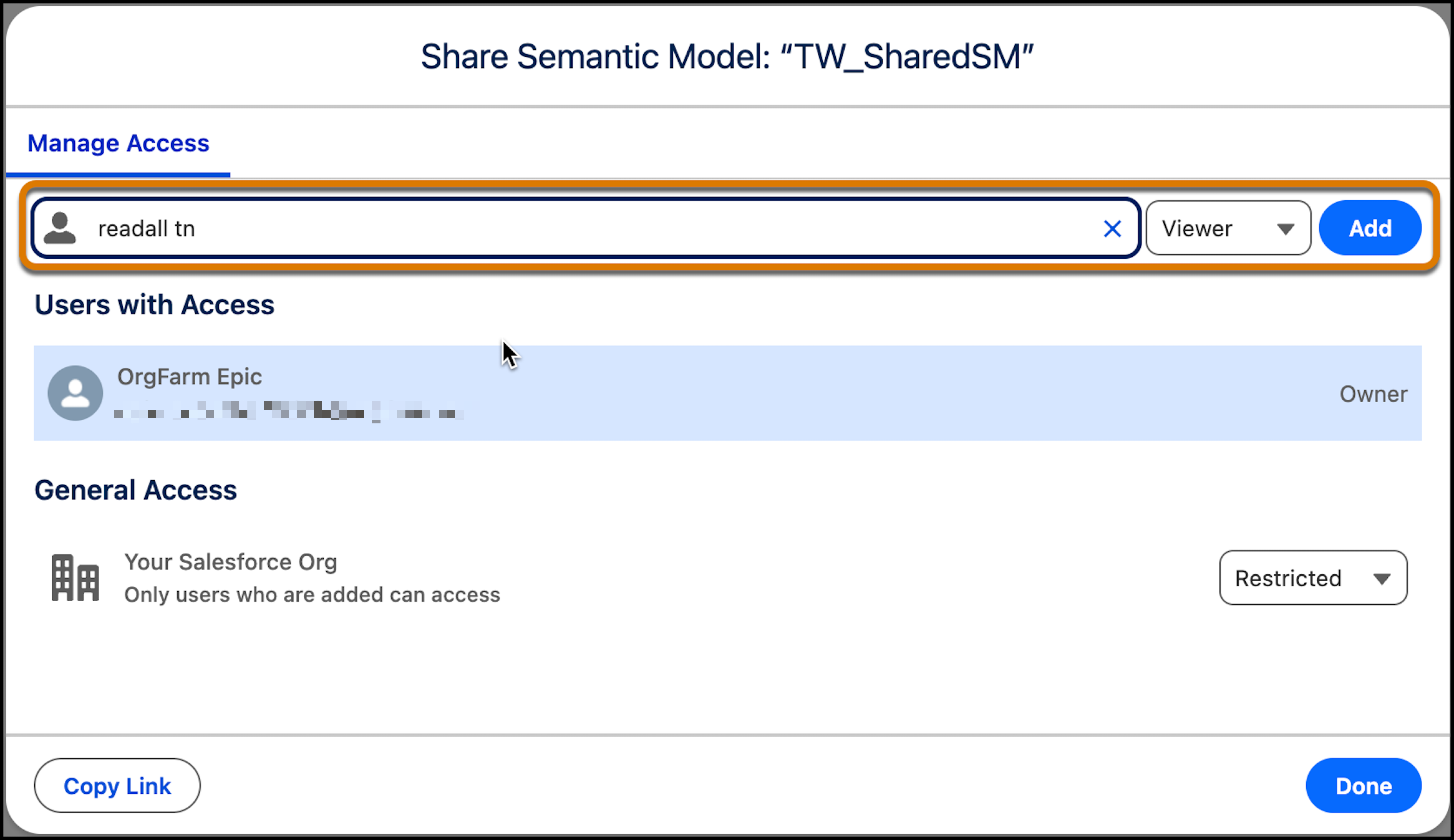
4. Click **Add** to assign the role to the user.
5. Click **Done**.
## Set general access for all users
General access is the default level of access to a semantic model for all users in an org. When you create a model, general access is restricted. Only users you share with individually can access the model.
- If you set the general access for a semantic model to Viewer, you can still grant individual users Editor access.
- If you grant an individual user Viewer access and set the general access to Editor, that user has Editor access because the higher level of access takes precedence.
1. In Data Cloud, go to the Semantic Layer tab and select **Share** from the drop-down list of options for the semantic model. Alternatively, open the model and click **Share** in the top right corner.
The Share Semantic Model window opens.
2. Under General Access, select the access level for all users in the org.
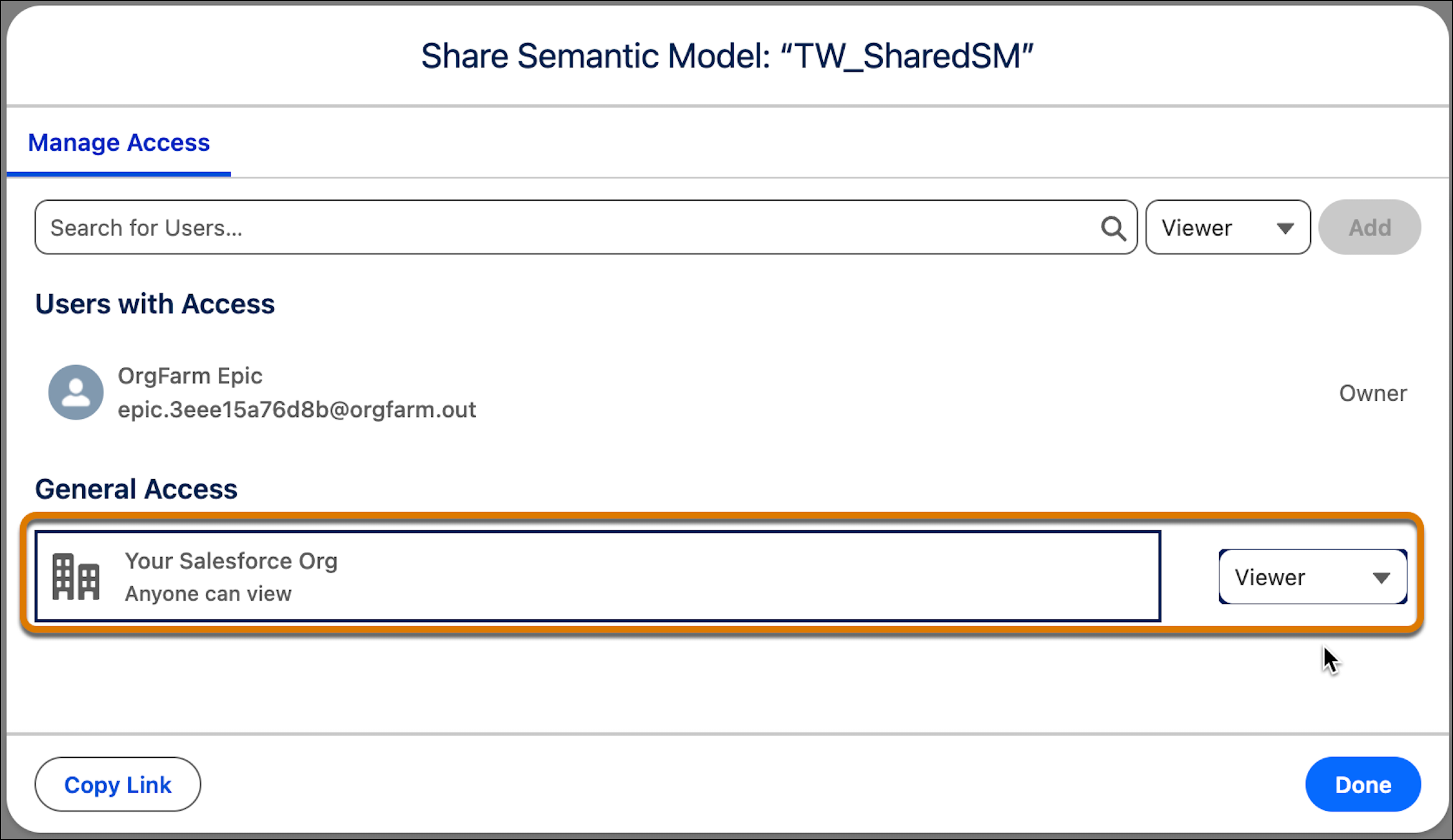
3. Click **Done**.