---
schema_version: "1"
id: e104165da6fd9330d68f2682cc931bd69a44c3f66c3607bb234090ec9b7a9015
title: Create a Relationship with Suggest Relationships
collection: admin
version: current
locale: en-us
portal_url: https://docs.salesforce.com/admin/current/en-us/analytics/264-0-0/c360_a_sl_create_rel_with_einstein.md
canonical_url: https://help.salesforce.com/s/articleView?id=analytics.c360_a_sl_create_rel_with_einstein.htm&release=264.0.0&type=5
source_site: help.salesforce.com
content_type: documentation
content_hash: e24cbe0a7128dc97e10464d634274c0df4c3c0f31db7bf37b8ad79d2d282d75f
description: You can use Artificial Intelligence (AI) to get relationship suggestions and create relationships in Tableau Semantics. Suggestions are based on semantic objects and sample data added to your model.
products:
- Data 360
release: "264"
---
# Create a Relationship with Suggest Relationships
You can use Artificial Intelligence (AI) to get relationship suggestions and create relationships in Tableau Semantics. Suggestions are based on semantic objects and sample data added to your model.
### Required Editions
Before you begin, turn on **Semantic Authoring AI** in Data 360 Feature Manager. Also, turn on **Turn on Einstein** under **Einstein Setup**. See [Set Up Einstein Generative AI](https://help.salesforce.com/s/articleView?id=ai.generative_ai_enable.htm&type=5&language=en_US).
1. In Data Cloud, on the Semantic Layer tab, select a data model.
2. To see Einstein’s relationship suggestions, click **Show Suggestions**.
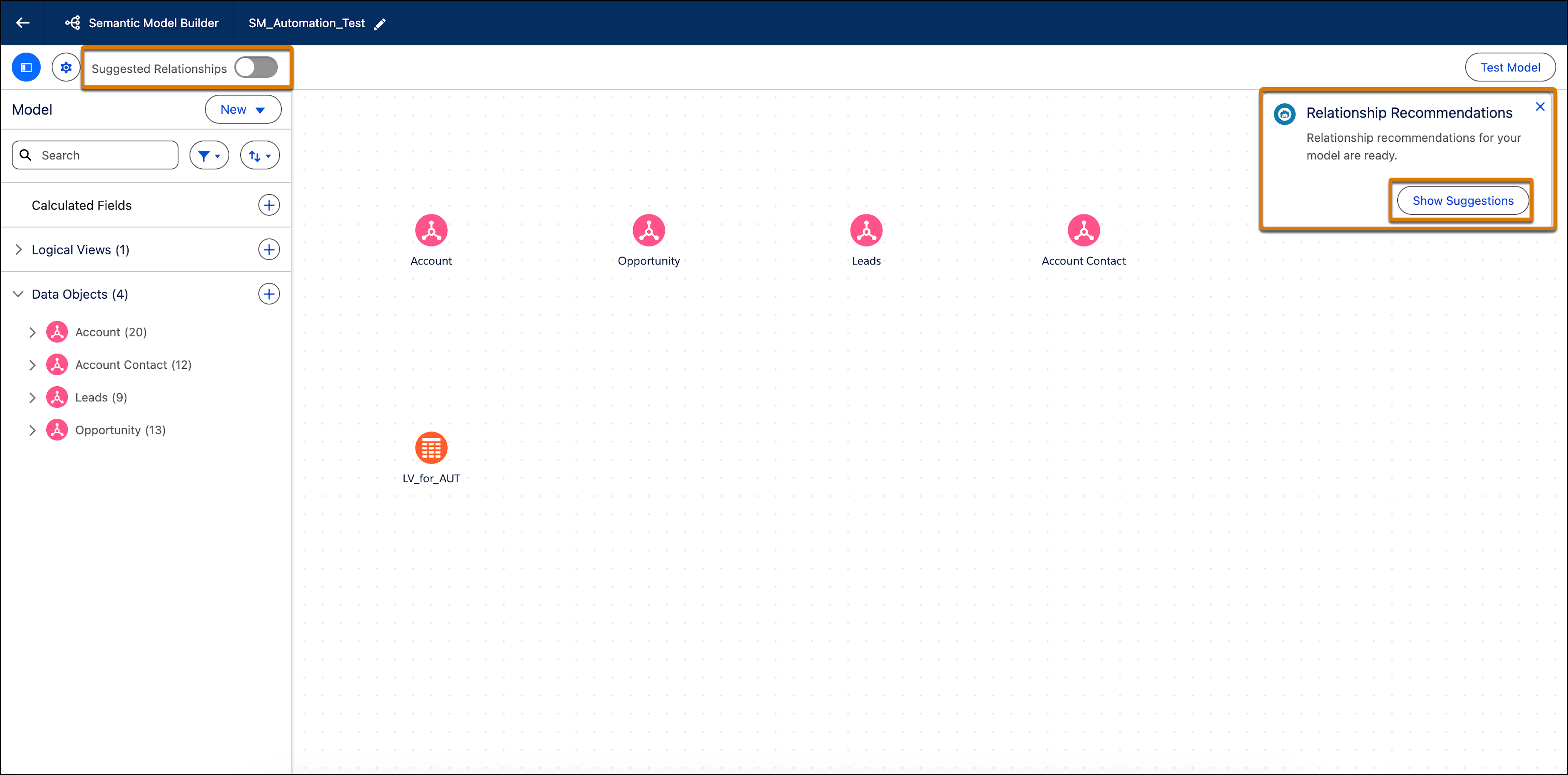
After suggestion mode is turned on, the **Suggested Relationships** toggle is enabled automatically. You can turn it on or off as needed.
Relationship recommendations appear with a sparkle icon between objects within the Semantic Model Builder.
3. To create a relationship with Einstein, select the sparkle icon between two objects in the canvas builder.
The Recommended Relationship window appears and shows the objects and object fields between which the relationship is formed.
4. To edit the relationship before applying it, click **Review**.
The bottom panel opens. Here you can review the Einstein recommendations and edit any section you wish within the relationship.
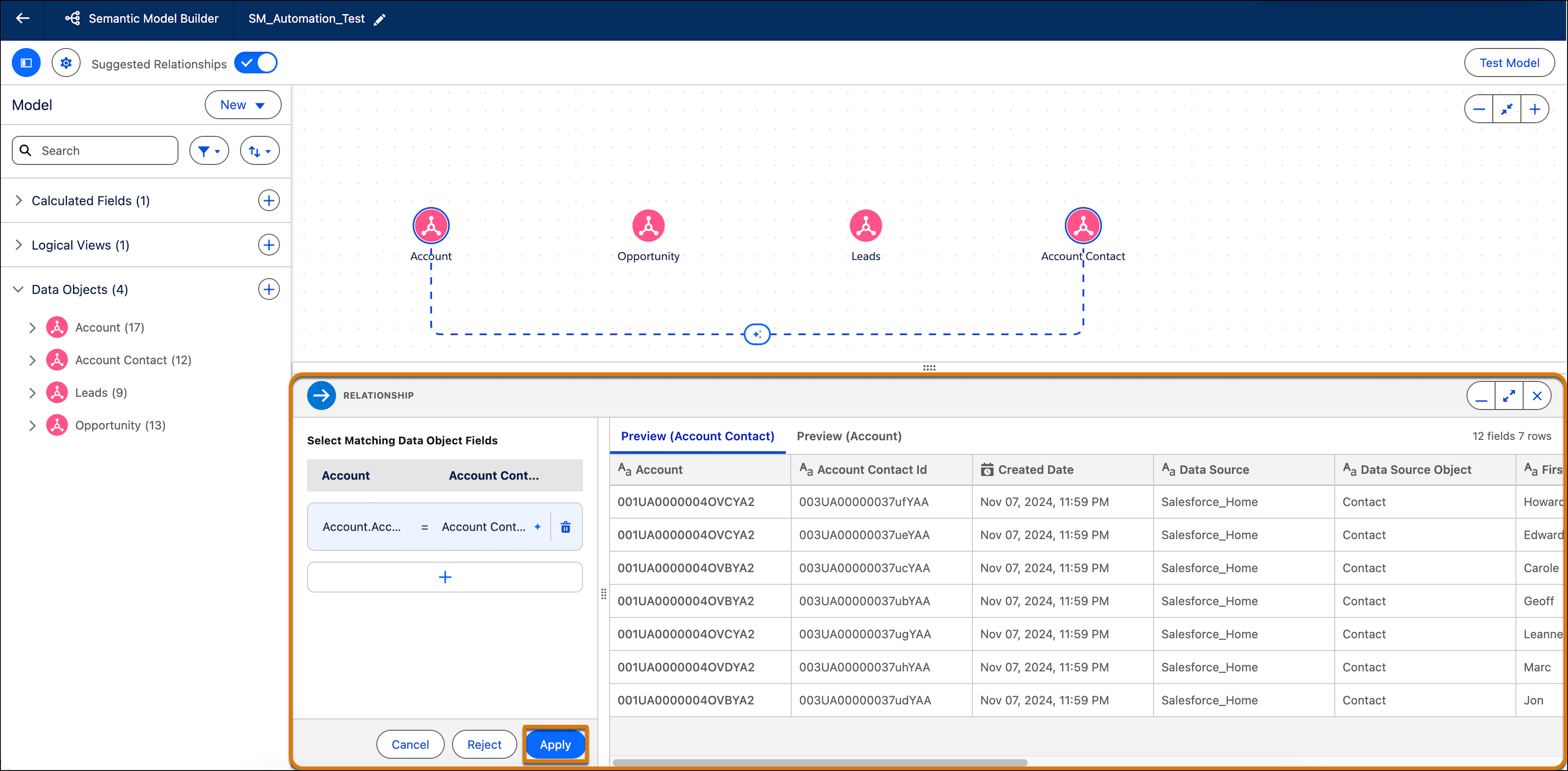
5. To create the relationship based on the Einstein recommendation, click **Apply**.
The relationship is created and a straight line appears between the objects signifying a relationship.
6. To reject the Einstein relationship recommendation, click **Reject**. Einstein will no longer show this specific recommendation.
**Functional Limitations**
For best results with relationship suggestions, keep these limitations in mind:
- Suggestions are provided only for fields defined as primary and foreign keys. Composite (compound) keys aren’t supported.
- Supported fields include numbers and text fields up to 50 characters long.
- The feature doesn't currently support Shared Dimension or Logical View data objects.
- Performance and accuracy have been tested on models with up to 30 tables and 50 columns.
- The feature is currently available only in English.
#### See Also
- [_Salesforce Help_: Einstein Generative AI](https://help.salesforce.com/s/articleView?id=ai.generative_ai.htm&language=en_US)