---
schema_version: "1"
id: d9679e5f637163ad4b6fe9022f4492fe70633bf29319536f9e83ce4363bf688b
title: Create a Calculated Field with Einstein
collection: admin
version: current
locale: en-us
portal_url: https://docs.salesforce.com/admin/current/en-us/analytics/264-0-0/c360_a_sl_calc_fields_create_ai.md
canonical_url: https://help.salesforce.com/s/articleView?id=analytics.c360_a_sl_calc_fields_create_ai.htm&release=264.0.0&type=5
source_site: help.salesforce.com
content_type: documentation
content_hash: 05af52824170ec8c49387f46f2521026f7daec41f282e51935c6d043cc03bcdd
description: You can use Einstein to easily and effectively create calculated fields within Tableau Semantics.
products:
  - Data 360
release: "264"
---
# Create a Calculated Field with Einstein

You can use Einstein to easily and effectively create calculated fields within Tableau Semantics.

### Required Editions

<table class="slds-table slds-table_bordered slds-max-medium-table_stacked slds-m-bottom_small edition"><colgroup><col></colgroup><tbody><tr class=""><td class="slds-cell-wrap" style="vertical-align:top;">Available in: All editions supported by <span>Data 360</span>. See <a href="https://help.salesforce.com/s/articleView?id=data.c360_a_dc_editions.htm&amp;language=en_US" target="_blank"><span>Data 360</span> edition availability</a>.</td></tr></tbody></table>

<table class="slds-table slds-table_bordered slds-max-medium-table_stacked slds-m-bottom_small permission">
        <colgroup>
          <col style="width:50%">
          <col style="width:50%">
        </colgroup>
        <thead class="slds-text-title_caps ">
          <tr class="">
            <th scope="colgroup" class="slds-cell-wrap" colspan="2" style="text-align:left;vertical-align:top;" id="d9966e63">User Permissions Needed</th>
          </tr>
        </thead>
        <tbody>
          <tr class="">
            <td data-label="User Permissions Needed" class="slds-cell-wrap" style="vertical-align:top;" headers="d9966e63 ">To create a field:</td>

            <td class="slds-cell-wrap" style="vertical-align:top;" headers="d9966e63 ">
              <p>Permission set: </p>
              <ul>
                <li>Data Cloud Architect</li>

              </ul>
              <p>AND</p>
              <p style="margin-bottom:0;">Semantic Models object</p>
            </td>

          </tr>
        </tbody>
      </table>

Before you begin, set up Einstein Generative AI to use it with Tableau Semantics. See [Set Up Einstein Generative AI](https://help.salesforce.com/s/articleView?id=ai.generative_ai_enable.htm&type=5&language=en_US).

1. In Data Cloud, on the Semantic Layer tab, select a data model.
2. From the New dropdown, select **Calculated Field**.
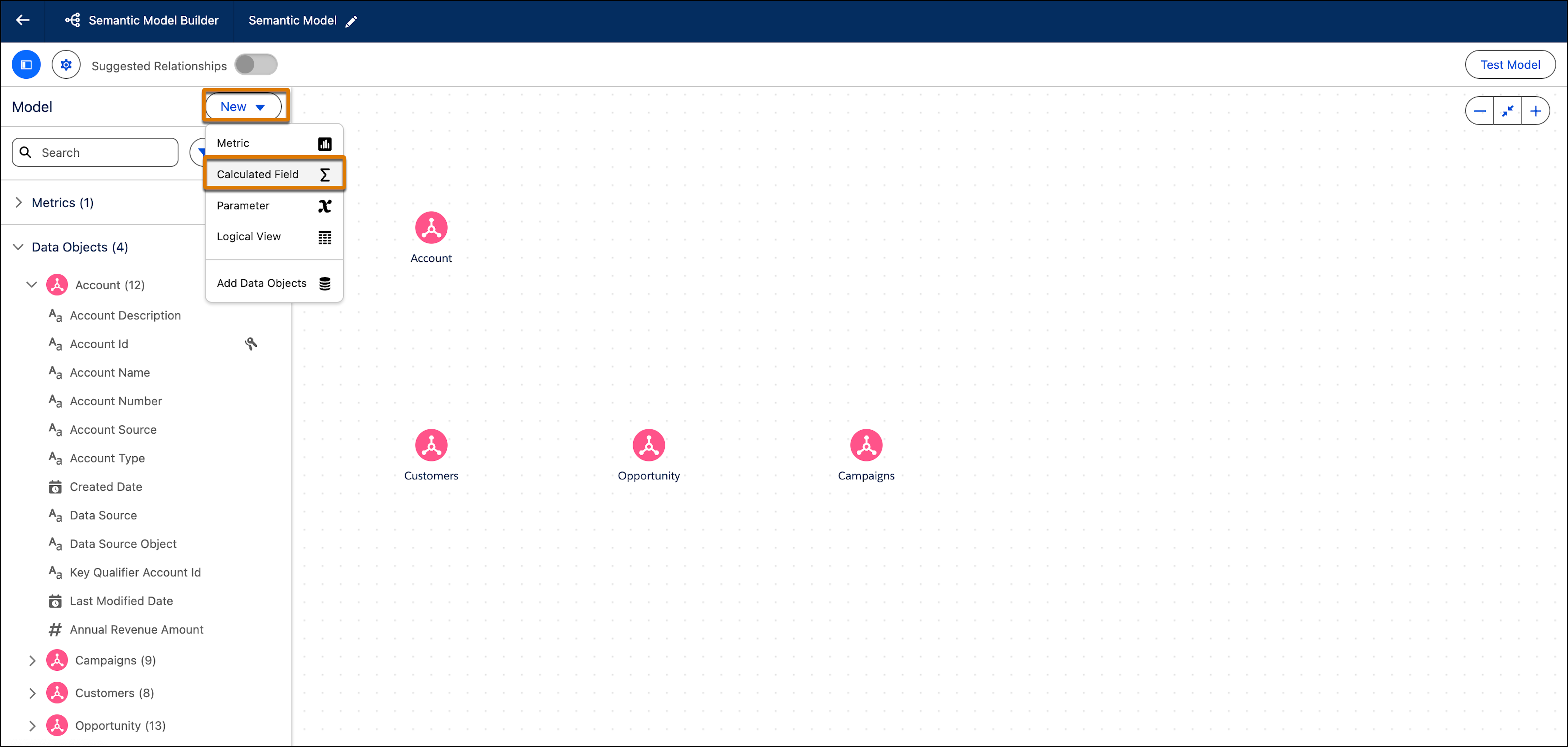
    
    ![Selecting Calculated Field form the New dropdown](https://sf-zdocs-cdn-prod.zoominsoftware.com/tdta-analytics-semantics-264-0-0-production-enus/f7c99ab1-3439-4722-b925-34cb47455d89/semantics/images/semanticlayer/SL_Calc_Field_New.png)
3. Under **Draft this Calculated Field with Einstein**, enter a description of what you want the field to calculate and how. The more descriptive you are, the better!
    
    For example, create a calculated field that shows return on advertising spend for all campaigns, using orders data.
4. Click **Draft with Einstein**.
5. Einstein automatically fills out all of the fields within the calculated field. An icon appears above each field indicating it was generated with Einstein.
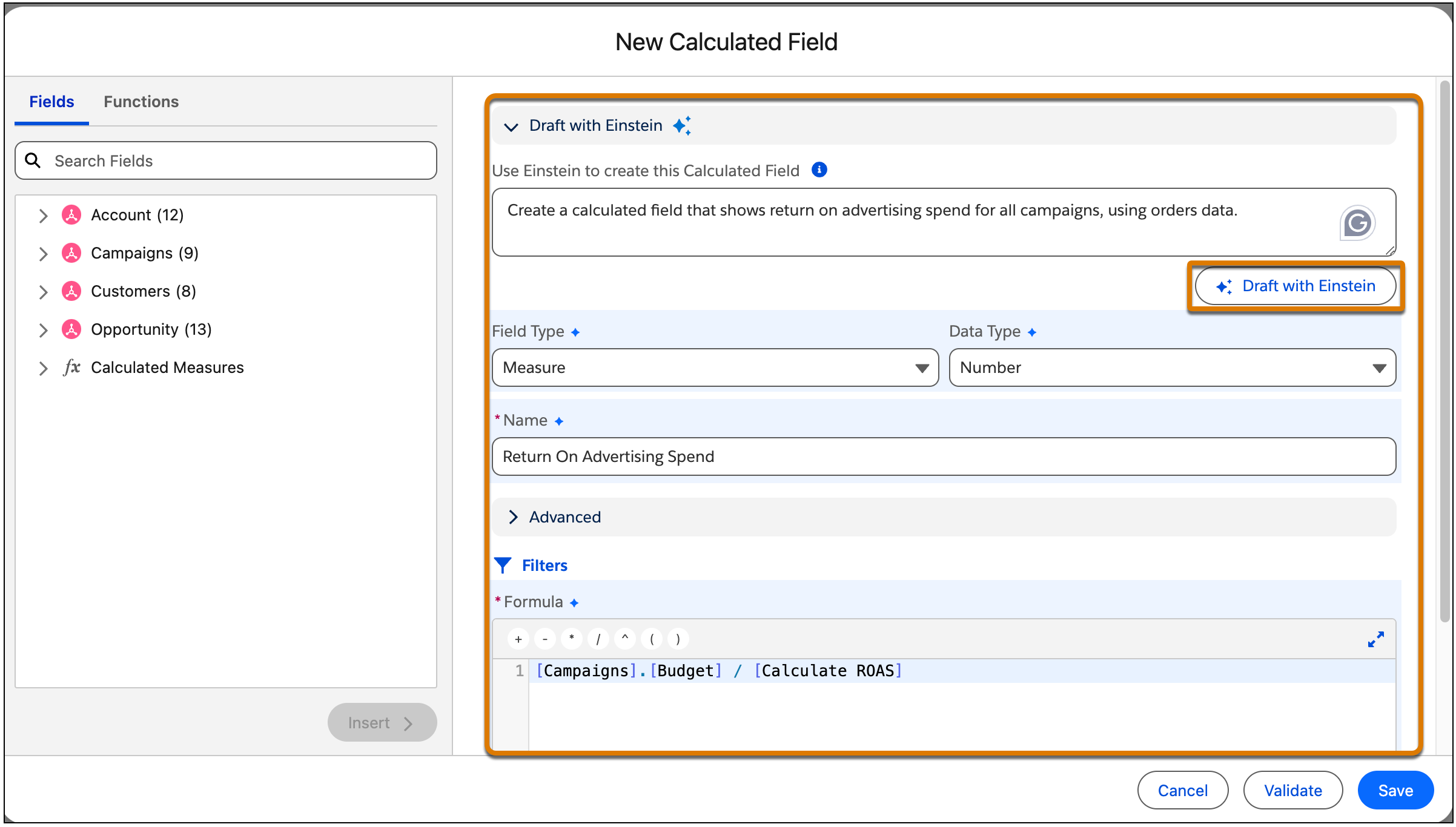
    
    ![The Draft with Einstein suggestion on the New calculated field screen](https://sf-zdocs-cdn-prod.zoominsoftware.com/tdta-analytics-semantics-264-0-0-production-enus/f7c99ab1-3439-4722-b925-34cb47455d89/semantics/images/semanticlayer/SL_Calc_Field_AI.png)
6. Review the fields and formula and edit any section according to your needs and then click **Save**.
    
    The new calculated field is added to the Semantic Model and you can now use it to create relationships.