---
schema_version: "1"
id: f662b8c1a9d7fbba6b5cfc2449bb75f3acadde99c56ecd8f7920ec7cb028ddf6
title: Create a Calculated Field
collection: admin
version: current
locale: en-us
portal_url: https://docs.salesforce.com/admin/current/en-us/analytics/264-0-0/c360_a_sl_calc_fields_create.md
canonical_url: https://help.salesforce.com/s/articleView?id=analytics.c360_a_sl_calc_fields_create.htm&release=264.0.0&type=5
source_site: help.salesforce.com
content_type: documentation
content_hash: f270322bbba98ebeae029fd5b763c5f130413bb16da0195daa4600d71e80f7df
description: Calculated fields are fields that don't exist in the underlying data and are defined with a formula. Calculated dimensions are qualitative, categorical fields used to group, classify, and segment data. Calculated measures are quantitative, numerical fields that are aggregated.
products:
- Data 360
release: "264"
---
# Create a Calculated Field
Calculated fields are fields that don't exist in the underlying data and are defined with a formula. Calculated dimensions are qualitative, categorical fields used to group, classify, and segment data. Calculated measures are quantitative, numerical fields that are aggregated.
### Required Editions
1. In Data Cloud, on the Semantic Layer tab, select a data model.
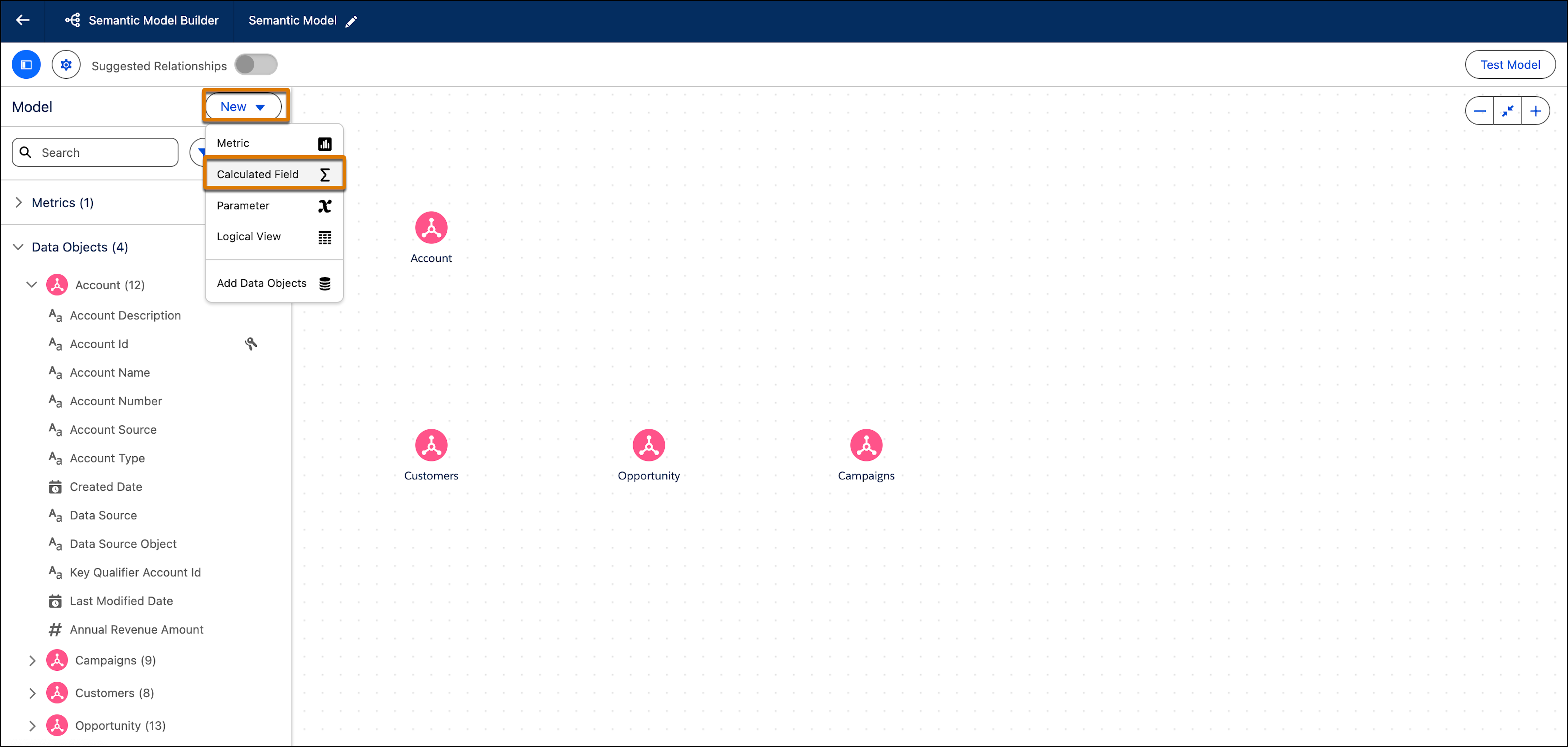
2. From the New dropdown, select **Calculated Field**.
The New Calculated Field window opens.
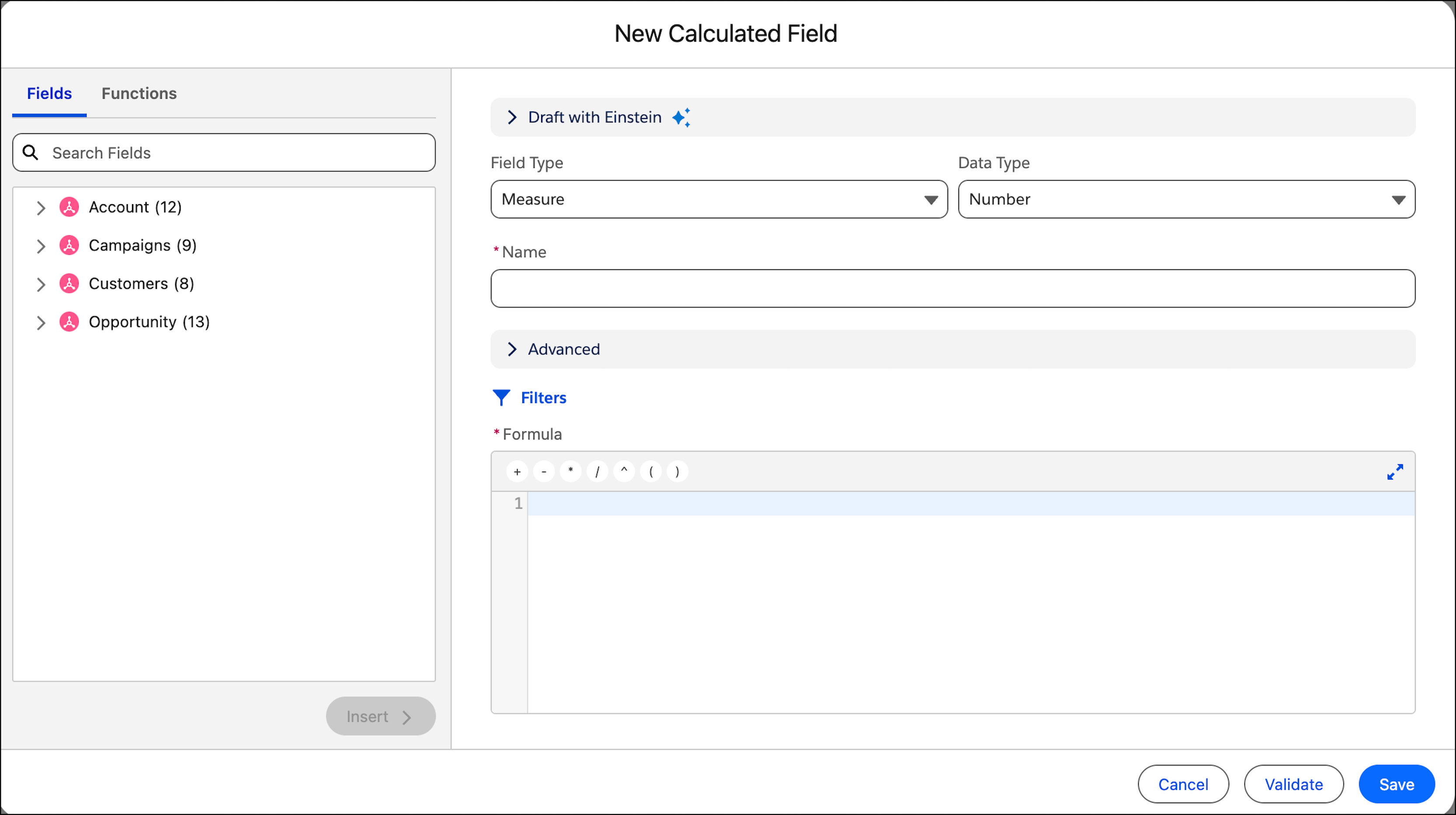
3. Configure the calculated field settings (field type, data type, name, and so on). See [Configure Calculated Field Settings](https://help.salesforce.com/s/articleView?id=analytics.c360_a_sl_calc_fields_calc_field_settings.htm&release=264.0.0&type=5 "Like all fields, calculated fields have a field type of dimension or measure. Depending on the field type, calculated fields have additional field settings or metadata to be configured, such as data role, aggregation type, or sentiment.").
4. To add filters, click **Filters**. See [Add Filters to a Calculated Field](https://help.salesforce.com/s/articleView?id=analytics.c360_a_sl_calc_fields_add_filter.htm&release=264.0.0&type=5 "Filters let you choose which data can be in the formula expression. Filters help you increase the accuracy of your measures.").
5. Write the formula. This formula is the substance of the calculated field. See [Write a Formula in a Calculated Field](https://help.salesforce.com/s/articleView?id=analytics.c360_a_sl_calc_fields_formula_build.htm&release=264.0.0&type=5 "Formulas define how a calculated field is computed. How a formula is written is called its syntax. A formula may contain functions, fields, operators, literal expressions, parameters, or comments.").
6. Click **Validate** to test the formula. Resolve any errors as needed.
7. When the calculated field is properly defined, click **Save**.

Note If the formula refers to multiple data objects, the calculated field appears under **Calculated Fields** in the left pane. If the formula refers to a single data object, the calculated field appears as in that data object—expand the data object to view it.