---
schema_version: "1"
id: 9b6429451a329848088cc4cce509b4857086d5ea87c80469aa48135534fab228
title: Add Business Preferences
collection: admin
version: current
locale: en-us
portal_url: https://docs.salesforce.com/admin/current/en-us/analytics/264-0-0/c360_a_sl_biz_preferences_set.md
canonical_url: https://help.salesforce.com/s/articleView?id=analytics.c360_a_sl_biz_preferences_set.htm&release=264.0.0&type=5
source_site: help.salesforce.com
content_type: documentation
content_hash: 091cc23d808cb57e175bc52709dd5df8671d265fea89bc7c0971e35d3d511f27
description: "To add Business Preferences to your semantic model:"
products:
  - Data 360
release: "264"
---
# Add Business Preferences

To add Business Preferences to your semantic model:

### Required Editions

<table class="slds-table slds-table_bordered slds-max-medium-table_stacked slds-m-bottom_small edition"><colgroup><col></colgroup><tbody><tr class=""><td class="slds-cell-wrap" style="vertical-align:top;">Available in: All editions supported by <span>Data 360</span>. See <a href="https://help.salesforce.com/s/articleView?id=data.c360_a_dc_editions.htm&amp;language=en_US" target="_blank"><span>Data 360</span> edition availability</a>.</td></tr></tbody></table>

<table class="slds-table slds-table_bordered slds-max-medium-table_stacked slds-m-bottom_small permission">
        <colgroup>
          <col style="width:50%">
          <col style="width:50%">
        </colgroup>
        <thead class="slds-text-title_caps ">
          <tr class="">
            <th scope="colgroup" class="slds-cell-wrap" colspan="2" style="text-align:left;vertical-align:top;" id="d20284e63">User Permissions Needed</th>
          </tr>
        </thead>
        <tbody>
          <tr class="">
            <td data-label="User Permissions Needed" class="slds-cell-wrap" style="vertical-align:top;" headers="d20284e63 ">To add a business preference:</td>

            <td class="slds-cell-wrap" style="vertical-align:top;" headers="d20284e63 ">
              <p>Permission set: </p>
              <ul>
                <li>Data Cloud Architect</li>

              </ul>
              <p>AND</p>
              <p style="margin-bottom:0;">Semantic Models object</p>
            </td>

          </tr>
        </tbody>
      </table>

1. In Data Cloud, on the Semantic Layer tab, select the semantic model to which you want to apply the Business Preferences.
2. To add Business Preferences, click ![The Add Business Preferences button](https://sf-zdocs-cdn-prod.zoominsoftware.com/tdta-analytics-semantics-264-0-0-production-enus/f7c99ab1-3439-4722-b925-34cb47455d89/semantics/images/semanticlayer/SL_Biz_Preferences_btn.png).
3. Enter your Business Preferences as free text. Start each preference on a new line, beginning with #.
    
    ![Note](https://sf-zdocs-cdn-prod.zoominsoftware.com/tdta-analytics-semantics-264-0-0-production-enus/f7c99ab1-3439-4722-b925-34cb47455d89/images/icon_note.png)
    
    Note Your text should stay within the character limit of 9000 characters, with a maximum of 20 preferences. Exceeding this limit produces an error.
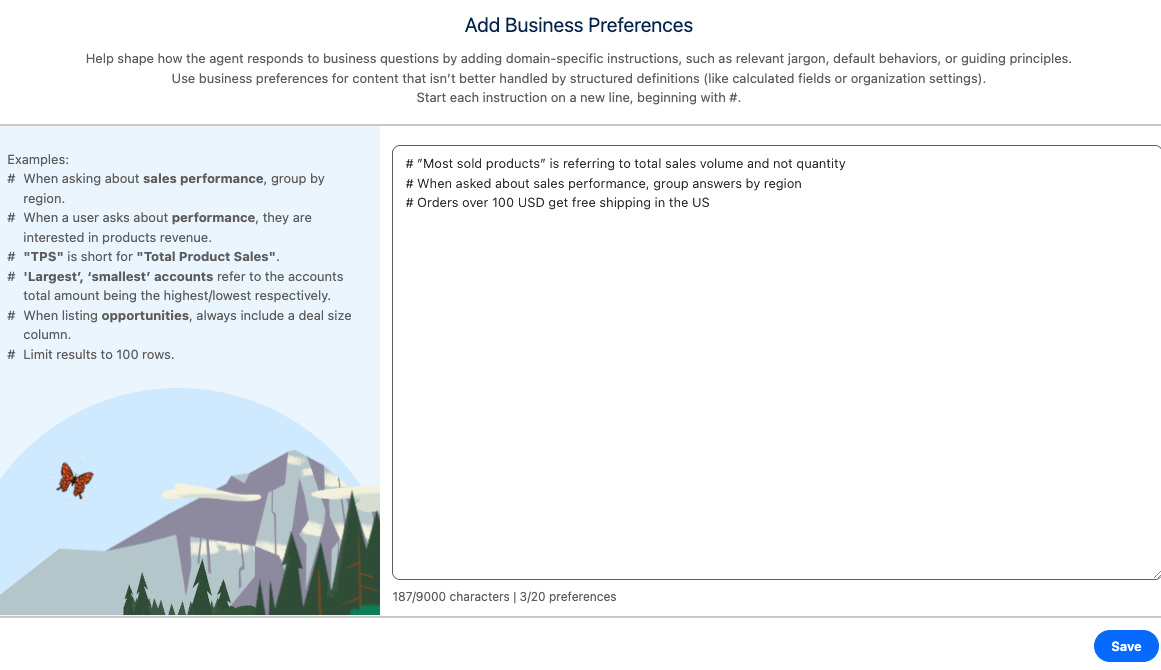
    
    ![A screen displaying the Add Business Preferences](https://sf-zdocs-cdn-prod.zoominsoftware.com/tdta-analytics-semantics-264-0-0-production-enus/f7c99ab1-3439-4722-b925-34cb47455d89/semantics/images/semanticlayer/SL_Biz_Preferences_add.png)
4. Click **Save**.
5. To add more Business Preferences or edit existing ones, repeat the process.