---
schema_version: "1"
id: 36761e1877fceb8bc804e3c6015347d00f4b6db8cf77e40d039ac487cc15f038
title: Create a Numeric Bin in Tableau Semantics
collection: admin
version: current
locale: en-us
portal_url: https://docs.salesforce.com/admin/current/en-us/analytics/264-0-0/c360_a_sl_bin_create.md
canonical_url: https://help.salesforce.com/s/articleView?id=analytics.c360_a_sl_bin_create.htm&release=264.0.0&type=5
source_site: help.salesforce.com
content_type: documentation
content_hash: 2782c2fe1110f72e464274ddf03c25d8f7549f260bfaae0ee8aff0e3f8073971
description: A numeric bin is an equal—sized container that stores data values that correspond to or fit within the bin size. Bins divide a set of data into groups of equal intervals or sizes, resulting in a systematic distribution of data. Data from any object field can be used to create a bin. Generally, numeric bins are created out of measure fields. Bins are useful in data analysis as they provide a systematic data range that allows users to organize information and discover patterns efficiently. Bins are displayed as dimensions in Tableau Semantics. You can also use bin ranges in calculated fields.
products:
- Data 360
release: "264"
---
# Create a Numeric Bin in Tableau Semantics
A numeric bin is an equal—sized container that stores data values that correspond to or fit within the bin size. Bins divide a set of data into groups of equal intervals or sizes, resulting in a systematic distribution of data. Data from any object field can be used to create a bin. Generally, numeric bins are created out of measure fields. Bins are useful in data analysis as they provide a systematic data range that allows users to organize information and discover patterns efficiently. Bins are displayed as dimensions in Tableau Semantics. You can also use bin ranges in calculated fields.
### Required Editions
**Use Case**: You want to plot a graph depicting sales for a range of ages from 20 to 60. Create bins for age groups and analyze sales for each age group by using the bin functionality.
1. In Data Cloud, on the Semantic Layer tab, select a data model.
2. On the Model tab, expand **Data Objects**.
3. Hover over the measure that you want to create a numeric bin for.
4. Click **Create** and then select **Numeric Bin**.
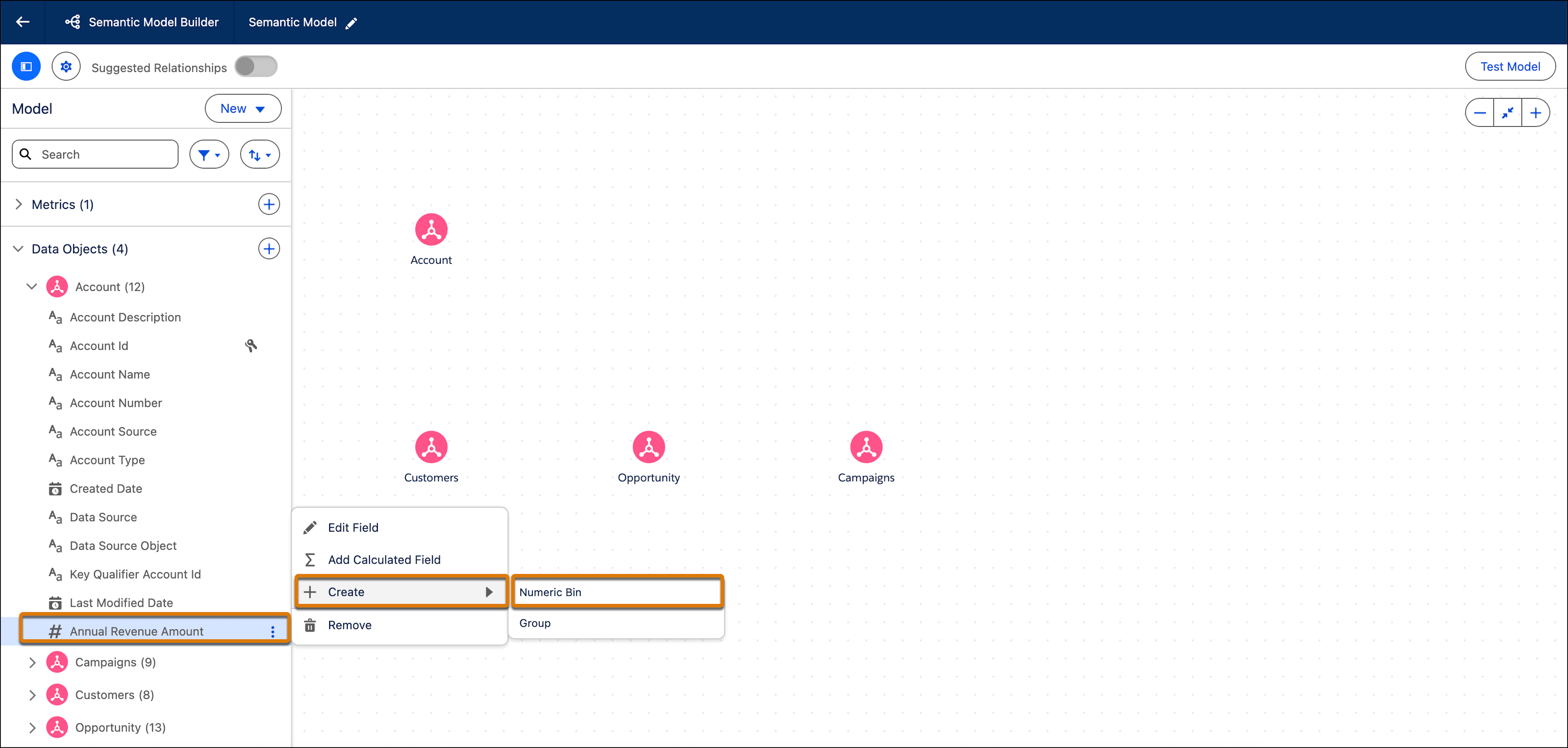
5. In the **Create Numeric Bin** window enter these details.
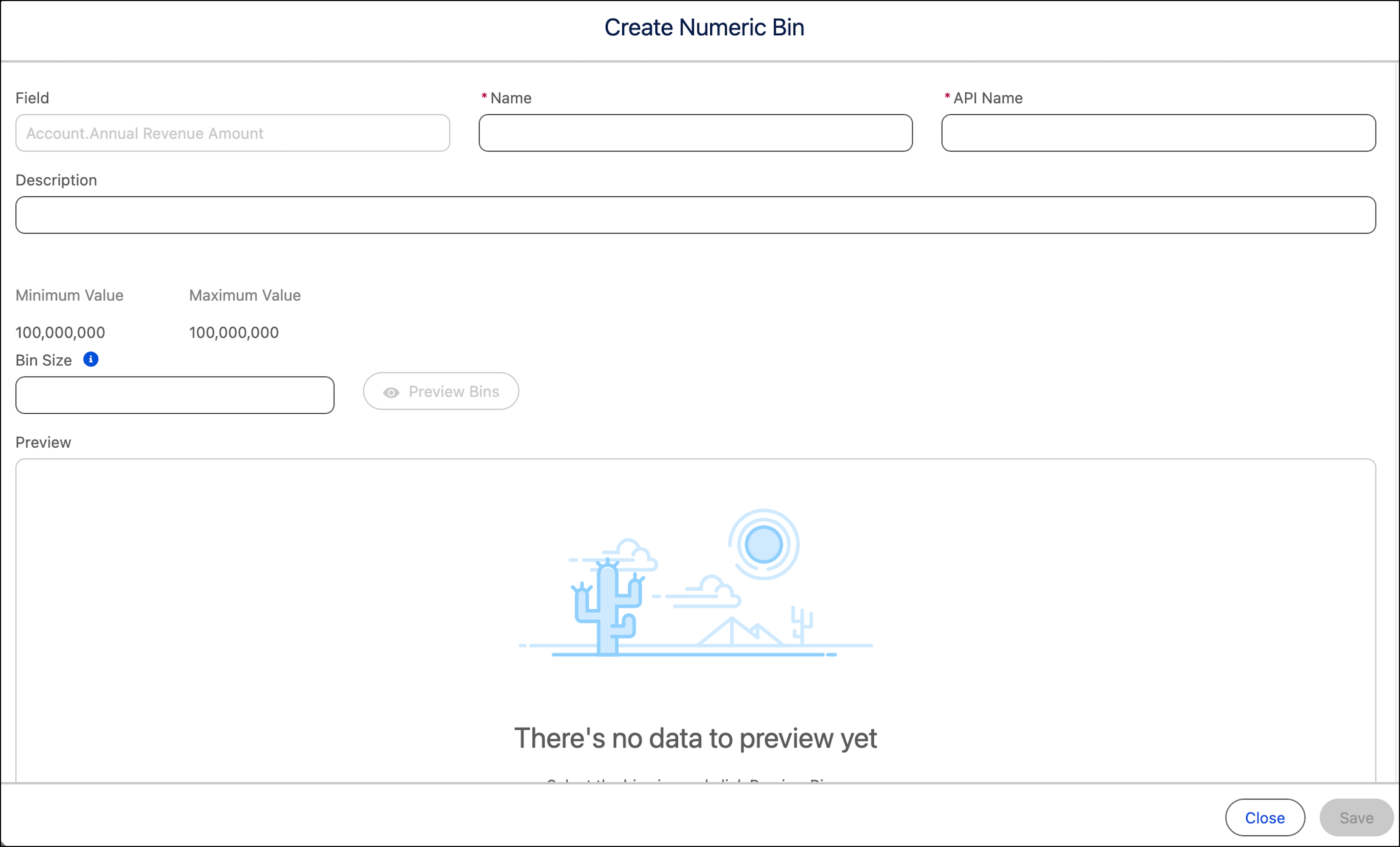
1. Enter a name, API name, and an optional description.
The field’s Maximum Value and Minimum Value are automatically displayed.
2. Enter the bin size. This value splits the numeric data into equally sized groups.
6. To preview the bin, click **Preview Bins**.
The bin field and bin count (the number of values that fall into that specific bin) are displayed in table format.
7. Save the bin.
After the bin is saved, it appears as a field under the object within Tableau Semantics. You can query the field with the Tableau Semantics Query Generator.