---
schema_version: "1"
id: 6380e9feb5fb5b9c0a0d11a3923b40f87bac08f2d1c896ca83eda93db4dbfbe4
title: Add a Predictive Insight to a Semantic Model (Beta)
collection: admin
version: current
locale: en-us
portal_url: https://docs.salesforce.com/admin/current/en-us/analytics/264-0-0/c360_a_sl_add_predictive_insight.md
canonical_url: https://help.salesforce.com/s/articleView?id=analytics.c360_a_sl_add_predictive_insight.htm&release=264.0.0&type=5
source_site: help.salesforce.com
content_type: documentation
content_hash: 4293bbae46501b8470b40b2cfb0a7fe6932d801a3f618b10ccdd12f372ab66b1
description: Add a Predictive Insight to surface an AI model's prediction as a field in your semantic model. For each record your model returns, Tableau Semantics passes the mapped field values to the AI model and returns the predicted value in real time.
products:
- Data 360
release: "264"
---
# Add a Predictive Insight to a Semantic Model (Beta)
Add a Predictive Insight to surface an AI model's prediction as a field in your semantic model. For each record your model returns, Tableau Semantics passes the mapped field values to the AI model and returns the predicted value in real time.
### Required Editions

Note Predictive Insights in Tableau Semantics is a pilot or beta service subject to the Beta Services Terms at [Agreements - Salesforce.com](https://www.salesforce.com/company/legal/agreements/) or a written Unified Pilot Agreement if executed by Customer, and applicable terms in the [Product Terms Directory](https://ptd.salesforce.com/). Use of this pilot or beta service is at the Customer's sole discretion.
Before you begin, confirm that:
- You have turned on the Predictive Insights in Tableau Semantics feature in any of these locations in your org:
- **Data Cloud Setup** > **Feature Manager**
- **Data Cloud Setup** > **Tableau Next Features**
- Tableau Next workspace settings
- You have edit access to the semantic model.
- At least one AI model is available in Data 360. Any Data Cloud license includes read access to AI Models. If no models are registered, the **New** > **Predictive Insights** option appears but you can't select a model. See [Using AI Models in Data 360](https://help.salesforce.com/s/articleView?id=data.c360_a_ai_use_ai_models.htm&type=5&language=en_US).
For background on how Predictive Insights work and what they return, see [Predictive Insights in Tableau Semantics (Beta)](https://help.salesforce.com/s/articleView?id=analytics.c360_a_sl_predictive_insghts_overview.htm&release=264.0.0&type=5 "Predictive Insights adds real-time machine learning predictions to your semantic model as a field you can chart, filter, and reuse. Connect any AI model from Data 360, map your semantic model fields to its inputs, and get a predicted value for every record—no data exports, separate tools, or code needed.").
1. In Tableau Semantics, open the semantic model you want to edit.
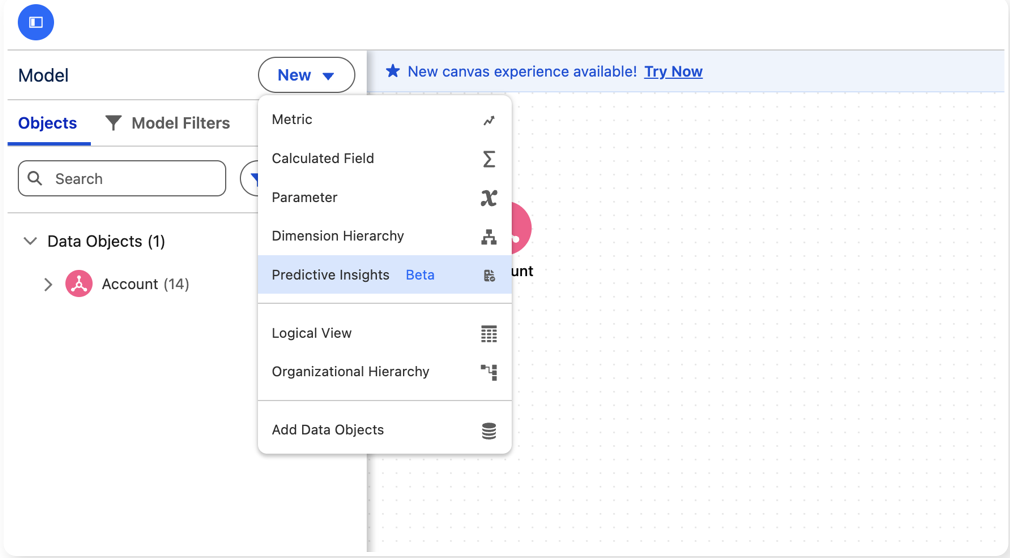
2. On the model canvas, select **New**, and then select **Predictive Insights**.
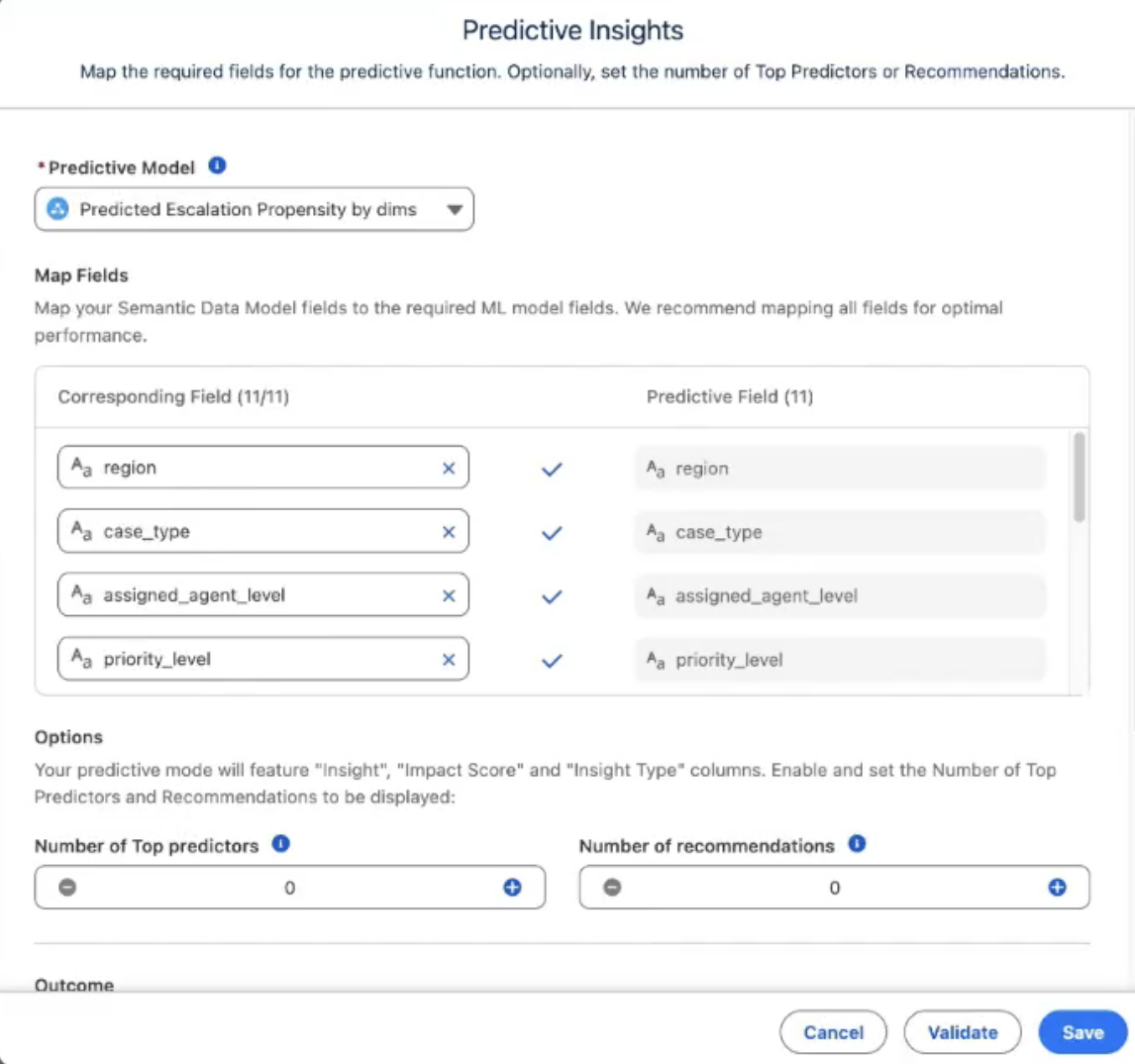
3. In the **Predictive Insights** dialog, select a model from the **Predictive Model** picker.
Only predictive models hosted in Data 360 appear in the picker.
4. Under **Map Fields**, map each of the AI model's required input fields to a corresponding field from your semantic model.
- Inputs can be dimensions, measures, or calculated fields. Pass a calculation—for example, `SUM([Sales])`—instead of a raw field.
- The matching field name from the model is preselected by default. Select a different field to change it.
- Map all fields for the most accurate predictions.
- Don't use a Predictive Insight field as an input to another Predictive Insight.
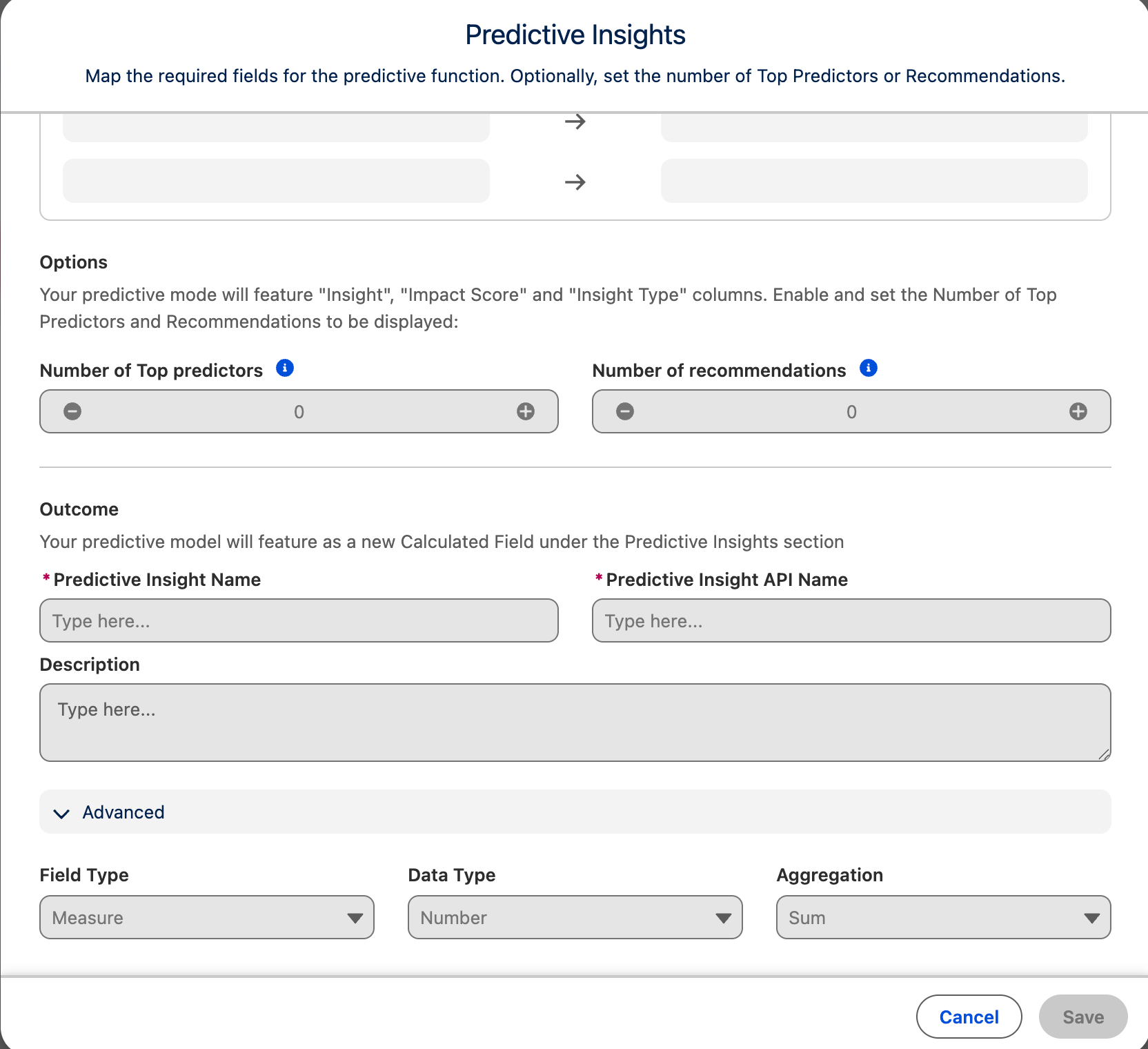
5. (Optional) To surface the drivers and suggested actions behind each prediction, under **Options**, set **Number of Top Predictors** and **Number of Recommendations** to a value greater than 0.
Higher values increase processing time. Keep these values as low as your use case requires. Leave both at 0 if you don't need explainability.
6. Enter a **Predictive Insight Name** and confirm the auto-generated **Predictive Insight API Name**. Optionally, add a description.
7. Save your changes.
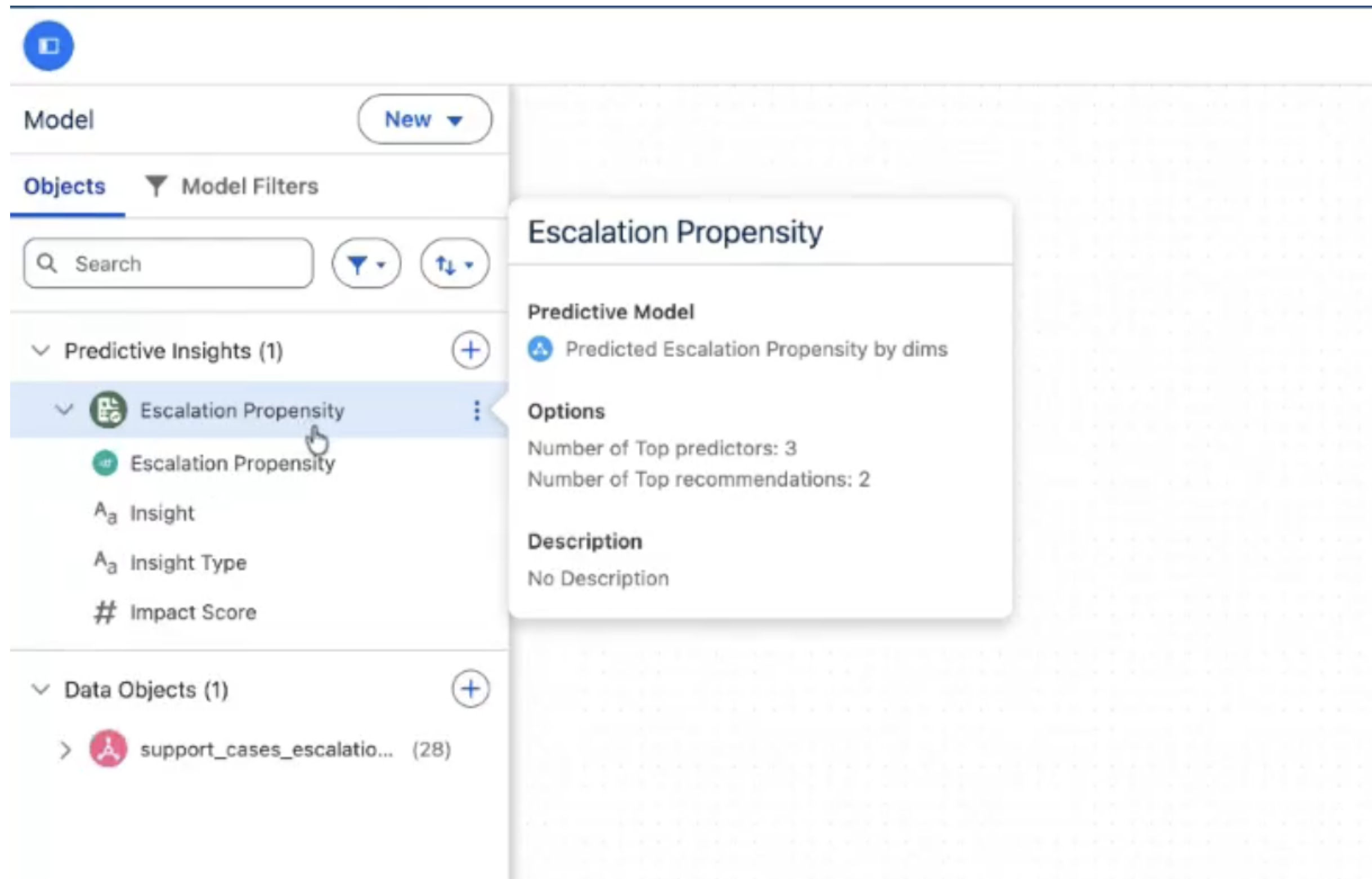
The Predictive Insight appears under **Predictive Insights** in the left panel. When top predictors or recommendations are turned on, the field also produces **Insight**, **Insight Type**, and **Impact Score** columns.
To edit or remove a predictive insight, expand **Predictive Insights** in the left panel, select the options menu next to the insight, and then select **Edit** or **Remove**. Editing an AI model doesn't break the Predictive Insights that use it. If an edit removes an input field from the AI model, the remaining fields stay mapped and the Predictive Insight continues to work.