---
schema_version: "1"
id: 716b69f846142c3ffe24a459f3a3d75dd8b31a2af6826edc6d4b7679210aa9ed
title: Clean and Prepare Data Intelligently with Column Profiles and Smart Suggestions
collection: admin
version: current
locale: en-us
portal_url: https://docs.salesforce.com/admin/current/en-us/analytics/264-0-0/bi_integrate_recipe_column_profile_suggestions.md
canonical_url: https://help.salesforce.com/s/articleView?id=analytics.bi_integrate_recipe_column_profile_suggestions.htm&release=264.0.0&type=5
source_site: help.salesforce.com
content_type: documentation
content_hash: dedda3d82176decd447b4610f4e6e48b1a78fd627cd0ebf724c840762f9b68b4
description: The column profile gives you key insights into the quality of your data and suggests additional transformations to help you clean and prepare it. This profile is especially useful when you are combining data from different sources, where inconsistencies are often introduced.
products:
  - CRM Analytics
  - Cross Cloud
release: "264"
---
# Clean and Prepare Data Intelligently with Column Profiles and Smart Suggestions

The column profile gives you key insights into the quality of your data and suggests additional transformations to help you clean and prepare it. This profile is especially useful when you are combining data from different sources, where inconsistencies are often introduced.

![Note](https://sf-zdocs-cdn-prod.zoominsoftware.com/tdta-analytics-bi-264-0-0-production-enus/ec791473-f5b4-4f64-a656-9104f455d966/images/icon_note.png)

Note To profile columns in a Data Prep recipe, see [Profile Columns to Understand Data in a Data Prep Recipe](https://help.salesforce.com/s/articleView?id=analytics.bi_integrate_recipe_profile.htm&release=264.0.0&type=5 "In CRM Analytics, run column profiling on sample data to estimate key stats about columns, such as the frequency of values and percent of columns with missing values. Column profiling is especially useful when you are combining data from different sources, where inconsistencies are often introduced. Column profiles are available only for columns shown in preview.").

Let’s look at an example of how you can use the profile to review the quality of data in a set of leads. Select the column you want to analyze to see its profile on the right of the recipe editor. To open the column profile if it isn’t visible, click ![Column profile button](https://sf-zdocs-cdn-prod.zoominsoftware.com/tdta-analytics-bi-264-0-0-production-enus/ec791473-f5b4-4f64-a656-9104f455d966/bi/images/bi/bi_integrate_recipe_button_column_profile.png) or select Show Profile from the column’s menu.

![Column profile pane in recipe](https://sf-zdocs-cdn-prod.zoominsoftware.com/tdta-analytics-bi-264-0-0-production-enus/ec791473-f5b4-4f64-a656-9104f455d966/bi/images/bi/bi_integrate_recipe_column_profile.png)

![Note](https://sf-zdocs-cdn-prod.zoominsoftware.com/tdta-analytics-bi-264-0-0-production-enus/ec791473-f5b4-4f64-a656-9104f455d966/images/icon_note.png)

Note The sections that you see in the profile depend on the type of column.

Here are the sections that you see in the column profile.

## Sample Size

<table class="slds-table slds-table_bordered slds-max-medium-table_stacked slds-m-bottom_small "><colgroup><col style="width:57.08154506437768%"> <col style="width:42.91845493562232%"></colgroup><tbody><tr class=""><td class="slds-cell-wrap" style="vertical-align:top;"><span style="vertical-align:text-bottom;display:inline-block;"><img style="width:400px;margin-bottom:0;" src="https://sf-zdocs-cdn-prod.zoominsoftware.com/tdta-analytics-bi-264-0-0-production-enus/ec791473-f5b4-4f64-a656-9104f455d966/bi/images/bi/bi_integrate_recipe_sample_size_selector.png" alt="Sample size selector"></span></td><td class="slds-cell-wrap" style="vertical-align:top;">This section shows the number of rows used to generate the column profile data. To use a larger sample, click <span style="vertical-align:text-bottom;display:inline-block;"><img style="margin-bottom:0;" src="https://sf-zdocs-cdn-prod.zoominsoftware.com/tdta-analytics-bi-264-0-0-production-enus/ec791473-f5b4-4f64-a656-9104f455d966/bi/images/bi/bi_integrate_recipe_sample_size_large.png" alt="Use large sample button"></span>.</td></tr></tbody></table>

![Note](https://sf-zdocs-cdn-prod.zoominsoftware.com/tdta-analytics-bi-264-0-0-production-enus/ec791473-f5b4-4f64-a656-9104f455d966/images/icon_note.png)

Note The option to use a larger sample of rows is available only for non-calculated dimension fields. The option doesn’t appear if the sample size is greater than the number of rows in the recipe.

## Valid Values

<table class="slds-table slds-table_bordered slds-max-medium-table_stacked slds-m-bottom_small "><colgroup><col style="width:57.08154506437768%"> <col style="width:42.91845493562232%"></colgroup><tbody><tr class=""><td class="slds-cell-wrap" style="vertical-align:top;"><span style="vertical-align:text-bottom;display:inline-block;"><img style="width:400px;margin-bottom:0;" src="https://sf-zdocs-cdn-prod.zoominsoftware.com/tdta-analytics-bi-264-0-0-production-enus/ec791473-f5b4-4f64-a656-9104f455d966/bi/images/bi/bi_integrate_recipe_valid_values.png" alt="Valid Values section of column profile"></span></td><td class="slds-cell-wrap" style="vertical-align:top;">This section gives you an idea of how the column is populated. A high proportion of null values can indicate lower quality data of limited usefulness in lenses and dashboards.</td></tr></tbody></table>

## Frequent Values

<table class="slds-table slds-table_bordered slds-max-medium-table_stacked slds-m-bottom_small ">
        <colgroup>
          <col style="width:57.08154506437768%">
          <col style="width:42.91845493562232%">
        </colgroup>
        <tbody>
          <tr class="">
            <td class="slds-cell-wrap" style="vertical-align:top;">
              <span style="vertical-align:text-bottom;display:inline-block;"><img style="width:400px;margin-bottom:0;" src="https://sf-zdocs-cdn-prod.zoominsoftware.com/tdta-analytics-bi-264-0-0-production-enus/ec791473-f5b4-4f64-a656-9104f455d966/bi/images/bi/bi_integrate_recipe_frequent_values.png" alt="Frequent Values section of column profile"></span>
            </td>

            <td class="slds-cell-wrap" style="vertical-align:top;">
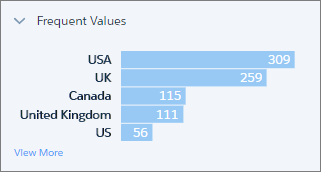
              <p>This section shows the count for each of the top five values in the column. To
                see the count for all values in the sample, click <strong class="uicontrol">View More</strong>.
                This information gives you a quick insight into the variation in your data. </p>
              <p style="margin-bottom:0;">This
                example shows different values for the same country, which can impact grouping and
                filtering in a lens or dashboard.</p>
            </td>

          </tr>
        </tbody>
      </table>

For dimension and date columns, click one or more bars to see suggested transformations for those values in the Suggestions bar. In this example, if you select the US value, CRM Analytics suggests replacing it or filtering it out.

![Suggestions for frequent values](https://sf-zdocs-cdn-prod.zoominsoftware.com/tdta-analytics-bi-264-0-0-production-enus/ec791473-f5b4-4f64-a656-9104f455d966/bi/images/bi/bi_integrate_recipe_frequent_value_suggestion.png)

## String Length (Dimension Columns Only)

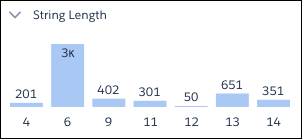
<table class="slds-table slds-table_bordered slds-max-medium-table_stacked slds-m-bottom_small "><colgroup><col style="width:57.08154506437768%"> <col style="width:42.91845493562232%"></colgroup><tbody><tr class=""><td class="slds-cell-wrap" style="vertical-align:top;"><span style="vertical-align:text-bottom;display:inline-block;"><img style="width:400px;margin-bottom:0;" src="https://sf-zdocs-cdn-prod.zoominsoftware.com/tdta-analytics-bi-264-0-0-production-enus/ec791473-f5b4-4f64-a656-9104f455d966/bi/images/bi/bi_integrate_recipe_valid_values.png" alt="String Length section of column profile"></span></td><td class="slds-cell-wrap" style="vertical-align:top;">This section gives you a breakdown of the number of characters in dimension values. A wider variation than expected can indicate inconsistencies with data from mixed sources.</td></tr></tbody></table>

## Clusters (Dimension Columns Only)

<table class="slds-table slds-table_bordered slds-max-medium-table_stacked slds-m-bottom_small ">
        <colgroup>
          <col style="width:57.08154506437768%">
          <col style="width:42.91845493562232%">
        </colgroup>
        <tbody>
          <tr class="">
            <td class="slds-cell-wrap" style="vertical-align:top;">
              <span style="vertical-align:text-bottom;display:inline-block;"><img style="width:400px;margin-bottom:0;" src="https://sf-zdocs-cdn-prod.zoominsoftware.com/tdta-analytics-bi-264-0-0-production-enus/ec791473-f5b4-4f64-a656-9104f455d966/bi/images/bi/bi_integrate_recipe_clusters.png" alt="Clusters in recipe column profile"></span>
            </td>

            <td class="slds-cell-wrap" style="vertical-align:top;">
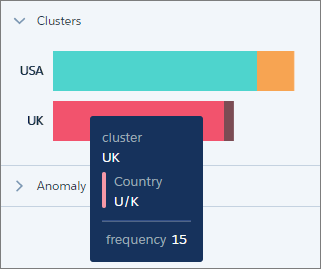
              <p>Clusters are groupings of similar values presented as a stacked bar. To see
                which value a segment represents, hover over it.</p>
              <p style="margin-bottom:0;">In this example, CRM Analytics
                has found instances of “USA” and “US”, and “UK” and “U/K” in the Country column.
                These values can be genuinely different, but they could also indicate
                inconsistencies in data from different sources, or simply typos.</p>
            </td>

          </tr>
        </tbody>
      </table>

![Note](https://sf-zdocs-cdn-prod.zoominsoftware.com/tdta-analytics-bi-264-0-0-production-enus/ec791473-f5b4-4f64-a656-9104f455d966/images/icon_note.png)

Note Clustering works best with English language values. Values in other languages can produce unexpected results.

To help you with your data cleansing, CRM Analytics suggests the Bucket By Cluster transformation whenever it identifies clusters. This transformation works just like regular bucketing, but gets you started by suggesting the buckets and values.

![Bucket by Clusters transformation suggestion](https://sf-zdocs-cdn-prod.zoominsoftware.com/tdta-analytics-bi-264-0-0-production-enus/ec791473-f5b4-4f64-a656-9104f455d966/bi/images/bi/bi_integrate_recipe_bucket_by_clusters.png)

You can add the transformation as is, or add more buckets and values.

## Anomalies (Dimension Columns Only)

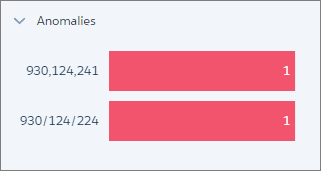
<table class="slds-table slds-table_bordered slds-max-medium-table_stacked slds-m-bottom_small "><colgroup><col style="width:57.08154506437768%"> <col style="width:42.91845493562232%"></colgroup><tbody><tr class=""><td class="slds-cell-wrap" style="vertical-align:top;"><span style="vertical-align:text-bottom;display:inline-block;"><img style="width:400px;margin-bottom:0;" src="https://sf-zdocs-cdn-prod.zoominsoftware.com/tdta-analytics-bi-264-0-0-production-enus/ec791473-f5b4-4f64-a656-9104f455d966/bi/images/bi/bi_integrate_recipe_anomalies.png" alt="Anomalies section of column profile"></span></td><td class="slds-cell-wrap" style="vertical-align:top;">This section displays values that are not consistent with other values in the column. In this example, CRM Analytics has identified two values in a reference column that in which most values are in the format 123-456-789.</td></tr></tbody></table>

Again, to help you clean your data, CRM Analytics suggests transformations when you click one or more bars. For example, you can replace the values or filter them out.

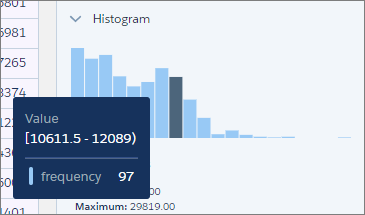
## Histogram (Measure and Date Columns Only)

<table class="slds-table slds-table_bordered slds-max-medium-table_stacked slds-m-bottom_small ">
        <colgroup>
          <col style="width:57.08154506437768%">
          <col style="width:42.91845493562232%">
        </colgroup>
        <tbody>
          <tr class="">
            <td class="slds-cell-wrap" style="vertical-align:top;">
              <span style="vertical-align:text-bottom;display:inline-block;"><img style="width:400px;margin-bottom:0;" src="https://sf-zdocs-cdn-prod.zoominsoftware.com/tdta-analytics-bi-264-0-0-production-enus/ec791473-f5b4-4f64-a656-9104f455d966/bi/images/bi/bi_integrate_recipe_histogram.png" alt="Histogram section of column profile"></span>
            </td>

            <td class="slds-cell-wrap" style="vertical-align:top;">
              <p>The histogram shows the distribution of values in a measure or date column.
                Each bar represents a predefined range, and the bar height shows the frequency of
                values falling within that range. Hover over a bar to see the range and frequency of
                the values it represents.</p>
              <p style="margin-bottom:0;">Use the histogram to see if the data falls within
                expected ranges. Low-frequency outlying values could indicate data inconsistencies
                or data that could impact aggregate calculations.</p>
            </td>

          </tr>
        </tbody>
      </table>

Measure columns also display statistical information that you can use in your data preparation.

![Statistics section of column profile](https://sf-zdocs-cdn-prod.zoominsoftware.com/tdta-analytics-bi-264-0-0-production-enus/ec791473-f5b4-4f64-a656-9104f455d966/bi/images/bi/bi_integrate_recipe_statistics.png)

With date columns, you can select the time frame for grouping values by year or by quarter.

![Date histogram section of column profile](https://sf-zdocs-cdn-prod.zoominsoftware.com/tdta-analytics-bi-264-0-0-production-enus/ec791473-f5b4-4f64-a656-9104f455d966/bi/images/bi/bi_integrate_recipe_date_histogram.png)