---
schema_version: "1"
id: 9ce3748848e8ac1fdd8cfda54fdc4313d5fddb4bd62d73ceec021917c6bed908
title: Embed Dashboards in Lightning Pages
collection: admin
version: current
locale: en-us
portal_url: https://docs.salesforce.com/admin/current/en-us/analytics/264-0-0/bi_embed_lightning.md
canonical_url: https://help.salesforce.com/s/articleView?id=analytics.bi_embed_lightning.htm&release=264.0.0&type=5
source_site: help.salesforce.com
content_type: documentation
content_hash: bb9b786131ec51d418a5d69a8b032ac378647ea872b1623200ffec0b2402d6f8
description: Add LWC or Aura CRM Analytics dashboards to Lightning home pages, record pages, and app home pages to provide interactive visualizations of your data. Users can drill down and explore the dashboard within a Lightning page.
products:
  - CRM Analytics
  - Cross Cloud
release: "264"
---
# Embed Dashboards in Lightning Pages

Add LWC or Aura CRM Analytics dashboards to Lightning home pages, record pages, and app home pages to provide interactive visualizations of your data. Users can drill down and explore the dashboard within a Lightning page.

### Required Editions

<table class="slds-table slds-table_bordered slds-max-medium-table_stacked slds-m-bottom_small edition"><colgroup><col></colgroup><tbody><tr class=""><td class="slds-cell-wrap" style="vertical-align:top;">Available in: Lightning Experience</td></tr><tr class="" id="bi_embed_lightning__FireflyEdition_noExperience"><td class="slds-cell-wrap" style="vertical-align:top;">Available in: Professional, Enterprise, Performance, Unlimited, and Developer Editions</td></tr></tbody></table>

<table class="slds-table slds-table_bordered slds-max-medium-table_stacked slds-m-bottom_small permission">
        <colgroup>
          <col style="width:50%">
          <col style="width:50%">
        </colgroup>
        <thead class="slds-text-title_caps ">
          <tr class="">
            <th scope="colgroup" class="slds-cell-wrap" colspan="2" style="text-align:center;vertical-align:top;" id="d96283e61">User
              Permissions Needed</th>
          </tr>
        </thead>
        <tbody>
          <tr class="">
            <td data-label="User Permissions Needed" class="slds-cell-wrap" style="vertical-align:top;" headers="d96283e61 ">To view embedded CRM Analytics dashboards:</td>

            <td class="slds-cell-wrap" style="vertical-align:top;" headers="d96283e61 ">CRM Analytics Growth permission set license with Use CRM
              Analytics permission</td>

          </tr>
          <tr class="">
            <td data-label="User Permissions Needed" class="slds-cell-wrap" style="vertical-align:top;" headers="d96283e61 ">To create and save Lightning pages in the Lightning App
              Builder</td>

            <td class="slds-cell-wrap" style="vertical-align:top;" headers="d96283e61 ">Customize Application</td>

          </tr>
          <tr class="">
            <td data-label="User Permissions Needed" class="slds-cell-wrap" style="vertical-align:top;" headers="d96283e61 ">To view Lightning pages in the Lightning App
              Builder</td>

            <td class="slds-cell-wrap" style="vertical-align:top;" headers="d96283e61 ">View Setup and Configuration</td>

          </tr>
        </tbody>
      </table>

To learn more about embedding dashboards for mobile users, see [Integrate Dashboards Into Your Mobile Users’ Workflow](https://help.salesforce.com/s/articleView?id=analytics.bi_mobile_dashboard_embed.htm&release=264.0.0&type=5 "CRM Analytics in the Salesforce mobile app gives you several ways to access and interact with dashboards.").

Go to an existing Lightning Experience page, select the wheel icon at the upper right, then click **Edit Page**. Or, go to Lightning App Builder, click **New**, and follow the prompts to create a Lightning page. Then, follow these instructions to embed a dashboard in the page.

1. In the list of components, select **LWC CRM Analytics Dashboard**.
    
    ![Note](https://sf-zdocs-cdn-prod.zoominsoftware.com/tdta-analytics-bi-264-0-0-production-enus/ec791473-f5b4-4f64-a656-9104f455d966/images/icon_note.png)
    
    Note You can still use the Aura CRM Analytics Dashboard component, but starting in Summer \`24, we recommend using the LWC component for seamless Lightning integration.
2. From the Dashboard dropdown list, select the dashboard to display.
    
    ![Note](https://sf-zdocs-cdn-prod.zoominsoftware.com/tdta-analytics-bi-264-0-0-production-enus/ec791473-f5b4-4f64-a656-9104f455d966/images/icon_note.png)
    
    Note (For Developers) In the code, the `developerName` attribute is used for the dashboard name. If configuring the component programmatically, you can use either the `developerName` attribute or the `dashboardId` attribute. The developerName can be requested through the API. The `dashboardId` is the 18-character code beginning with `0FK` that is found in the URL when viewing a dashboard.
3. From the layout dropdown list, select the type of screen where your Lightning page is viewed.
4. Configure the attributes of the embedded CRM Analytics dashboard.
    
    <table class="slds-table slds-table_bordered slds-max-medium-table_stacked slds-m-bottom_small ">
            <colgroup>
              <col style="width:50%">
              <col style="width:50%">
            </colgroup>
            <thead class="slds-text-title_caps ">
              <tr class="">
                <th scope="col" class="slds-cell-wrap" style="text-align:left;vertical-align:top;" id="d96283e187">Attribute</th>
                <th scope="col" class="slds-cell-wrap" style="text-align:left;vertical-align:top;" id="d96283e190">Description</th>
              </tr>
            </thead>
            <tbody>
              <tr class="">
                <td data-label="Attribute" class="slds-cell-wrap" style="text-align:left;vertical-align:top;" headers="d96283e187 ">
                  <strong class="uicontrol">Height</strong>
                </td>

                <td data-label="Description" class="slds-cell-wrap" style="text-align:left;vertical-align:top;" headers="d96283e190 ">Specify the height of the dashboard in pixels. The default is 300.</td>

              </tr>
              <tr class="">
                <td data-label="Attribute" class="slds-cell-wrap" style="text-align:left;vertical-align:top;" headers="d96283e187 ">
                  <strong class="uicontrol">Include Share and Download
                    Options</strong>
                </td>

                <td data-label="Description" class="slds-cell-wrap" style="text-align:left;vertical-align:top;" headers="d96283e190 ">Allow users to share and download dashboard
                  images and data. When this option is selected, the
                  Share control is added in the header of the
                  dashboard and both Share and Download actions are
                  added in dashboard widget menus. Requires a
                  minimum dashboard height of 612 pixels, plus user
                  access to image sharing and downloading data. The
                  default is false.</td>

              </tr>
              <tr class="">
                <td data-label="Attribute" class="slds-cell-wrap" style="text-align:left;vertical-align:top;" headers="d96283e187 ">
                  <strong class="uicontrol">Show Title</strong>
                </td>

                <td data-label="Description" class="slds-cell-wrap" style="text-align:left;vertical-align:top;" headers="d96283e190 ">Control the visibility of the
                  dashboard title. When this option is selected, the dashboard’s
                  title appears above the dashboard. The default is true.</td>

              </tr>
              <tr class="">
                <td data-label="Attribute" class="slds-cell-wrap" style="text-align:left;vertical-align:top;" headers="d96283e187 ">
                  <strong class="uicontrol">Show Header</strong>
                </td>

                <td data-label="Description" class="slds-cell-wrap" style="text-align:left;vertical-align:top;" headers="d96283e190 ">Control the visibility of the
                  dashboard header. When this option is selected, the dashboard is
                  displayed with a header bar that includes the Open in Analytics
                  icon, the date and time that the dashboard’s data was updated,
                  and the dashboard views menu. The header bar also appears if
                  either Show Sharing Icon or Show Title is selected.</td>

              </tr>
              <tr class="">
                <td data-label="Attribute" class="slds-cell-wrap" style="text-align:left;vertical-align:top;" headers="d96283e187 ">
                  <strong class="uicontrol">Open Dashboard</strong>
                </td>

                <td data-label="Description" class="slds-cell-wrap" style="text-align:left;vertical-align:top;" headers="d96283e190 ">Specify where the dashboard
                  opens when users click the open icon. The default behavior is to
                  open the dashboard in the CRM Analytics Studio. Other options
                  include opening the dashboard in the Salesforce Lightning
                  Analytics tab or disabling the open icon.</td>

              </tr>
              <tr class="">
                <td data-label="Attribute" class="slds-cell-wrap" style="text-align:left;vertical-align:top;" headers="d96283e187 ">
                  <strong class="uicontrol">Open Links in New Windows</strong>
                </td>

                <td data-label="Description" class="slds-cell-wrap" style="text-align:left;vertical-align:top;" headers="d96283e190 ">(Aura Component only) Specify where links from the dashboard to other assets are
                  opened. When this option is selected, links open in new windows.
                  When this option isn’t selected, links open in the same window.
                  The default is true.</td>

              </tr>
              <tr class="">
                <td data-label="Attribute" class="slds-cell-wrap" style="text-align:left;vertical-align:top;" headers="d96283e187 ">
                  <strong class="uicontrol">Hide On Error</strong>
                </td>

                <td data-label="Description" class="slds-cell-wrap" style="text-align:left;vertical-align:top;" headers="d96283e190 ">(Aura Component only) Use Set Component Visibility instead.</td>

              </tr>
              <tr class="">
                <td data-label="Attribute" class="slds-cell-wrap" style="text-align:left;vertical-align:top;" headers="d96283e187 ">
                  <strong class="uicontrol">Enable Notifications</strong>
                </td>

                <td data-label="Description" class="slds-cell-wrap" style="text-align:left;vertical-align:top;" headers="d96283e190 ">Allow users with
                  permission to set conditions and get notified about updates to
                  dashboard widgets. And when Show Header is true, this option
                  also surfaces the notifications icon in the dashboard header,
                  which opens the notifications management panel for editing and
                  deleting notifications. If you enable <strong class="uicontrol">Show
                    Header</strong>, it’s recommended that the dashboard is
                  at least 400 pixels in width to accommodate the management
                  panel.</td>

              </tr>
              <tr class="">
                <td data-label="Attribute" class="slds-cell-wrap" style="text-align:left;vertical-align:top;" headers="d96283e187 ">
                  <strong class="uicontrol">Enable Subscriptions</strong>
                </td>

                <td data-label="Description" class="slds-cell-wrap" style="text-align:left;vertical-align:top;" headers="d96283e190 ">Allow users with
                  permission to subscribe for periodic email updates on dashboard
                  widgets. And when Show Header is true, this option also surfaces
                  the subscriptions icon in the dashboard header, which opens the
                  subscriptions management panel for editing and deleting
                  subscriptions. If you enable <strong class="uicontrol">Show Header</strong>,
                  it’s recommended that the dashboard is at least 400 pixels in
                  width to accommodate the management panel.</td>

              </tr>
              <tr class="">
                <td data-label="Attribute" class="slds-cell-wrap" style="text-align:left;vertical-align:top;" headers="d96283e187 ">
                  <strong class="uicontrol">Set Component Visibility</strong>
                </td>

                <td data-label="Description" class="slds-cell-wrap" style="text-align:left;vertical-align:top;" headers="d96283e190 ">Dynamically
                  controls whether users see a dashboard. To set the visibility
                  for the dashboard component, add filters. For example, add a
                  filter of <var>Permissions &gt; Standard Permissions &gt; Use CRM
                    Analytics Equal true</var> to show the dashboard
                  component to users with CRM Analytics permissions only. For more
                  information on component visibility, see <a href="https://help.salesforce.com/s/articleView?id=platform.lightning_page_components_visibility.htm&amp;type=5&amp;language=en_US" target="_blank">Dynamic Lightning
                    Pages</a>.</td>

              </tr>
              <tr class="">
                <td data-label="Attribute" class="slds-cell-wrap" style="text-align:left;vertical-align:top;" headers="d96283e187 ">
                  <strong class="uicontrol">Filter</strong>
                </td>

                <td data-label="Description" class="slds-cell-wrap" style="text-align:left;vertical-align:top;" headers="d96283e190 ">(LWC Component only) Add selections
                  or filters to the embedded dashboard at runtime. You can filter
                  dataset fields by variables or specified values. Specify filters
                  by entering JSON strings in the Filter text box. For examples,
                  see <a href="https://help.salesforce.com/s/articleView?id=analytics.bi_embed_filters.htm&amp;release=264.0.0&amp;type=5" title="To specify filters or dashboard selections that require JSON strings, use the Filter attribute of the LWC CRM Analytics Dashboard component or the Filter String attribute of the embedded CRM Analytics Dashboard Aura component.">Filter and
                    Selection Syntax for Embedded Dashboards</a>. If a
                  filter or selection can’t be applied, the attribute is ignored
                  and the dashboard appears with all its data and no
                  selection.</td>

              </tr>
              <tr class="">
                <td data-label="Attribute" class="slds-cell-wrap" style="text-align:left;vertical-align:top;" headers="d96283e187 ">
                  <strong class="uicontrol">Dashboard Filters</strong>
                </td>

                <td data-label="Description" class="slds-cell-wrap" style="text-align:left;vertical-align:top;" headers="d96283e190 ">
                  <p>(Aura Component only) Add selections or
                    filters to the embedded dashboard at runtime. You
                    can filter dataset fields by variables or
                    specified values. Specify filters either by using
                    the point-and-click Filter Builder (record pages
                    only) or by entering JSON strings in the Filter
                    String box. For examples, see <a href="https://help.salesforce.com/s/articleView?id=analytics.bi_embed_filters.htm&amp;release=264.0.0&amp;type=5" title="To specify filters or dashboard selections that require JSON strings, use the Filter attribute of the LWC CRM Analytics Dashboard component or the Filter String attribute of the embedded CRM Analytics Dashboard Aura component.">Filter and Selection
                      Syntax for Embedded Dashboards</a>.</p>
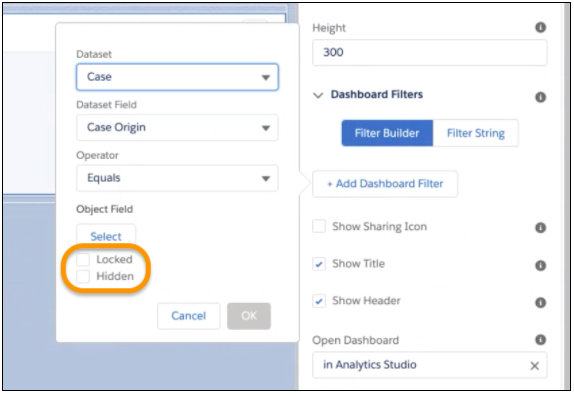
                  <p>Use the
                    Filter Builder to set up a dashboard to show the
                    contextual data for each record page in which it
                    appears. Click <strong class="uicontrol">Filter
                      Builder</strong> and <strong class="uicontrol">+ Add Dashboard
                      Filter</strong>. Select a dataset, dataset
                    field, and operator. Then click
                    <strong class="uicontrol">Select</strong> to specify a field
                    in an sObject or custom object.
                  </p>
                  <div style="text-align:left;"><img style="width:550px;" src="https://sf-zdocs-cdn-prod.zoominsoftware.com/tdta-analytics-bi-264-0-0-production-enus/ec791473-f5b4-4f64-a656-9104f455d966/bi/images/bi/bi_embedded_filters_locked_hidden.png" alt="Filter Builder open in the Lightning App Builder"></div>
                  <p>Prevent users from exposing more data by
                    locking or hiding filters. With the
                    <strong class="uicontrol">Locked</strong> option, the Filters
                    menu appears in the embedded dashboard header, but
                    users can’t modify or delete the filters. With the
                    <strong class="uicontrol">Hidden</strong> option, the Filters
                    menu doesn’t appear in the embedded dashboard
                    header.
                  </p>
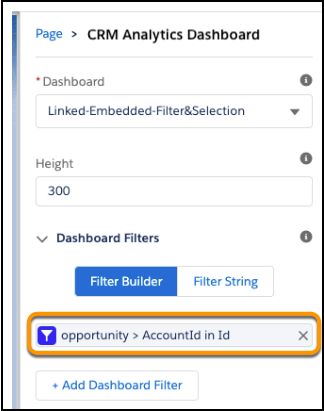
                  <p>When you click
                    <strong class="uicontrol">OK</strong>, the filter appears in
                    the configuration panel.
                  </p>
                  <div style="text-align:left;"><img style="width:300px;" src="https://sf-zdocs-cdn-prod.zoominsoftware.com/tdta-analytics-bi-264-0-0-production-enus/ec791473-f5b4-4f64-a656-9104f455d966/bi/images/bi/bi_embed_filter_builder2.png" alt="Dashboard board filter that was built using the filter builder"></div>
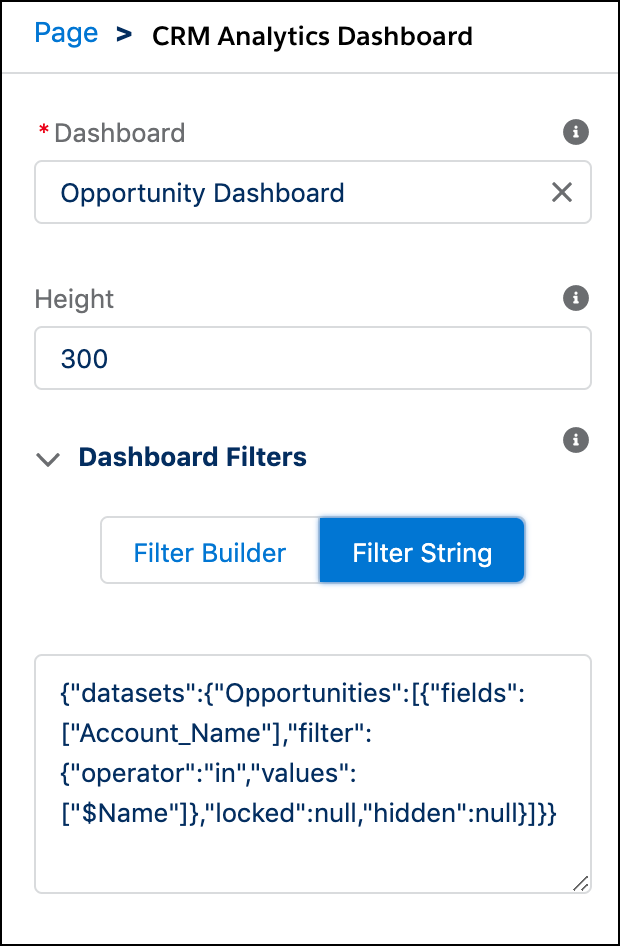
                  <p>Click an existing filter to edit it in the
                    Filter Builder, or click <strong class="uicontrol">X</strong>
                    to remove it. To view or edit the filter JSON,
                    click <strong class="uicontrol">Filter String</strong>.</p>
                  <div style="text-align:left;"><img style="width:300px;" src="https://sf-zdocs-cdn-prod.zoominsoftware.com/tdta-analytics-bi-264-0-0-production-enus/ec791473-f5b4-4f64-a656-9104f455d966/bi/images/bi/bi_embed_filter_builder3.png" alt="Filter string showing in the Dashboard Filters text field"></div>
                </td>

              </tr>
            </tbody>
          </table>
    
    ![Note](https://sf-zdocs-cdn-prod.zoominsoftware.com/tdta-analytics-bi-264-0-0-production-enus/ec791473-f5b4-4f64-a656-9104f455d966/images/icon_note.png)
    
    Note For the Filter Builder, the dataset fields must be dimensions (not dates or measures), and the object field values must be tokenizable (not static values). If a filter is created or edited in the Filter String text box, it can't be viewed or edited in the Filter Builder. If a filter or selection can’t be applied, the attribute is ignored and the dashboard appears with all its data and no selection.
    
    ![Note](https://sf-zdocs-cdn-prod.zoominsoftware.com/tdta-analytics-bi-264-0-0-production-enus/ec791473-f5b4-4f64-a656-9104f455d966/images/icon_note.png)
    
    Note
    
    When setting up locked or hidden filters for embedded dashboards, keep in mind the following considerations.
    
    - Locked and hidden filters are applied on the dashboard. If a filter makes a field visible, users see the field even when you’ve restricted access to filters with one of these options.
    - Locked and Hidden options aren’t automatically applied in linked dashboards or lens explorations. The options are applied only on the dashboard where specified.
    - Locked and Hidden options are applied to a dashboard when embedded or when opened in CRM Analytics Studio or in the Analytics tab.
    - When locked or hidden filters are applied to the dashboard, the **My Views** menu isn’t visible to users.
5. Click **Activation**, and select the custom record page assignment.
6. Save your changes.

For information about working with the Lightning App Builder, start on the [Lightning App Builder](https://help.salesforce.com/apex/HTViewHelpDoc?id=lightning_app_builder_overview.htm&language=en_US) overview page.