---
schema_version: "1"
id: 44ab658b7e62a6f462fc074151dfdb06f56bed5932912e8911cb35f227b5f403
title: Select Data Options
collection: admin
version: current
locale: en-us
portal_url: https://docs.salesforce.com/admin/current/en-us/analytics/264-0-0/bi_edd_story_setup_data.md
canonical_url: https://help.salesforce.com/s/articleView?id=analytics.bi_edd_story_setup_data.htm&release=264.0.0&type=5
source_site: help.salesforce.com
content_type: documentation
content_hash: 8bf0c445171d9d14822e4b29e75abf3e79c743b02549fb15402436acbe6833d5
description: Manually select and configure the variables in your dataset for Einstein to analyze and use to build a predictive model.
products:
  - CRM Analytics
  - Cross Cloud
release: "264"
---
# Select Data Options

Manually select and configure the variables in your dataset for Einstein to analyze and use to build a predictive model.

![Note](https://sf-zdocs-cdn-prod.zoominsoftware.com/tdta-analytics-bi-264-0-0-production-enus/ec791473-f5b4-4f64-a656-9104f455d966/images/icon_note.png)

Note Einstein Discovery stories are now models. We wish we could snap our fingers to update the name everywhere, but you can expect to see the previous name in a few places until we replace it.

![Model Settings page](https://sf-zdocs-cdn-prod.zoominsoftware.com/tdta-analytics-bi-264-0-0-production-enus/ec791473-f5b4-4f64-a656-9104f455d966/bi/images/bi/bi_edd_story_data_options.png)

![Note](https://sf-zdocs-cdn-prod.zoominsoftware.com/tdta-analytics-bi-264-0-0-production-enus/ec791473-f5b4-4f64-a656-9104f455d966/images/icon_note.png)

Note Changing data settings in this screen affects the data in your model. It doesn't affect the data stored in the underlying dataset.

1. Use the table to select which variables to include in the model. Select at least 2, and no more than 49, variables.
    
    ![Variables table](https://sf-zdocs-cdn-prod.zoominsoftware.com/tdta-analytics-bi-264-0-0-production-enus/ec791473-f5b4-4f64-a656-9104f455d966/bi/images/bi/bi_edd_story_variables_table.png)
    
    <table class="slds-table slds-table_bordered slds-max-medium-table_stacked slds-m-bottom_small ">
            <colgroup>
              <col style="width:20%">
              <col style="width:80%">
            </colgroup>
            <thead class="slds-text-title_caps ">
              <tr class="">
                <th scope="col" class="slds-cell-wrap" style="vertical-align:top;" id="d142694e69">Column</th>
                <th scope="col" class="slds-cell-wrap" style="vertical-align:top;" id="d142694e72">Description</th>
              </tr>
            </thead>
            <tbody>
              <tr class="">
                <td data-label="Column" class="slds-cell-wrap" style="vertical-align:top;" headers="d142694e69 ">Selection</td>

                <td data-label="Description" class="slds-cell-wrap" style="vertical-align:top;" headers="d142694e72 ">
                  <p>Select the checkbox to include the variable in the model.</p>
                  <div class="slds-box slds-box_x-small slds-theme_shade slds-m-top_medium slds-m-bottom_medium">
                    <div class="slds-media slds-media_responsive">
                      <div class="slds-media__figure"><span class="slds-icon_container slds-icon_container_circle slds-icon-note-note"><img style="margin-bottom:0;" src="https://sf-zdocs-cdn-prod.zoominsoftware.com/tdta-analytics-bi-264-0-0-production-enus/ec791473-f5b4-4f64-a656-9104f455d966/images/icon_note.png" alt="Note"></span></div>
                      <div class="slds-media__body" style="padding-top:.5rem;padding-bottom:.5rem;"><span class="slds-text-title_caps">Note</span> The row with
                        the lock icon indicates the model’s outcome variable, or target. It’s
                        automatically included in the model. It can’t be deselected.</div>
                    </div>
                  </div>
                </td>

              </tr>
              <tr class="">
                <td data-label="Column" class="slds-cell-wrap" style="vertical-align:top;" headers="d142694e69 ">Variable</td>

                <td data-label="Description" class="slds-cell-wrap" style="vertical-align:top;" headers="d142694e72 ">
                  <p>Dataset column, or field. Also known as a feature variable. Each row
                    represents a column in the dataset, and is marked as a number, text, or date
                    variable.</p>
                  <p>Sort the table by variable in ascending or descending order by
                    clicking the column header.</p>
                  <div>
                    <div class="slds-box slds-box_x-small slds-theme_shade slds-m-top_medium slds-m-bottom_medium">
                      <div class="slds-media slds-media_responsive">
                        <div class="slds-media__figure"><span class="slds-icon_container slds-icon_container_circle slds-icon-note-note"><img style="margin-bottom:0;" src="https://sf-zdocs-cdn-prod.zoominsoftware.com/tdta-analytics-bi-264-0-0-production-enus/ec791473-f5b4-4f64-a656-9104f455d966/images/icon_note.png" alt="Note"></span></div>
                        <div class="slds-media__body" style="padding-top:.5rem;padding-bottom:.5rem;"><span class="slds-text-title_caps">Note</span>
                          <ul>
                            <li>The list of variables includes numeric, text, and date columns with at
                              least 25 rows of data from the dataset.</li>
                            <li>Multivalue fields, which are fields that contain multiple values (such
                              as a list or array), aren’t supported in Einstein Discovery. To learn
                              more, see <a href="https://help.salesforce.com/s/articleView?id=analytics.bi_edd_limits.htm&amp;release=264.0.0&amp;type=5" title="Einstein Discovery has limits for CRM Analytics datasets, models, and predictions.">Einstein Discovery Capacities and Requirements</a>.</li>
                          </ul>
                        </div>
                      </div>
                    </div>
                  </div>
                </td>

              </tr>
              <tr class="">
                <td data-label="Column" class="slds-cell-wrap" style="vertical-align:top;" headers="d142694e69 ">Importance or Correlation</td>

                <td data-label="Description" class="slds-cell-wrap" style="vertical-align:top;" headers="d142694e72 ">
                  <p>Einstein shows metrics to help you decide which variables to include.
                    Correlation shows the strength of association between the variable and the
                    outcome, and importance shows how much the model uses the variable when
                    predicting the outcome. For example, when predicting energy usage, temperature
                    might be the highest correlated, while air conditioner type is the most
                    important.</p>
                  <p>To choose what you want to see, use the column’s dropdown menu.</p>
                  <div>
                    <ul>
                      <li><strong class="uicontrol">Importance</strong> shows how much the variable influences
                        the outcome. Importance indicates the degree by which the model chooses to
                        use the variable when predicting the outcome. The higher the importance,
                        the greater the impact.</li>

                      <li><strong class="uicontrol">Correlation</strong> shows how much the variable is
                        associated with the outcome. The higher the correlation, the stronger the
                        relationship between the variable and the outcome.</li>

                    </ul>
                  </div>
                  <div class="slds-box slds-box_x-small slds-theme_shade slds-m-top_medium slds-m-bottom_medium">
                    <div class="slds-media slds-media_responsive">
                      <div class="slds-media__figure"><span class="slds-icon_container slds-icon_container_circle slds-icon-note-tip"><img style="margin-bottom:0;" src="https://sf-zdocs-cdn-prod.zoominsoftware.com/tdta-analytics-bi-264-0-0-production-enus/ec791473-f5b4-4f64-a656-9104f455d966/images/icon_tip.png" alt="Tip"></span></div>
                      <div class="slds-media__body" style="padding-top:.5rem;padding-bottom:.5rem;"><span class="slds-text-title_caps">Tip</span>
                        <ul>
                          <li>Use these metrics to evaluate variables relative to one another.
                            Consider top and bottom rather than absolute values.</li>

                          <li>When importance and correlation are different, best practice is to
                            consider importance. Importance is a more advanced metric that understands
                            interactions between variables. For example, when predicting global sales,
                            product and region may be weakly correlated individually, while together
                            they’re highly important.</li>

                          <li>If a variable has little or no importance or correlation, consider
                            deselecting it to improve the model.</li>

                        </ul>

                      </div>
                    </div>
                  </div>
                </td>

              </tr>
              <tr class="">
                <td data-label="Column" class="slds-cell-wrap" style="vertical-align:top;" headers="d142694e69 ">Data Alert</td>

                <td data-label="Description" class="slds-cell-wrap" style="vertical-align:top;" headers="d142694e72 ">Displays data alerts.</td>

              </tr>
              <tr class="">
                <td data-label="Column" class="slds-cell-wrap" style="vertical-align:top;" headers="d142694e69 ">Transformation</td>

                <td data-label="Description" class="slds-cell-wrap" style="vertical-align:top;" headers="d142694e72 ">Displays transforms, or configured changes.</td>

              </tr>
              <tr class="">
                <td data-label="Column" class="slds-cell-wrap" style="vertical-align:top;" headers="d142694e69 ">Filter Applied</td>

                <td data-label="Description" class="slds-cell-wrap" style="vertical-align:top;" headers="d142694e72 ">Displays excluded values.</td>

              </tr>
            </tbody>
          </table>
2. To configure settings for an individual variable, select it in the table and use the right panel.
    
    For each variable, Einstein uses up to 100 values. If the variable has more than 100 values, then the values that occur the most are used while the rest are grouped into Other. To increase the number of values used in a variable to 200, enable high cardinality. For more information, see [High Cardinality Alert](https://help.salesforce.com/s/articleView?id=analytics.bi_edd_data_alert_cardinality.htm&release=264.0.0&type=5 "Indicates that a variable contains more than 100 unique values.").
    
    ![Settings panel for a selected variable](https://sf-zdocs-cdn-prod.zoominsoftware.com/tdta-analytics-bi-264-0-0-production-enus/ec791473-f5b4-4f64-a656-9104f455d966/bi/images/bi/bi_edd_story_variable_settings.png)
    
    <table class="slds-table slds-table_bordered slds-max-medium-table_stacked slds-m-bottom_small ">
            <colgroup>
              <col style="width:20%">
              <col style="width:80%">
            </colgroup>
            <thead class="slds-text-title_caps ">
              <tr class="">
                <th scope="col" class="slds-cell-wrap" style="vertical-align:top;" id="d142694e229">Tab</th>
                <th scope="col" class="slds-cell-wrap" style="vertical-align:top;" id="d142694e232">Description</th>
              </tr>
            </thead>
            <tbody>
              <tr class="">
                <td data-label="Tab" class="slds-cell-wrap" style="vertical-align:top;" headers="d142694e229 ">Alert</td>

                <td data-label="Description" class="slds-cell-wrap" style="vertical-align:top;" headers="d142694e232 ">Identifies possible issues detected in the data, such as outliers or
                  duplicates. Review alerts and recommended actions to get better insights,
                  predictions, and improvements. To learn more, see <a href="https://help.salesforce.com/s/articleView?id=analytics.bi_edd_quality_alert.htm&amp;release=264.0.0&amp;type=5" title="Einstein Discovery displays quality alerts when it detects issues in your training data, your model’s quality metrics, or during cross-validation.">Handle Quality Alerts</a>.</td>

              </tr>
              <tr class="">
                <td data-label="Tab" class="slds-cell-wrap" style="vertical-align:top;" headers="d142694e229 ">Settings</td>

                <td data-label="Description" class="slds-cell-wrap" style="vertical-align:top;" headers="d142694e232 ">
                  <p><strong class="uicontrol">Analyze for bias</strong>—select to subject the text variable
                    to bias detection so you can remove distorting or unethical effects on your
                    analysis and predictions. To learn more, see <a href="https://help.salesforce.com/s/articleView?id=analytics.bi_edd_story_bias.htm&amp;release=264.0.0&amp;type=5" title="Einstein Discovery helps you practice ethical use of AI by detecting bias in your data so that you can remove its distorting effects on your analysis and predictions. Bias indicates that variables are being treated unequally in your model.">Detect and Remove Bias from a Model</a>.</p>
                  <div>
                    <p><strong class="uicontrol">Transform</strong>—Use transforms in the variable’s settings to
                      improve data for analysis. Transformations affect the model, and don’t impact
                      the dataset.</p>
                    <div class="slds-box slds-box_x-small slds-theme_shade slds-m-top_medium slds-m-bottom_medium">
                      <div class="slds-media slds-media_responsive">
                        <div class="slds-media__figure"><span class="slds-icon_container slds-icon_container_circle slds-icon-note-note"><img style="margin-bottom:0;" src="https://sf-zdocs-cdn-prod.zoominsoftware.com/tdta-analytics-bi-264-0-0-production-enus/ec791473-f5b4-4f64-a656-9104f455d966/images/icon_note.png" alt="Note"></span></div>
                        <div class="slds-media__body" style="padding-top:.5rem;padding-bottom:.5rem;"><span class="slds-text-title_caps">Note</span> When applied, transformations use all values in the variable
                          from the dataset.</div>
                      </div>
                    </div>
                    <p>For instructions, see</p>
                    <ul>
                      <li><a href="https://help.salesforce.com/s/articleView?id=analytics.bi_edd_story_number.htm&amp;release=264.0.0&amp;type=5" title="Configure settings for individual number variables in your model.">Configure Number Variables</a></li>
                      <li><a href="https://help.salesforce.com/s/articleView?id=analytics.bi_edd_story_text.htm&amp;release=264.0.0&amp;type=5" title="Configure settings for individual text variables in your model.">Configure Text Variables</a></li>
                      <li><a href="https://help.salesforce.com/s/articleView?id=analytics.bi_edd_story_date.htm&amp;release=264.0.0&amp;type=5" title="Configure settings for individual date fields in your model.">Configure Date Variables</a></li>
                    </ul>
                  </div>
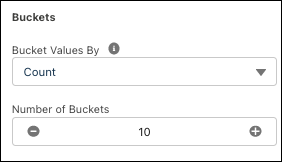
                  <p><strong class="uicontrol">Buckets</strong>—For numeric variables.</p>
                  <div>
                    <div style="text-align:left;"><img style="width:200px;" src="https://sf-zdocs-cdn-prod.zoominsoftware.com/tdta-analytics-bi-264-0-0-production-enus/ec791473-f5b4-4f64-a656-9104f455d966/bi/images/bi/bi_edd_story_modify_number_settings.png" alt="Bucket configuration"></div>
                  </div>
                  <div>
                    <ul>
                      <li>Choose a bucketing method with the <strong class="uicontrol">Bucket Values
                          By</strong> dropdown.<ul>
                          <li>Count: Buckets proportionally by occurrence.</li>
                          <li>Width: Buckets proportionally within the total range of values.</li>
                          <li>Manual: Specify your own bucket ranges.</li>
                        </ul>
                      </li>

                      <li>Select the <strong class="uicontrol">number of buckets</strong>.</li>

                    </ul>
                  </div>
                  <div>
                    <p><strong class="uicontrol">Include Only</strong>—Displays values in the variable,
                      including its label and row count. Values that occur fewer than 25 times are
                      grouped as “Other.”</p>
                    <ul>
                      <li>To group or bucket values as other, deselect them and choose
                        <strong class="uicontrol">Group deselected values in “Other”</strong> in the
                        dropdown.
                      </li>
                      <li>To filter out values, deselect them and choose <strong class="uicontrol">Exclude
                          deselected values</strong> in the dropdown.</li>
                    </ul>
                    <div class="slds-box slds-box_x-small slds-theme_shade slds-m-top_medium slds-m-bottom_medium">
                      <div class="slds-media slds-media_responsive">
                        <div class="slds-media__figure"><span class="slds-icon_container slds-icon_container_circle slds-icon-note-tip"><img style="margin-bottom:0;" src="https://sf-zdocs-cdn-prod.zoominsoftware.com/tdta-analytics-bi-264-0-0-production-enus/ec791473-f5b4-4f64-a656-9104f455d966/images/icon_tip.png" alt="Tip"></span></div>
                        <div class="slds-media__body" style="padding-top:.5rem;padding-bottom:.5rem;"><span class="slds-text-title_caps">Tip</span> Apply filters after transformations. Transformations
                          ignore excluded value filters.</div>
                      </div>
                    </div>
                  </div>
                  <p style="margin-bottom:0;"><strong class="uicontrol">Histogram</strong>—Chart displays distribution of the values by
                    occurrences, or row count.</p>
                </td>

              </tr>
            </tbody>
          </table>
3. Configure General Settings in the right panel.
    
    - Choose an **Algorithm** for Einstein Discovery to use to create the model with.
        
         
        | Algorithm | Description |
        | --- | --- |
        | **GLM** | Default. Generalized Linear Model is a regression-based algorithm. |
        | **GBM** | Gradient Boost Machine is a decision tree-based ensemble machine learning algorithm. |
        | **XGBoost** | XGBoost is a decision tree-based ensemble machine learning algorithm. |
        | **Random Forest** | Random Forest is a supervised learning algorithm that uses multiple decision trees, randomization, and other optimization techniques. |
        | Model Tournament | Alternatively, have Einstein Discovery run all four algorithms and then use the algorithm that performed best. |
    - Optionally, make a selection from the **Validation Option** dropdown to specify if you want to specify a validation set. To learn more, see [Edit General Settings for a Model](https://help.salesforce.com/s/articleView?id=analytics.bi_edd_story_general.htm&release=264.0.0&type=5 "You can edit general settings for a model. View the CRM Analytics dataset and select the algorithm and validation type.").
4. Click **Create Model**.