
To illustrate how to configure inbound call transfers that happen via Real-Time Streaming, this topic describes how to accomplish these tasks with Amazon Connect.

Tip If Salesforce Voice with Partner Telephony or Bring Your Own Channel for CCaaS is completely set
up, use the createVoiceCall method in the Amazon Connect Lambda function or the createVoiceCall REST API to create a VoiceCall
record. Specify the same AI agent version across all blocks within the flow.
-
In Amazon Connect Flow Designer, create an Amazon Connect inbound flow. To quickly
create an inbound flow, make a copy of the Sample SCV Inbound Flow.
An inbound flow handles incoming calls to your organization’s Amazon Connect instance and routes the calls to their correct destination, such as a rep, a queue, or even an Agentforce agent. For information about how Voice with Telephony Providers uses these flows and to see sample flows, see Amazon Connect Flows and Sample Flows.
- Add the Set Logging Behavior block and turn on logging.
-
To create a VoiceCall record in Salesforce, add an AWS Lambda Function block to the
flow and call the
createVoiceCallmethod.The Sample SCV Inbound Flow contains the AWS Lambda Function block already.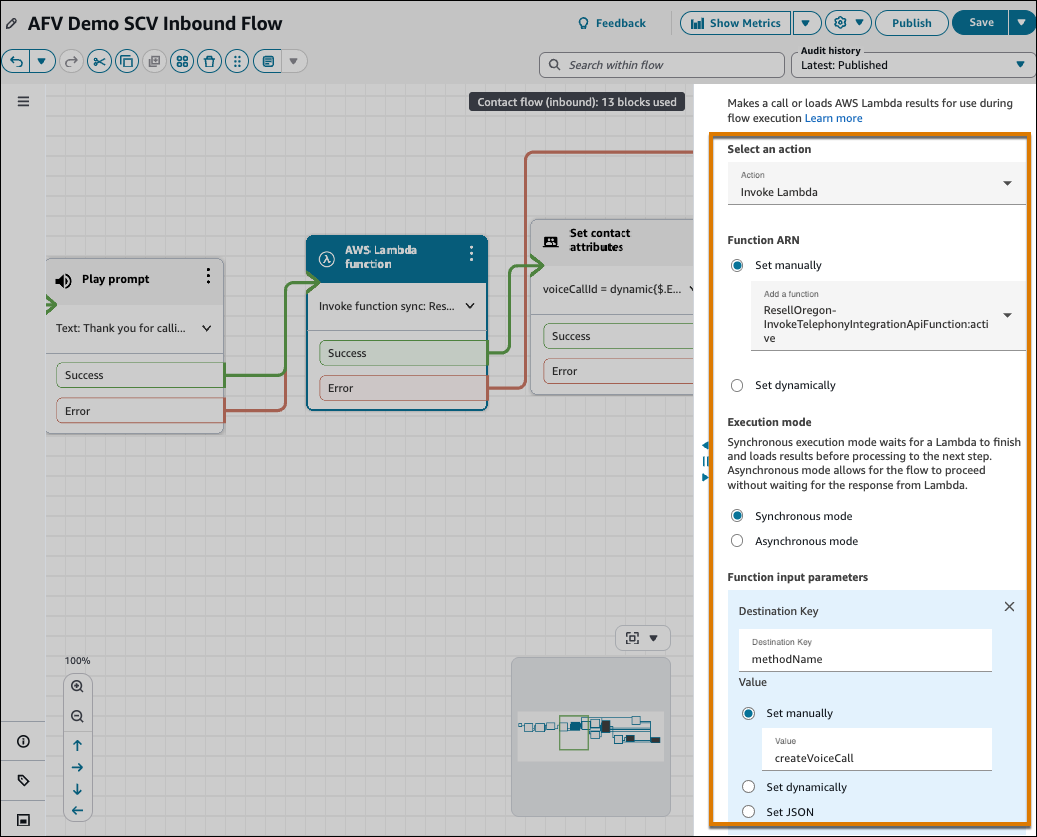
-
Add the Connect assistant block. In the block, set to the Q in Connect assistant ARN and
select the Amazon orchestrator AI agent that you previously created. Don’t use the
orchestration agent ARN.
This block opens the session and writes
$.Wisdom.SessionArnon the contact. A successful Connect assistant block doesn’t start Lex and doesn’t hand the caller to Agentforce. -
To transfer the call to the Agentforce agent, add the Get customer input block.
- In the Amazon Lex tab of the Get customer input block, select the agent (Lex V2 bot) and alias.
- For the Select a Domain field, enter the assistant ARN.
- For the AI Agent - Self Service field, select Select AI Agent, and then enter the name and version of the orchestration AI agent.
-
Set the session attribute
x-amz-lex:q-in-connect:ai-agent-arnto the versioned ARN of the orchestration AI agent. For example,arn:aws:wisdom:<REGION>:<ACCOUNT_ID>:ai-agent/<ASSISTANT_ID>/<AI_AGENT_ID>:<version>.
-
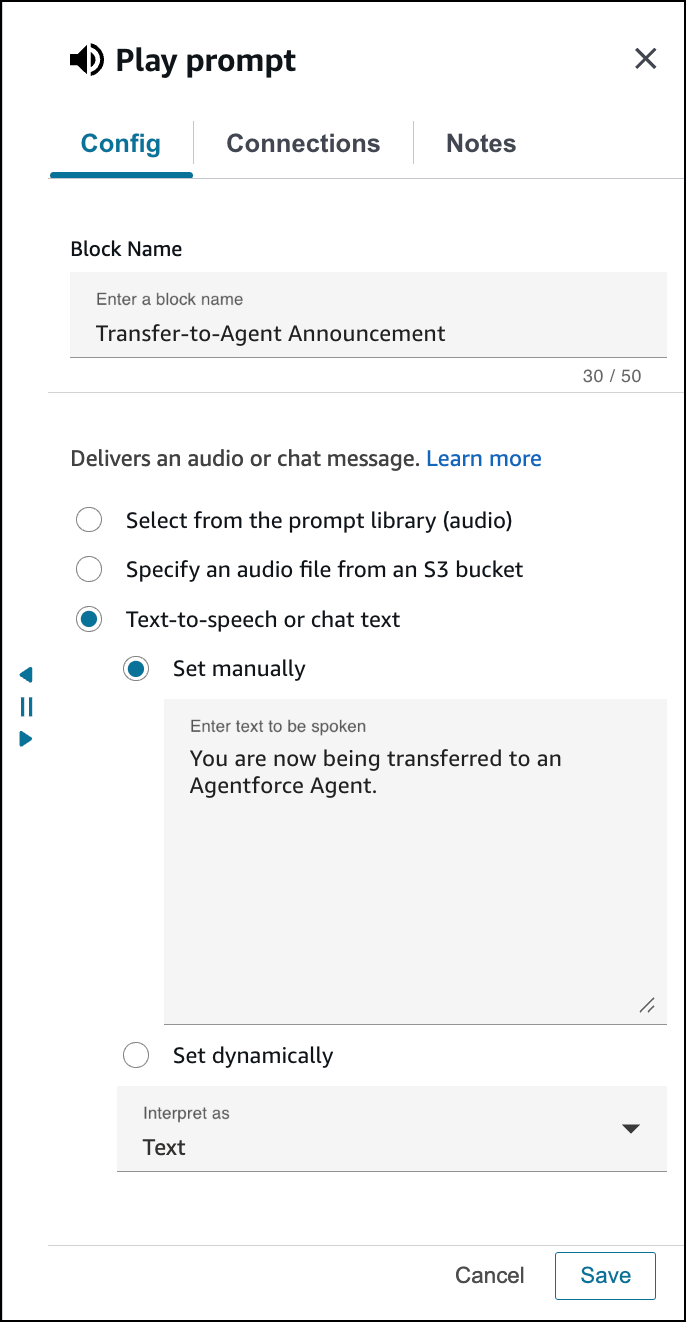
Optionally, configure the customer experience when you transfer to the agent. For
example, play music or add text-to-speech that tells the customer that the call is being
transferred to an agent.
- Click Save.
-
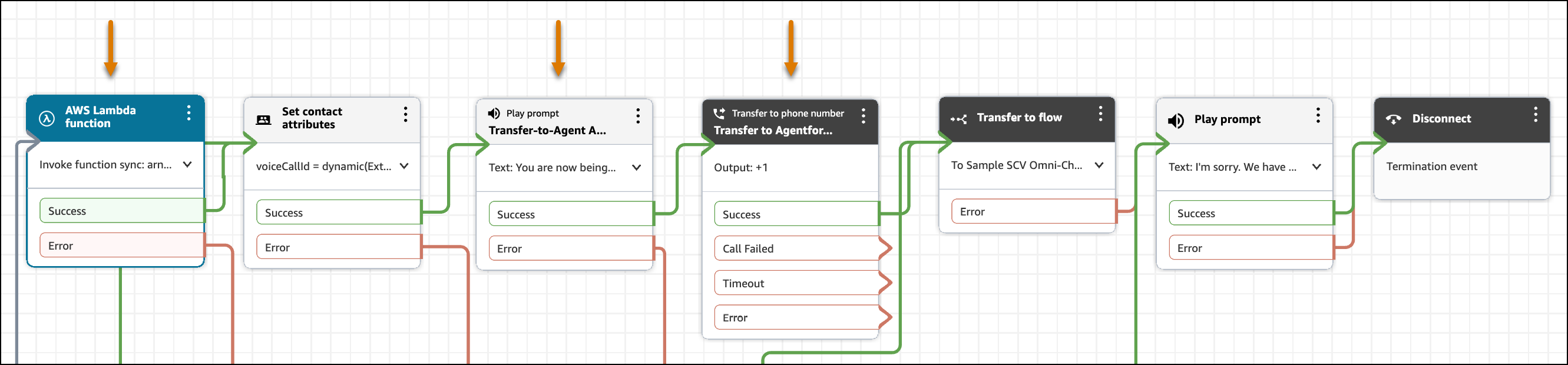
Connect the inputs and outputs of the new blocks that you added to the flow.
- Save and publish the Amazon Connect flow.
-
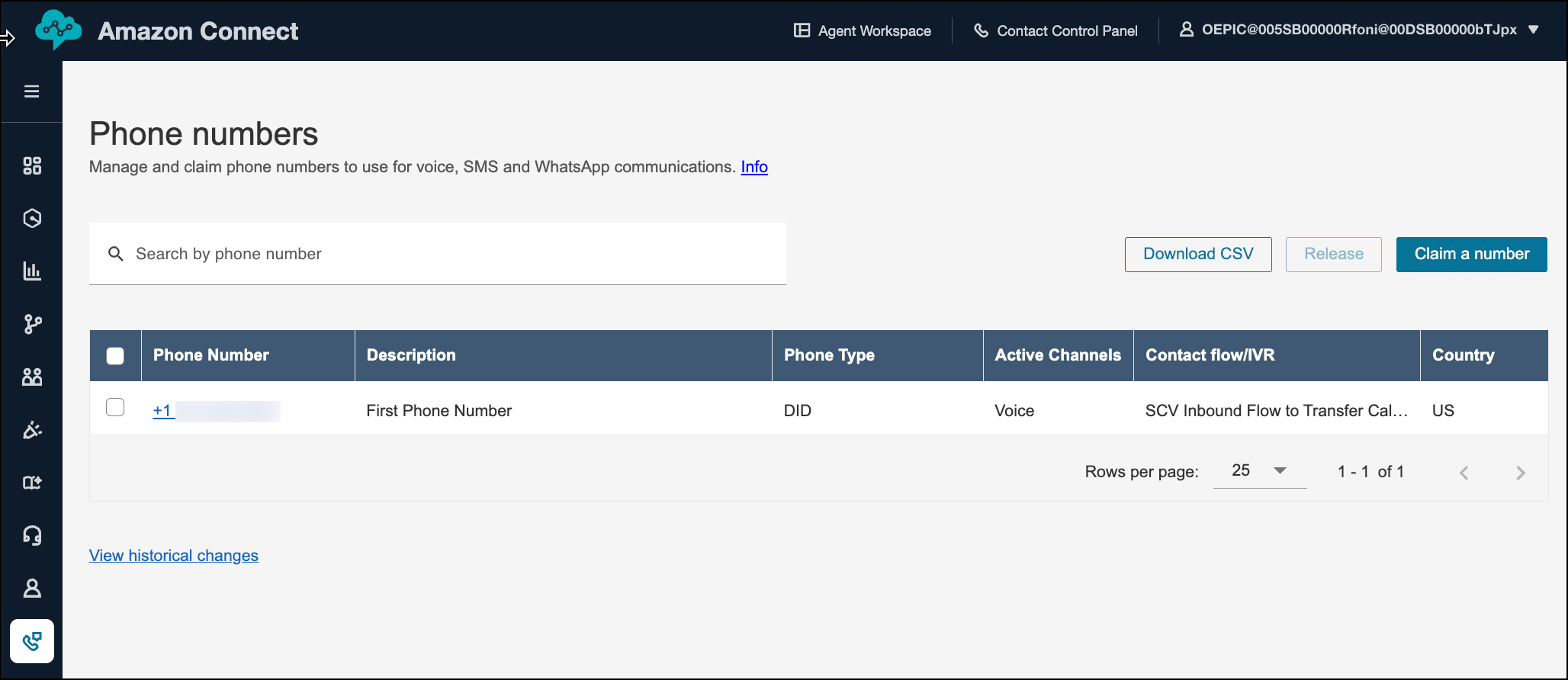
In the Phone Numbers page, open the provisioned inbound phone number and assign the
connect flow to it. If you don’t already have a provisioned inbound phone number, you can
claim it in the Phone Numbers page.
- To test that the call is transferred to the voice-enabled agent, call the inbound call phone number.
- Point the contact flow to the same version.
Next, it’s time to configure the telephony system to handle call escalations from the agent to a rep.