
Learn what a skill is, how Skill Builder is organized, and when to use a skill.
Required Editions
| Available in: Lightning Experience |
| Available in: Enterprise, Performance, and Unlimited Editions with the Einstein for Sales add-on. |
| User Permissions Needed | |
|---|---|
| To create, edit, run, and share your own skills in Skill Builder: |
AI Skill User permission set
|
| To create, edit, run, and share all skills in Skill Builder: |
AI Skill Manager permission set
|
The Skills page in Agentforce Coworker is where you find a skill and run it. Skill Builder is where you create the skill, add instructions and tools, and publish a version.
Navigate the Skills Catalog
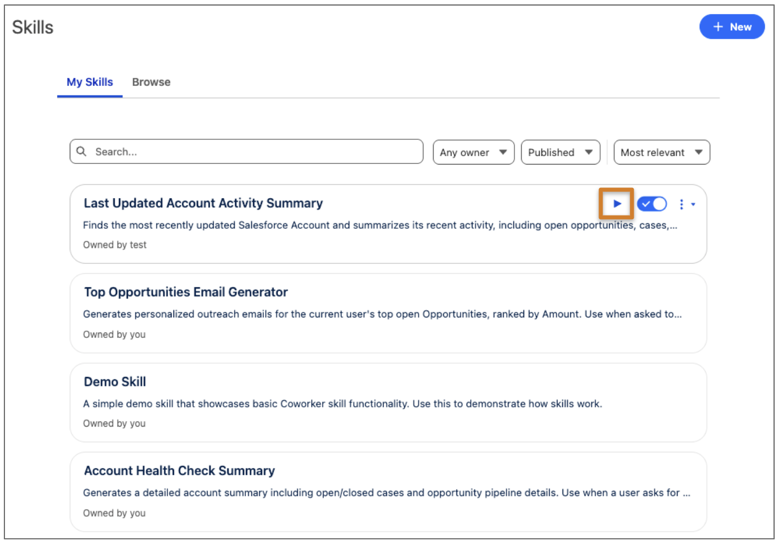
In the Coworker sidebar, click Skills. My Skills and Browse appear.
My Skills lists skills your agents can run. This tab contains skills you’ve added and skills an admin assigned to you. If My Skills is empty, click Browse to add new skills.
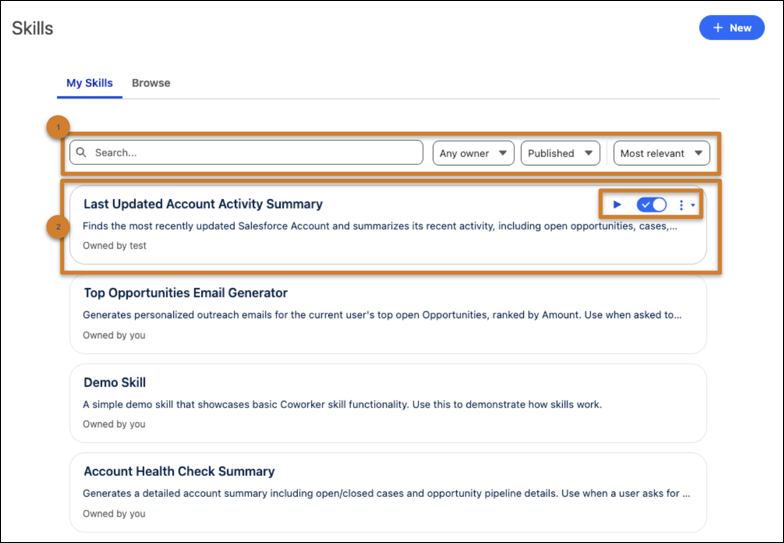
Searching and Filtering (1)
Use the search bar and filters at the top of the catalog to find skills quickly.
- Search: Type a keyword to search by skill name or description.
- Owner: Filter by Any owner, Shared with me, or Owned by me.
- Status: Filter by Any status, Published, or Unpublished.
- Sort: Sort results by Most relevant, A to Z, or Last modified.
Skill Cards (2)
Each skill in the catalog is displayed as a card showing:
- Skill Name: The title of the skill.
- Description: A summary of what the skill does, so your agent can find and use it.
- Owner: Who created or owns the skill, such as Owned by you.
Each skill card has the following actions:
- Use in chat: Launches the skill in a Coworker chat session. Only available for published skills.
- Remove from My Skills: Removes the skill from your My Skills tab.
- Share: Makes the skill available to others. Only available to the skill owner.
- Make a copy: Creates a copy of the skill. The copy is named Copy of [skill name] and is owned by you.

Browse lists published skills available in your org that aren’t in My Skills. Adding or removing a skill from My Skills doesn’t delete the skill from the org.
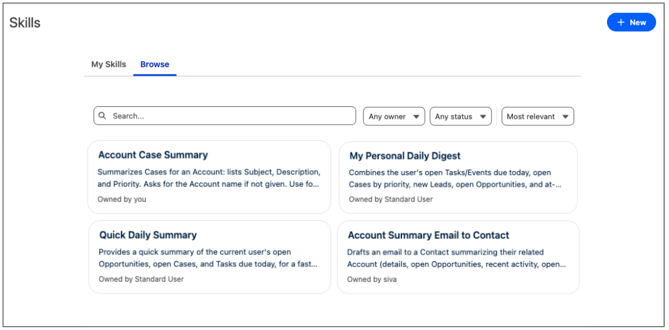
Each skill card in Browse includes the following actions:
- Use in chat: Launches the skill in a Coworker chat session. Only available for published skills.
- Add to My Skills: Adds or removes the skill from your personal My Skills tab.
- Share: Makes the skill available to others, or reverts it to draft status. Only available to the skill owner.
Navigate the Skill Builder UI
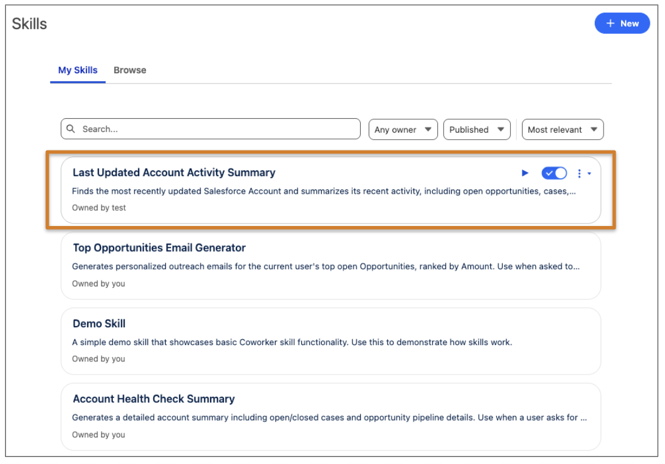
To edit an existing skill, click a skill card in My Skills.
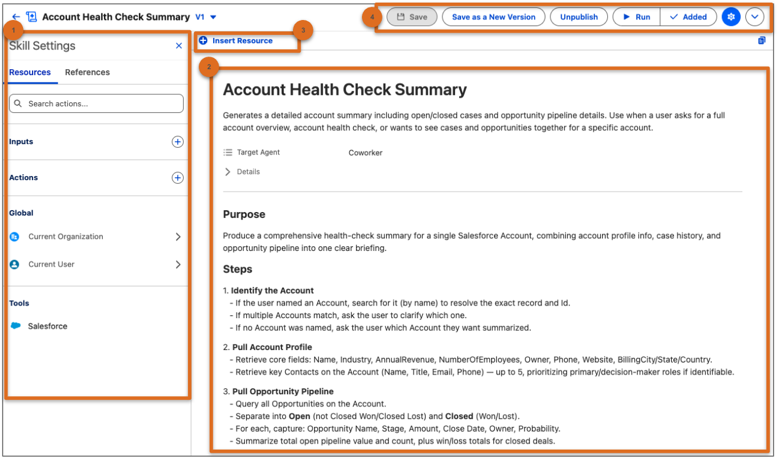
Skill Builder includes:
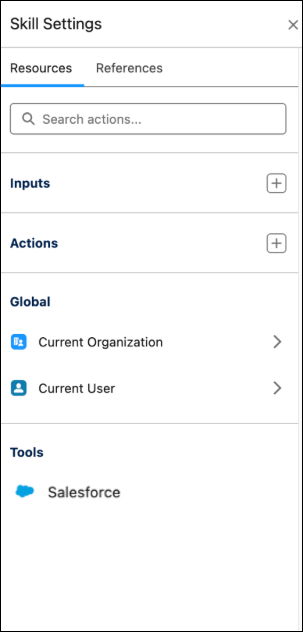
- Configure Skill Settings (1): Resources (inputs, actions, and tools) and References (where the skill is being used).
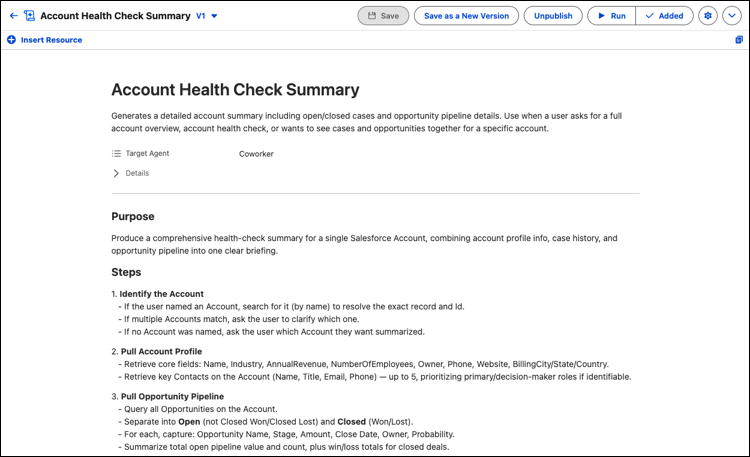
- Instructions Canvas (2): Target Agent, Objective, Steps, Guidelines, Data & Tools, Examples.
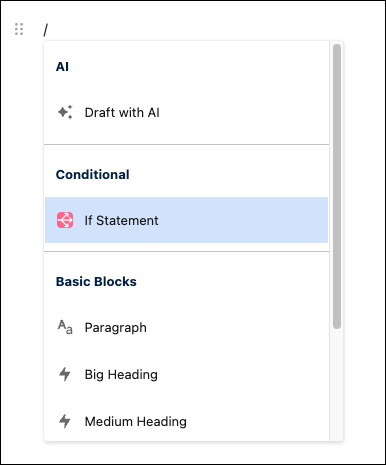
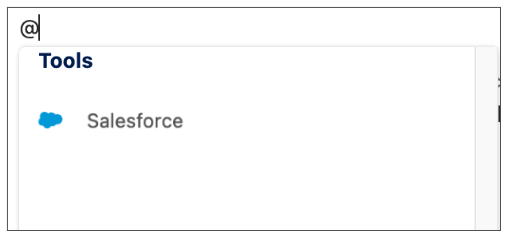
- Insert Resource (3): Type
@or/, or click Insert Resource. - Versioning, availability and use (4): Version and availability actions.
Configure Skill Settings (1)
Click the settings to open Skill Settings.
- Resources: Inputs, Actions, and Tools. Click the + icon to create new or select existing inputs or actions.
- References: Lists where the skill is being used.
Instructions Canvas (2)
In the canvas, write an Objective or Purpose, Steps, Guidelines, Data & Tools, and Examples.
Insert Resource (3)
Click Insert Resource or type @ to add context and
agent actions to the instructions. Type / for conditionals, draft with AI,
or formatting options.
Versioning, Availability and Use (4)
When the skill is ready:
- Click Save to save the current version.
- Click Save as a New Version to save as the next version of the skill.
- Click Publish to make that version of the skill available to share and ready to run.
- Click Run to test or manually trigger the skill in the builder.

On a published skill card in My Skills or Browse, click Use in chat to run the skill in a Coworker chat.
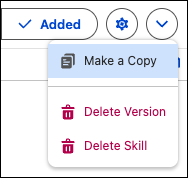
From the additional options menu in the builder:
- Make a Copy
- Delete Version
- Delete Skill
Put Skills to Work
After you publish a skill, users run it from My Skills with / or by
describing the task in plain language to an agent. Recipients add a shared skill from
Browse.