Create a Lightning email template that defines the structure of all emails sent by your Agentforce Service agent. Classic email templates are not supported.
Required Editions
| Available in: Lightning Experience |
| Available in: Enterprise, Performance, Unlimited, and Developer Editions. Required add-on licenses vary by agent type. |
|
To learn about channel support for other agent types, see the documentation for that type. |


| User Permissions Needed | |
|---|---|
| To create email templates: | Lightning Experience User |
| To edit public email templates: | Modify All Data, Manage Public Lightning Email Templates, or template ownership |
| To create Agentforce Service Agent email configurations: | Manage Agentforce Service Agents AND Manage AI Agents OR Customize Application |
| To edit routing addresses: | Customize Application |
| To create Omni-Channel flows: | Customize Application |
- From the App Launcher, select Email Templates.
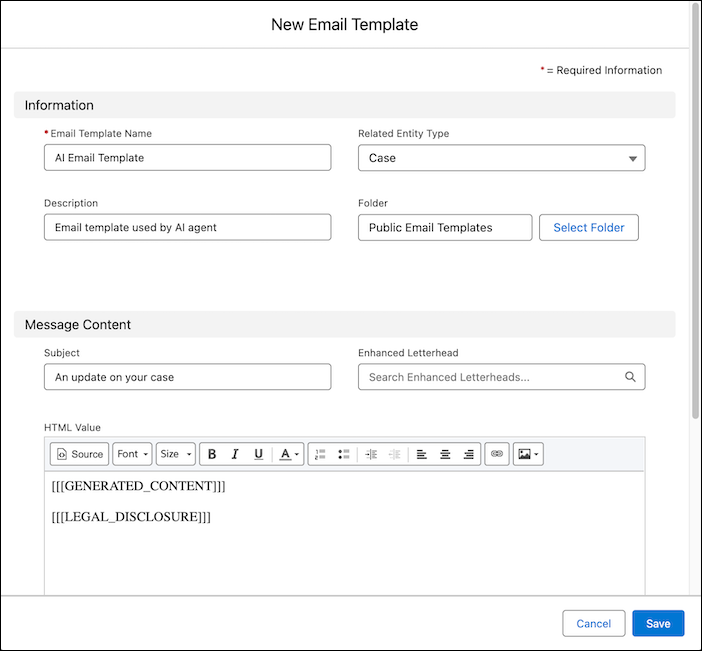
- Click New Email Template.
- Enter a template name and description, and select Case as the related entity type.
- Leave the subject blank. Emails sent using the template will use this subject format: RE: (Subject of the customer’s initial inquiry).
- Optionally, select an Enhanced Letterhead.
-
In the HTML Value field, copy and paste the following text. (When a Service agent sends an
email using the template, the Generated Content placeholder is replaced by the AI-generated
response, which includes a greeting. The Legal Disclosure placeholder is replaced by your
custom disclosure, which you will provide in the next step.) Optionally, add additional text or
images to your template.
- [[[GENERATED_CONTENT]]]
- [[[LEGAL_DISCLOSURE]]]
-
Select a public folder and save your email template. You can’t use a private folder for
this step.