
To verify the identity of an unverified user in an agent session, configure your agent to use the Customer Verification subagent or the Service Customer Verification subagent and limit access to subagents and actions that you specify. You can require different levels of verification for different subagents and actions, based on your business’s security requirements.
Required Editions
| Available in: Lightning Experience |
| Available in: Enterprise, Performance, Unlimited, and Developer Editions. Required add-on licenses vary by agent type. |
| User Permissions Needed | |
|---|---|
| To build and manage Service Agents: |
Manage Agentforce Service Agents AND Manage AI Agents OR Customize Application |
These instructions walk you through how to restrict access to subagents and actions based on whether the user has successfully verified their identity based on their username and email address within an agent session. Here's what you'll do.
- Learn more about the Customer Verification subagent.
- Add the subagent to your agent and configure the Send Email with Verification Code and Verify Customer actions to work seamlessly together.
- Store one or more outputs of the Verify Customer actions in variables, which you'll use to control access to private subagents and actions.
- Create and apply a filter to restrict access to subagents that contain actions that access private customer data, based on the conditions you specify.
- Assign a variable to an action input to require a verified customer ID to execute an action.
- Test your changes in Agentforce Builder.
Keep in mind that these instructions represent one possible configuration of the Customer Verification subagent. You can customize the subagent, agent actions, filters, and variables to meet the needs of your business and use cases.
How the Verification Subagents Work
When an unverified user triggers a subagent or action that you've configured to require user verification, the agent launches the verification subagent. You can also add instructions to the Agent Router to launch the verification subagent before the user triggers it, such as at the start of a chat session.
The subagent contains two flow-based agent actions. The first action, Send Email with Verification Code, asks the user for their username or email, and then checks against Salesforce user and contact records. It then sends an email from no-reply@salesforce.com with a one-time passcode (OTP), which remains valid for five minutes. It then prompts the user to check their email and provide the code.
When the user provides a code, it triggers the second agent action, Verify Customer. This action checks whether the user-provided code matches the generated verification code within the valid window. If the codes match, the Verified output is set to true and the Customer ID output contains the verified user or contact ID. The agent sends a confirmation message and resumes handling the user’s question or request.
If the codes don’t match, the agent prompts the user to re-enter the code. After three failed attempts, the agent restarts the verification process by asking the user for their username or email.
Add a Verification Subagent to Your Agent
To get started, add a verification standard subagent to a service agent connected to customer channels.
In some agent templates, a verification subagent is included with your agent out of the box. If that's true for your template, you can skip this step.
- In Agentforce Studio, open the service agent you want to add verification to.
- If your agent is active, deactivate it.
- On the Explorer panel, click the plus icon and then click click Add from Asset Library.
- Select the Customer Verification subagent and then click Add to Agent.
- Test your agent by clicking Preview and asking it a question that requires verification, such as “What’s the status of my order?”
- When you’re satisfied with your results, activate your agent.
Assign the Outputs of Send Email with Verification Code to the Inputs of Verify Customer
Next, configure the actions in your verification subagent to work seamlessly together.
In some agent templates, the Send Email Verification Code action outputs are already mapped to variables and assigned to the Verify Customer action inputs. If that’s true for your template, you can skip this step.
- Store the values of the outputs of the Send Email with Verification Code action in
custom variables.
- In the Explorer panel, select Service Customer Verification in the Subagents section.
- On the Canvas, in the Actions Available for Reasoning section and expand the Send Email with Verification Code action.
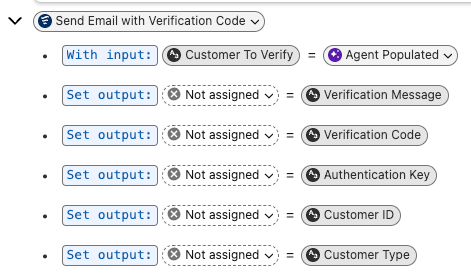
- Next to the Customer Type action output, click Not assigned and then select Create a variable.
- In the Create Custom Variable window, enter
customerTypefor the name and API name andstringfor the data type. - Save your changes.
- Repeat this process for the Customer ID and Authentication Key outputs. Don't store the output of Customer ID in the Verified Customer ID system variable. Instead, create a custom variable. Verified Customer ID is intended for use only after the verification process is completed.
- Assign your new variables to the corresponding inputs of the Verify Customer action.
- On the Canvas, expand the Verify Customer action.
- Next to the Customer Type action input, click Agent Populated and then select the variable that you created.
- Save your changes.
- Repeat this process for the Customer ID and Authentication Key inputs, with the variables you created to store the corresponding outputs from the Send Email with Verification Code action.
Map Verify Customer Action Outputs to Variables
Store the values of the Verified and Customer ID outputs to variables, so you can use them in filter conditions and as input for actions that you only want the agent to take on behalf of verified users.
- In the Explorer panel, select Service Customer Verification from the Subagents section.
- On the Canvas, from the Actions Available for Reasoning section, and expand Verify Customer action.
- Next to the Verified action output, click Not assigned and then select Create a variable.
- In the Create Custom Variable window, enter
isVerifiedfor the name andBooleanfor the data type. - Save your changes.
- Next to the Customer ID action output click Not assigned and then select Verified Customer ID. In some agent templates, the Verified Customer ID is available out of the box as a system variable. If the Verified Customer ID variable doesn’t exist for your template, create it as a custom variable. Leave the Allow value to be set by API setting disabled.
- Save your changes.
Create and Apply a Filter for Subagents
Create a filter with the Is Verified and Verified Customer ID variables to make subagents containing private actions available only to verified users.

- In the Explorer panel, select Agent Router from the Subagents section.
- On the Canvas, in the Actions Available for Reasoning section, place your cursor after the subagent you want to add a filter to.
- From the Add to block menu, click Add filter.
- Specify a variable, an operator, and a value. The condition you set must be met for the agent to run the action. Your filter is applied to this action in this agent only.
- (Optional) To add an additional condition, place your cursor after the value. From the Add to block shortcut, select And or Or, and then specify another variable, operator, and value.
Create and Apply a Filter for Actions
For additional security, add the Verified Customer ID variable as an input for actions that you only want the agent to take on behalf of verified users. The agent can only run the action when the Verified Customer ID variable is filled. You can also use the value of the Verified Customer ID value in the logic of your action.
- In the Explorer panel, select the subagent containing actions you want to filter.
- On the Canvas, in the Actions Available for Reasoning section, place your cursor after the action you want to add a filter to.
- From the Add to block menu, click Add filter.
- Specify a variable, an operator, and a value. The condition you set must be met for the agent to run the action. Your filter is applied to this action in this agent only.
- (Optional) To add an additional condition, place your cursor after the value. From the Add to block shortcut, select And or Or, and then specify another variable, operator, and value.
Repeat this process for each action that you want to require a verified customer ID.
Test Your Changes
Use the preview conversation and preview conditions to verify your changes in Agentforce Builder. Your agent operates in the same Agent User context in the preview conversation as it does when deployed in messaging channels.
- From the conversation preview panel, click Preview Settings, then click Context Variables to view preview conditions.
- Specify a specific end user ID and save your changes.
- To apply your changes, restart your preview conversation.
- Start a conversation that you expect to trigger a subagent or action that you’ve configured to work with the Customer Verification subagent. For example, ask your agent for a refund.
- When the agent asks you for an email address, provide one. You don’t have to check this email to complete the test.
- When the agent sends the email, check the plan canvas and copy the OTP. Then send it to the agent.
If the verification was successful, the agent sends a message to confirm that you’re verified. Then you continue to execute the original subagent you triggered.
If your agent doesn’t perform as expected, review the variables and filters you’ve created and the subagents and actions you’ve applied them to. You may need to adjust your subagent instructions to help your agent understand when to use the Customer Verification subagent.
When you’re satisfied with your results, activate your agent.
Further Customizations
Make changes to your verification subagent to ensure it meets your business’s use cases and security requirements.
By default, your verification subagent uses either user or customer IDs and email. However, you can edit the underlying flows associated with either action to modify the identification required or how the OTP is sent. To modify the agent actions, create custom actions based on the same flows.
You can add additional actions to your verification subagent. Limit the scope of the actions that you use for verification such that each action completes a modular step of the process. Agent actions with outputs that sit empty can cause errors, because the agent attempts to fill the output before a process is complete.