---
schema_version: "1"
id: dcf72150b497f8a45fcec45af6b2c08e9fa7c1b583c2e932486ca4383b6ef764
title: Edit Searchable Objects in an Experience Cloud Site Configuration
collection: admin
version: current
locale: en-us
portal_url: https://docs.salesforce.com/admin/current/en-us/ai/264-0-0/search_manager_edit_lwr.md
canonical_url: https://help.salesforce.com/s/articleView?id=ai.search_manager_edit_lwr.htm&release=264.0.0&type=5
source_site: help.salesforce.com
content_type: documentation
content_hash: 92513686e9ce018fa33ba5bb6939fd4fa1b3ad48aa5045658feb82e0c283909d
description: Keep up with changing user needs by updating which objects are searchable in a configuration for LWR Experience sites.
products:
- Cross Cloud
release: "264"
---
# Edit Searchable Objects in an Experience Cloud Site Configuration
Keep up with changing user needs by updating which objects are searchable in a configuration for LWR Experience sites.
### Required Editions
Available in: Einstein Search in Lightning Experience
User Permissions Needed
To use Search Manager:
Customize Application AND View Setup
1. From Setup, in the Quick Find box, enter Search Manager, and then select **Query Configurations**.
2. From the action dropdown on the Experience site configuration to edit, select Edit.
3. Click .
4. In the Edit Configuration Settings window, click **Continue**.
5. Add or remove objects from the Selected Objects list.
6. Save your changes.
7. Reapply the configuration to your LWR site.
1. From Setup, in the Quick Find box, enter All Sites, and then select **All Sites**.
2. Next to the site that you want to apply the search configuration to, click **Builder**.
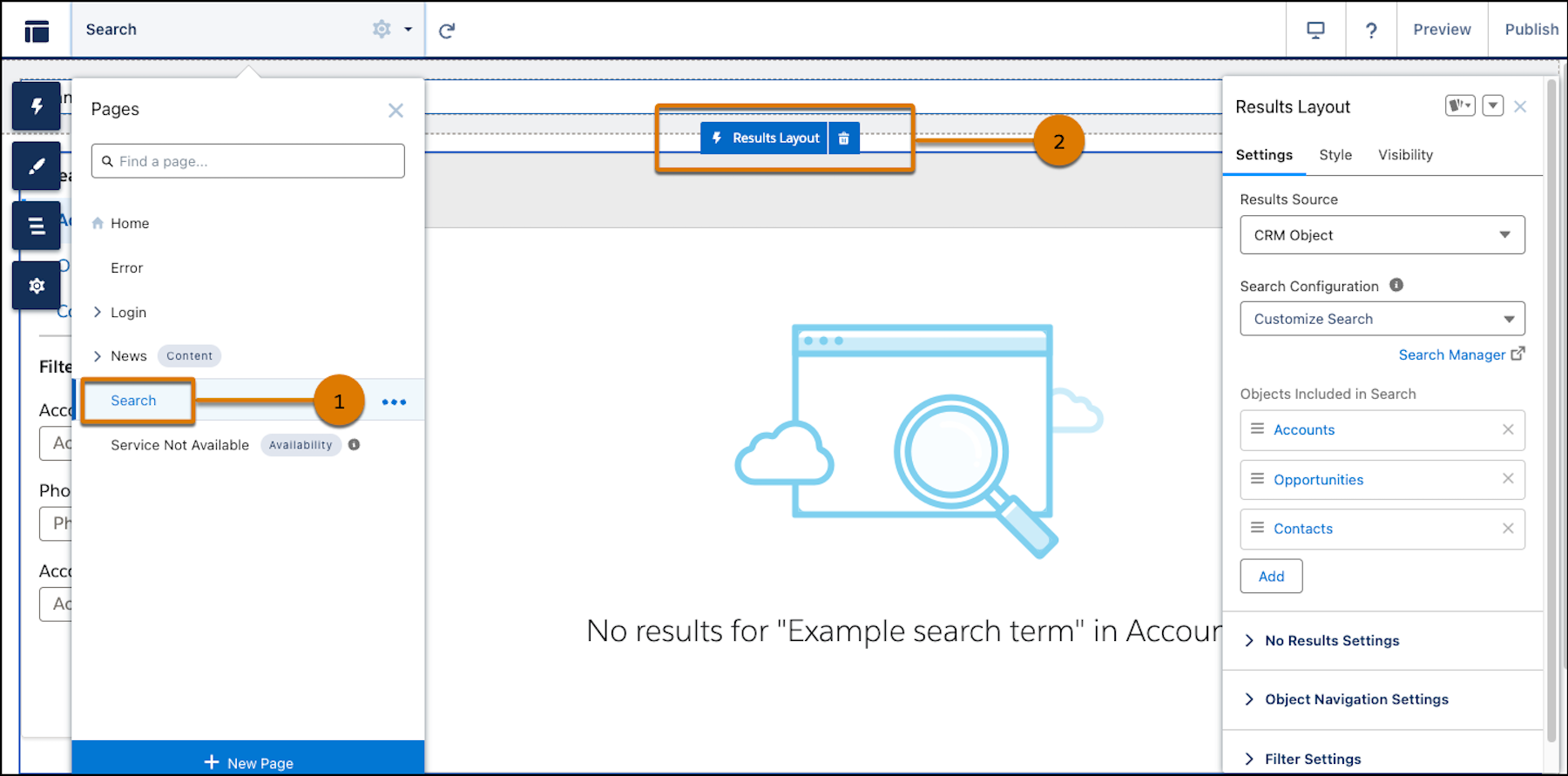
3. Go to the Search page (1) and click the **Results Layout** component (2).
4. Select a different search configuration from the Search Configuration dropdown.
5. Select the configuration that you edited. Your edits appear under Objects included in Search.
6. Click **Publish**.
#### See Also
- [Edit a Search Configuration for a Channel](https://help.salesforce.com/s/articleView?id=ai.search_manager_edit_configuration.htm&release=264.0.0&type=5 "After you create a configuration, you can edit some settings. What you can edit differs for each search channel. ")