Quickly compare features between Lightning Experience and the Salesforce Mobile app.
| Term | Definition | Available in Lightning Experience? | Available in Salesforce Mobile App? |
|---|---|---|---|
| Lookup Suggestions | All lookup searches display a dynamic list of matching records when you start typing in a lookup field. This type of lookup search matches results only against the record name, not against secondary fields, unless the name is an auto-number. Lookup suggestions are also known as recent items, type ahead, and lookup auto-complete (instant results). | Yes. The characters you type filter the list of most recently used records. As you type, the list also starts showing matching records that you haven’t accessed recently. To do an advanced lookup search, click Show more results. | Yes. The characters you type filter the list of most recently used records. To do an advanced search, click Show All Results. |
| Advanced Lookup | Lookup search that matches results against all searchable fields within a record. | Yes. | Yes. |
| Search Layout | In Setup, admins define the fields that are available within the advanced lookup search layout. Users can add and remove fields from the list using My Columns. Users can’t add fields that aren’t defined in the search layout by admins. | Yes, but lookup and global search results are both combined under the Search Results layout. My Columns isn’t available. | No. Search layout isn’t used for showing fields in the search results. Only the secondary and Name fields are shown. |
| Lookup Filters (Related Lookup Filters) |
Admin-defined filters that restrict the valid values and search results for lookup fields for advanced lookup searches. You can make filters optional in Classic. For example, you can configure the Account Owner lookup field to show only active users on the same record. |
Yes, if enabled by an admin, but filters can’t be made optional. | Yes, if enabled by an admin, but filters can’t be made optional. |
| Dependent Lookups |
Lookup fields including lookup filters that reference fields on the current object record (the source) for advanced lookup searches. You can make filters optional in Classic. For example, you can configure the case Contact field to show only contacts associated with the account selected in the case Account Name field on the same record. |
Yes, if enabled by an admin, but filters can’t be made optional. | Yes, if enabled by an admin, but filters can’t be made optional. |
| Polymorphic Lookup |
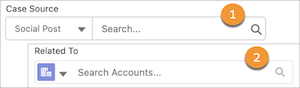
Choose a record coming from different objects in a polymorphic lookup. For example, the Who relationship field of a task can be a contact or a lead. Find polymorphic lookup fields in standard objects. An admin can’t create a custom polymorphic lookup field. |
Yes, but there are visual differences depending on the object used. You see the object name and no icon (1) or an object name and no label (2).
|
Yes. |
| Multi-Value Lookup |
Select more than one record in a multi-value lookup. For example, select multiple users in the Assigned To field when creating a task record. Find multi-value lookup fields in standard objects. An admin can’t create a custom multi-value lookup field. |
Yes. | No. |
| Lookup Actions (“Create New”) |
When you search for a record, create a record from the dropdown menu. Use lookup actions and create records when using advanced lookup search or when you’re creating or editing a record via a record form. |
Yes. | No. |