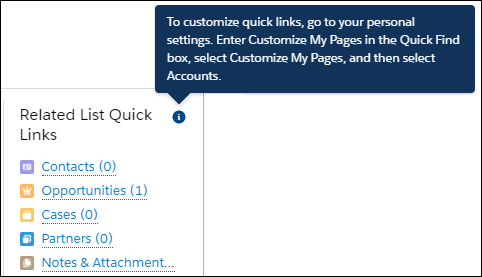
Customize your users search layouts further by including more filtering and sorting options, and modifying Action buttons and Related List Quick Links.
List View Button Layout allows you to add and remove action buttons that users see on all the list views for a given object. For example, if you remove the New button from the account list view, that button is no longer shown on any account list view.
From Object Manager, you see two search layout options.
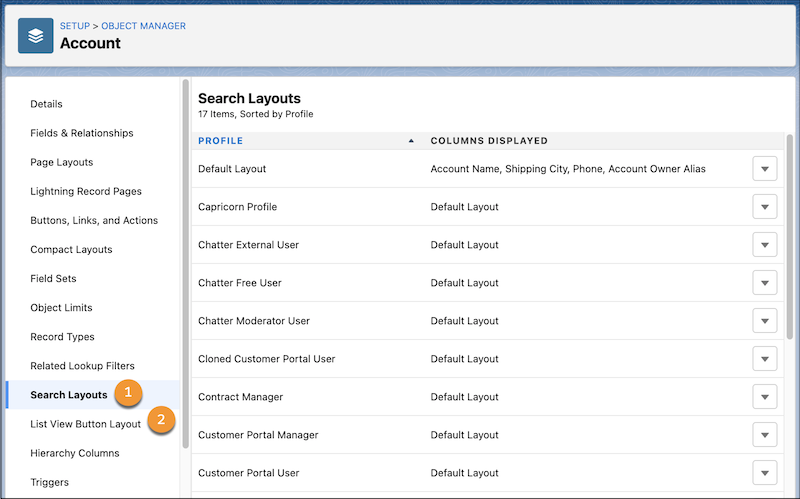
Search Layouts apply to Lightning Experience (1). List View Button Layout applies to Lightning Experience and Salesforce Classic (2).

In Salesforce Classic, you can create custom buttons that you include in your search layouts. When you create a custom button, select List Button for the Display Type and users can see the button on the layout. To hide it, edit the button, and then deselect this setting. Lightning Experience doesn’t support custom buttons on search results pages.
Filter and Sort Your Search Results
You can filter and sort the fields in your search results layout. Not all objects and fields are supported and you can’t change the order of search results. Search results are ranked by relevancy.
Objects and fields that can be filtered include:
- Objects: Accounts, Cases, Contacts, Dashboards, Files, Knowledge Articles, Leads, Notes, Opportunities, People, Tasks, and Custom Objects.
- Fields: You can filter checkbox, combobox, phone number, picklist, text, and URL fields. You can't filter encrypted fields.
Objects and fields that can be sorted include:
- Objects: All objects except Groups can be sorted.
- Fields: For sortable objects, all visible fields can be sorted.
Change Which Actions Buttons Users See
The page-level actions that appear in the object’s record page also appear in record previews and in a recommended result. To change which action buttons show, edit the page layout for an object. Any changes that you make also affect other places where action buttons appear.
Change Which Related List Quick Links Users See
Users can change which Related List Quick Links show in their record previews and in a recommended result. Changes also affect their record pages. Users can find these instructions by hovering over the icon next to the Related List Quick Links header.