
Now that you’ve added the connection and set all the permissions, expose the results to the customers in your community. To display the results, add them to the Global Search Results component of Experience Builder.
Required Editions
| Available in: Salesforce Classic and Lightning Experience |
| Available in: Enterprise, Performance, Unlimited, and Developer Editions |
| User Permissions Needed | |
|---|---|
| To create and edit an external data source: | Customize Application |
- Open Experience Builder.
- Select Search from the Pages menu. If the Global Search Results component isn’t already on the page, add it from the Components menu.
-
To open the options menu, select Global Search Results.
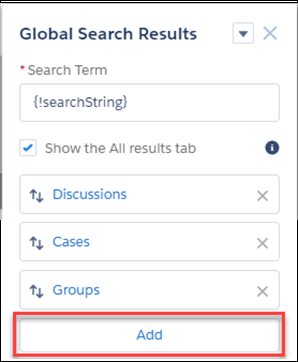
- To create an item, click Add.
-
Click the new item (1) that was automatically added by default (often this is Accounts).
Select your external source from the Object list (2), then click Save
(3).
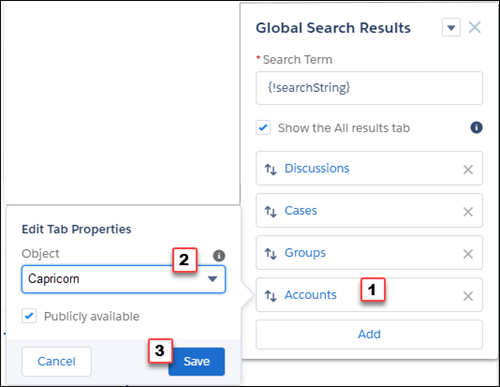
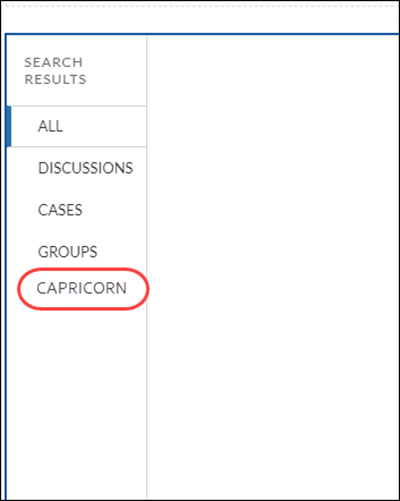
Your new source appears as a new Search Results tab on the Global Search Results page, which customers can filter to find information quickly.

With global search from your internal org, you can get uneven results when searching for a User record. Here’s why and what you can do about it. Each site has a unique network ID. When you create a Site user through Contact record | Create External User, the new User record is assigned to a site’s network ID.
Global search looks for records in the internal org, which has a different network ID than the site. A global search doesn't search inside sites. Since the User record is associated with a site network ID, global search doesn't return results for that record.
The workaround is to create User records in the internal org, and then associate the records to a site. You can associate an internal User record to a site by linking the internal record to a Contact record. After you forge the link, you can find the User record through global search. The User record's network ID is now associated with the internal org.