---
schema_version: "1"
id: 5f1c2b6ae0121607fd662688279b7ec4273007a0f3ce93e2b37dfdd56fa0256c
title: Manage Einstein Search Settings
collection: admin
version: current
locale: en-us
portal_url: https://docs.salesforce.com/admin/current/en-us/ai/264-0-0/search_es_settings.md
canonical_url: https://help.salesforce.com/s/articleView?id=ai.search_es_settings.htm&release=264.0.0&type=5
source_site: help.salesforce.com
content_type: documentation
content_hash: 3b77cf6724649d2aee66164ca7c5dc0703c5eb6e55c84960c45760e827c43e38
description: Einstein Search is on by default for your entire Salesforce org and enhanced with features at no additional cost.
products:
- Cross Cloud
release: "264"
---
# Manage Einstein Search Settings
Einstein Search is on by default for your entire Salesforce org and enhanced with features at no additional cost.
### Required Editions
Available in: Lightning Experience and all versions of the Salesforce Mobile app
Available in: Essentials, Professional, Enterprise, Performance, and Unlimited Editions
User Permissions Needed
To modify Einstein Search settings
Customize Application

Note For Einstein Search and personalization, you’re not required to supply any data to make it work. Einstein Search is turned on by default. If you disable Einstein Search, select **Actionable Instant Results** in Einstein Search Setup to enable it. Personalization is also turned on by default and offers better results immediately.
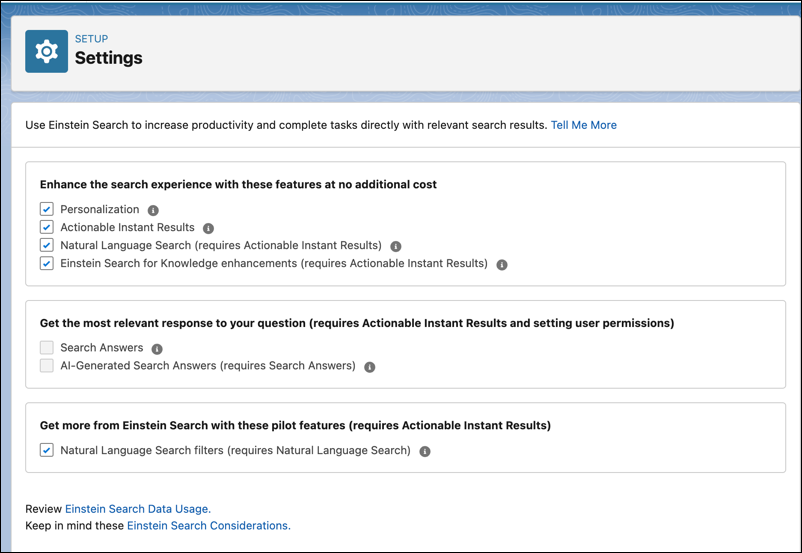
1. From Setup, in the Quick Find box, enter Einstein Search, and then select **Settings**.
2. Choose the features you want and opt-out of features by disabling them.
You can enable Search Answers only if you have the required Service Cloud Einstein SKUs.
3. Save your changes.
#### See Also
- [Manage Einstein Search for Knowledge Settings](https://help.salesforce.com/s/articleView?id=ai.search_es_for_knowledge_enable.htm&release=264.0.0&type=5 "Let administrators manage the settings of Einstein Search for Knowledge, so that service agents and their customers use Einstein Search for Knowledge features for easier access to knowledge articles related to their work.")
- [Enable Natural Language Search Filters (Pilot)](https://help.salesforce.com/s/articleView?id=ai.search_es_enable_nls_filters.htm&release=264.0.0&type=5 "To change the filters that Einstein applies to a natural language search, enable natural language filters.")
- [Enable Search Answers or AI-Generated Search Answers](https://help.salesforce.com/s/articleView?id=ai.search_es_enable_search_answers.htm&release=264.0.0&type=5 "Search Answers gets the most relevant snippets from your data sources, and AI-generated Search Answers uses knowledge articles and other sources to generate tailored responses to user questions. Search Answers supports only English queries and searches English-only knowledge articles or Data Cloud data model object (DMO) fields.")