
With generative AI-enabled fields, you can get real-time data from across your org without leaving a Lightning page. Generative AI-enabled fields use field generation prompt templates to provide dynamic summaries, descriptions, and more.
Required Editions
| Available in: Lightning Experience |
| Available in: Enterprise, Performance, and Unlimited Editions with the Einstein for Platform, or Einstein or Agentforce for Sales or Service add-on, or Agentforce Foundations |
| User Permissions Needed | |
|---|---|
| To access and run prompt templates outside Prompt Builder | Prompt Template User permission set |

Note For users to access generative AI-enabled fields in the Salesforce mobile app, a Salesforce
admin must first enable Dynamic Forms on Mobile.
- Click
 on a Lightning
record page form field.
on a Lightning
record page form field. - If the form field is enabled for generative AI,
 appears on the field. To generate a draft of the field,
click .
appears on the field. To generate a draft of the field,
click .
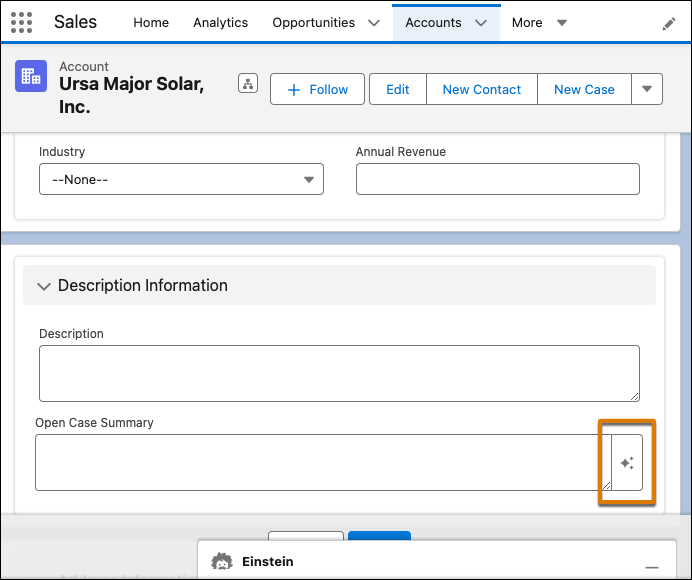
If you don't see a generative AI-enabled field icon on a record field (
), then a prompt template isn't supported for that
field. If a custom
permission set is created for Prompt Builder and field generation templates aren't visible,
grant object access to prompt templates. Also, ensure the user has the permissions
ExecutePromptTemplate and ManagePromptTemplate. - In the Einstein panel, review the draft that the AI generates.
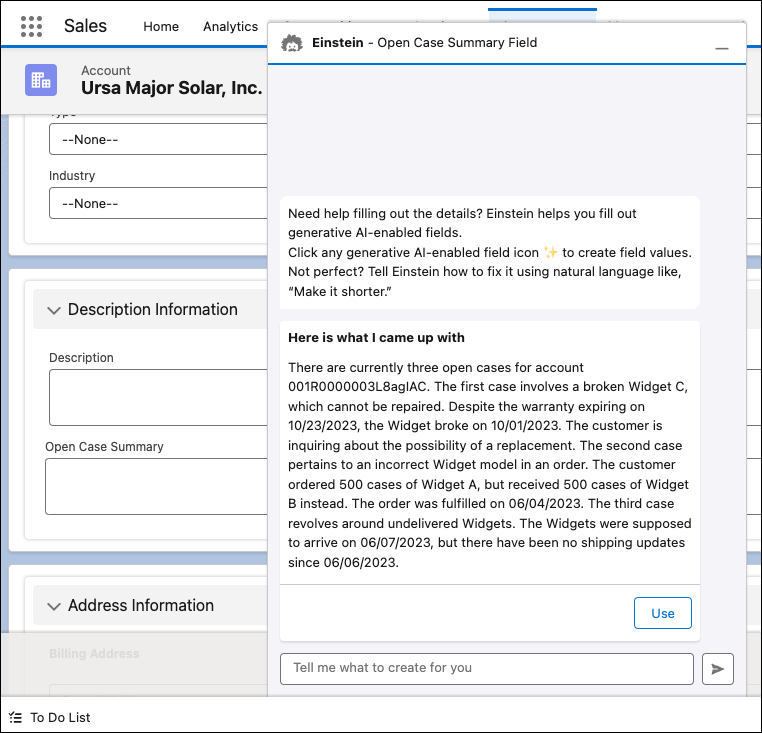
- To add the draft to the field, click Use.
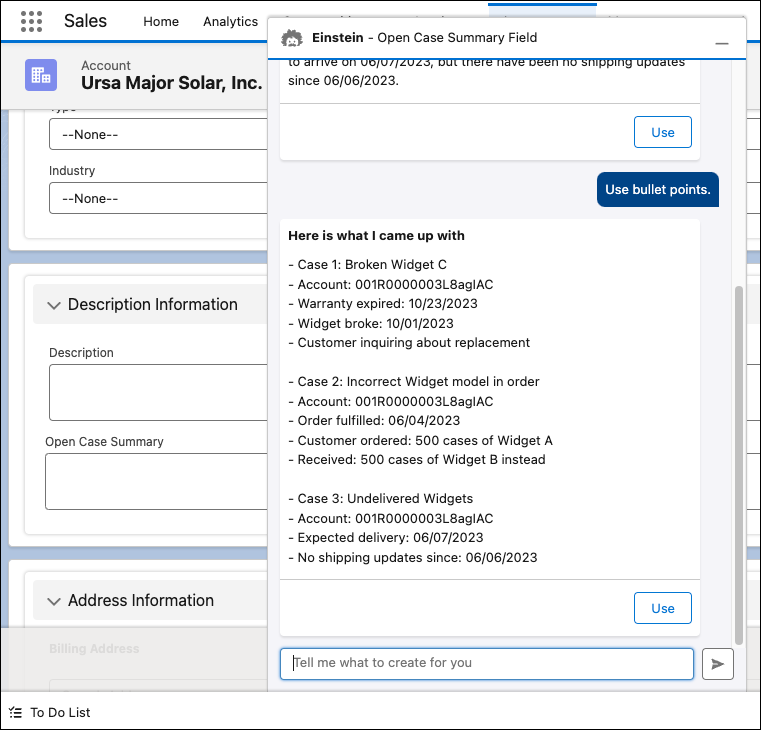
- If you’re unsatisfied with the response, send a message that asks Einstein to rewrite the
draft. For example, you can ask Einstein to shorten a field description. Einstein supports
brief back-and-forth conversations, so if you’re still unsatisfied with the regenerated draft,
ask Einstein to revise the draft again.
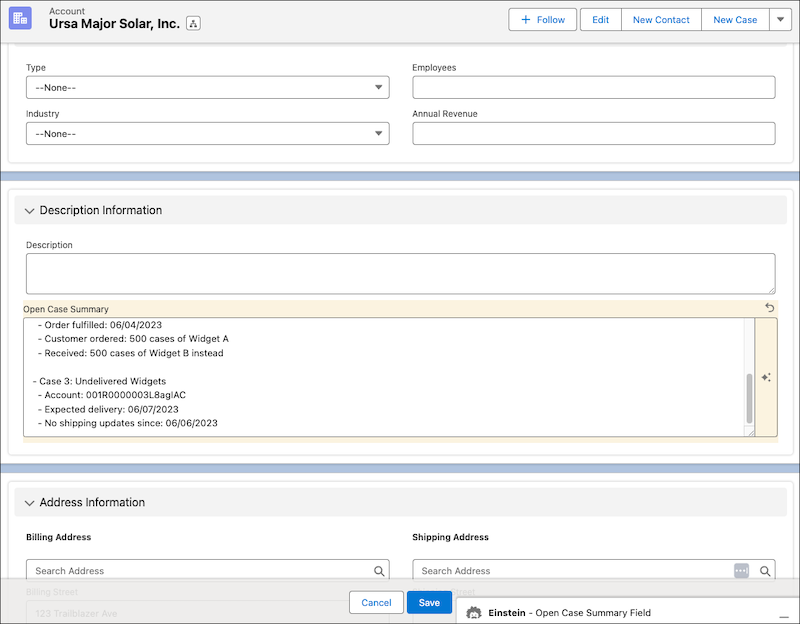
- After you add the draft to the field, review the field again. Edit the field, if
desired.
 Important This tool uses generative AI, which is known to include inaccurate or harmful responses. Before using, review the output for accuracy and safety. You assume responsibility for the output when shared.
 - Save the updated record.