
Use web retrievers in prompt templates to ground your LLM prompts with relevant knowledge from web sites. Web retrievers are created when a data library that uses web search is created in Agentforce Data Library.
Required Editions
| Available in: Lightning Experience |
| Available in: Enterprise, Performance, and Unlimited Editions with the Einstein for Platform, or Einstein or Agentforce for Sales or Service add-on, or Agentforce Foundations |
| User Permissions Needed | |
|---|---|
| To create and manage prompt templates in Prompt Builder: |
Prompt Template Manager permission set
OR Customize Application permission set |
| To create and manage retrievers: | Data Cloud permission set |
| To run prompts with Einstein Search: | Data Cloud User permission set |

Note These instructions assume that, for the data library you want to use, web
search has been enabled and a web retriever has been configured with search settings
and web page content. To learn more, see Use Web Search in Agentforce Data Library
help.
- In Prompt Builder, create or edit a prompt template.
- In the Prompt Template Workspace, click where you want to insert the web retriever.
- Type @ or click Insert Resource, click Retrievers, and click Configure Retrievers +.
- Select the web retriever you want to add to the prompt template.
-
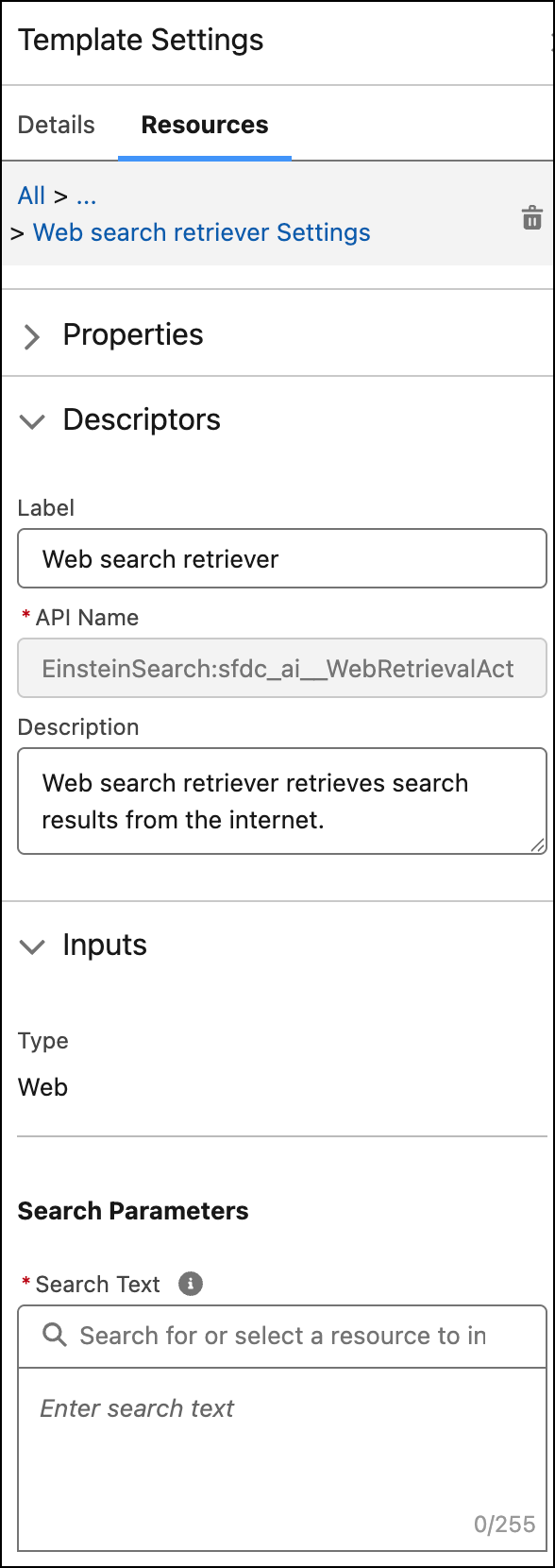
In the Template Settings side panel, for Search
Parameters, focus your search by specifying additional criteria.
Select a resource or specify search text.
- Change other template settings, if you want.
- Click Apply and Insert.
- Save your work.
- Test your changes. Preview the prompt template and review the LLM-generated response.