
Get more relevant search results using prefilters in your prompt templates. Prefilters define the conditions that limit the scope of a retriever’s search so that only the most relevant information is returned. For example, you can use prefilters to retrieve content associated with only a particular country or product. The filter value, such as the country code or product Id, is specified in the prompt template at run time.
Required Editions
| Available in: Lightning Experience |
| Available in: Enterprise, Performance, and Unlimited Editions with the Einstein for Platform, or Einstein or Agentforce for Sales or Service add-on, or Agentforce Foundations |
| User Permissions Needed | |
|---|---|
| To create and manage prompt templates in Prompt Builder: | Prompt Template Manager permission set |
| To create and manage retrievers: | Data Cloud permission set |
| To run prompts with Einstein search: | Data Cloud User permission set |

Note To use prefilters in Prompt Builder, the Einstein Search retriever must be configured in
AI Models (formerly Einstein Studio) with at least one filter condition with the Dynamic property selected. To learn
more, see the instructions for defining filter conditions in Create an Individual Retriever.
- In Prompt Builder, create or edit a prompt template.
- In the Prompt Template Workspace, click where you want to insert the retriever.
- Type @ or click Insert Resource, click Retrievers, and click Configure Retrievers +.
-
Select the retriever you want to add to the prompt template.
This retriever must have at least one filter condition with the Dynamic setting enabled.
-
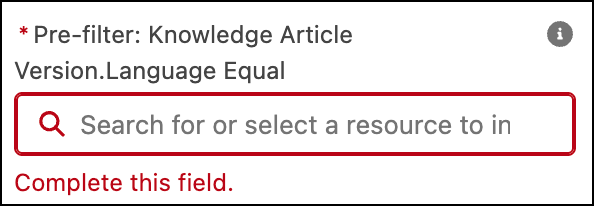
Under Template Settings, scroll to the Search Parameters section and find a Pre-filter
input field. Example:
If you don’t see a Pre-filter input field, go to AI Models and verify that the selected retriever is configured with at least one filter condition that's configured as Dynamic.
-
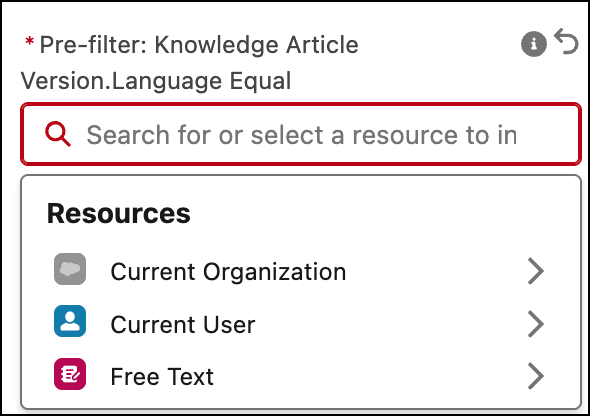
Click the Pre-filter field to open the resource
picker and select the source of the filter value for the pre-filter field.
The selected value appears in the Pre-filter field.
-
To remove a setting, select the X. To return to a previously selected setting, select the
undo (
 ) icon.
- Change other template settings, if you want.
- Click Apply and Insert.
- Save your work.
- Test your changes. Preview the prompt template and review the LLM-generated response.