
To build a Help Agent, you must be assigned the Help Agent Configuration permission set license and the corresponding Quick Service Agent Configuration permission set. To turn on Data Cloud, which is a prerequisite for building a Help Agent, you must be assigned the Data Cloud permission set license and the corresponding Data Cloud Architect permission set. The user who turns on Help Agent is automatically assigned both permission set licenses and permission sets.
You can manage these licenses and permission sets from the Help Agent Salesforce Go page. The page lists the number of assigned and available permission set licenses. If you need more licenses, reach out to your Salesforce account executive.
-
To determine the number of assigned and available Help Agent Configuration permission
set licenses, review the Monitor Licenses section of the Help Agent Salesforce Go
page.
The Monitor Licenses section shows the number of assigned, active, and total Help Agent Configuration permission set licenses.
- To assign the Help Agent Configuration or Data Cloud permission set license to a user, locate the Unlock Advanced Functionality section of the Help Agent Salesforce Go page and click Manage for the Manage User Access option.
-
To assign a Help Agent Configuration permission set license and Quick Service Agent
Configuration permission set:
-
Open the Quick Service Agent Configuration tab.
The Help Agent Configuration section shows the number of assigned and available Help Agent Configuration permission set licenses.
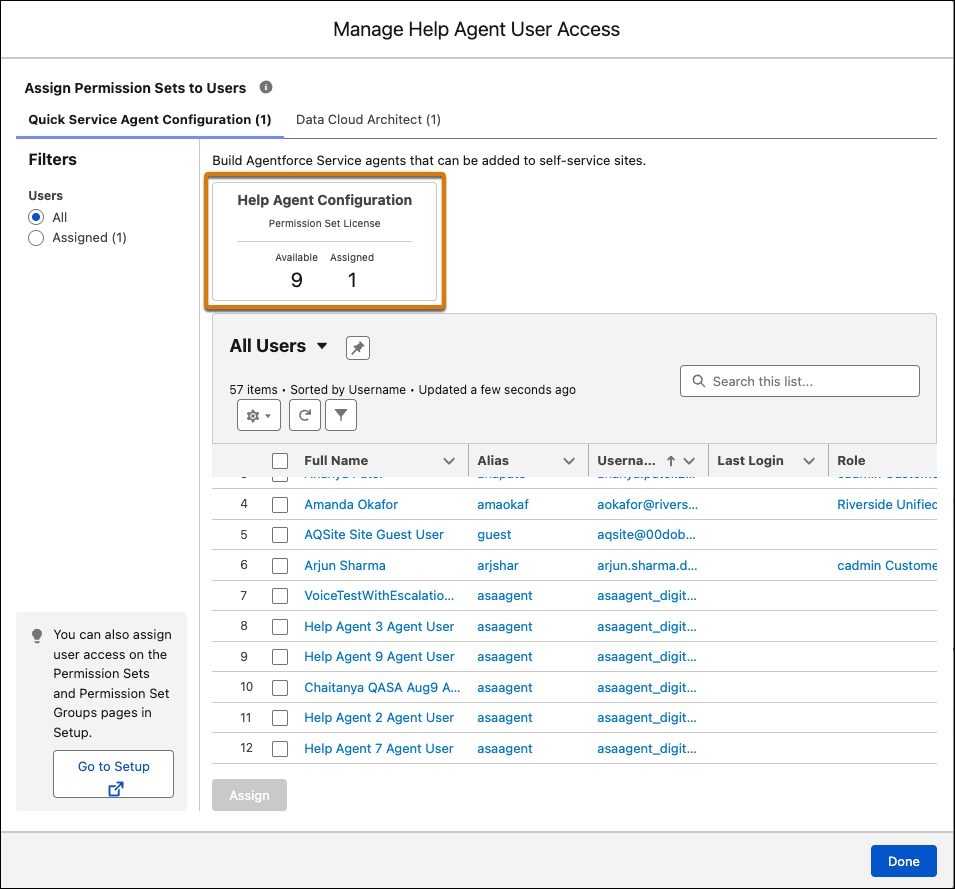
- Select one or more users, and then click Assign.
-
Click Done.
The Help Agent Configuration permission set license and Quick Service Agent Configuration permission set are assigned to the selected users.
-
Open the Quick Service Agent Configuration tab.
-
To assign a Data Cloud permission set license and Data Cloud Architect permission
set:
-
Open the Data Cloud Architect tab.
The Data Cloud section shows the number of assigned and available Data Cloud permission set licenses.
- Select one or more users, and then click Assign.
-
Click Done.
The Data Cloud permission set license and Data Cloud permission set are assigned to the selected users.
-
Open the Data Cloud Architect tab.
- Tips for Previewing a Help Agent
Consider these tips when previewing the agent.