
Use Agent Optimization to drill into sessions, analyze quality scores, and identify patterns to improve your agent's performance.
Required Editions
| Required Editions |
|---|
| Agent Optimization is available in Salesforce Enterprise, Performance, and Unlimited Editions with Salesforce Foundations or Agentforce 1 Edition. |

| Access and view Agentforce Optimization | Assign the Access Agentforce Optimization and Data Cloud User permission sets |
Agent Optimization helps you analyze both voice and chat sessions, view raw and processed session data, filter by modality, and track quality scores to improve your agent's performance.

In Agentforce Studio, under Optimization, open Sessions & Intents to review and improve session behavior.
Work with the Sessions and Intents Page
Go to the Sessions & Intents page to filter, analyze, and export session data for both voice and chat interactions.
The page provides powerful tools to analyze your agent's interactions and is divided into Processed and Unprocessed Sessions. Key metrics populate the columns including Intent Summary, Response Summary, Intent Tags, Quality Score, actions performed by the agent, and more.
- Filter sessions by modality: Use the modality filter to view sessions by type: Voice, Chat, or All Modalities.
- Processed and Unprocessed Sessions: The page is divided into two
distinct views. Processed Sessions have passed through the optimization pipeline, where
the system extracts and analyzes customer intents for insights and assigns quality scores.
Unprocessed Sessions have not yet gone through the pipeline and may include active sessions or
recently closed sessions. For more information about intent processing, see Use Intents in Agent
Optimization.
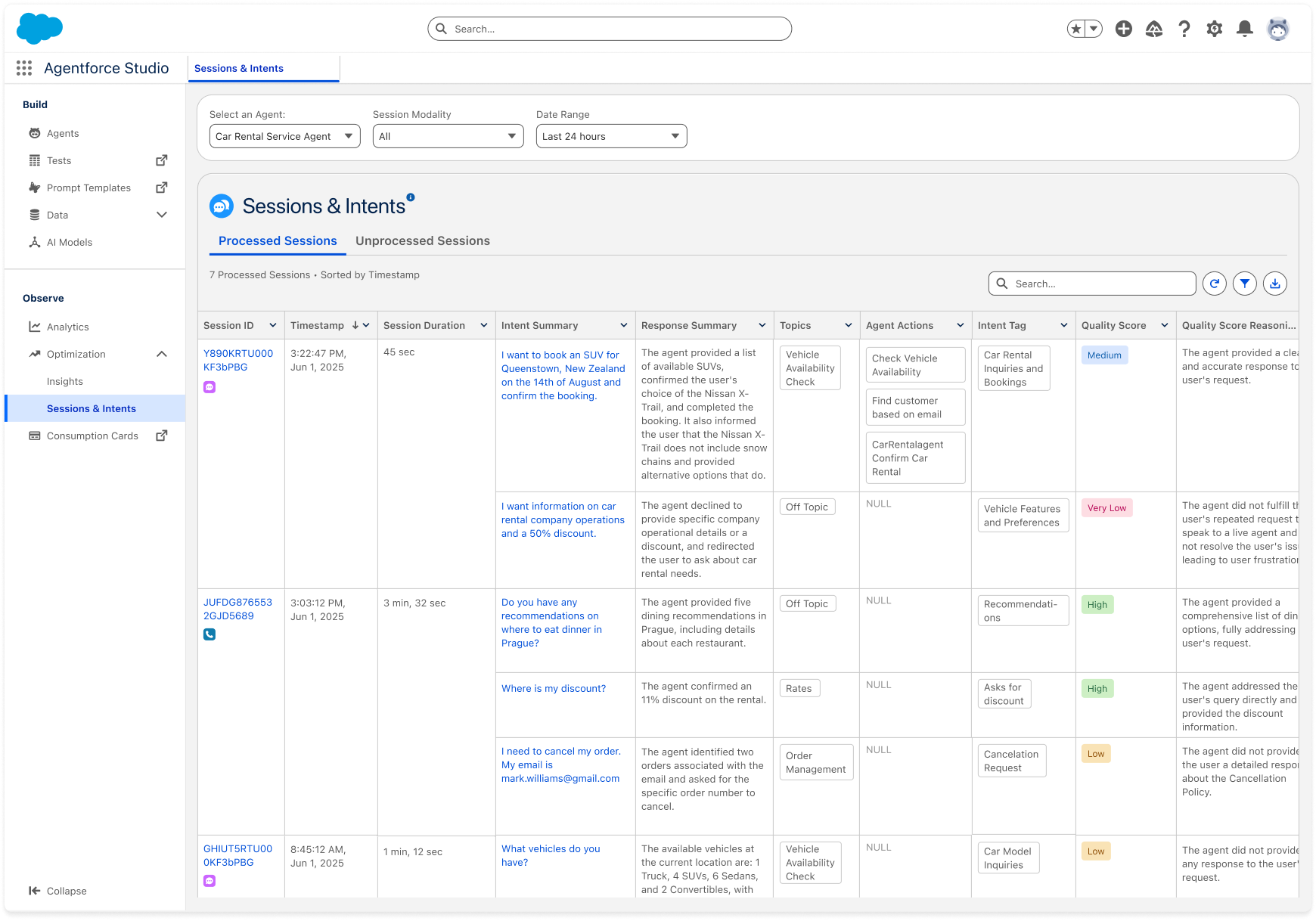
- Session Timeframe Range: View and filter sessions from the last 24 hours.
- Average Agent Response Latency: Show the average time elapsed from the end of the user's message to the start of the agent's response. This is the headline latency metric on the session-level view. The table column and filter are hidden by default.
- Transcript Export: Download transcripts for all sessions currently filtered in the table.
- Responded in: Shown for both Chat and Voice sessions. Measures the time from the end of the user's message to completion of the agent's response.
Optimize Voice Sessions
Drill into voice sessions to listen to recordings and analyze voice-based interactions.
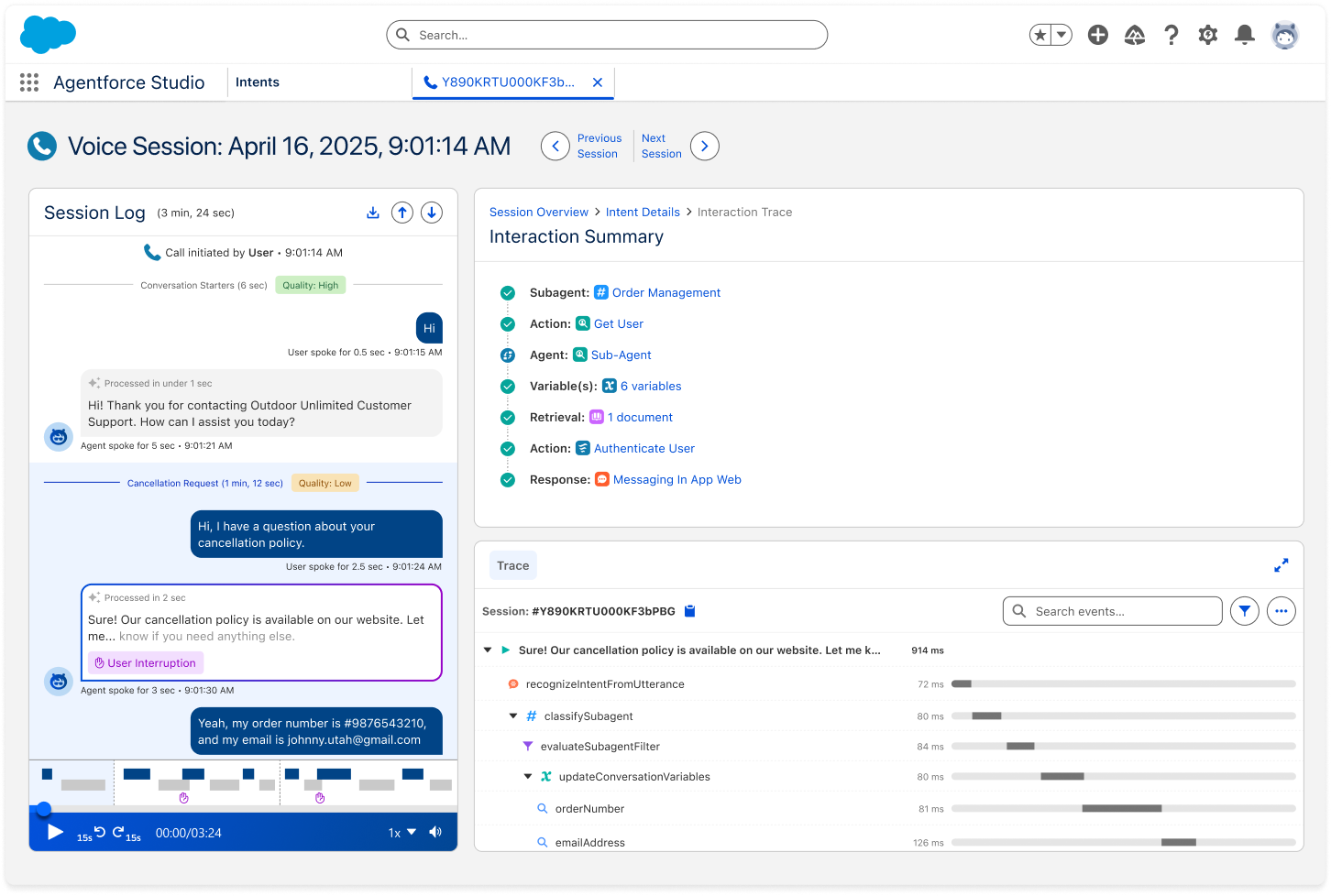
Agentforce Observability supports voice agents. You can drill into any voice session and listen to the recording using the integrated audio player directly from the Sessions page.
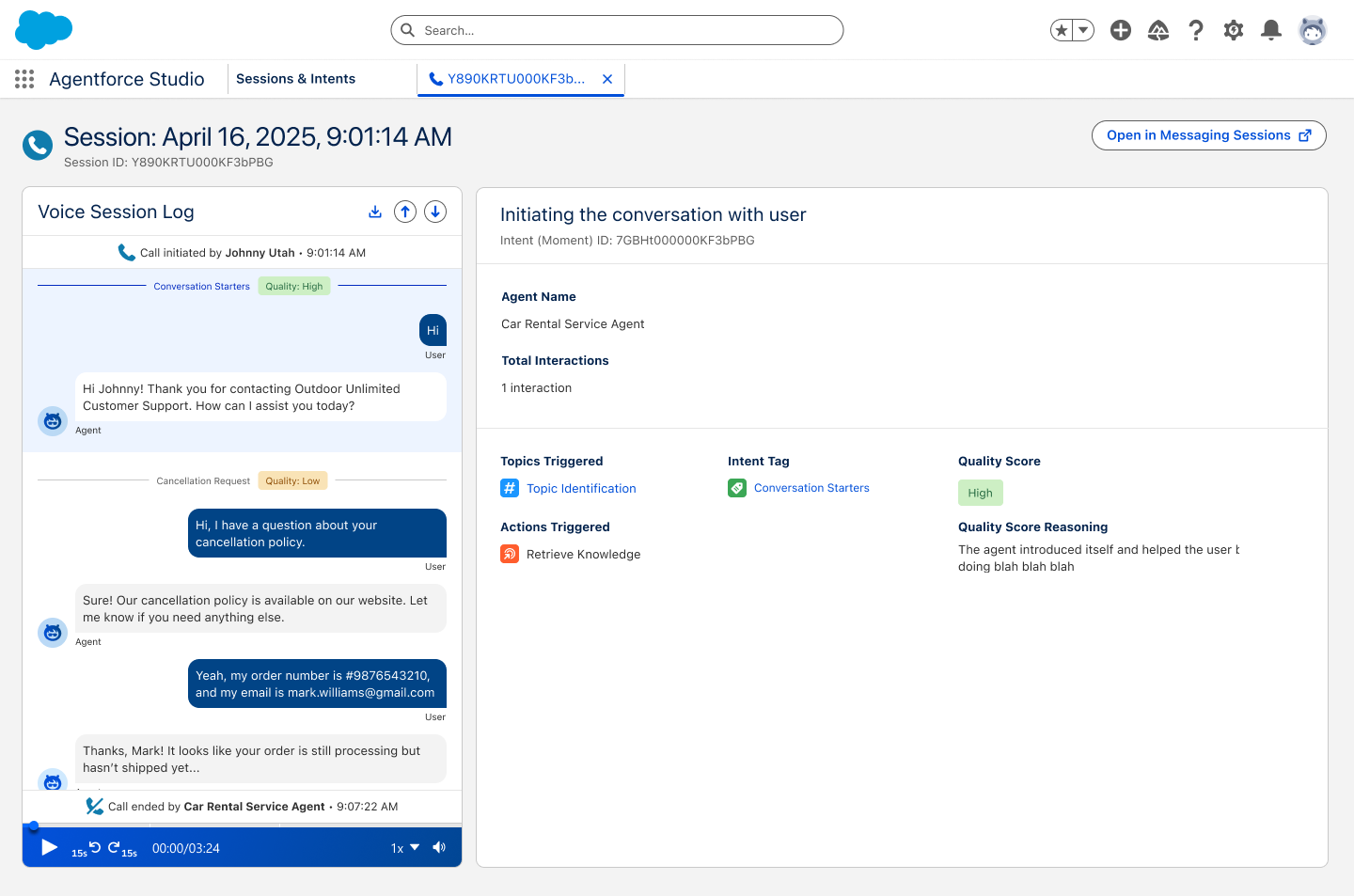
Click into any session to view its data and play back audio for voice-based interactions. The voice session trace displays the complete conversation transcript alongside the audio playback controls.
Voice uses automatic speech recognition (ASR) to convert speech to text as input to the voice agent. Each word receives a confidence score that indicates how certain the transcription engine was of that word. In the session transcript, words below the confidence threshold appear with a dotted underline. Speech recognition can be affected by background noise, poor call or audio quality, fast speech or varied accents, and specialized domain vocabulary.
Word-level confidence scores are captured on the ASR step of the
AiAgentInteractionStep object in the session tracing data model. Confidence
isn't the same as transcription accuracy: a high-confidence word can still be transcribed
incorrectly, and a low-confidence word can still be correct. The agent can also recover the
intended meaning from context.
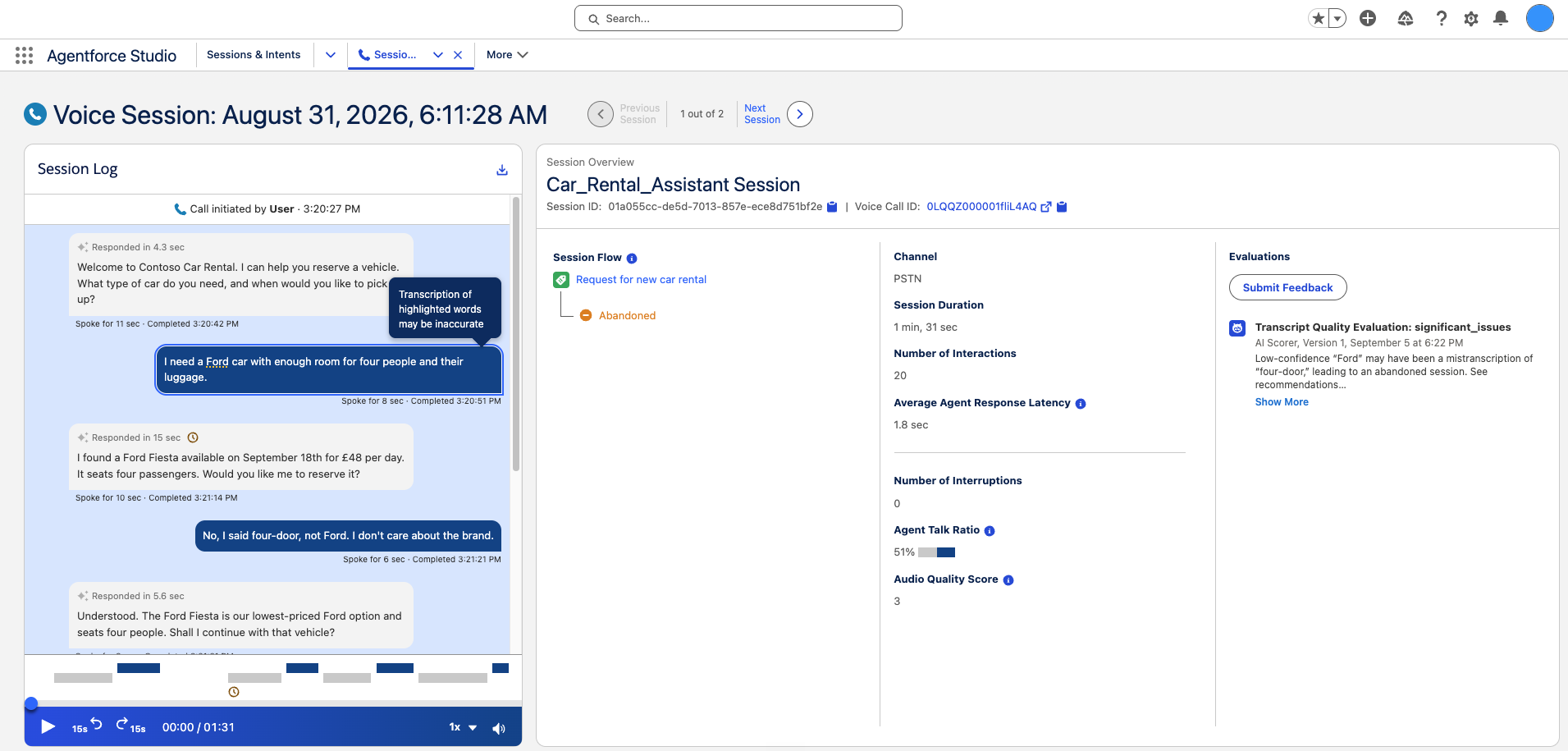
The transcript viewer highlights words that can be inaccurate so you can inspect the session in context.
Each session also receives an Audio Quality Score from 0 through 5 that reflects whether an audio or recognition issue likely affected an important response or outcome.
Session-level metrics show what happened and how a session ended, but they don't always explain why. Use ASR confidence and audio quality score to investigate whether uncertain recognition, degraded audio, or another voice condition contributed to an abandoned session.
To apply the same assessment across multiple sessions, create a conversation-level evaluation in Tests. For instructions, see Create Custom Evaluations. For a ready-to-use prompt template that classifies voice ASR and audio quality, see Custom Scorer Prompt Examples.
{!$Input:Session}. This merge field supplies the evaluator with the full
transcript and turn-level ASR metadata from the captured session payload.
Dive into Specific Intents
From the Processed Sessions tab, you can drill into specific intents to identify patterns and opportunities in your agent's interactions.
The table displays key metrics for each interaction including Intent Summary, Response Summary, Intent Tags, Quality Score, actions performed by the agent, and more. You can also view intents and their performance in the Session Trace on the Session Page.
The session trace shows a session flow breakdown: each session is broken down into intents, and each intent is associated with the cluster tag assigned by the clustering pipeline. Use intent tags to group and compare similar user requests across sessions, identify high-volume patterns, and prioritize improvements. To understand how tags are generated, see Intent Analysis and Clustering.
Debug and Optimize from the Session Page
Deep-dive into specific interactions to understand what happened during user conversations and identify areas for improvement.
Click on a session to open the Session Page and deep-dive into that specific interaction. The Session Page shows you exactly what happened during a user's conversation with your agent, helping you understand and fix issues.
The Session Page shows Average Agent Response Latency, the average time elapsed from the end of the user's message to the start of the agent's response. Chat and Voice sessions also show Responded in, the time from the end of the user's message to completion of the agent's response.
Session Page Overview
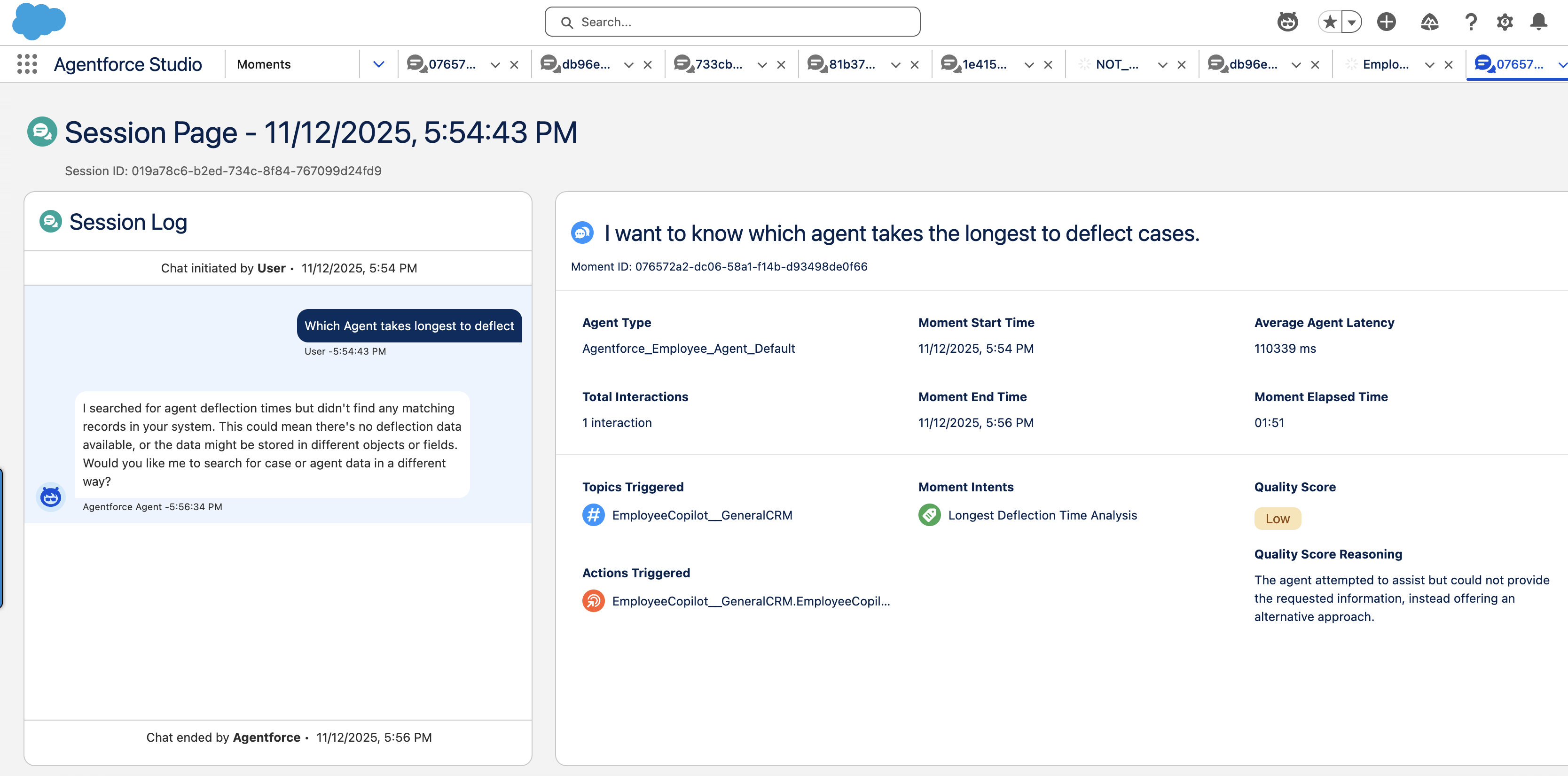
Use the Interaction Summary for a concise view of the interaction, then open the Trace tab to follow what happened in order. Tracing shows a time-ordered record of processing steps and their duration, so you can see where work ran, how long each part took, and where to look when behavior or performance does not match what you expect.
When a user initiates a request, the agent analyzes intent and runs the sequence of actions configured to handle it. The trace reflects that work as distinct steps—for example intent handling, subagent routing, filters, retrievals, variable updates, and action execution—so you can compare what appears in the UI with what you defined in Agentforce Builder. Admins can configure subagents with specialized actions, including delegation to other agents in Single Org, Multi-Agent (SOMA) setups. When delegation occurs, expand the trace step where the subagent was invoked to drill into nested steps.
Session Page with Interaction Summary and Trace
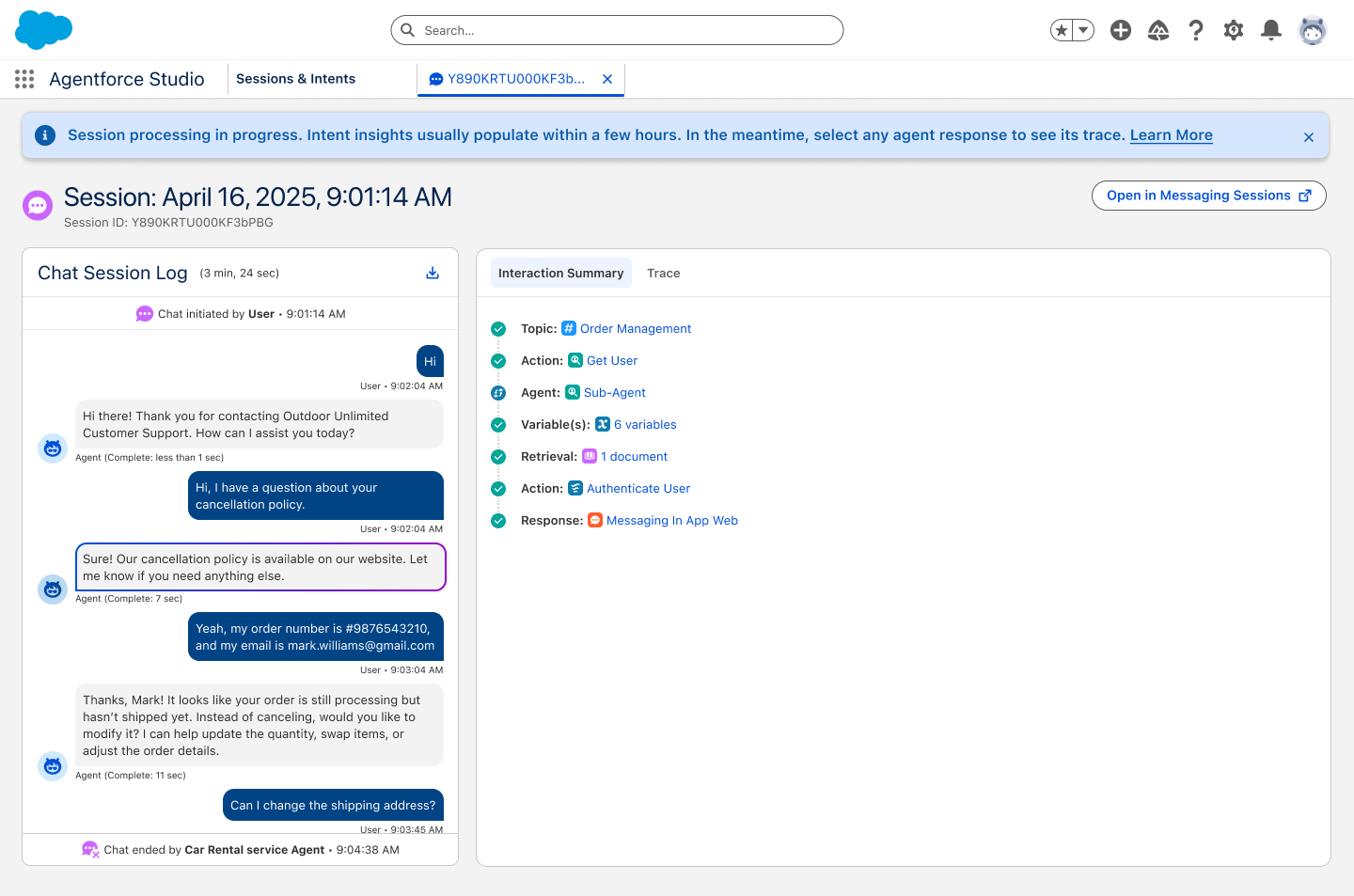
Unprocessed Session View: For sessions still active or those that haven't completed the intent pipeline, you see a "Session processing in progress" banner. Switch to the Trace tab to view the full Session Trace.
Unprocessed Session View
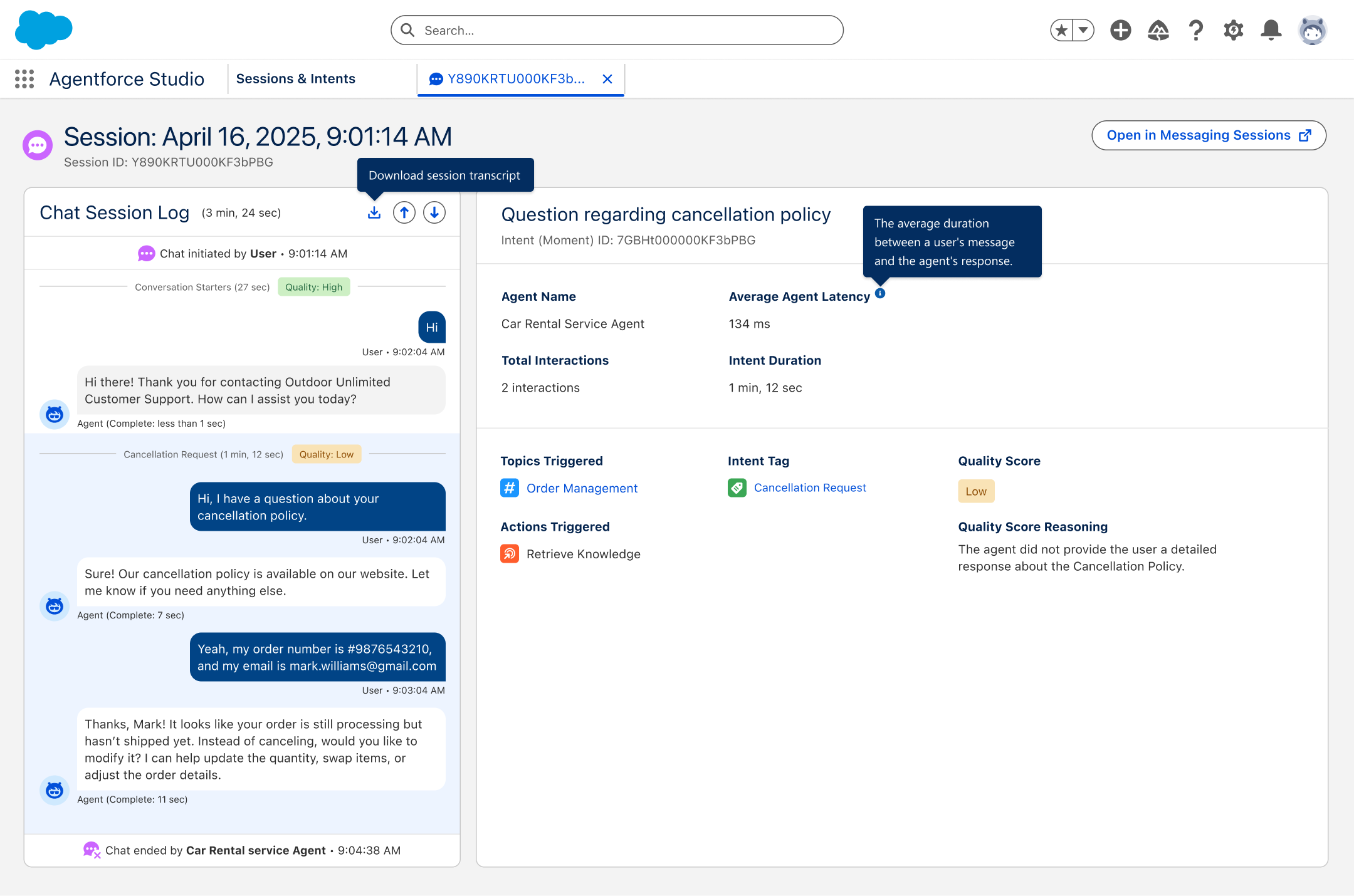
Processed Session View: Once processing completes, the session trace displays intents with quality score indicators. Click on an intent to view performance metrics, triggered subagents and actions, and quality score reasoning.
Processed Session View
On the Sessions & Intents page, the Session Outcome column provides conversation-level visibility into how your agent performed. Session Outcome classifies how each session ended by combining escalation status with LLM-evaluated deflection and abandonment scores.
NOT_SET. Starting in Summer '26, Session Outcome
uses LLM-based scoring for classification.
At session close, Agentforce evaluates a Deflection Score and an Abandonment Score, then applies this decision logic.
| Session Outcome | Criteria |
|---|---|
| Escalated | Session was transferred to a human agent. |
| Abandoned | Not escalated, and (Abandonment Score = TRUE, or Deflection Score < 3). |
| Deflected | Not escalated, not abandoned, and Deflection Score >= 4. |
| Ambiguous | Not escalated, not abandoned, and Deflection Score = 3. |
| NOT_SET | No session end signal was received. |
Deflection Score is a 1-5 rating of whether the user's primary goals were achieved by the end of the session (1 = not achieved, 5 = fully achieved).
Abandonment Score is a TRUE, FALSE, or UNSURE evaluation of whether the user disengaged due to dissatisfaction or an unresolved issue.
Both scores include an evaluation reasoner that explains how the outcome was reached. The explanation is visible when you drill into an individual session. Use this reasoner to understand borderline outcomes and decide whether scorer prompt adjustments are needed.
To customize how Deflection and Abandonment are evaluated for your business context, see Scorers and Custom Scorers.
To review calculated fields for reporting and dashboarding, see Agentforce Observability Data Model.