
Scorers evaluate agent sessions for quality and business insights. You can score sessions with prompt templates that run automatically, by API, or manually in Agentforce Studio. Use out-of-the-box scorers, edit existing scorers, or create custom scorers with predefined or open-ended outputs.
Required Editions
| Required Editions |
|---|
| Scorers are available in Salesforce Enterprise, Performance, and Unlimited Editions with Salesforce Foundations or Agentforce 1 Edition. |

While creating scorers via API is generally available, creating scorers via the UI is a beta service that is subject to the Beta Services Terms at Agreements - Salesforce.com or a written Unified Pilot Agreement if executed by Customer, and applicable terms in the Product Terms Directory. Use of this beta service is at the Customer's sole discretion.
Overview
Scorers help you evaluate how well agents handle sessions and what business outcomes those sessions produce. You can measure resolution and containment quality, classify conversation topics and intents, extract structured values such as case IDs, and generate open-ended summaries such as customer frustration signals. Teams use these results to track compliance and policy adherence, monitor trends in Analytics, and identify sessions that need deeper review to improve prompts, instructions, or agent behavior. You can run scorers with prompt templates, by API, or manually in Agentforce Studio.
Scorer configuration and session scoring are supported through API (GA) and through the Agentforce Studio UI experience (Beta).
There are two kinds of scorers:
- Standard scorers are provided by Salesforce out of the box.
- Custom scorers are defined by your organization to evaluate business-specific criteria.
Considerations and Limitations
- Scorers are available in Lightning Experience where Agent Optimization and Agent Analytics are enabled.
- SDR agent type appears in the Scorer Hub but not in the Optimization UI agent dropdown.
- Standard scorers (Abandon, Deflection, Quality Score) are created when STDM is provisioned. If they are missing, check for a provisioning issue.
- Numeric scorers on a 0–1 scale are not recommended because LLMs perform poorly on very narrow numeric ranges.
- Scorers created in Tests will not be visible in the Sessions & Intents page, since they don't receive an end timestamp, so the data action that triggers custom scorer evaluation is never fired.
- Standard and custom scorers are limited to 50,000 scoring requests per day, per org.
- Salesforce absorbs the cost of the LLM calls used by standard and custom scorers.
How Scorers Work
A scorer runs automatically after a session ends. After it runs, the session is associated with the scorer, and labels and scores appear in Agentforce Observability.
- A scorer evaluates a configurable percentage of sessions, called the sampling rate.
- A scorer can evaluate an entire session or individual intents.
- Scores are applied at session end, not during the live conversation. Sessions must receive an end timestamp for the scoring data action to run.
- Scorers don't affect the agent's latency or performance during live conversations because scoring runs after the session ends.
- You can trigger custom scorers by using the
TriggerAgentBulkScoringstandard action.
Standard Scorers
Standard scorers are pre-built evaluations that are created automatically with STDM provisioning. Agentforce includes out-of-the-box scorers such as Deflection Score, Abandon Score, and Response Quality Score. These scorers run on agent sessions without additional customer configuration.
Current Standard Scorers
- Abandon Score — Indicates whether the customer ended the session prematurely before the agent resolved their issue.
- Deflection Score — Indicates whether the agent successfully deflected an interaction from requiring human escalation.
- Response Quality Score — Measures intent response quality based on predefined Salesforce criteria.

You can't edit a standard scorer directly. Clone it to create a new custom version with modified logic.
Custom Scorers
Standard analytics measure outcomes such as Abandonment and Deflection, but your business can define these outcomes differently or may need to evaluate criteria such as agent accuracy, security, sentiment, empathy, relevance, and compliance. Custom scorers use prompt templates to define these business-specific metrics and run automatically on completed agent sessions.
Watch this video to see how a sentiment scorer adds results to the Sessions & Intents table, helps identify sessions that need attention, and supports investigation from session details.
Choose an output pattern based on how you want to use the results:
- Predefined (fixed) scorers return one value from a fixed list that you define. Use this pattern for enum-style classification where outputs must stay within approved labels.
- Free-form (open-ended) scorers return unconstrained output (for example, text, number, or URL) based on your prompt and output type settings. Use this pattern when you need richer or exploratory insights.
Scorer results are associated with the evaluated session, appear in Agentforce Studio, and are stored in Data 360 through the Analytics Foundation semantic data model. Use the results to filter sessions, investigate patterns, and refine agent instructions.
You can create and run custom scorers by using APIs (GA) or in Agentforce Studio (Beta). In Agentforce Studio, first create, refine, and publish a custom scorer in Tests. Then activate the published scorer for an agent from Sessions & Intents. See Test Agents.
Scorer Template Examples
Explore basic prompt structures and advanced patterns for thresholds, fallback labels, mixed outputs, and multiple labels. See Custom Scorer Prompt Examples.
Create and Manage Scorers in Agentforce Studio
Create and publish custom scorers in Tests. Then, from Sessions & Intents, use the Manage AI Scorers window to activate and manage standard and custom scorers for the selected agent.
- In Agentforce Studio, select Tests.
- Create a custom scorer as part of a new or existing test, refine it, and publish it. For detailed instructions, see Test Agents.
- Select Sessions & Intents.
- Select the agent that you want to score.
- Click Manage Scorers. The Manage AI Scorers window shows each scorer's
versions, description, input level, sampling rate, type, and status.
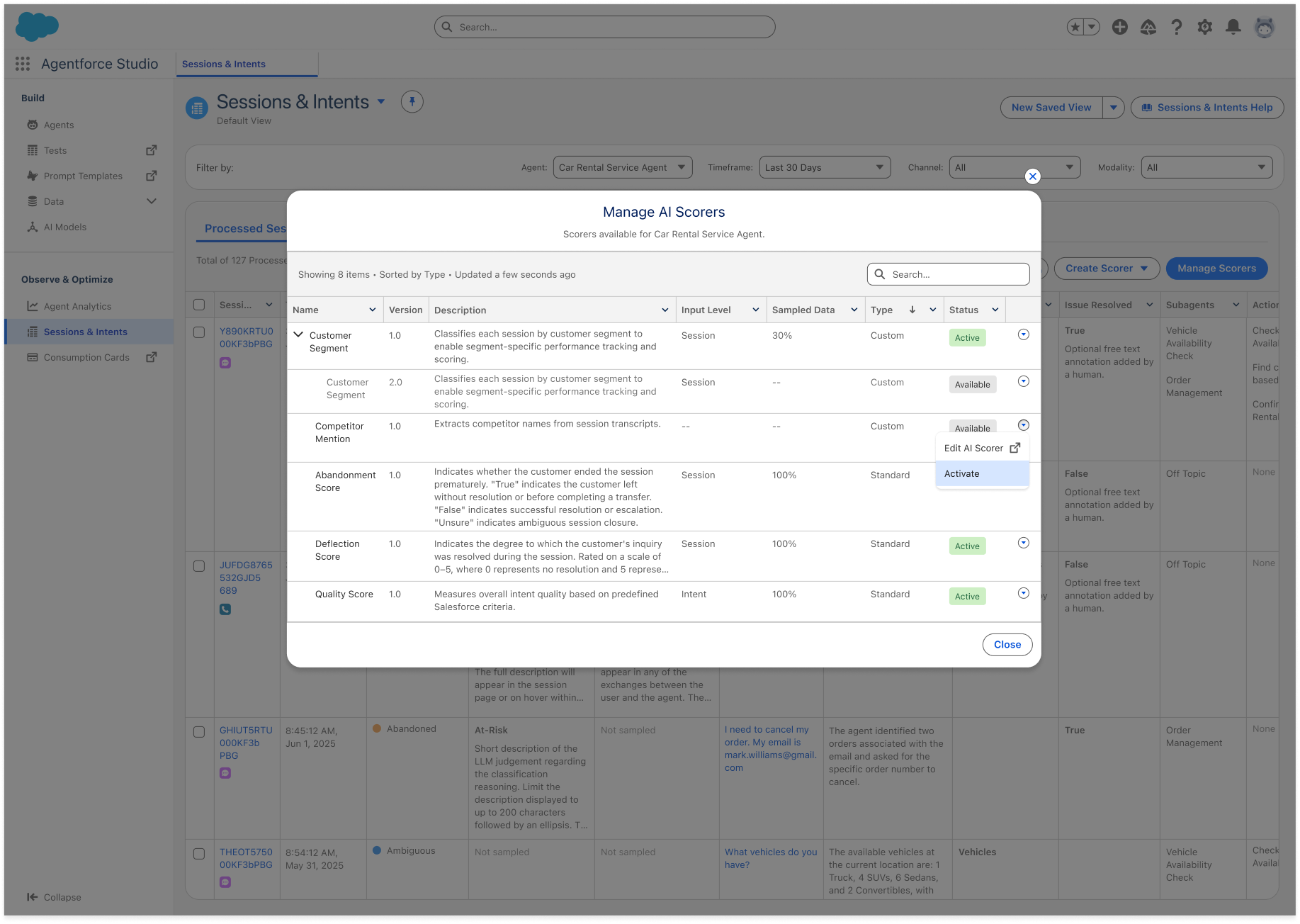
- To activate a scorer, find a version with a status of Available. From its row-level action menu, select Activate.
- In the Activate AI Scorer window, set the Session sampling percentage from 0 through 100. The percentage determines how many of the agent's sessions the scorer evaluates.
- For Input Level, select Session to evaluate an
entire session or Intent to evaluate individual intents.
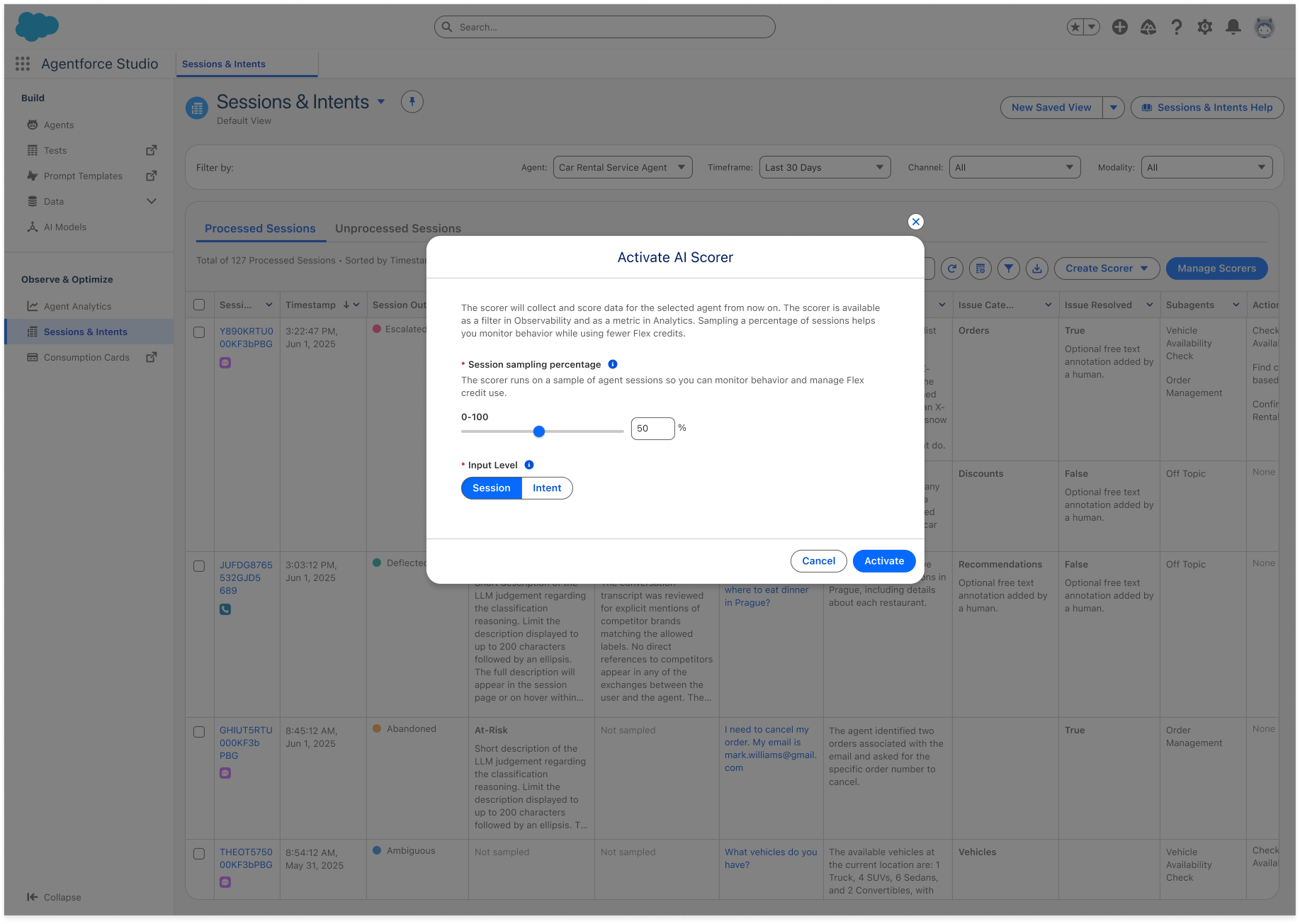
- Click Activate.
The scorer's status changes to Active, and it scores data collected for the agent from that point forward.
For an active scorer, use the row-level action menu to:
- Select Update Data Sampling to change the percentage of sessions that the scorer evaluates.
- Select Deactivate to stop applying the scorer to new sessions.
- Select Edit AI Scorer to open the scorer in Tests.
You can also send selected sessions from Sessions & Intents to Tests. Agentforce Studio creates a test suite and adds the selected sessions so that you can evaluate them with scorers and compare results.
Use Scorer Results
After a scorer runs, use its labels, scores, dimensions, and metrics to review agent performance.
- Sessions & Intents — View scorer results and filter sessions by custom scorer dimensions.
- Session details — Review the scorer labels and scores associated with a session.
- Agentforce Observability — Filter data by scorer results.
- Analytics dashboards — Use custom scorer measures as metrics for reporting.
Scorers via API
Use APIs to create and run custom scorers. For complete request and response details, see Custom Scorers API Reference.
Scorer Configuration
For complete scorer field definitions, request schemas, and response payloads, see Custom Scorers API Reference.
Configuration Highlights
- Define scorer identity, versioning, engine type, scope, and output type in scorer metadata.
- Use either predefined values or open-ended output configuration based on scorer type.
- Associate scorer versions with agent API names and sampling rates before activation.
- Ensure scorer versions are in
Availablestatus before execution.
Output Types are based on standard Lightning types (Boolean, DateTime, Number, Text, and URL). For type-level details, see Standard Lightning Types.
Create scorer definitions (Metadata API)
Create an AiAgentScorerDefinition for your scorer type. The exact structure
depends on whether you're building a predefined categorical label scorer, a free-form text
scorer, or a numeric scorer.
Run scorers
- Prompt-based scorers — Use the
TriggerAgentBulkScoringstandard action for LLM-based custom scorers. - Manual scorers (Annotation API) — Use
ingestManualAgentScoresto submit human-reviewed values for scorers configured withengineType=Manual. Existing predefined-scorer callers using input values continue to work unchanged.
For related platform references, see Metadata API Developer Guide and SOAP API Developer Guide: Annotation.
Key execution constraints:
- All input IDs and scorer API names in one request must belong to the same agent.
- The scorer version must be in
Availablestatus before execution.
- Custom Scorer Prompt Examples
Use basic and advanced prompt examples to create custom scorers for common evaluation patterns.