
Work with intents in Agent Optimization to understand user requests, analyze interaction patterns, and improve your agent's performance.
Required Editions
| Required Editions |
|---|
| Agent Optimization is available in Salesforce Enterprise, Performance, and Unlimited Editions with Salesforce Foundations or Agentforce 1 Edition. |
| Access and view Agent Optimization | Assign the Access Agent Optimization and Data Cloud User permission sets |
Intents represent sets of interactions within a session that address a specific user request. Use intents to understand what users are asking and how your agent responds. If you encounter issues with intent generation or clustering, see Troubleshoot Agent Optimization.

Intent Analysis and Clustering
Agent Optimization uses intent generation and clustering pipelines to analyze session data. The intent pipeline analyzes sessions to identify and generate intents. The clustering pipeline groups intents by shared user objectives and assigns cluster tags to intents that meet semantic and size thresholds.
The intent pipeline derives intents from closed sessions. The clustering pipeline then groups intents that express similar user goals so you can analyze patterns at a tag level rather than only per raw intent.
Minimum cluster size: The pipeline forms a cluster only when at least 10 intents are sufficiently similar in meaning. Smaller groups of similar intents do not become a cluster and do not receive a cluster tag.
Intents that are not clustered: Any intent that is not placed in a cluster of at least 10 semantic matches does not get a tag. Clustering evaluates intents from roughly the last month of data. The job runs about once a week, so if an intent is not tagged in a given run it can be evaluated again in subsequent runs (typically a few more weekly passes). If it still does not join a qualifying cluster after those passes, it remains without a cluster tag.
Session trace and untagged intents: The session trace lists only tagged intent instances (those that joined a cluster). An untagged intent instance does not appear in the session trace, even when the session has an intent. If an intent is missing from the session trace, it may be an untagged instance; see Troubleshoot Agent Optimization.
Intent Analysis Lifecycle
When you enable Agent Optimization, the system records new sessions, processes them through scheduled pipelines, and generates insights.
Pipeline run considerations:
- If you have enabled STDM previously in setup, the first pipeline run will generate insights for intents from the last 30 days. Subsequent pipeline runs will use data from the last 7 days.
- If you haven't enabled STDM yet, insights will be analyzed only from the moment you enable it onwards.
Optimization Pipeline
The intent analysis process has distinct stages that manage session processing, pipeline execution, and data validation. Each stage has specific triggers, conditions, and timing requirements.
Analysis begins when a session closes or when the system assumes closure after inactivity. The analysis clock tracks session activity and determines when to start pipeline processing. When a session is considered "closed" (due to termination or after 3 hours of inactivity), the pipeline begins.
| Trigger Type | Description | Timing |
|---|---|---|
| Explicit Close | User or system explicitly closes the session | Immediate |
| Assumed Close (Inactivity Timeout) | Session is assumed closed after 3 hours of inactivity | After 3h |
Intent Scheduler and Pipeline Execution
The Intent Scheduler runs every 3 hours to evaluate pipeline execution conditions. The scheduler determines whether to process a single session on the first run or multiple sessions in a batch on subsequent runs.
The Intent Pipeline processes sessions to generate intents. Typical duration is 4–5 hours, but can take up to 24 hours.
| Parameter | Value |
|---|---|
| Scheduler Frequency | Every 3 hours |
| Typical Duration | 4-5 hours |
| Maximum Duration | 24 hours |
Intent Clustering Trigger
After the Intent Pipeline generates intents, the system waits 12 hours before triggering the Clustering Pipeline. This delay allows sufficient sessions with generated intents to accumulate for meaningful clustering analysis. Clusters require at least 10 semantically similar intents; intents that never join such a cluster do not receive a tag.
| Trigger Condition | Description |
|---|---|
| First Successful Intent Pipeline Run | Intent pipeline completes its first run and generates intents |
The clustering pipeline groups intents by shared user objective across multiple sessions. Pipeline duration can take up to 24 hours. The system evaluates data sufficiency by counting sessions with generated intents. If overall conversation volume is low, there may not be enough data yet for the clustering pipeline to run effectively—this is often the limiting factor before per-cluster rules apply.
Within a clustering run, a cluster (and its tag) exists only when the model finds at least 10 intents that are semantically similar. Groups with fewer than 10 matching intents do not form a cluster; those intents remain untagged for that outcome and do not appear in the session trace. A large total number of intents does not guarantee clusters if they do not group into sets of similar meaning.
Clustering generally considers intents from about the last month of data. The clustering job runs about once a week, so intents that are not tagged in one run can be reconsidered in the next several weekly runs. If an intent still does not fall into a qualifying cluster after those passes, it does not receive a cluster tag.
When insufficient data is available at the session level, the system waits for more sessions to accumulate intents before attempting clustering again.
| Parameter | Value |
|---|---|
| Maximum Duration | Up to 24 hours |
| Typical Sessions for Intent Generation | 5–7 sessions |
| Data Sufficiency Target for Clustering | 50 sessions with intents |
| Minimum intents per cluster (for a tag) | 10 semantically similar intents |
| Clustering evaluation window | Approximately the last month of intents |
| Clustering cadence | About once per week |
| Intents outside any qualifying cluster | No cluster tag; do not appear in the session trace until tagged; may be reconsidered on later weekly runs, then remain untagged if never clustered |
| Insufficient Data Action | System waits for more session intents |
Timing and Latency Considerations
Review timing characteristics to understand when intents and clusters become available in analytics.
| Timing Component | Duration | Notes |
|---|---|---|
| Session Close Detection | Immediate to 3h | Explicit close or assumed close after inactivity |
| Intent Scheduler Cycle | Every 3 hours | Maximum wait time before first evaluation |
| Intent Pipeline Duration | 4–24 hours | Typical: 4–5 hours. Maximum: 24 hours |
| Clustering Pipeline Duration | Up to 24 hours | Varies by data volume and complexity |
Review Intents and Submit Feedback
Use a feedback template to manually review an intent, or define an intent-level feedback template if an appropriate template isn't available.
Feedback templates specify the information that reviewers enter, such as predefined labels, a true-or-false value, free text, a number, a date, or a URL. Submitted feedback appears in intent details and can be displayed and filtered in the Sessions & Intents table.
These examples show common feedback templates.
- User Sentiment — Predefined labels: Positive, Neutral, Negative
- Hallucinations — Boolean: True, False
- Helpfulness — Number: 1 through 5
-
From Sessions & Intents, open a session and select an intent in the
session log.
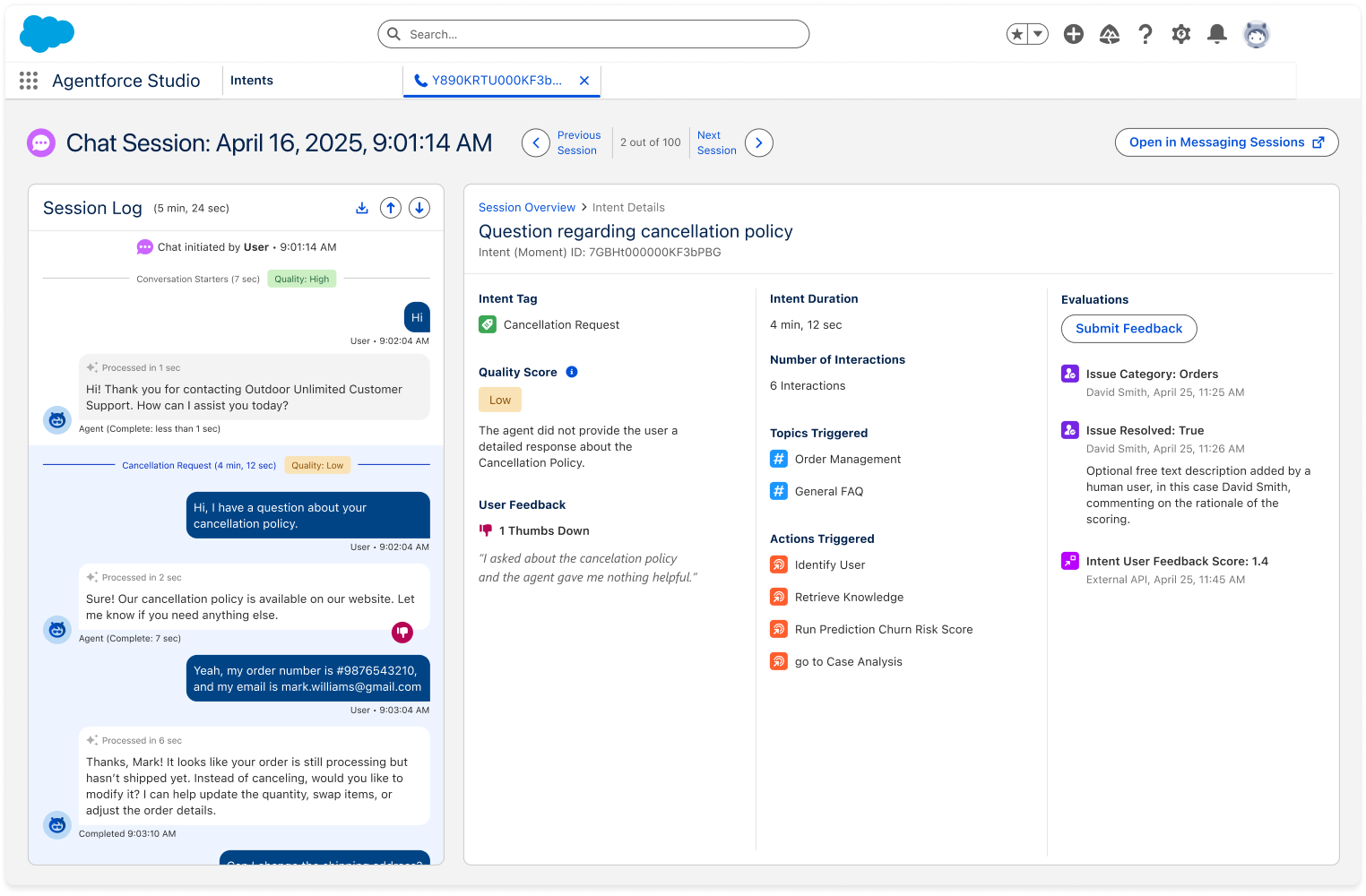 The intent details show its tag, quality score, user feedback, triggered topics and actions, and existing evaluations.
 -
In Evaluations, click Submit Feedback.
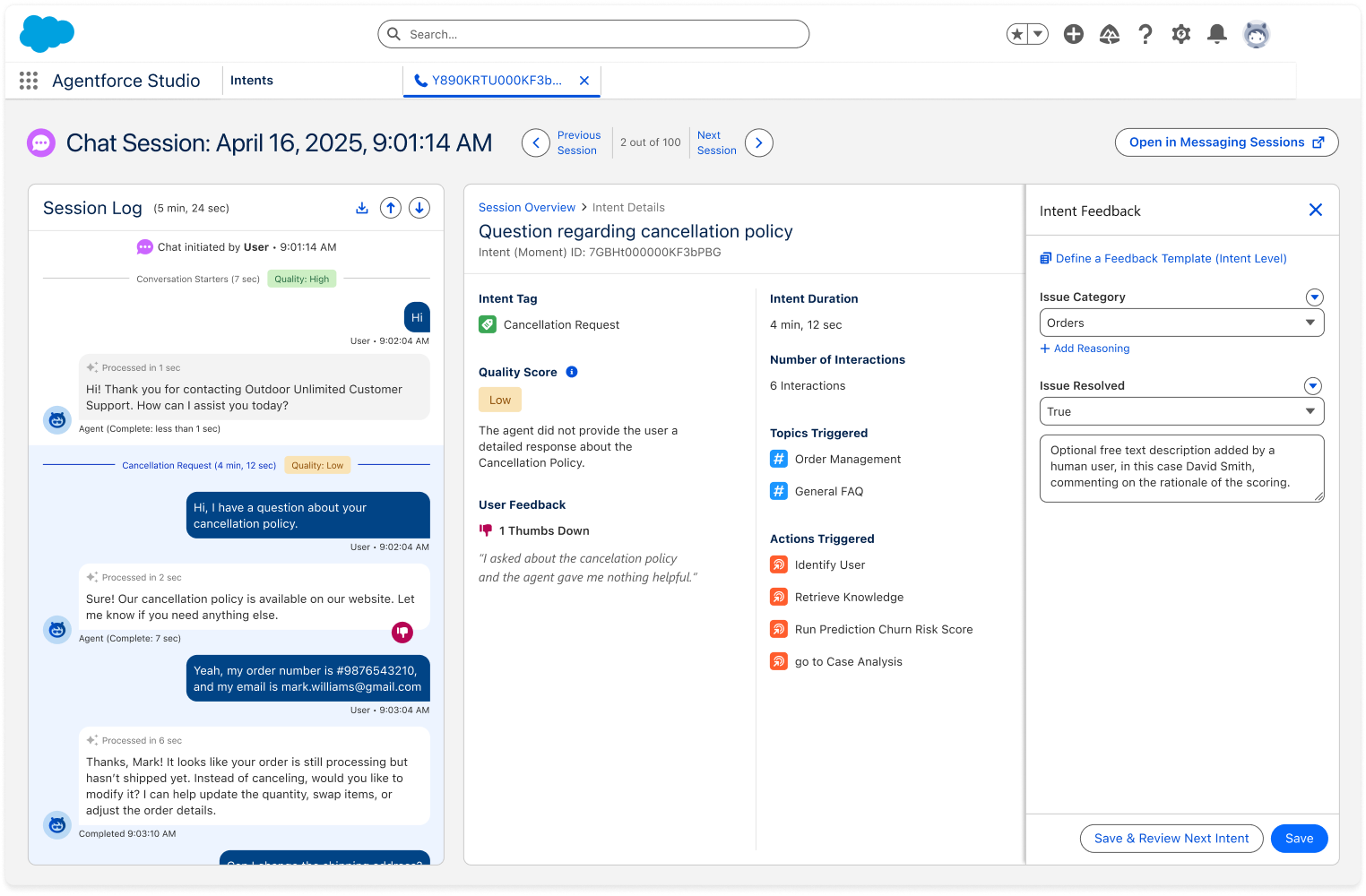 The Intent Feedback panel opens with the available intent-level feedback templates.
 - Enter the requested feedback, and click Save. To save and continue to another intent, click Save & Review Next Intent.
-
If an appropriate template isn't available, click Define a Feedback Template
(Intent Level).
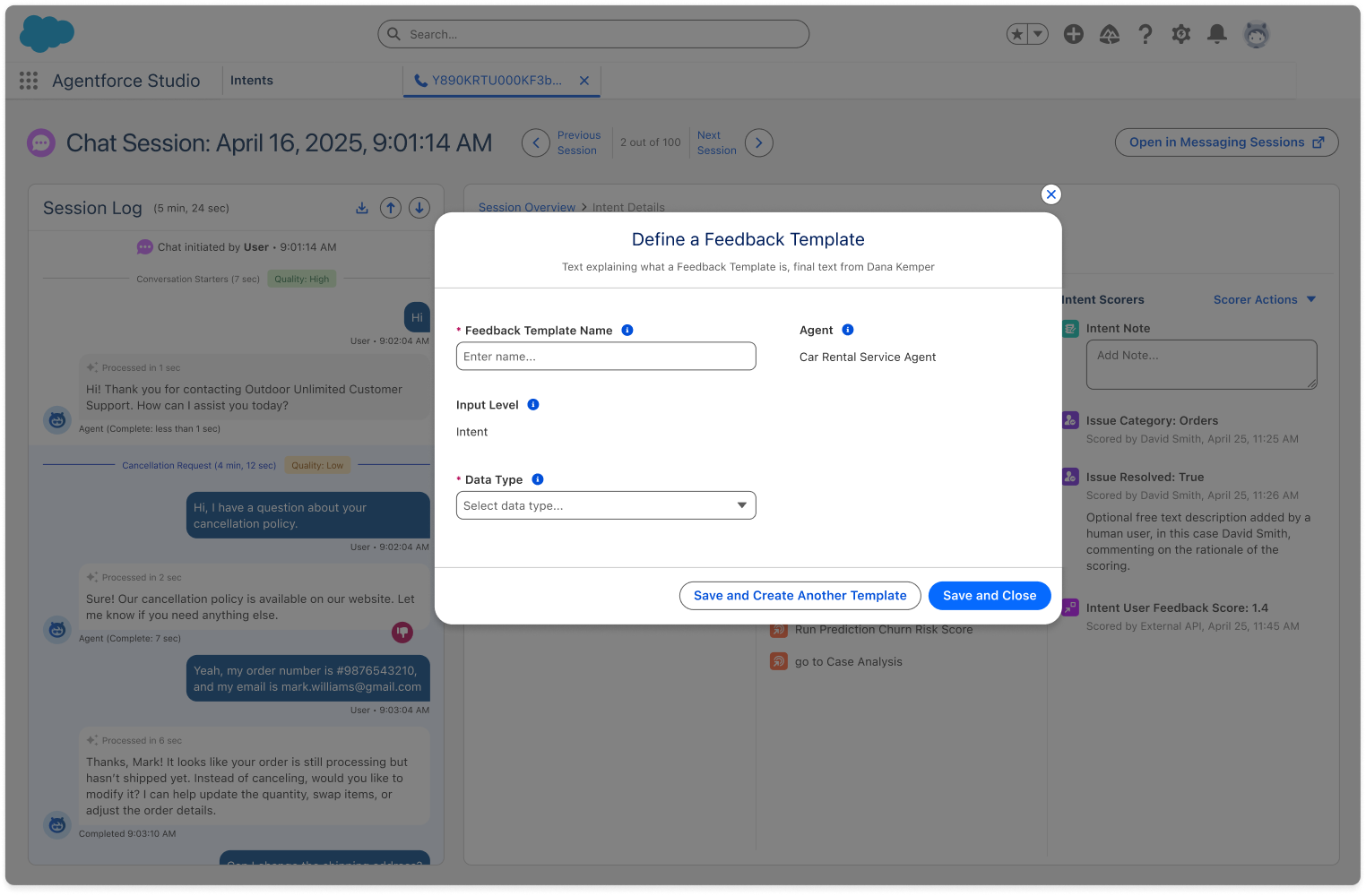 The Define a Feedback Template window opens with Intent selected as the input level.
 - Enter a Feedback Template Name, select a Data Type, and configure any values required for that type.
- Click Save and Close. To define another template, click Save and Create Another Template.