---
schema_version: "1"
id: fe731460caade0302864dabb7c36adec018dfd8c39db43e37a2e026f7f20414d
title: Set Up Knowledge/RAG Quality Data and Metrics
collection: admin
version: current
locale: en-us
portal_url: https://docs.salesforce.com/admin/current/en-us/ai/264-0-0/generative_ai_monitor_retrieval_setup.md
canonical_url: https://help.salesforce.com/s/articleView?id=ai.generative_ai_monitor_retrieval_setup.htm&release=264.0.0&type=5
source_site: help.salesforce.com
content_type: documentation
content_hash: b190ba703473337f71e7d2f8e201f001c4d2c3ad1991db086b7f97aeb0f89f2c
description: Turn on Knowledge/RAG Quality Data and Metrics to collect and store, in Data 360, quality scores and other data about knowledge retrievals. For orgs with only one dataspace, it’s turned on by default when Agentforce is turned on.
products:
- Agentforce
- Cross Cloud
release: "264"
---
# Set Up Knowledge/RAG Quality Data and Metrics
Turn on Knowledge/RAG Quality Data and Metrics to collect and store, in Data 360, quality scores and other data about knowledge retrievals. For orgs with only one dataspace, it’s turned on by default when Agentforce is turned on.
### Required Editions

Note Setup considerations:
- If you use a data space that's shared with your [companion org](https://help.salesforce.com/s/articleView?id=data.c360_a_connect_salesforce_orgs.htm&type=5&language=en_US), confirm that the initialization status for the shared data space is Active. See [Data Cloud One Monitoring](https://help.salesforce.com/s/articleView?id=data.c360_a_data_cloud_one_monitoring.htm&type=5&language=en_US) and [Companion Connection Statuses](https://help.salesforce.com/s/articleView?id=data.c360_a_companion_connection_statuses.htm&type=5&language=en_US).
- To access pre-built reports and dashboards, make sure that you have Data Cloud User permissions. See [Create Data Cloud Users and Assign Permissions](https://help.salesforce.com/s/articleView?id=data.c360_a_setup_walkthrough.htm&type=5&language=en_US).
1. Confirm that Data Cloud is provisioned in your Salesforce org and that you’ve turned on Einstein. To learn more, see [Set Up Einstein Generative AI](https://help.salesforce.com/s/articleView?language=en_US&id=ai.generative_ai_enable.htm&type=5).
2. Verify that you have the latest version of the Salesforce Standard Data Model (version 1.130 or higher) in your org (sandbox or production). From Setup, go to **Apps** -> **Packaging** -> **Installed Packages** -> **Salesforce Standard Data Model**. To get the required version, click [here](https://login.salesforce.com/packaging/installPackage.apexp?p0=04tKe000000Pc4v) and follow the instructions.
3. From Setup, in the Quick Find box, enter Einstein Audit, Analytics, and Monitoring Setup, and then select **Einstein Audit, Analytics, and Monitoring Setup**.
4. Confirm that **Audit and Feedback** is turned on. To learn more, see [Set Up Einstein Generative AI Audit and Feedback](https://help.salesforce.com/s/articleView?id=ai.generative_ai_feedback_enable.htm&release=264.0.0&type=5 "To collect Einstein generative AI audit and feedback data, turn it on in Einstein Setup. For orgs with only one dataspace, it’s turned on by default when Agentforce is turned on.").
5. Scroll down to **Knowledge/RAG Quality Data and Metrics**.
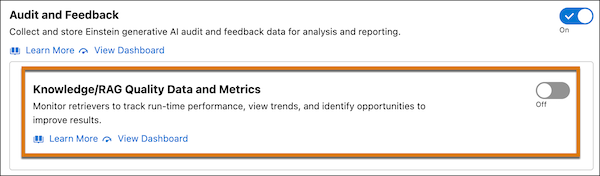
6. Turn **Knowledge/RAG Quality Data and Metrics** on or off.
1. Turn on **Knowledge/RAG Quality Data and Metrics** to provision your data model (in just a few minutes) and start collecting data in Data 360. Data collection occurs every five minutes, data processing occurs every hour, and data reporting is aggregated daily.
Turning on Knowledge/RAG Quality Data and Metrics increases your org’s Flex credit consumption rate for LLM calls (see [Flex Credits Billable Usage Types](https://help.salesforce.com/s/articleView?id=ai.usage_flex_credits.htm&release=264.0.0&type=5 "Using Agentforce and embedded AI features can impact credit consumption.")).
2. Turn off **Knowledge/RAG Quality Data and Metrics** to stop collecting data.
Suspending data collection keeps your existing data so that you can resume later. Dashboards, queries, and reports show a gap during which data collection is turned off.
7. If prompted (for example, if you turn on data collection on and your org has multiple data spaces), select a target [data space](https://help.salesforce.com/s/articleView?id=data.c360_a_data_spaces.htm&type=5&language=en_US) to store the data.
8. Optionally, adjust the sampling rate, which is the percentage of retrievals you want to score and analyze. The default sample rate is 0% (no scoring). To begin scoring retrievals, adjust the percentage upwards.
An LLM scores retrieval quality, which consumes Flex credits. As RAG quality scores stabilize over time, consider lowering the sample rate to reduce the number of LLM calls and Flex credit consumption.
9. Protect access to collected Agentforce Session Tracing data that is sensitive. Hide sensitive data from unauthorized users. Stored data can contain personally identifying information (PII), protected health information (PHI), payment card information (PCI), and other sensitive information.
- Use dynamic data masking to redact, nullify, or round sensitive data. For instructions, see [Dynamic Data Masking Policies in Data 360](https://help.salesforce.com/s/articleView?id=data.c360_a_dynamic_data_masking_policies.htm&type=5&language=en_US).
- Apply permissions at the data space level. That way, only authorized users can view or query this data. By default, users with the Data Cloud Architect (formerly the Data Cloud Admin) permission set have access to all the data. For instructions, see [Implement Data Governance Permissions for Agentforce Session Tracing Objects](https://help.salesforce.com/s/articleView?id=ai.generative_ai_session_trace_data_governance.htm&release=264.0.0&type=5 "Use Data Cloud Data Governance to protect sensitive data by setting up dynamic data masking and field-specific data exclusion policies. Grant access to the impacted Data 360 objects according to an access policy.").
- The Salesforce System Admin profile includes the Manage All Data Space definition permission, which grants users access to all Data Spaces. If the default Allow All policy is active in the org, users with the System Admin profile can query all Data 360 DMOs. To preserve data security, we recommend deleting the default Allow All policy or editing its scope to apply to specific users. For instructions, see [Data Governance in Data 360](https://help.salesforce.com/s/articleView?id=data.c360_a_data_gov_capabilities.htm&type=5&language=en_US).