Customize Agent Analytics when the standard metrics don't fully represent your business processes. Use scorer results and the analytics semantic data model to refine metrics and surface them in dashboards.
Required Editions
| Required Editions |
|---|
| Agent Analytics is available in Salesforce Enterprise, Performance, and Unlimited Editions with Salesforce Foundations or Agentforce 1 Edition. |
Permissions Required
Make sure that Agent Analytics is set up for your agent. A Tableau Next Creator permission set is required to clone or modify dashboards and to edit the analytics semantic models. Users with viewer-level access can view standard dashboards or query the analytics semantic data models but can't modify them. While Tableau Next Creator is bundled with Agentforce 1, not every edition includes customization. See Set Up Agent Analytics.
Getting Started
Customize Agent Analytics to measure agent outcomes and behaviors that aren’t fully represented by standard metrics. You can customize scorers to identify business-specific outcomes, refine metric calculations in the Agent Analytics data model, and display the results in standard or custom dashboards.
Watch Customize Your Agentforce Analytics Today to see examples of tailoring metrics to your business goals. The examples from the video are outlined below.
Before creating a custom metric:
- Review the standard success, deflection, escalation, abandonment, latency, quality, and satisfaction metrics to determine whether they answer your business question.
- Identify the business context missing from the standard definition, such as whether the agent created a support case, scheduled an appointment, or canceled an order.
- Choose where to measure the result. Use the most specific level (Session, Intent) that represents the event, and combine the results for reporting.
- Confirm that the required session fields, scorer outputs, action results, or related business records are captured consistently. A custom metric is reliable only when its source data is available and accurate.

Example: Add Case Creation information for the Escalation Rate Metric
Suppose your AI service agent sometimes creates a support case instead of transferring the conversation to a human. If the standard escalation calculation doesn't treat case creation as an escalation, the reported escalation rate can be lower than the rate your business expects.
This example uses an LLM-based Case Creation scorer that reads the transcript between an AI agent and a customer. It returns TRUE when the agent created a support case, FALSE when it didn't, and UNSURE when the result is ambiguous.
Stage 1: Create a Custom Scorer in Testing Center
In Agentforce Studio, create and publish the Case Creation scorer in Testing Center. For instructions, see Create Custom Evaluations.
Refine and Adjust Your Metrics in the Data Model
After the scorer runs, its output is added to the Agentforce Analytics data model. Open the Semantic Model Builder for the Service Agent Analytics Extension SDM to relate the scorer results to session data and extend the escalation metric.
For a full reference of what the semantic data model contains by default, see Agentforce Observability Data Model.
Open the Semantic Model Builder
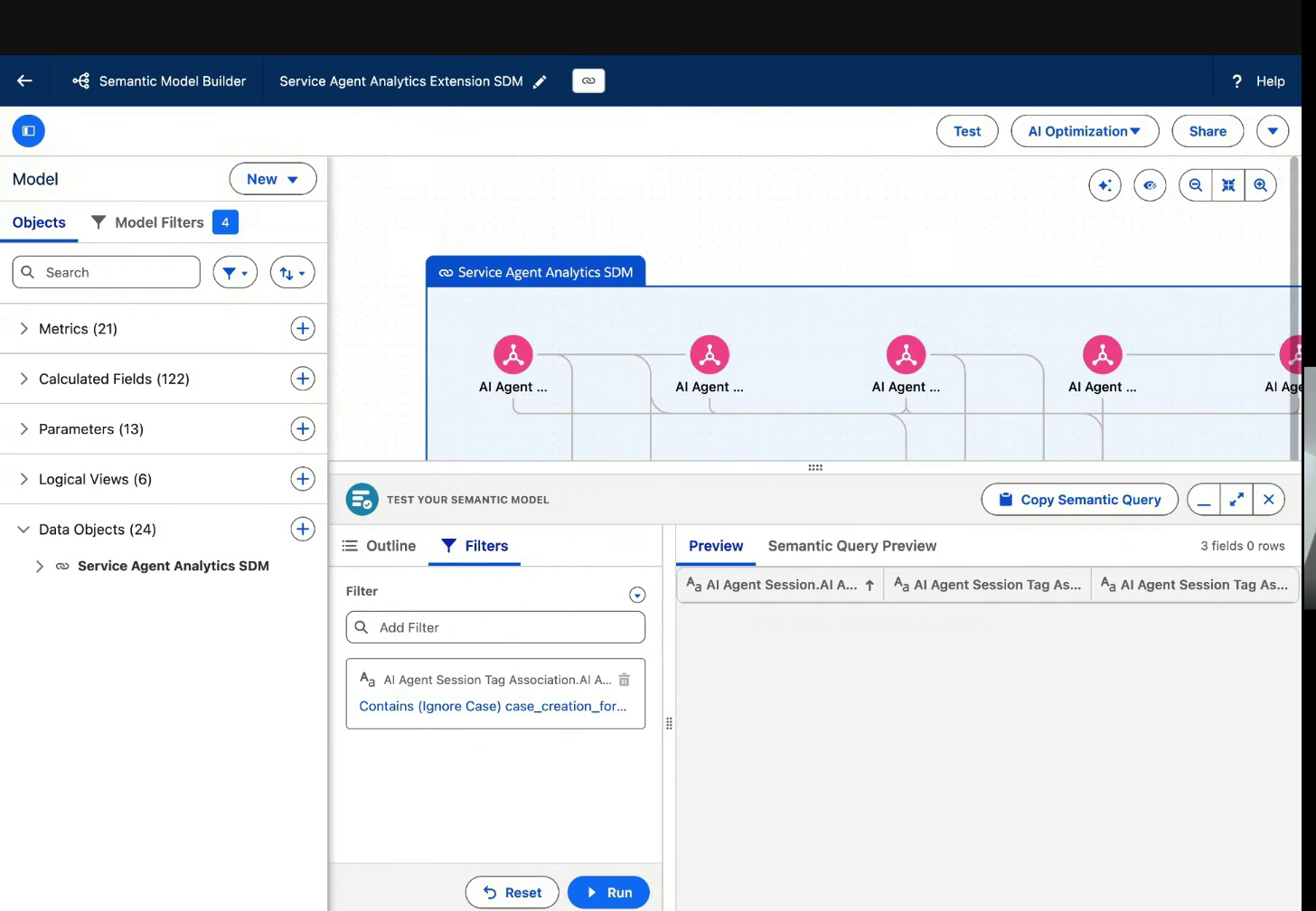
Service Agent Analytics Semantic Data Model
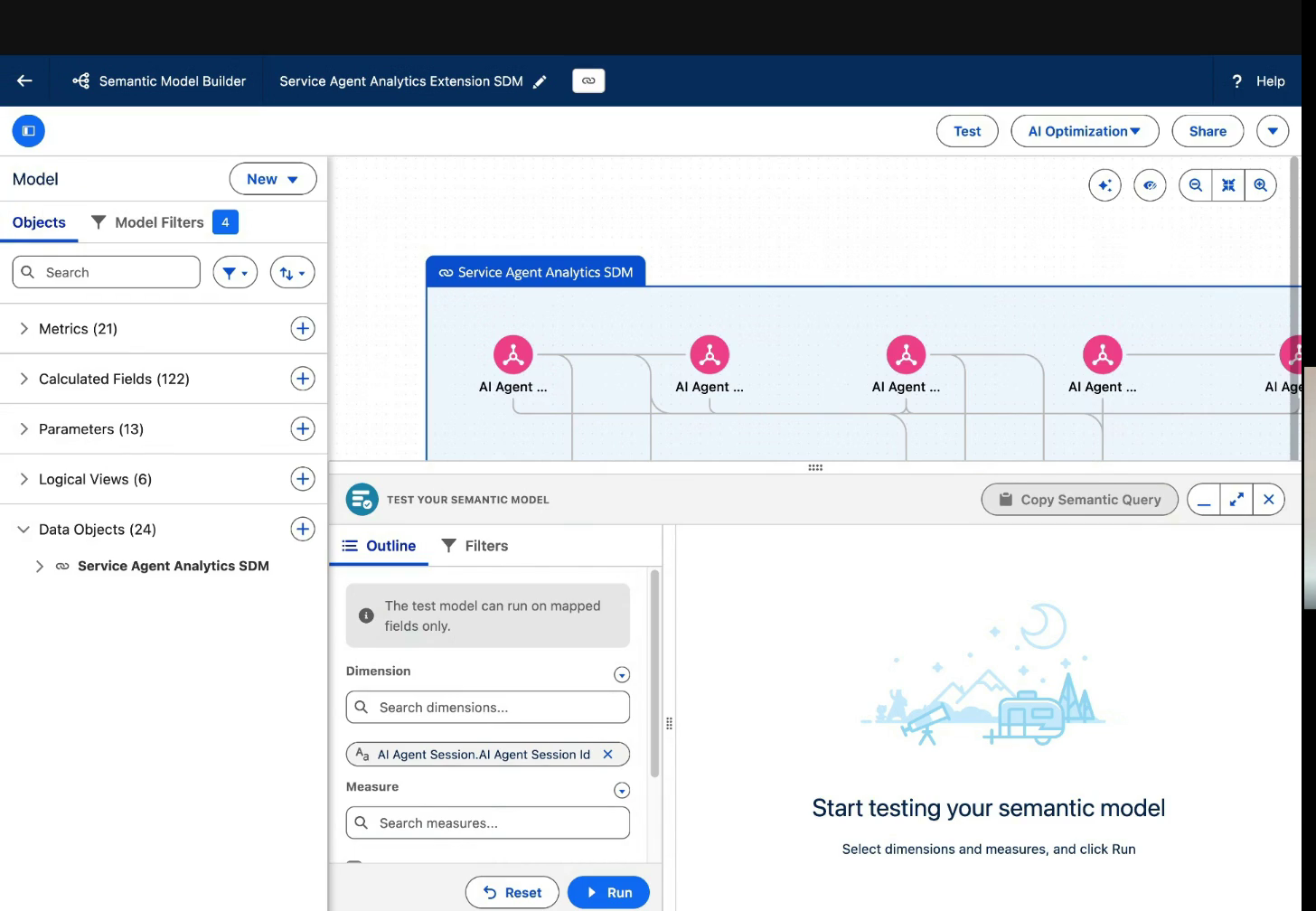
Open Semantic Model Builder and select Service Agent Analytics Extension SDM. The extension inherits the standard Service Agent Analytics model and lets you override inherited calculated fields without rebuilding the model.
The builder organizes the model into Metrics, Calculated Fields, Parameters, Logical Views, and Data Objects. To investigate an anomaly in Escalation Rate, use these model elements:
- AI Agent Session supplies the session identifier.
- AI Agent Session Tag Association is a logical view that presents session-level scorer tags and their definitions together.
- Escalation Status is the Boolean calculated field that classifies each session.
- Escalated Sessions identifies session IDs where Escalation Status is true.
- Escalation Rate calculates the number of Escalated Sessions divided by Unique Sessions.
Create a Session-Level Case Creation Field
Create a session-level Boolean calculated field for case creation. The field must return one value per session:
- TRUE when the latest Case Creation result is TRUE.
- FALSE when the latest result is FALSE.
- FALSE or null for an UNSURE, missing, or malformed result, according to your reporting policy.
Fix the result at the AI Agent Session level and join the AI Agent Session Tag Association. Check that:
- The session tag's Source Tag Reference equals the scorer API name, such as
case_creation. - Is Latest Session Scorer is true, so that the calculation uses only the most recent scorer result.
- The AI Agent Tag Value resolves to true, false, or your selected fallback.
The following formula is illustrative. Insert mapped fields from the builder so that their exact names match your semantic data model.
{ FIXED [AI_Agent_Session].[AI_Agent_Session_Id] :
    MAX(
        IF CONTAINS(
               LOWER([AI_Agent_Session_Tag_Association_lv]
                     .[AI_Agent_Tag_Definition2_Source_Tag_Reference]),
               'case_creation'
           )
           AND [Is_Latest_Session_Scorer_clc] = TRUE
        THEN
            UPPER([AI_Agent_Session_Tag_Association_lv]
                  .[AI_Agent_Tag2_Value]) = 'TRUE'
        ELSE FALSE
        END
    )
}CONTAINS when test results show a stable exact value. Although
CONTAINS is useful for discovery, an exact match is safer for a published
calculation because it prevents similarly named scorers from being included.
Test and Validate the Revised Metric
Test the calculated field by adding the AI Agent Session ID and the new calculated field to the semantic query. Filter the query on the AI Agent Session Tag Association for the scorer tag.
Filter the Semantic Query for the Scorer Tag
View the Revised Metric in Agent Analytics
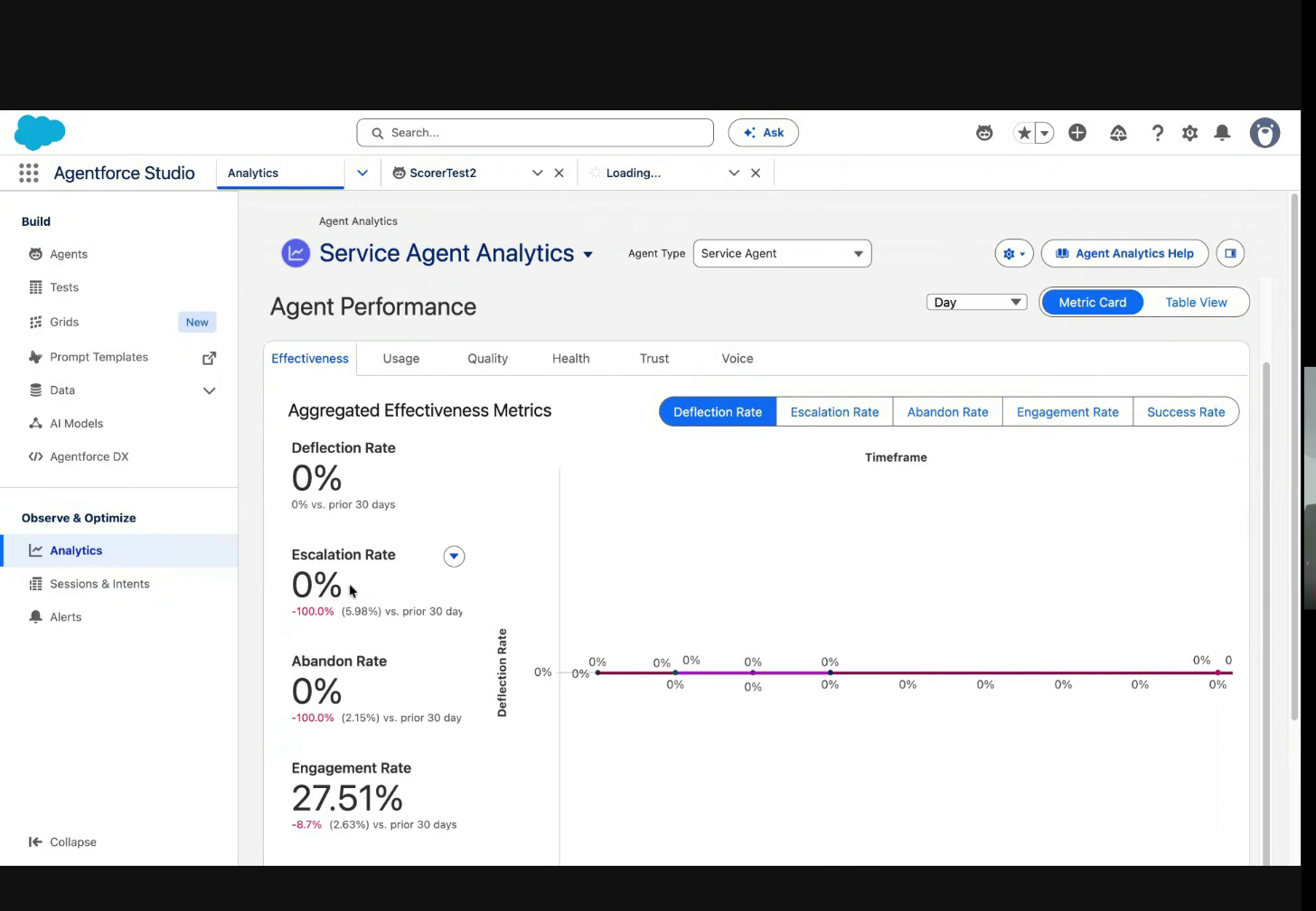
In Agentforce Studio, go to Analytics | Service Agent Analytics. Under Observe & Optimize, the Agent Performance dashboard shows the Deflection, Escalation, Abandonment, Engagement, and Success effectiveness metrics. Filter by agent, timeframe, channel, and modality to scope the view, and switch between Metric Card and Table View.
Because you extended the metric that the standard dashboard already uses, the existing Escalation visualization reflects the revised definition. You don't need to build a new visualization.
Revised Metric in the Agent Performance Dashboard
Validate the Updated Metric
Compare the revised escalation rate against a known set of sessions. Confirm that:
- A transferred or otherwise escalated session counts as escalated.
- A session in which the agent creates a case counts as escalated.
- A session with neither event doesn't count as escalated.
- A session in which both events occur counts only once.
Example: Build an Employee Agent User Adoption Dashboard
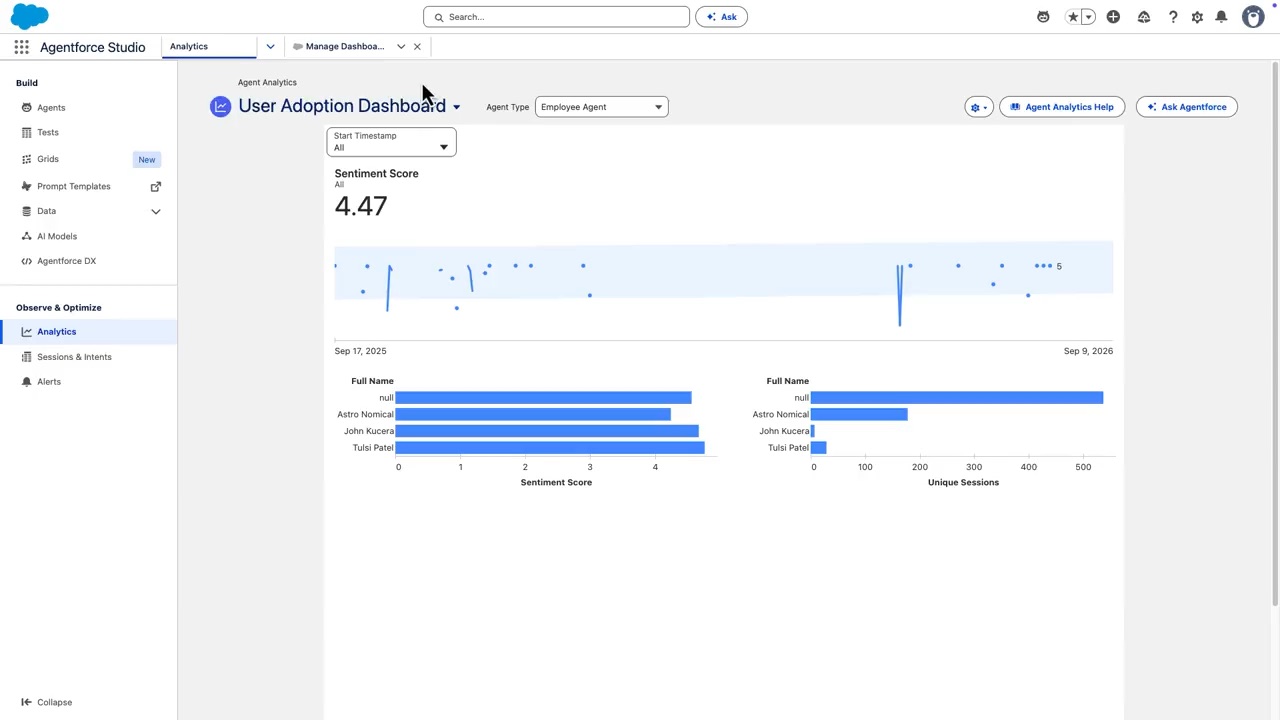
Suppose that you want to measure Employee Agent adoption by tracking each employee's agent usage and the user's sentiment score. Connect Salesforce user data to agent session data, create a sentiment metric, and display the results in a custom dashboard.
This example uses a custom user sentiment scorer that returns a numeric sentiment score for each session. Create and activate the scorer before you add its result to the semantic data model. For instructions and sample prompts, see Custom Scorer Prompt Examples.
Sync and Add the User Object
- In Data Cloud, sync the Salesforce User object to create a data lake object (DLO).
- In Agentforce Studio, go to Analytics | Employee Agent Analytics.
- Click the settings icon and select Edit Data Model. Open the Employee Agent Analytics Extension SDM.
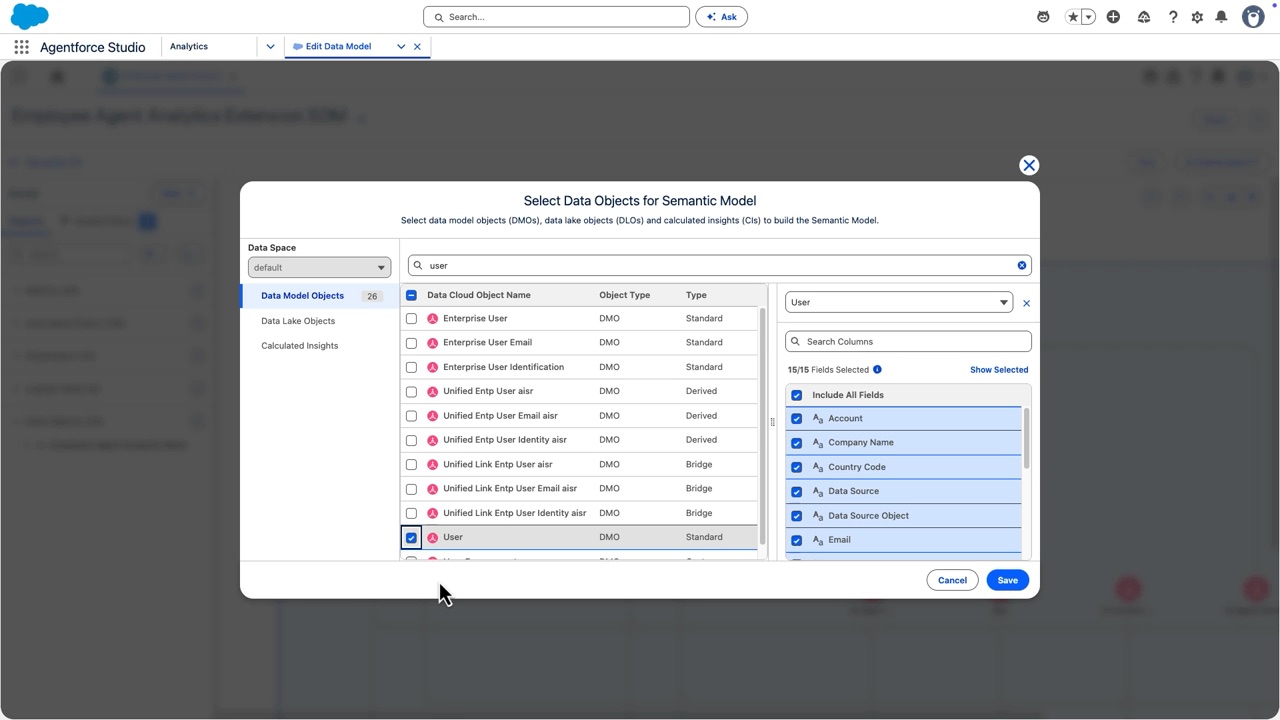
- Add the synced User object to the semantic model and include the fields that you want to analyze.
Add the User Object to the Semantic Model
Relate Users to Agent Sessions
- In Semantic Model Builder, click Add Relationship.
- Relate the User object to AI Agent Session Participant with a one-to-one relationship.
- Map User ID from the User object to Participant from AI Agent Session Participant, and apply the relationship.
- Test the relationship with a semantic query that includes Full Name from the User object and Unique Sessions from the session data. Employee names and session counts in the results confirm that the relationship works.
Create and Test the Sentiment Metric
- Create a calculated measure named Sentiment Score that averages the output of the user sentiment scorer.
- Test the calculated measure with a semantic query. Use Full Name as the dimension and Sentiment Score as the measure. Confirm that the preview shows a sentiment score for each employee.
- Create a metric named Sentiment Score and map it to the calculated measure.
- Set AI Agent Session Start Timestamp as the time dimension, and save the metric.
Build the User Adoption Dashboard
- Return to Employee Agent Analytics, click the settings icon, and select Manage Dashboards.
- Create a blank dashboard named User Adoption Dashboard.
- Add the Sentiment Score metric to show the average sentiment score.
- Add a horizontal bar chart named Sentiment by User. Use Employee Agent Analytics Extension SDM as the data source, Full Name for rows, and Sentiment Score for columns.
- Add another horizontal bar chart with Full Name for rows and Unique Sessions for columns to show agent usage by employee.
- Add a date filter that uses AI Agent Session Start Timestamp.
- Preview and save the dashboard. Return to the Analytics page and select User Adoption Dashboard from the dashboard menu.
Employee Agent User Adoption Dashboard