
Monitor agent performance in Agentforce Studio with Agent Analytics dashboards, then open Sessions & Intents to audit transcripts, compare intents, and address low-quality sessions.
Required Editions
| Required Editions |
|---|
| Agent Analytics is available in Salesforce Enterprise, Performance, and Unlimited Editions with Salesforce Foundations or Agentforce 1 Edition. Agent Analytics is available in sandbox, DC1, and Government Cloud organizations. |

Sandbox usage tracking: Agent Analytics dashboards show only data that lives in the
current org. If you run agents in a sandbox, usage records are not stored in the sandbox
itself—they are written to the TenantEnrichedUsageEvent (TEUE) DLO in your home (production) org and tagged with
UsageReportingOrgId (the sandbox org ID) and
UsageBusinessEnvType (Sandbox or Production). The Digital Wallet dashboard in
the production org is the source of truth for all consumption. To isolate sandbox-only usage,
filter the TEUE DLO by UsageBusinessEnvType = 'Sandbox', and optionally by
UsageReportingOrgId for a specific sandbox.
Navigate Agent Analytics in Agentforce Studio
To open Agent Analytics, in Agentforce Studio select Analytics. Under Observe & Optimize, select Agent Analytics, then pick your installed Service Agent Analytics or Employee Agent Analytics app. From the agent menu at the top, select a specific agent or All to refresh the metrics and charts.
To review individual conversations against your dashboard findings, select Sessions & Intents in the same section. On the session table, compare intent summaries, tags, and actions to what the customer needed.
For detailed steps on filters, columns, and exports, see Work with the Sessions and Intents Page.
Service Agent Analytics Dashboards
To scope Service Agent Analytics, set the filters at the top for agent, timeframe, channel, and modality as needed. To switch between summary KPIs and segment breakdowns, select the Overview tab or the Performance Insights tab.
Overview
Select the Overview tab to review headline KPIs and trends for the agents and channels in your current filter. Compare period-over-period change on the cards, then read the trend and outcome charts to spot regressions or spikes across agents. When you find an area to investigate, open Performance Insights or Sessions & Intents for the next level of detail.
Select Metrics Card or Table View to switch between tile layout and a compact table. Select a dimension tab—Effectiveness, Usage, Quality, Health, Trust, or Voice—to load the KPI set and charts for that lens (rates, volume, quality, errors, Trust Layer evaluations, voice-specific measures, and so on).
Overview
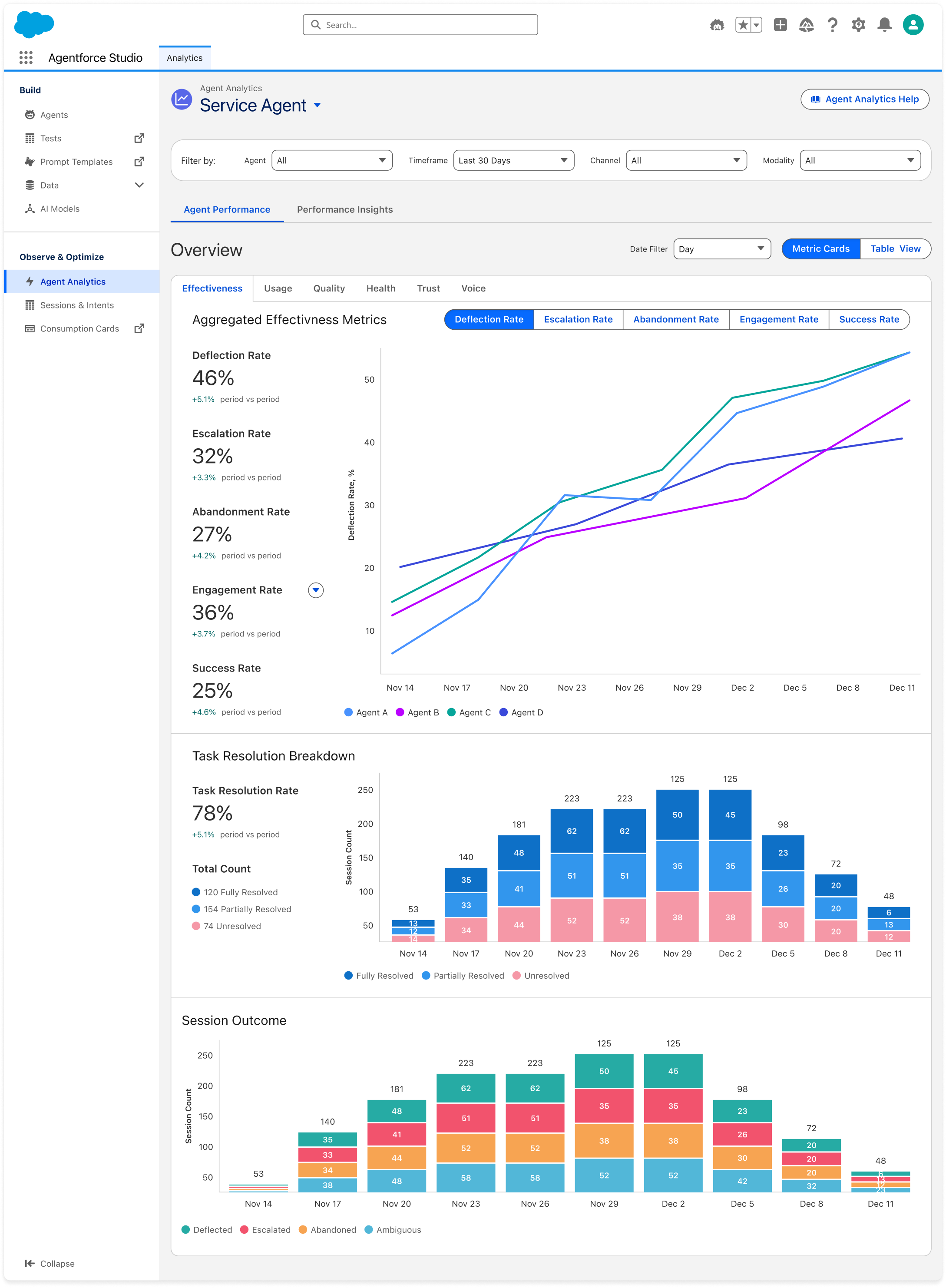
Select Effectiveness in the overview dimension row to review rate KPIs (deflection, escalation, abandonment, engagement, success) with period-over-period change on the cards. Read the multi-agent trend line for movement over time. Review the Session outcome stack for how sessions ended (deflected, escalated, abandoned, ambiguous).
| Metric | Description |
|---|---|
| Deflection rate | Share of sessions that ended without escalation. |
| Escalation rate | Share of sessions that were escalated to a human or another agent. |
| Abandonment rate | Share of sessions abandoned (for example, timeout or drop-off) relative to all sessions. |
| Engagement rate | Share of sessions with a substantive reply tied to agent-triggered work (see note). |
| Success rate | Share of interactions that completed agent action steps without errors. |
| Total sessions | Count of all sessions, engaged and unengaged. |
| Engaged sessions | Sessions where the customer interacted with the Service Agent in an engaged manner. |
| Deflected sessions | Sessions successfully deflected without escalation. |
| Escalated sessions | Sessions escalated to a higher tier of support. |
| Abandoned sessions | Sessions that timed out or ended without engagement; default session timeout is two hours. |
To track response quality over time, select Quality in the overview dimension row and review Quality scores from the external evaluator (scale 1–5). Compare agents directly from the charts.
Performance Insights
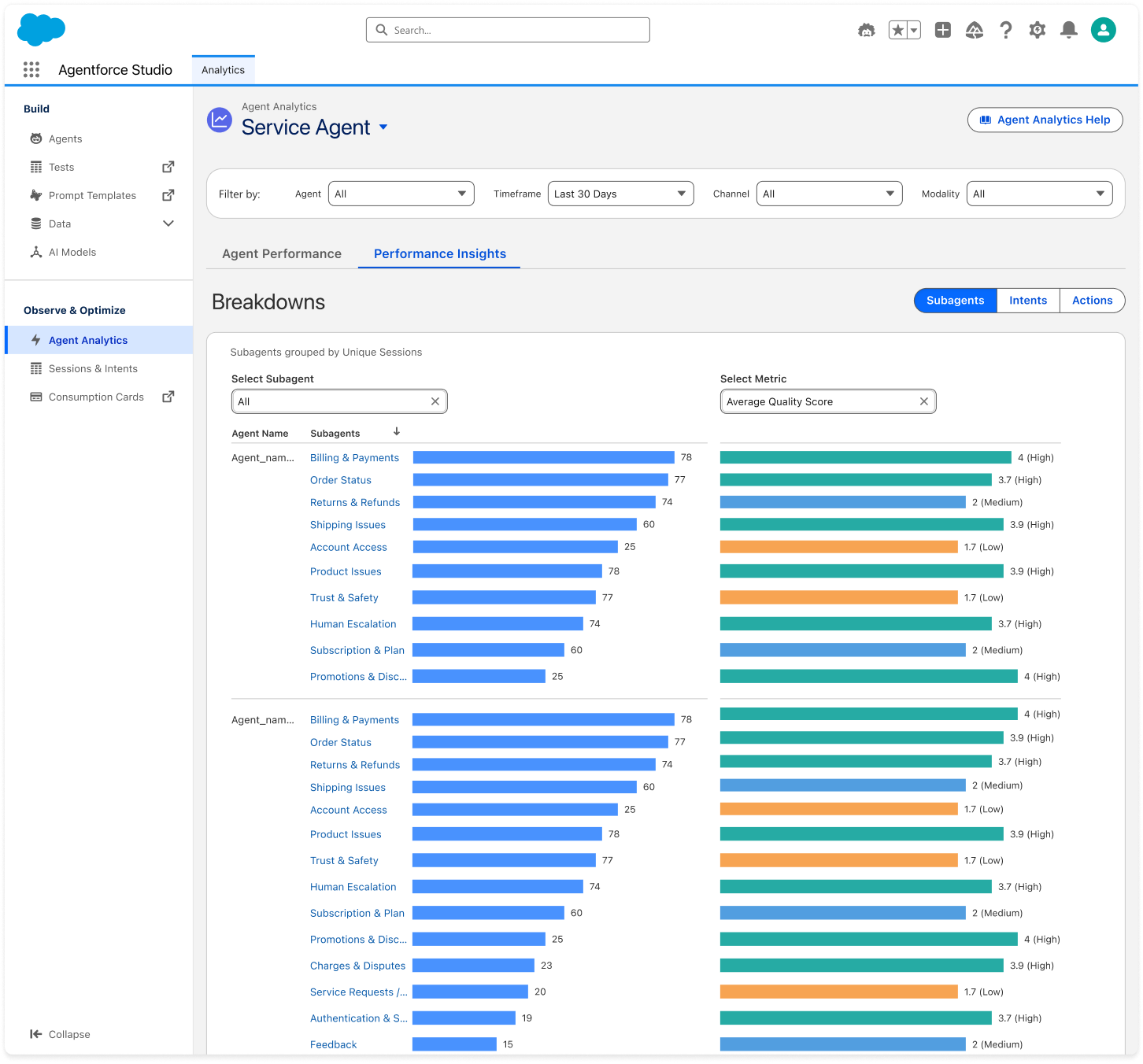
Select the Performance Insights tab. In Breakdowns, select Subagents, Intents, or Actions, choose a segment (or All), select a value in Select Metric, then compare the data across segments.
Performance Insights breakdowns
To look up measure names, formulas, and Trust Layer or voice fields for reporting, see Agentforce Observability Data Model.
Employee Agent Analytics Dashboard
To monitor internal agents, open Employee Agent Analytics from Agent Analytics as you do for Service Agent. Select the Overview tab for headline KPIs and trends, or select Performance Insights for the same Breakdowns workflow as Service Agent. Set the filters at the top (for example, agent, timeframe, and channel) to match the employee population you support.
Employee Agent Overview
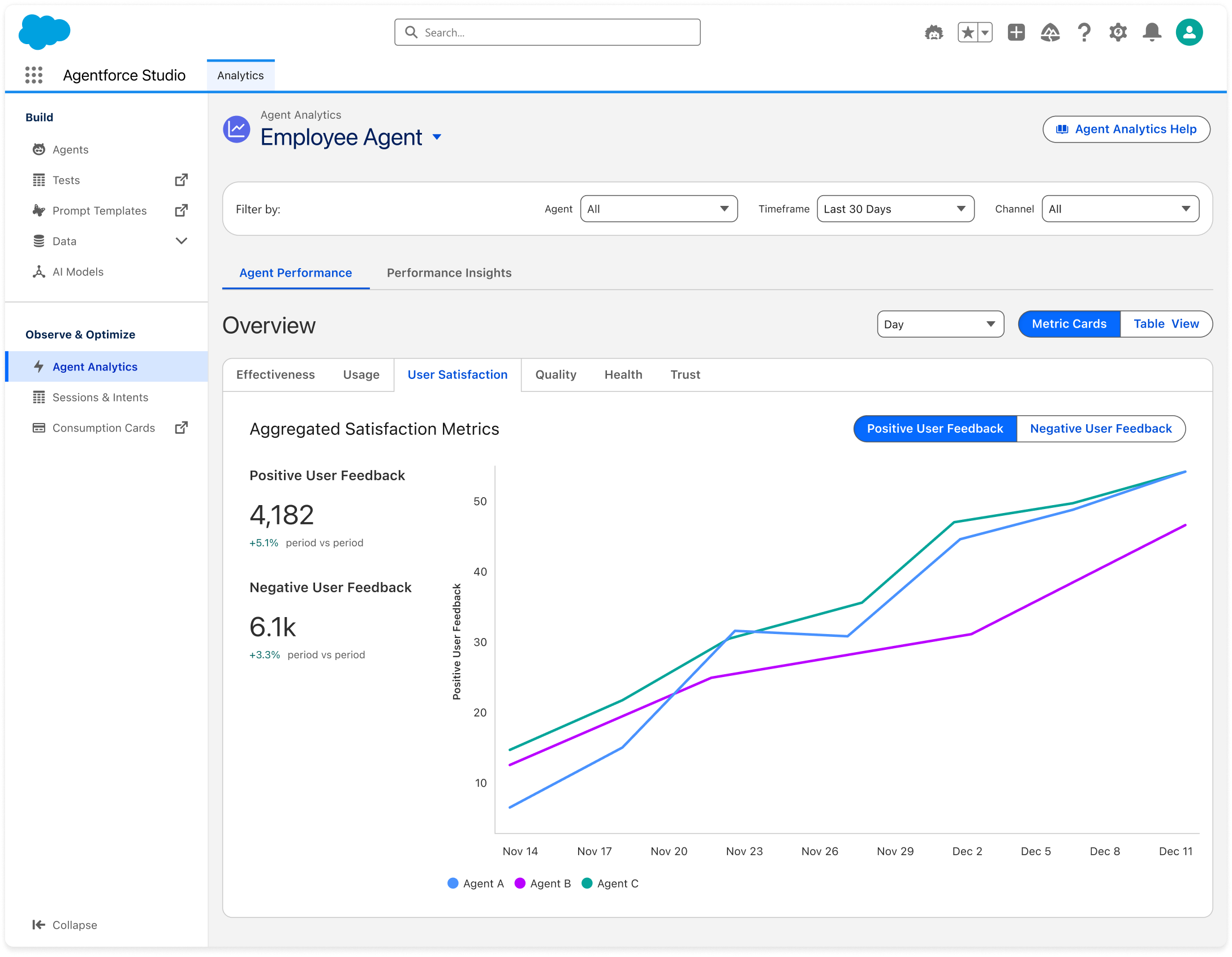
Select dimensions such as Effectiveness, Usage, User Satisfaction, Quality, Health, and Trust to load the KPIs for that lens. When you select User Satisfaction, open Aggregated Satisfaction Metrics, then select Positive User Feedback or Negative User Feedback to compare cards and the multi-agent trend. To look up measure definitions, see Agentforce Observability Data Model.