
Set up Agent Analytics to gain insights into agent performance, track conversation metrics, and optimize your agents with comprehensive dashboards and session insights.
Required Editions
| Required Editions |
|---|
| Agent Analytics is available in Salesforce Enterprise, Performance, and Unlimited Editions with Salesforce Foundations or Agentforce 1 Edition. Agent Analytics is available in sandbox and DC1 organizations. |

| User Permissions Needed | |
|---|---|
| To install Agent Analytics |
One of these permission combinations:
|
| To view and access Agent Analytics (Salesforce Foundations users) |
|
| To view and access Agent Analytics (Agentforce 1 and Agentforce for X users) |
Admins must share the relevant workspaces with users so that dashboards are visible. Assign Tableau Next Standard Consumer to view customized or cloned dashboards. For details, see Tableau Next Access Governance. |
| To view metrics | API Enabled permission |
| To ingest CRM data |
Assign the Platform Integration User (PIU) to the Data Cloud Salesforce Connector permission set, and enable that permission set. The permission set must also have access to each required entity and field, including View Setup and Configuration. |
See Also
Setup Steps
- Confirm that Data Cloud is provisioned and enabled in your Salesforce org, that Einstein is turned on, and that you have an active agent.
- Make sure that the relevant user permissions are assigned.
-
Assign the Platform Integration User to the Data Cloud Salesforce
Connector permission set, and enable the permission set.
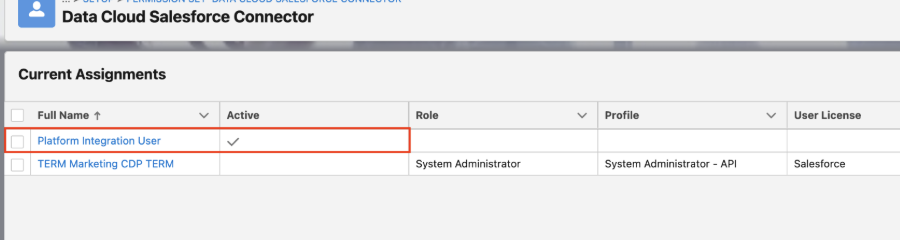
From Setup, enter Permission Sets in the Quick Find box, then select Permission Sets. Open Data Cloud Salesforce Connector, and click Manage Assignments. On the Current Assignments page, confirm that Platform Integration User is listed and that Active is selected. If it isn’t assigned, add it.
Agent Analytics ingest requires this assignment. On the permission set, enable access for each required entity and field, including View Setup and Configuration.
-
In a sandbox org, activate the Salesforce CRM Connector and its data
streams.
Connections are copied from production to the sandbox, but they remain inactive until you activate them. From Data Cloud Setup, go to Salesforce CRM. Click the dropdown next to the Home org connection and select Activate. Then activate the CRM Connector data streams.
For details, see CRM Connections in a Sandbox.
- Verify that you have the latest version of the Salesforce Standard Data Model (version 1.130 or higher) in your org (sandbox or production). From Setup, go to Apps -> Packaging -> Installed Packages -> Salesforce Standard Data Model. To get the required version, click here and follow the instructions.
- From Setup, go to Einstein Audit, Analytics, and Monitoring Setup.
-
Turn on Agentforce Session Tracing if it's not turned on.
Session Tracing also provisions the required Analytics data model entities to perform queries. For details, see Agentforce Session Tracing.
- From Setup, go to Agent Analytics.
-
Install Service Agent Analytics.
- Assign Agentforce Service Agent Configuration permission set.
- Click Install.
-
Install Employee Agent Analytics.
- Validate you have system admin access.
- Click Install.
- Install SDR Analytics. For details, see Set Up Sales Agent SDR Analytics.
- Refresh the page to verify installation is complete.
Optional: Turn On Feedback and RAG Metrics

- From Setup, go to Einstein Audit, Analytics, and Monitoring Setup.
-
Turn on Audit and Feedback if it's not turned on.
Audit and Feedback provisions the data model objects (DMOs) in the Analytics data model on which feedback metrics rely. For details, see Capture Agent Feedback.
-
Under Audit and Feedback, turn on Knowledge/RAG Quality
Data and Metrics if it's not turned on.
This feature measures how well your AI solutions retrieve knowledge from unstructured data sources. For details, see Monitor Knowledge and Retrieval Quality.
- After completing Feedback and RAG enablement, reinstall Analytics if your Analytics enablement was decoupled from the initial Analytics enablement.
Manage Agent Analytics App Statuses
On the Agent Analytics setup page, the options available for managing your app templates depend on the current version and installation status of each app. You can track the progress of operations—including updates, uninstalls, or reinstalls—in the Manage and Monitor section.
Installing an Agent Analytics app doesn’t automatically connect or configure Agent Optimization. Configure each one separately.
- Viewing analytics: After installing an Agent Analytics app (such as Service Agent Analytics), go to Agentforce Studio to view the corresponding dashboard.
- Configuring optimization: Agent Optimization requires a separate manual configuration, including permission assignments such as the Access Agent Optimization permission set. See Set Up Agent Optimization.
Transition from Legacy Agent Analytics
Agent Analytics replaces the Legacy analytics version. To transition, existing analytics users complete the preceding steps and these required steps. For more details, see Transition from Legacy Analytics to Agent Analytics.
- Transition from Agentforce (Default) to Agentforce Employee Agent.
- Transition existing automations (Flow, Apex, or Prompt) created on top of existing DLOs or DMOs to Agentforce Session Data Model or Einstein Feedback instead.
- Transition existing custom reports or dashboards created on top of existing DLOs or DMOs to Agentforce Analytics Foundations Semantic Model or Einstein Feedback instead.
- After you've completed the preceding requirements, turn off the legacy Agent Analytics toggle from Einstein Audit, Analytics, and Monitoring Setup.