---
schema_version: "1"
id: ce7896f3199ee7d7e787c59310f164a88e19cf8400f6ae90d2a41c47a9181a3e
title: Set Up Sales Emails
collection: admin
version: current
locale: en-us
portal_url: https://docs.salesforce.com/admin/current/en-us/ai/264-0-0/einstein_sales_emails_setup.md
canonical_url: https://help.salesforce.com/s/articleView?id=ai.einstein_sales_emails_setup.htm&release=264.0.0&type=5
source_site: help.salesforce.com
content_type: documentation
content_hash: 15dbead1ca4eca2b628d626f5e0a5aed4ef7f85de9d84d5ac9dd37f5d836642f
description: Get ready to add Einstein Sales Emails to your sales team’s toolbox. Turn on Sales Emails in Setup and then assign a permission set to your sales reps. If you use Gmail or Outlook email integrations, add the Einstein Sales Emails component to customized email application panes. Then your sales reps can use Einstein where they normally work.
products:
- Sales
- Cross Cloud
release: "264"
---
# Set Up Sales Emails
Get ready to add Einstein Sales Emails to your sales team’s toolbox. Turn on Sales Emails in Setup and then assign a permission set to your sales reps. If you use Gmail or Outlook email integrations, add the Einstein Sales Emails component to customized email application panes. Then your sales reps can use Einstein where they normally work.
### Required Editions
Available in: Lightning Experience
Available with the Einstein for Sales add-on, which is available for an extra cost in Performance and Unlimited Editions.
User Permissions Needed
To set up Sales Emails:
Customize Application and Manage Users
[Watch a demo](https://salesforce.vidyard.com/watch/iGVPAuCqV89eVsjRBhFeB9).

Tip Check out this feature in Salesforce Go! Find a guided setup experience, explore more content, discover related features, and monitor feature usage. See [Discover and Set Up Features With Salesforce Go](https://help.salesforce.com/s/articleView?id=xcloud.setup_salesforce_go.htm&type=5&language=en_US).
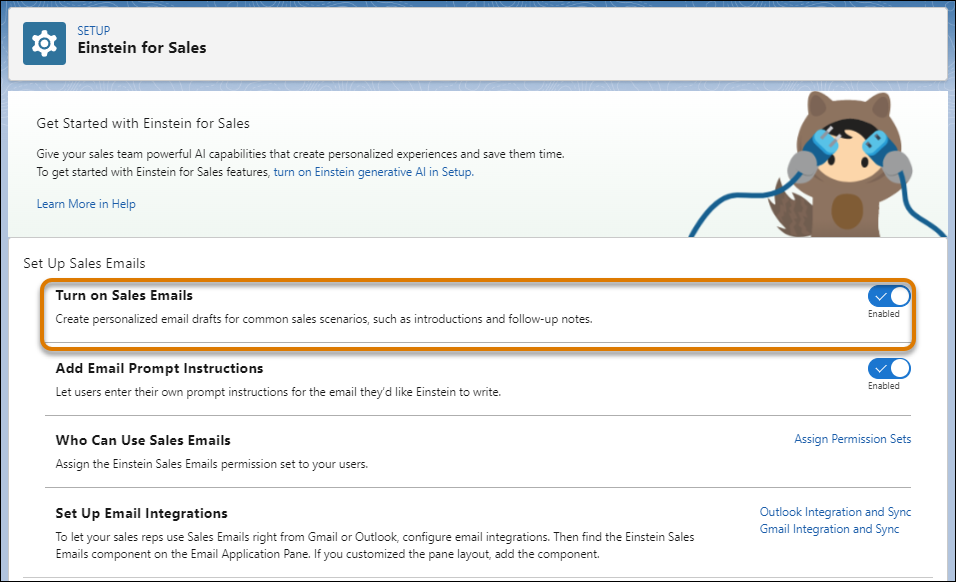
1. Turn on Sales Emails.
1. From Setup, enter Einstein for in the Quick Find box, then select **Einstein for Sales**.
2. Turn on Sales Emails. It can take a few minutes before it’s ready to use.
After Sales Emails is enabled, the Einstein Sales Emails user permission, permission set, and Lightning component are available.
2. Assign the Einstein Sales Emails permission set to your users.
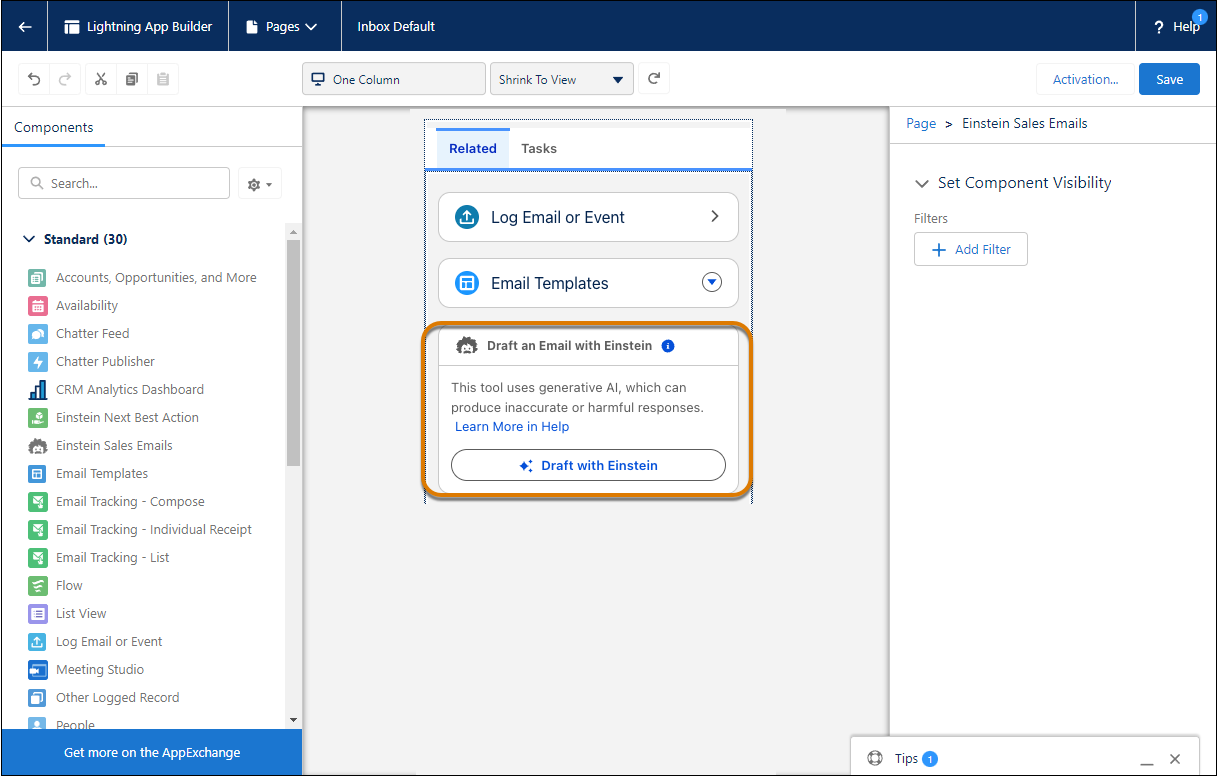
3. **Optional:** Customize email application pane layouts for the Outlook and Gmail email integrations.
When you use Salesforce email integrations for Outlook or Gmail, the Einstein Sales Emails component is automatically added to the default layout for the email application pane. If you customized the email application pane, add the component to your layout.
1. From Setup, enter Gmail in the Quick Find box, then select **Gmail Integration and Sync**. Expand the section Let users access Salesforce records from Gmail. Under Email Application Panes, edit your custom layouts.
2. Drag the Einstein Sales Emails component onto the layout.
3. Repeat these steps for Outlook on the Outlook Integration and Sync page in Setup.
Now that you have things set up, give it a try to see how Einstein can write your next sales email.

Important This tool uses generative AI, which is known to include inaccurate or harmful responses. Before sharing externally, review the output for accuracy and safety. You assume responsibility for the output when sharing.
#### See Also
- [Considerations for Einstein Generative AI Sales Emails](https://help.salesforce.com/s/articleView?id=ai.einstein_sales_emails_considerations.htm&release=264.0.0&type=5 "Sales Emails lets your team use Einstein generative AI to create personalized and contextualized emails to send to your contacts and leads. But whether you’re an admin setting things or a sales rep powering through your day, keep these considerations in mind.")
- [Understand How Einstein Generative AI Creates Sales Emails](https://help.salesforce.com/s/articleView?id=ai.einstein_sales_emails_overview.htm&release=264.0.0&type=5 "Sales Emails lets busy sales reps to speed up and expand deals through personalized and informed content that buyers love. Einstein generative AI generates personalized emails for contacts and leads, and uses Einstein to personalize and contextualize the emails, a method known as grounding. Learn about email types, how your data is used, and how Salesforce tracks usage.")
- [Draft a Sales Email with Einstein Generative AI](https://help.salesforce.com/s/articleView?id=sales.einstein_sales_emails_draft.htm&type=5&language=en_US)
- [Manage Permission Set Assignments](https://help.salesforce.com/s/articleView?id=platform.perm_sets_manage_assignments.htm&type=5&language=en_US)
- [Customize the Email Application Pane for Outlook and Gmail](https://help.salesforce.com/s/articleView?id=sales.email_int_setup_custom_pane_parent.htm&type=5&language=en_US)