
Improve the accuracy of web search responses by setting the search provider for the Search the Web agent action.
Required Editions
| Available in: Lightning Experience |
| Available in: Enterprise, Performance, Unlimited, and Developer Editions. Required add-on licenses vary by agent type. |
| User Permissions Needed | |
|---|---|
| To build and manage Employee agents: |
Manage AI Agents OR Customize Application |

Note When you add the Search the Web agent action, Salesforce returns publicly available
search results from external sources in agent responses. Salesforce doesn’t review or verify
this content. Results can include inaccurate or objectionable information. Use of web search is
subject to the applicable Salesforce terms.
Note The Search the Web agent action isn’t supported in Government Cloud.
Before you begin, make sure that the Search the Web action is added to the agent. Turn on Einstein in Einstein Setup. If using the OpenAI provider, turn on OpenAI Models in Einstein Setup.
See Also
Set the Search Provider
The search provider determines which service processes web search queries. If you don't specify a provider, the action uses You.com as the default search provider.

Important To make changes to your agent, it must be in a draft state. If your agent
is committed, create a draft.
Note These steps cover one way to set the search provider in Agentforce Builder. You can also set
the search provider in Script view.
Important If you configured the Search the Web agent action before Salesforce
introduced the selection list for search providers, the list doesn't appear in the existing
configuration. In this case, deactivate the agent, remove the existing Search the Web action, add a fresh copy of the action from the asset library,
and then activate
the agent again.
- From the App Launcher, enter Agent, and select Agentforce Studio, and then click Agents.
- Select the agent that you use for web search. If you don't have a web search agent, click New Agent and create one.
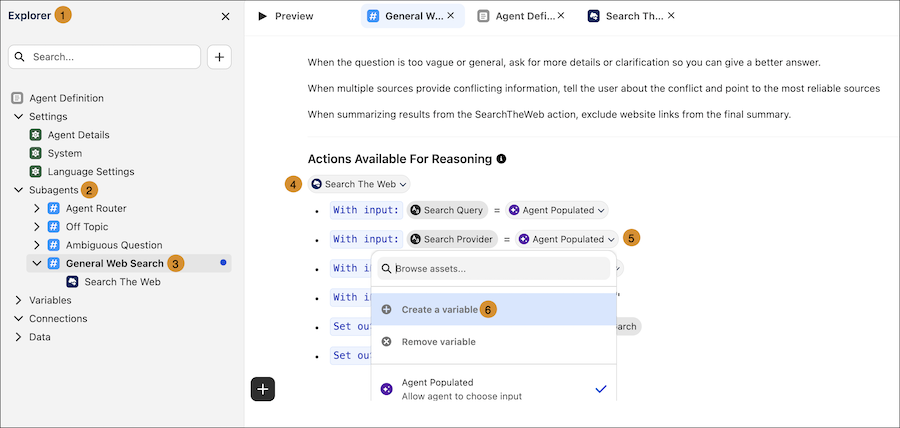
- In the Explorer panel (1), expand Subagents (2) and select the General Web Search (3) subagent.
- Under Actions Available For Reasoning, expand Search The Web (4).
-
Next to the Search Provider input, click the value dropdown (5), and then select
Create a variable (6).
To enter a provider directly instead of using a variable, if the value shows Agent Populated, select Remove variable. Click the value again, select Empty String, and then enter the provider name.
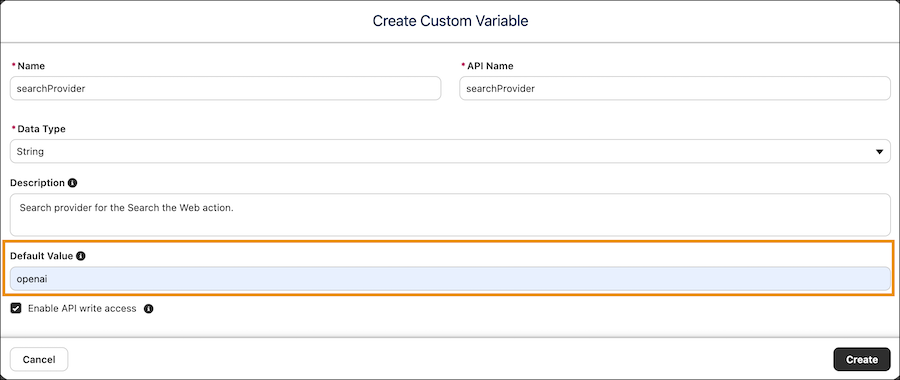
 The Create Custom Variable dialog opens.
 - In the Create Custom Variable dialog, enter a name for the variable and configure the variable's settings.
-
In the Default Value field, enter one of the supported search
providers: BrightData, OpenAI, or
you.com.
Provider names aren't case sensitive. For example, you can enter OpenAI, openai, or OPENAI. If you don't specify a provider, the action uses You.com by default.
- Click Create.
- Save your changes.
Set the Search Provider in the Legacy Builder
- From Setup, in the Quick Find box, enter Agent, and then select Agentforce Agents.
- Select the agent that you use for web search, and click Open in Builder. If you don’t have a web search agent, click New Agent and create one.
- If your agent is active, deactivate it.
- In Agentforce Builder, open the General Web Search subagent. If you don’t have the subagent, add it from the asset library.
- Select This Subagent’s Actions.
- Select Search The Web.
- Click Edit Action.
-
In the Inputs section, navigate to Search Provider, and select a
search provider from the Configuration Value dropdown.
Provider options include BrightData, OpenAI, and You.com. If you don’t select a provider, the action uses You.com by default.
- Save the action.