
Limit web search results to specified websites by defining allowed domains for the Search the Web agent action so your agents retrieve information from trusted sources.
Required Editions
| Available in: Lightning Experience |
| Available in: Enterprise, Performance, Unlimited, and Developer Editions. Required add-on licenses vary by agent type. |
| User Permissions Needed | |
|---|---|
| To build and manage Employee agents: |
Manage AI Agents OR Customize Application |

Note The Search the Web agent action isn’t supported in Government Cloud.
Customize Allowed Domains
Allowed domains determine which websites the Search the Web action can return results from.

Important To make changes to your agent, it must be in a draft state. If your agent
is committed, create a draft.
Note These steps cover one way to set allowed domains in Agentforce Builder. You can also set
the allowed domains in Script view.
- From the App Launcher, enter Agent, and select Agentforce Studio, and then click Agents.
- Select the agent that you use for web search. If you don’t have a web search agent, click New Agent and create one.
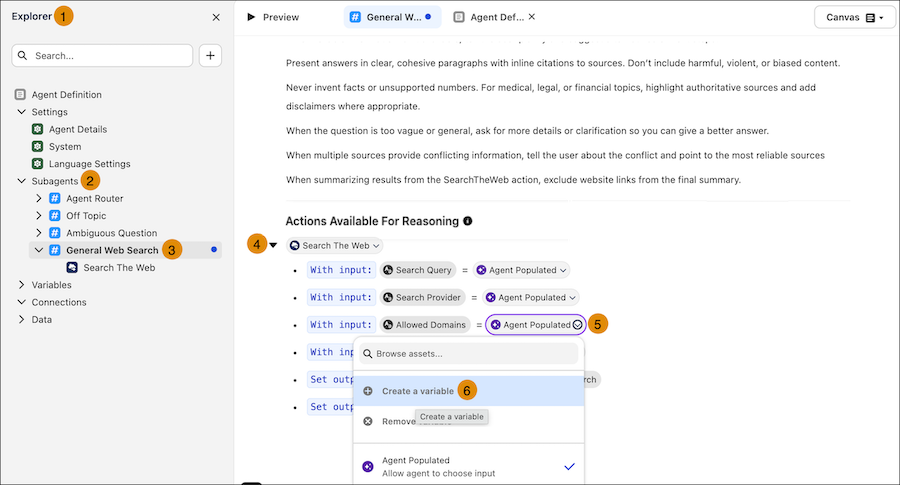
- In the Explorer panel (1), expand Subagents (2) and select the General Web Search (3) subagent.
- Under Actions Available For Reasoning, expand Search The Web (4).
-
Next to the Allowed Domains input, click the value dropdown (5), and then select
Create a variable (6).
To enter domains directly instead of using a variable, if the value shows Agent Populated, select Remove variable. Click the value again, select Empty String, and then enter the domains.
 The Create Custom Variable dialog opens.
 - In the Create Custom Variable dialog, enter a name for the variable and configure the variable’s settings.
-
In the Default Value field, enter up to 10 allowed domains as a
comma-separated list. For example:
salesforce.com, example.org.Enter domains withouthttp://,https://, orwww. The action accepts these prefixes, but they aren’t required.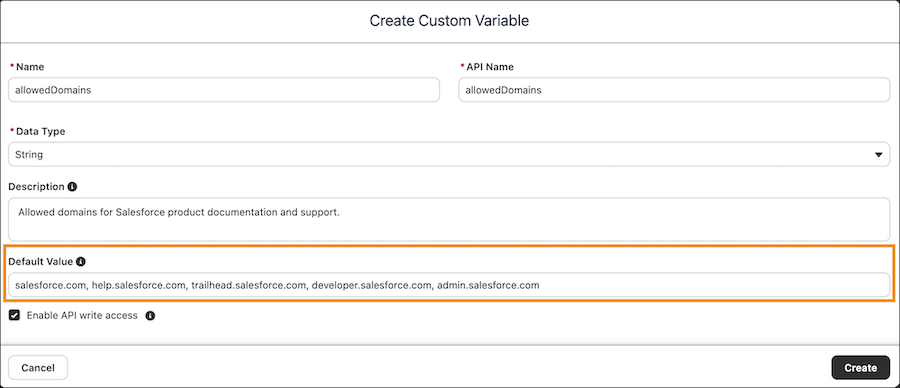
- Click Create.
- Save your changes.
Customize Allowed Domains in the Legacy Builder
- From Setup, in the Quick Find box, enter Agent, and then select Agentforce Agents.
- Select the agent that you use for web search, and click Open in Builder. If you don’t have a web search agent, click New Agent and create one.
- If your agent is active, deactivate it.
- In Agentforce Builder, open the General Web Search subagent. If you don’t have the subagent, add it from the asset library.
- Select This Subagent’s Actions.
- Select Search The Web.
- Click Edit Action.
-
In the Inputs section, navigate to Allowed Domains, and enter up to
10 allowed domains as a comma-separated list in the Configuration Input
field. For example:
salesforce.com, example.org.Enter domains withouthttp://,https://, orwww. The action accepts these prefixes, but they aren’t required. - Save the action.