
Create a Messaging channel to manage incoming calls transferred to the Agentforce agent. To route inbound calls to the agent using real-time streaming, create a Messaging channel that maps the incoming phone number to the Omni-Channel flow. The flow specifies the agent to route the incoming call to.
Required Editions
| Available in: Lightning Experience |
| Available in: Enterprise, Unlimited, and Developer Editions with Foundations or Agentforce 1 Editions, and Salesforce Voice add-ons. |
- From Setup, in the Quick Find box, enter Agentforce Voice, then select Agentforce Voice Setup.
-
In the Create the Channel for Agentforce Voice step on the Agentforce Voice Setup page,
click Add.
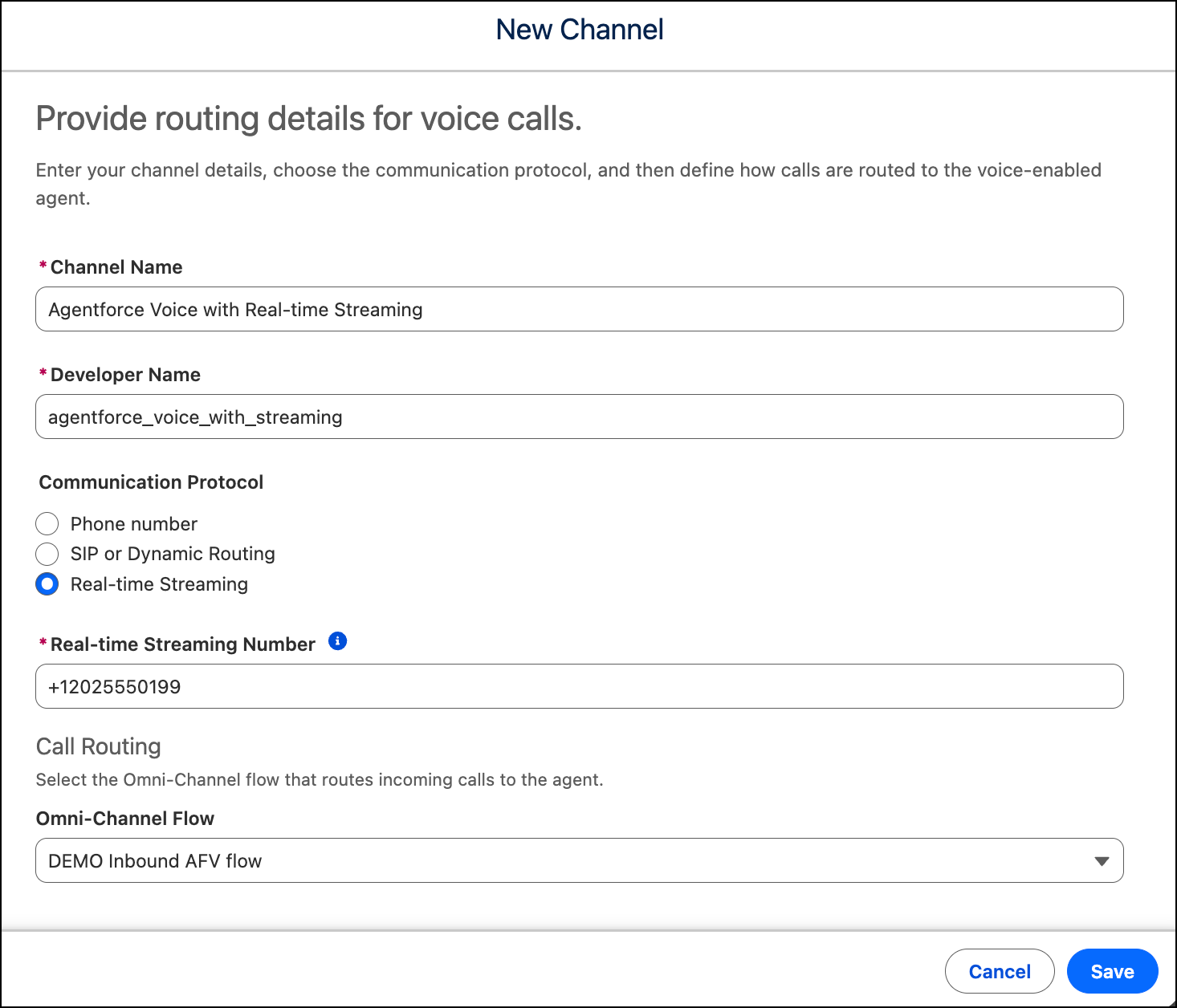
- Enter the name and developer name of the channel.
-
Select Real-time Streaming and enter the inbound call's To phone
number (the dialed number) in E.164 format.
When an inbound call arrives in Amazon Connect, Salesforce matches its To phone number against the Real-time Streaming Number on this channel. Once matched, Salesforce runs the channel's Omni-Channel flow to route the call to the Agentforce agent.
-
Under Call Routing, select the Omni-Channel flow that routes inbound calls to the
agent.
Don't select the escalation flow.
-
Click Save.
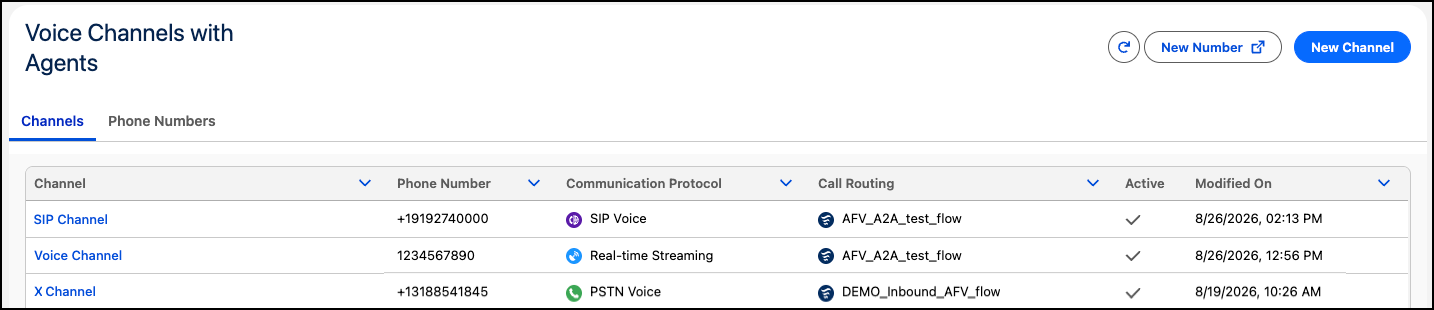
The Channels tab in the Agentforce Voice Setup page shows the channels that are added. A newly added channel can take a couple of minutes to appear in this tab.
-
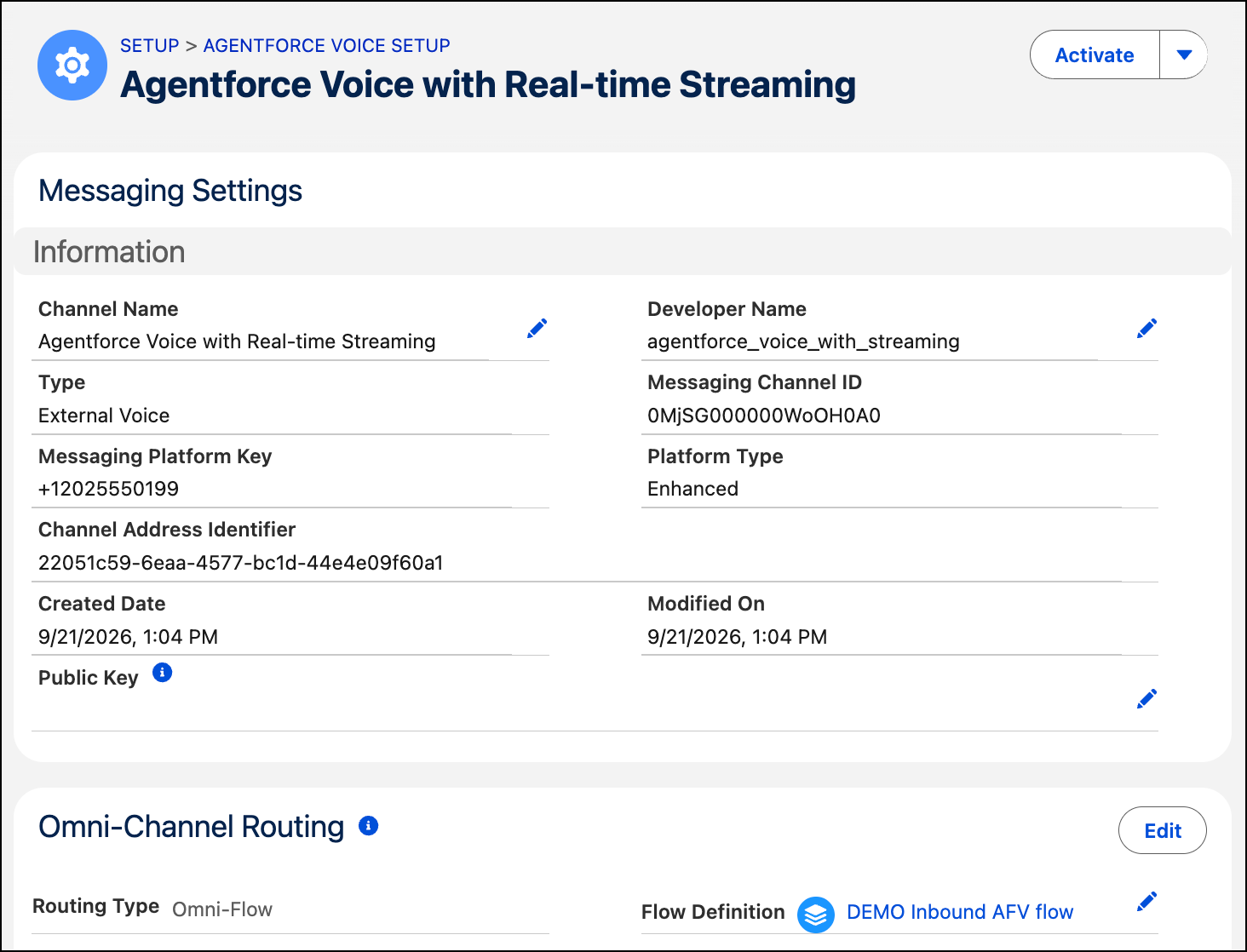
In the Channels tab, click the channel name.
-
If you aren’t a Salesforce Voice with Telephony Providers customer, edit the channel
and, in the Public Key field, enter an unexpired certificate. Without it, Omni-Channel
will not route the calls to the voice-enabled agent. If you are a Salesforce Voice with
Telephony Providers customer, ignore this field–authentication is handled for you.
To learn how to generate a token, which includes a certificate, see Generate a Self-Signed Certificate with OpenSSL. For the token requirements, see the
tokenUUI parameter description in Configure Inbound Call Transfers When Using SIP. - Click Activate.
After you create an agent, configure calls to be transferred to the agent, and configure calls with an agent to be escalated to a rep, it’s time to activate your agent.