---
schema_version: "1"
id: d4b98444c2efd8ddda10a76f2d26e0e73a561ab23cd54cbb32711ae5050d0fee
title: Create an Agentforce Grid Worksheet
collection: admin
version: current
locale: en-us
portal_url: https://docs.salesforce.com/admin/current/en-us/ai/264-0-0/agentforce_grid_create_worksheet.md
canonical_url: https://help.salesforce.com/s/articleView?id=ai.agentforce_grid_create_worksheet.htm&release=264.0.0&type=5
source_site: help.salesforce.com
content_type: documentation
content_hash: 074f856006379e555e702749e18808b5752622598158ae3af4512dea45a80be1
description: After you have Einstein enabled and the permission assigned to your users, you’re ready to get started exploring solutions.
products:
- Agentforce
- Cross Cloud
release: "264"
---
# Create an Agentforce Grid Worksheet
After you have Einstein enabled and the permission assigned to your users, you’re ready to get started exploring solutions.
### Required Editions
1. From the App Launcher, find and select Agentforce Grid.
2. Click **Create Grid**.
3. Enter a name. Optionally, add a description that appears in the list of grids on the Home tab.
4. Click **Create**.
5. Select what you want to use to populate the first column.
- Salesforce queries CRM records.
- Data Cloud queries Data 360 records.
- AI uses an LLM to generate data.
- Agent runs an Agentforce agent.
- You can also upload your own data from a CSV file.
6. With data in place, you're ready to start adding and experimenting.
- To create more columns Click **+Add Column**.
- To reference the data in one column and use it as input in another, @ mention it in another column.
- To see column details or sort the data and edit or delete it, click the column header.
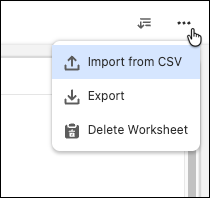
- To export or delete your worksheet or upload a CSV file, click the options icon.
- To add a new worksheet tab to your grid, click **+**.
- To rename your worksheet, double-click the tab name.
- To modify a cell, double-click it and change the text.
- To run data in a column, save **Save and Run** in the column panel or click **Update All Cells in this Column** in the column menu.
- To run data in a cell, click the run button.
- To run data in a row, select the rows and click **Run**.
- To run data in the entire worksheet, select all the rows and click **Run**.