
Create a Messaging channel for incoming calls that need to be transferred to the Agentforce agent. In the channel, map the procured PSTN phone number to the inbound Omni-Channel flow. When an incoming call is transferred using this number, Omni-Channel uses the Omni-Channel flow to transfer the call to the agent assigned to the channel.
Required Editions
| Available in: Lightning Experience |
| Available in: Enterprise, Unlimited, and Developer Editions with Foundations or Agentforce 1 Editions, and Salesforce Voice add-ons. |
- From Setup, in the Quick Find box, enter Agentforce Voice, then select Agentforce Voice Setup.
-
In the Messaging Channel for Agentforce Voice step on the Agentforce Voice Setup page,
click Add.
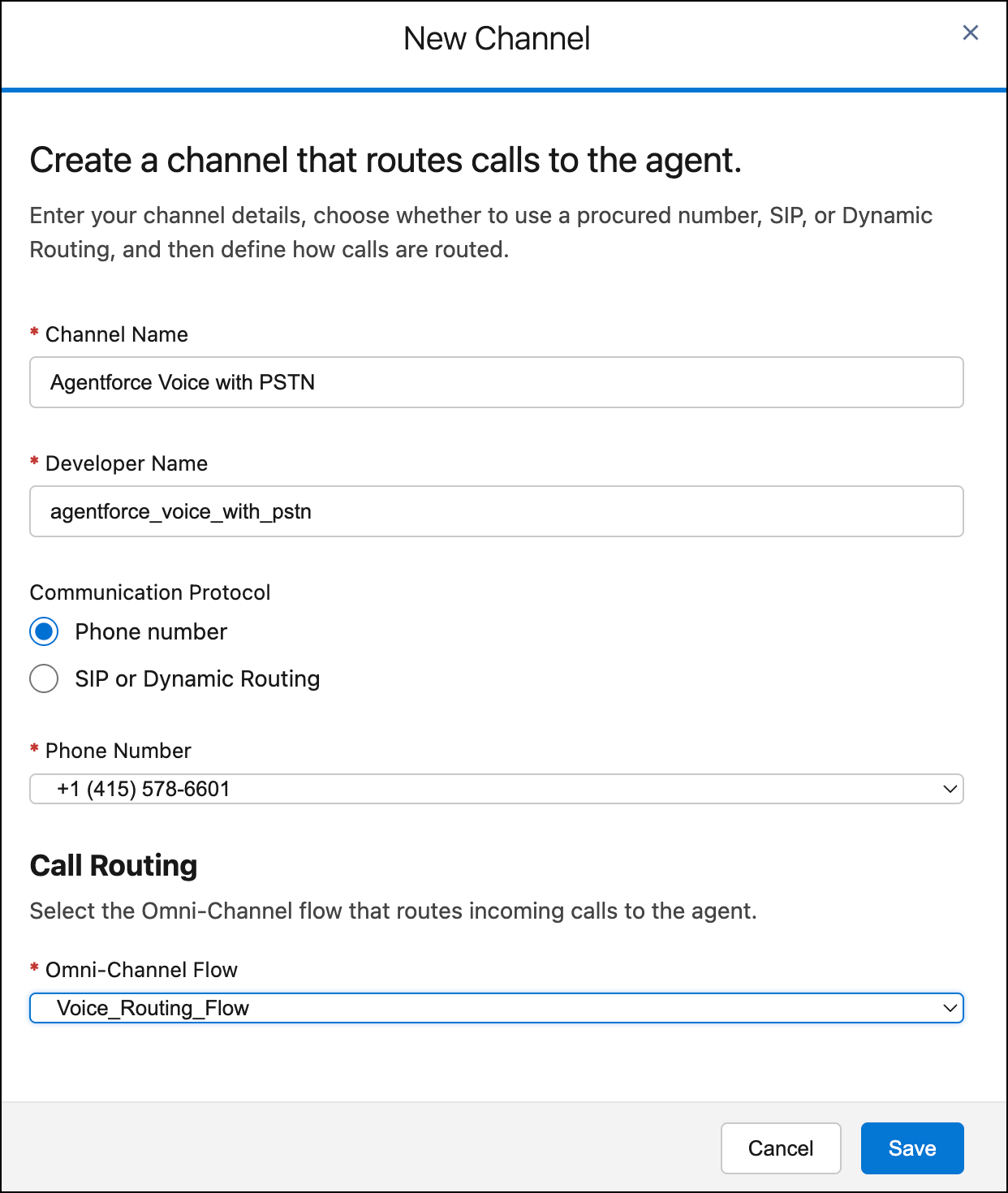
- Enter the name and developer name of the channel.
-
Select Use a phone number and then select the phone number for the
channel.
 Note Only phone numbers with a Live status appear in the dropdown. Each phone number can be associated with only one channel. Use a phone number procured from the Agentforce Voice Setup page. A number procured from the Communication Channels page won’t work.
 -
Under Call Routing, select the Omni-Channel flow that routes inbound calls to the agent.
You created this flow in Configure Inbound Call Transfers to the Voice-Enabled Agent. Don't select the escalation flow.
-
Click Save.
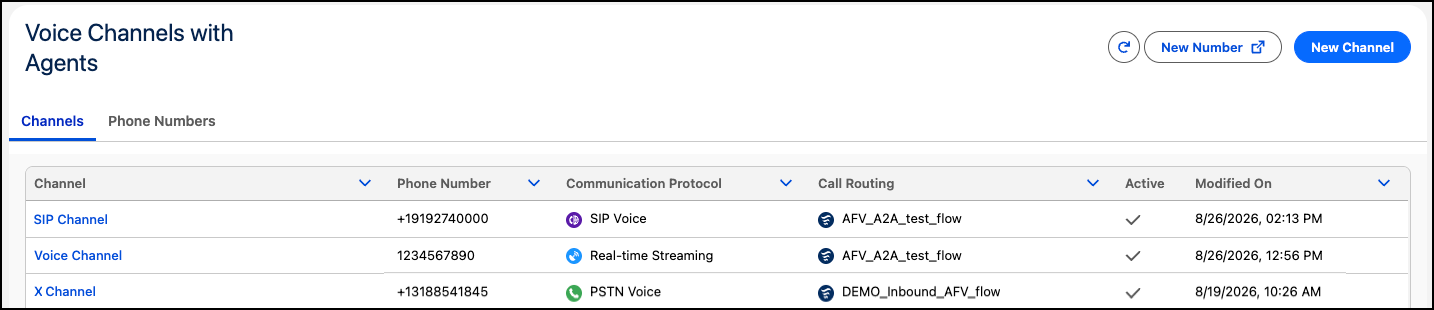
The Channels tab in the Agentforce Voice Setup page shows the channels that are added. A newly added channel can take a couple of minutes to appear in this tab.
-
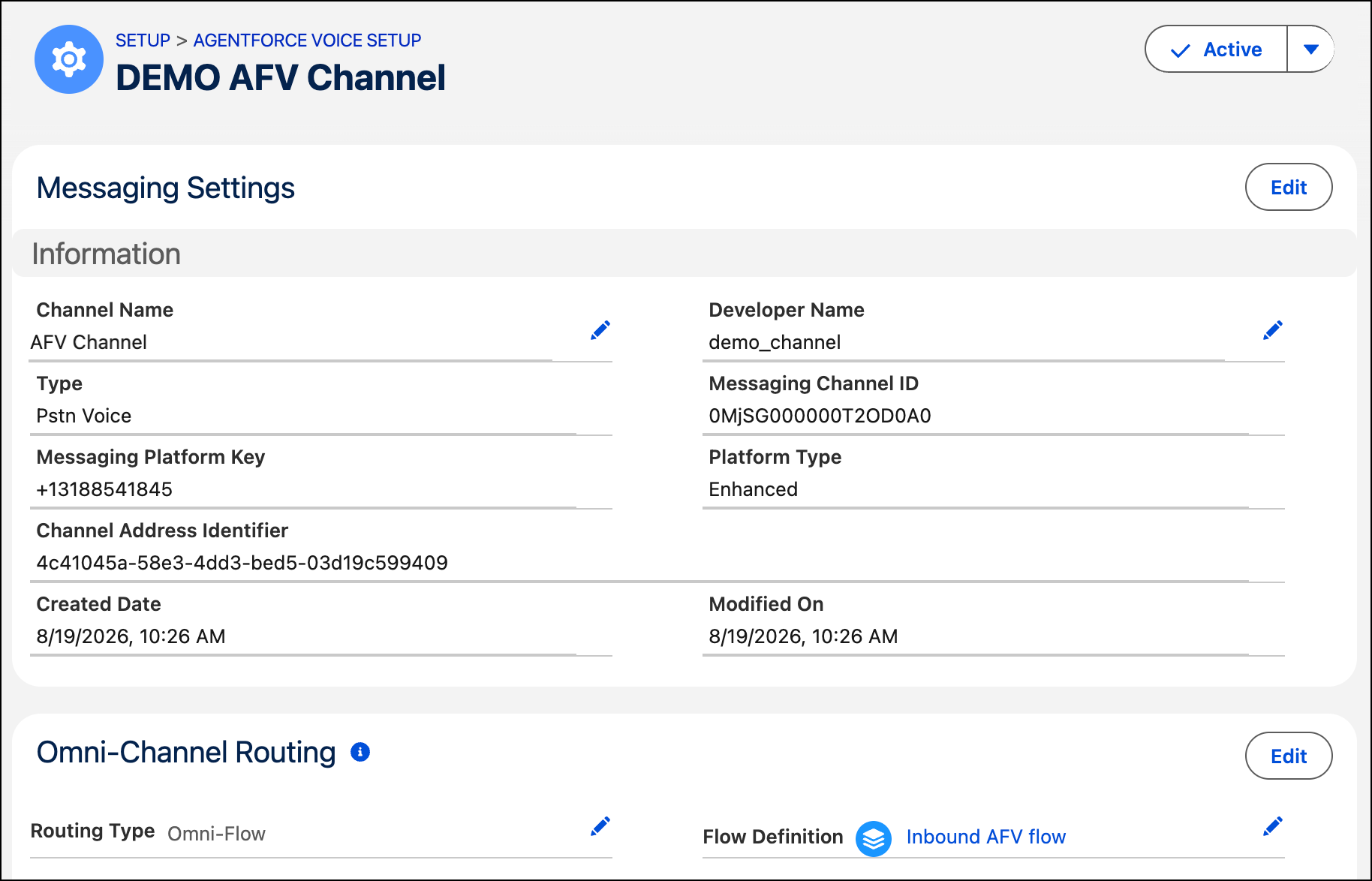
In the Channels tab, click the channel name.
-
If you aren’t a Salesforce Voice with Telephony Providers customer, edit the channel and,
in the Public Key field, enter an unexpired certificate. Without it, Omni-Channel will not
route the calls to the voice-enabled agent.
To learn how to generate a certificate, see Generate a Self-Signed Certificate with OpenSSL.
- Click Activate.
After you create an agent, configure calls to be transferred to the agent, and configure calls with an agent to be escalated to a rep, it’s time to activate your agent.
Note If you call the procured phone number when the agent is deactivated, the agent
doesn’t pick up the call. You just hear music.