
Choose how your agent accesses data during testing and configure optional conditions like conversation history and context variables to simulate more realistic interactions.
Required Editions
 This article applies to: |
New Testing Center in Agentforce Studio (Beta) |
 This article doesn’t apply to: |
Legacy Agentforce Testing Center in Setup |
| Available in: Lightning Experience |
| Available in: Enterprise, Performance, Unlimited, and Developer Editions. Required add-on licenses vary by agent type. |
| User Permissions Needed | |
|---|---|
| To create tests in the Testing Center: |
Manage Agentforce Grids AND Manage Agentforce Testing |

-
Under Data Access Mode, select Live Data or Mocked
Data.
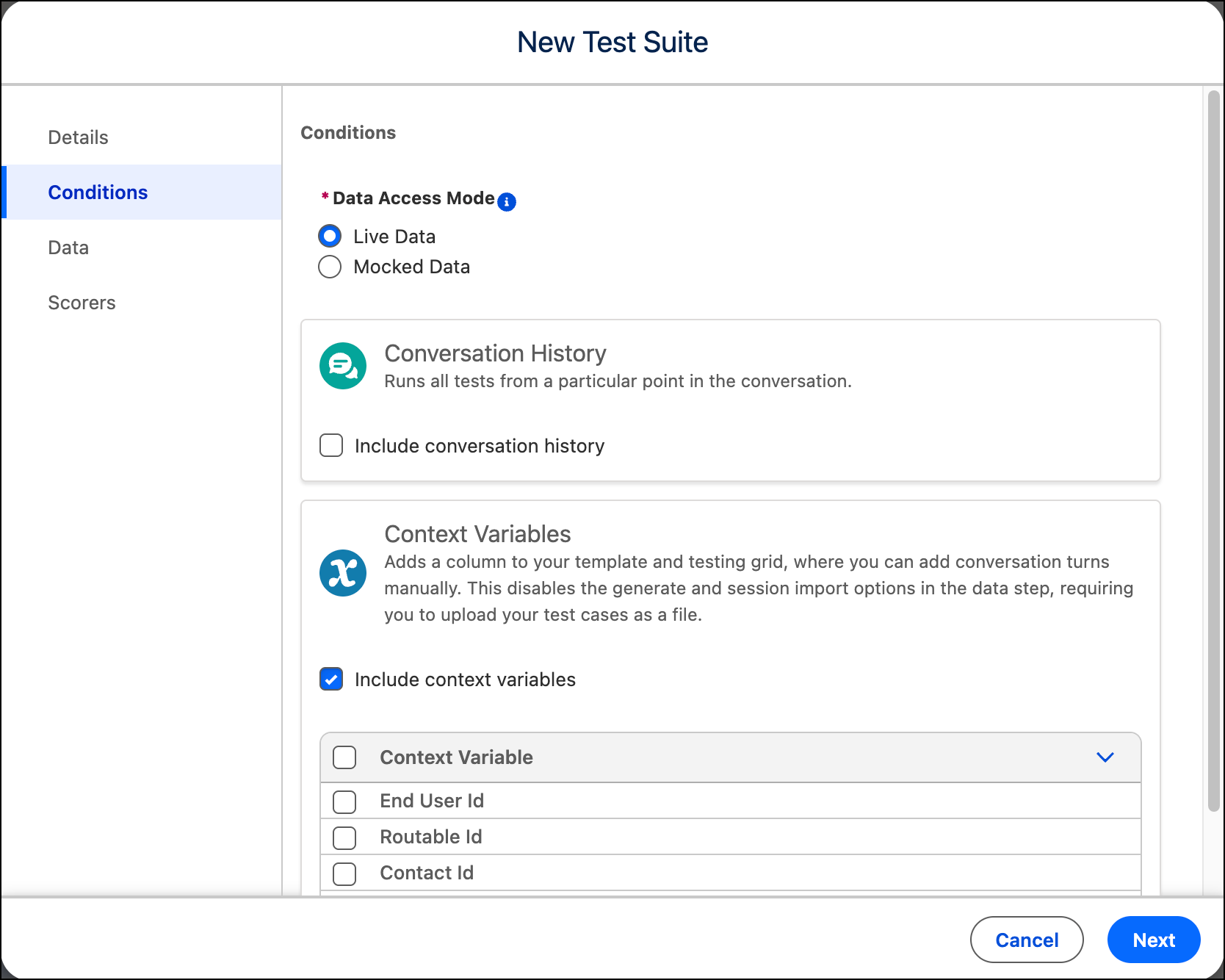
- Live data. Runs your tests against your active Salesforce environment, including real CRM data, actions, and external service connections. Because the agent behaves exactly as it would in production, live data testing is the most reliable way to catch issues with system latency, cross-service dependencies, and data retrieval before you deploy. Use live data for final validation and pre-deployment sign-off.
- Mocked data. Runs your tests in an isolated environment that doesn't connect to external services or affect your active org. This makes it faster and safer to iterate: you can test conversation logic, refine instructions, and run repeated test cycles without worrying about side effects or consuming live service calls. Use mocked data when you're still developing or refining your agent.
 Note Conversation-level testing doesn't support mocked data or context variables. If either is selected, only the text output is supported.
 - To add a conversation history to your tests, select Include conversation history. A column is added for the conversation to your CSV template, where you can add the utterances that you want to test.
- To test your agent against specific scenarios or related data, select Include context variables and then select the fields you want to include. Context variables map to fields on objects associated with the agent and add details to your test cases that help simulate realistic conversations. For example, for SDR agent tests, you can include variables like Lead Name to generate test utterances with contextual details like customer name and company name. A column is added with these variables to your CSV template.
- Click Next.