
Add a preference or a detail about your work for an agent to remember, without waiting for the agent to learn it from a conversation.
Required Editions
| Available in: Lightning Experience |
| Available in: Enterprise, Performance, Unlimited, and Developer Editions. Required add-on licenses vary by agent type. |
Add one memory at a time. To add several memories at once from a file, use Import Memories.
When you add a memory, you choose who it's for. A memory for one agent is used only by that agent. A memory for All Agents is stored once as a user-level memory, and all of your agents can use it, including agents that you created earlier.

-
Click the Agentforce icon to launch Agentforce.
The Agentforce icon appears in the global header on all pages when Agentforce is enabled for your org.
- From the Agentforce panel, click Memory & Preferences.
-
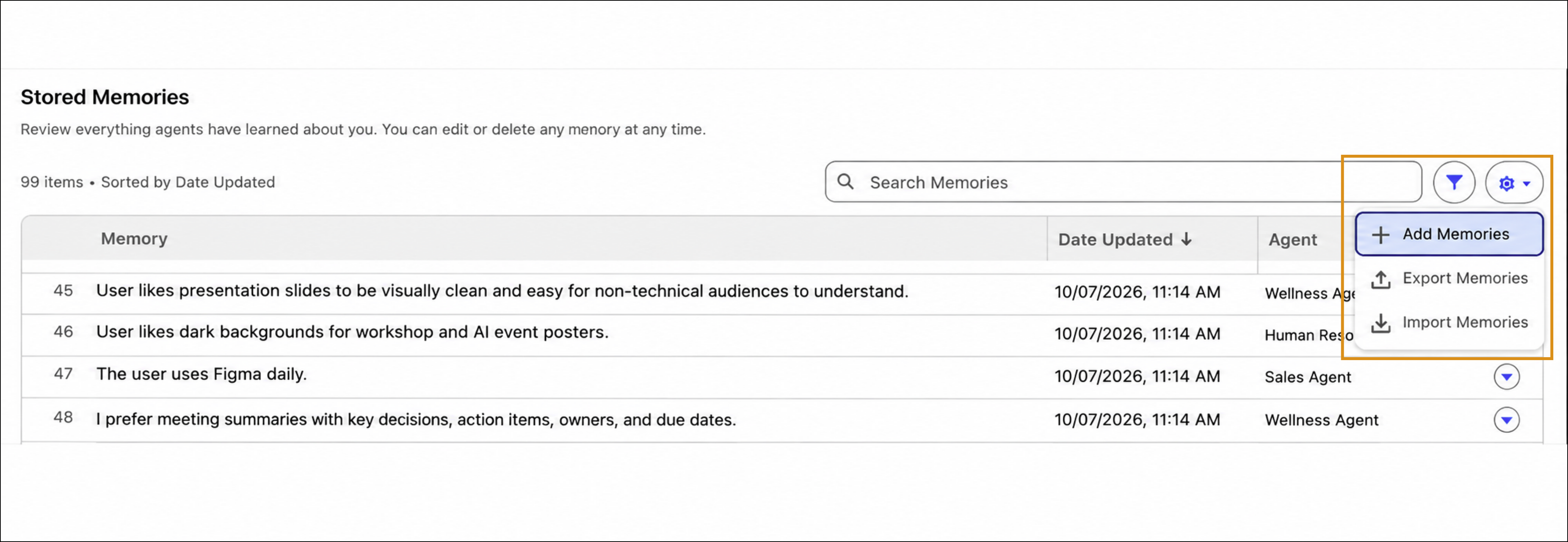
In Stored Memories, click the settings icon, and select
Add Memories.
-
For Choose Agent, select who the memory is for.
Select All Agents, the default, for information that applies to every agent, such as your role or your preferred language. Select a specific agent for details that apply only to that agent's work.
-
In Memory, enter what you want the agent to remember.
For example, enter a preference or a detail about your work, such as
I prefer
            meeting summaries with key decisions, action items, owners, and due
            dates.
You can enter up to 1,333 characters. If your memory is longer, shorten it and try again.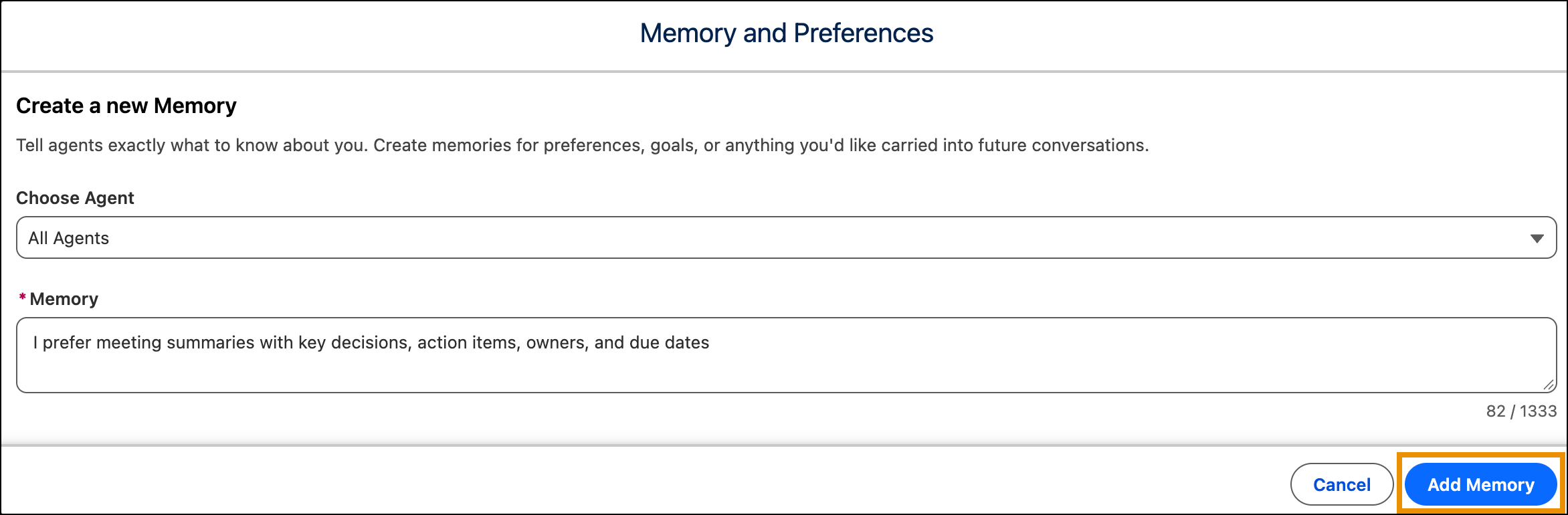
- Click Add Memory.
The memory appears in your Stored Memories list. When you view the memories for all of your agents, scroll down to see more. The list keeps loading memories as you scroll.
If you add a memory that's already in your Stored Memories list, the original stays and Agentforce doesn't create a duplicate, even though a success message appears. You don't need to add it again.