Create a connection to a third-party MCP server. Allowlist the server tools that you want to use with your agents.
Required Editions
| Available in: Lightning Experience |
| Available in: Enterprise, Performance, Unlimited, and Developer Editions. Required add-on licenses vary by agent type. |
| User Permissions Needed | |
|---|---|
| To register an MCP server: | Manage AI Agents, CustomizeApplication, AND the required permissions for your agent type |
- From Setup, in the Quick Find box, enter Agentforce, and then select Agentforce Registry.
- Click New. You can register a server from scratch or browse and install pre-packaged servers from AgentExchange.
- Enter a server name, description, and URL.
-
Select an authentication method.
- For No Authentication, skip to the next step.
- For OAuth 2.0, specify these fields.
You can usually find this information in your identity provider’s settings or documentation, or in the documentation for the MCP server you’re registering.
- Identity Provider URL: The authorization server endpoint for authentication requests. If you’re registering a server from AppExchange that uses OAuth 2.0, the system fills this field automatically and you can’t change it.
- Scope (optional): List of permissions that the MCP server requires for the client to access tools and APIs. Formatted as a comma-separated list. If you’re registering a server from AppExchange that uses OAuth 2.0, the system fills this field automatically and you can't change it.
- Client ID: The unique ID of the MCP server. This ID is used to request access via the authorization server.
- Client Secret: A password known only to the MCP server
and the authorization server. Used to authenticate the MCP server when requesting
access tokens. Keep this information secure.
Example: OAuth 2.0 PayPal’s MCP server uses OAuth 2.0 to establish a secure connection between an MCP client and PayPal’s MCP server. In the OAuth 2.0 protocol, the client exchanges their client ID and client secret for an access token.
- The URL for the PayPal MCP server is
https://mcp.paypal.com/http. - The identity provider URL is
https://api-m.sandbox.paypal.com/v1/oauth2/token. - PayPal’s developer documentation provides a list of common scopes for
accessing PayPal APIs.
PayPal defines scopes in URL format. However, you can write scopes in any string format (for example, “read” or “services-payment-refund”). Check the documentation for your MCP server for specifics.
- PayPal’s MCP server documentation provides steps for how to use a PayPal account client ID and client secret.
- The URL for the PayPal MCP server is
- For Use External Credential, select an external credential
that provides per-user authentication. In this authentication method, end users access
the server with their own credentials instead of using a system-to-system OAuth 2.0
client credentials connection. (Users must be Salesforce-authenticated at run time to
access tools on the MCP server.) For an overview, see Named Credentials in Salesforce Help and the
Get Started with Named Credentials in our
developer documentation.
- To create an external credential, click New External
Credential to open the Named Credentials page in a new browser tab.
Then, follow the steps under Create or Edit an External Credential for
a supported authentication protocol:
- no authentication (see Create or Edit a No Authentication External Credential)
- OAuth (see Create or Edit an OAuth External Credential with the Client Credentials with Client Secret Flow or Create or Edit an OAuth External Credential with the Browser Flow)
 Note
Note- After adding the external credential, click the refresh icon (
 ) next to the External Credential field so
that the new credential appears in the list.
) next to the External Credential field so
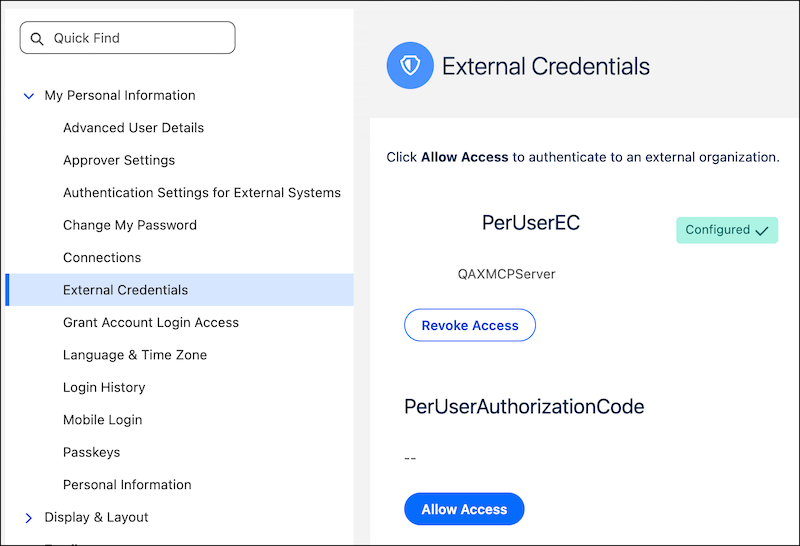
that the new credential appears in the list. - If you create the named credential in Setup > Named Credentials instead, be sure to complete the configuration. Add a principal with the per-user identity type. Authenticate with your login credentials and then, under My Personal Information > External Credentials, click Allow Access for the external credential you created. Finally, enable the permission set in Setup (Permission Sets > External Credential Principal Access).
- Select the external credential from the list of available external credentials. There are three states for Authentication Status. Configured is required before you can proceed to register the MCP server.
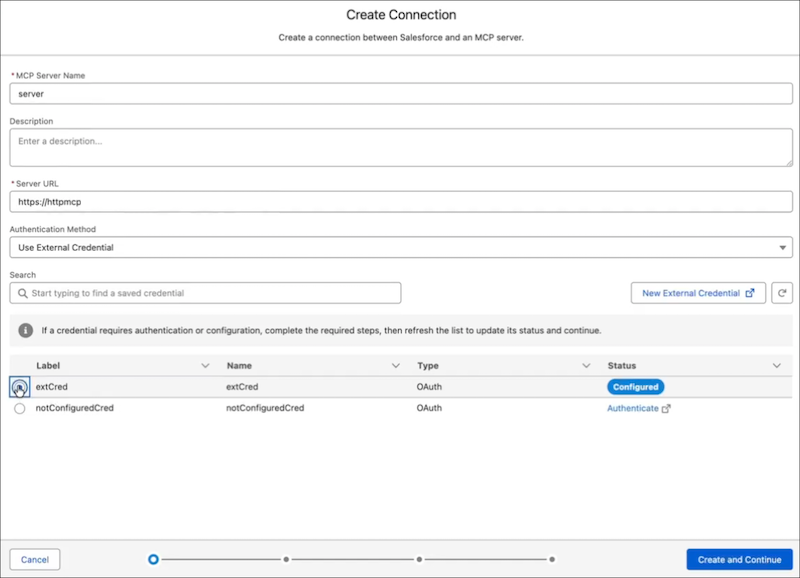
- Configured: Successfully configured and authenticated.
- Authenticate: Configured but not yet authenticated.
Select Authenticate, login in with your username and password, and select
Allow to authorize Salesforce to authenticate with your logged-in credentials.
Click the refresh icon () to update the status.
- Configure: Not yet configured or authenticated.
Select Configure and complete the set up steps. When done, click the refresh
icon () to update the status.
- To create an external credential, click New External
Credential to open the Named Credentials page in a new browser tab.
Then, follow the steps under Create or Edit an External Credential for
a supported authentication protocol:
-
Click Create and Continue.
Salesforce creates a connection with the server and sends a ping to validate the connection.When you create the connection, Salesforce creates a named credential, external credential, and permission set for you so that Salesforce can authenticate with your server. The system automatically assigns you a permission set (“ServerName Permission Set”), which permits you to manage the server.
-
After creating your connection, select the server tools you want agents to be able to
use. Then click Allow and Continue.
Allow only tools that you trust. Before allowlisting, carefully review tool names and descriptions to make sure that you understand their function and scope. If you see a warning that one or more tool descriptions contain bidirectional or decorative Unicode characters, invisible characters, or multiple languages or scripts, consider these tools to be high risk. If you have any concerns, before allowlisting, copy and paste the tool descriptions into a text editor and manually review them.
-
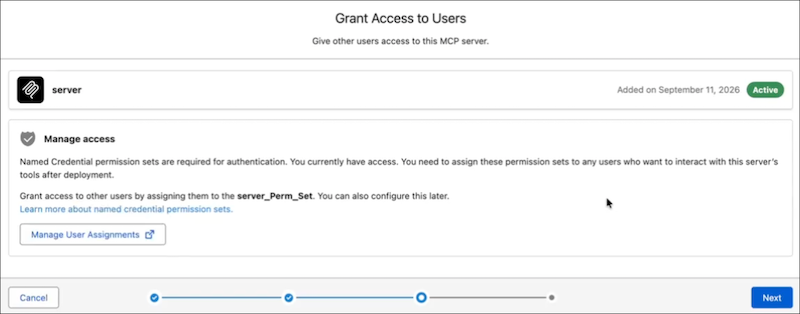
If External Credential is your authentication method (only for Agentforce Employee
agents), assign the applicable permission set to users who want to interact with this
server's tools. To assign users now, select Manage User Assignments
and assign this permission set to one or more users. For instructions, see Manage Permission Set Assignments.
- Optionally, if you’ve created any policies for MCP servers in Agentforce Gateway that are available to add manually, you can apply them to your server. If your server meets the conditions for any rule-based MCP server policies you’ve created, then policies are applied automatically.
- Save your changes.
After you save, the system adds the MCP server tools you selected to the asset library as agent actions and are available to add to an agent.
To view the MCP tool actions available to add
to an agent, from Setup, in the Quick Find box, enter Agentforce, and then select
Agentforce Assets. Select the Actions tab.
Tool actions follow the naming pattern “Tool Name ServerName” and are indicated by the
 icon. If you don’t see an agent action associated with your MCP tool, refresh the
page.
icon. If you don’t see an agent action associated with your MCP tool, refresh the
page.

User Experience with Per-User Authentication
The first time a user attempts to access a tool on the MCP server, they’re prompted to provide their user credentials and to allow Salesforce to access the tool using their credentials.
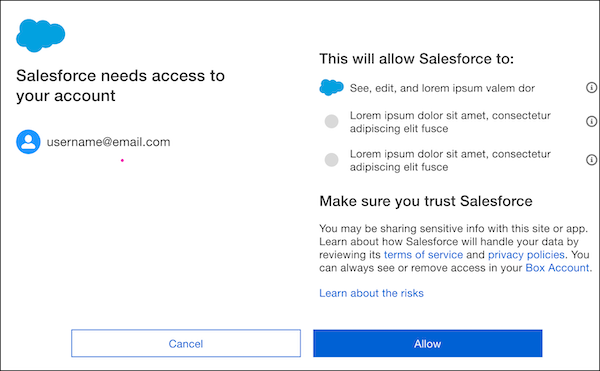
- If a user’s OAuth credentials expire, they’re prompted to resubmit their credentials.
- Users can manually allow or revoke per-user external credential authorization under
their My Personal Information section.