
Add a new Telephony connection to your agent in the Agentforce Builder. The telephony connection optimizes the agent for handling voice calls using your telephony solution.
Required Editions
| Available in: Lightning Experience |
| Available in: Enterprise, Unlimited, and Developer Editions with Foundations or Agentforce 1 Editions, and Salesforce Voice add-ons. |
| User Permissions Needed | |
|---|---|
| To build and manage Service Agents: |
Manage Agentforce Service Agents AND Manage AI Agents OR Customize Application |

Important
You can no longer create a new voice-enabled agent in the legacy Agentforce Builder. In addition, the legacy Builder has limited capabilities such as language support for existing voice agents. For best experience, upgrade your existing voice-enabled agent to the new builder.
Add a Telephony Connection in Agentforce Builder
- From the App Launcher, enter Agent, and then select the Agentforce Studio app. On the Agents tab, click the name of your agent.
-
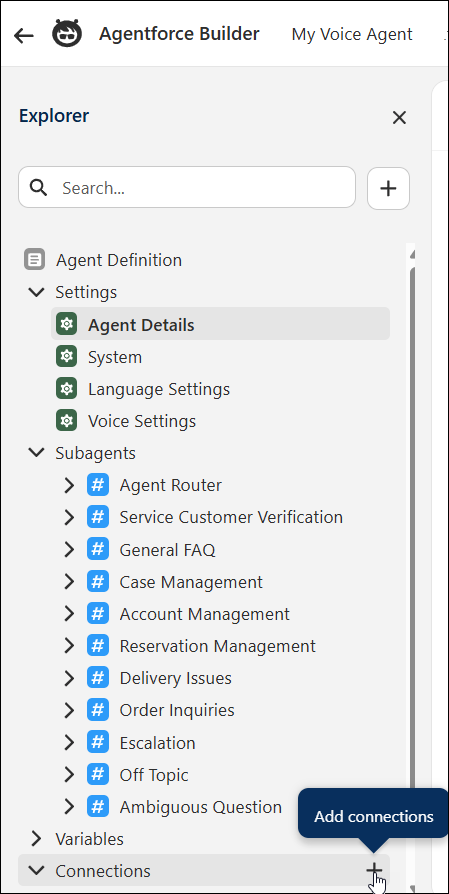
In the Explorer panel, under connections, click Add Connection.
-
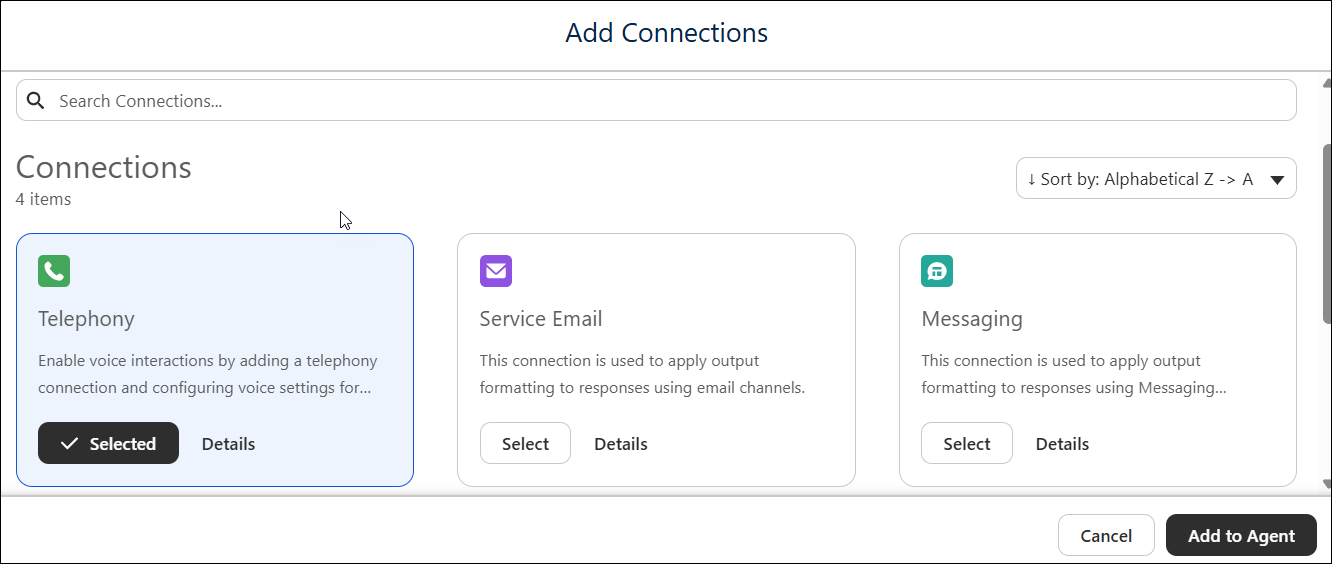
In the Add Connections window, select Telephony and then click
Add to Agent.
- You’ll be prompted to verify the default language for the agent as specified under language settings to match the language used for voice. Click ok to add the connection to the agent.
- In the Explorer panel, under Agent Definition Settings, select Language Settings and set the default language or allowed languages to a supported language for voice. For a list of languages supported for voice-enabled agents, see Agentforce Voice Considerations.
- In the Explorer panel, under Agent Definition Settings, select Voice Settings, and customize the voice to your requirements.